Skip to content

TechDirectArchive

Hands-on IT, Cloud, Security & DevOps Insights

  • Home
  • About
  • Advertise With US
  • Reviews
  • Contact
  • Toggle search form
Home » AWS/Azure/OpenShift » Setting Up your Amazon S3 Glacier and FastGlacier for Your Online Vault
  • images 5
    How to Set Up a WatchGuard XTM and Access WSM Network | Monitoring
  • banner
    Prevent Microsoft Edge from sending your Search data to Microsoft Windows
  • images 3 4
    What are the differences between an ADM and ADMX file Windows Server
  • Windows10 11
    Block Upgrade to Windows 11 via Group Policy or Registry Windows
  • VMware
    The validation process found problems on the server to which you want to install features, the features are not compatible with the current configuration of your server Virtualization
  • Review of Stellar Repair for Outlook
    A Review of Stellar Repair for Outlook Reviews
  • Azure logo
    Microsoft Azure Active Directory: How to setup Azure AD Tenant AWS/Azure/OpenShift
  • requestedlogon
    Error 1385: The user has not been granted the requested logon type at this time Network | Monitoring

Setting Up your Amazon S3 Glacier and FastGlacier for Your Online Vault

Posted on 10/11/202130/09/2023 Temitope Odemo By Temitope Odemo No Comments on Setting Up your Amazon S3 Glacier and FastGlacier for Your Online Vault
Setting Up your Amazon S3 Glacier and FastGlacier for Your Online Vault

With an Amazon S3 Glacier you can have secure, durable, and low-cost Amazon S3 storage for any of your data archiving and a long-term backup plan. This service gives customers an avenue to store their data for months, years, or decades at a very reduced cost. With S3 Glacier you can offload the burdens of operating and scaling the storage to AWS, you don’t have to worry about capacity planning, hardware provisioning, data replication, and many more as it is fully managed by AWS. S3 Glacier is one of the different storage classes under Amazon S3.

If you want to read more on Amazon S3 you can check on these related topics Hosting Static Website and Versioning on AWS S3 and How to deploy an Angular App to AWS S3. FastGlacier is a freeware Windows Client for Amazon S3 Glacier which allows you to upload files to Amazon Glacier using full bandwidth you can also use it to download files from Amazon Glacier and manage your vault easily.

Please note that before you can start setting up your Amazon S3 Glacier, you must sign up for an AWS account and be an admin user. In this guide, we already created an AWS account with an admin user. But if you want to know how to set up an AWS account with IAM you can check this Creating IAM Users, Adding MFA and Policies on AWS

Setup an Amazon S3 Glacier Vault

Now let’s create a vault

You can sign into your account and using the AWS Management Console open the S3 Glacier console at https://console.aws.amazon.com/glacier/.

If this is your first time using S3 Glacier, click Get started or Create Vault.

Create Amazon S3 Glacier vault

Go ahead and select an AWS Region from the Region selector. In this guide, we will be using EU (Paris) Region. Enter the vault name in the Vault Name field and then click Next Step.
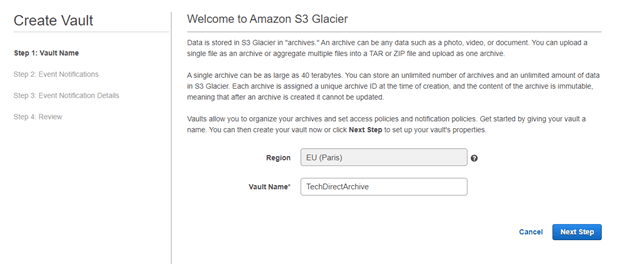
Next Step
Creating the Vault

You can choose to activate the Amazon Simple Notifications Service (SNS) to have notifications sent to you or your application whenever certain S3 Glacier jobs are complete. For this guide, we will not configure notifications for the vault. Select Do not enable notifications.

Make sure the AWS Region and vault name are correct, then click Submit.
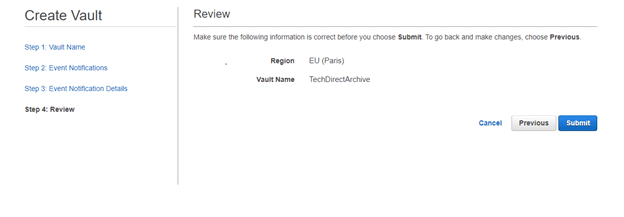
review Vault then Submit
Vault Creation Review

Your new vault will be displayed on the S3 Glacier Vaults page.
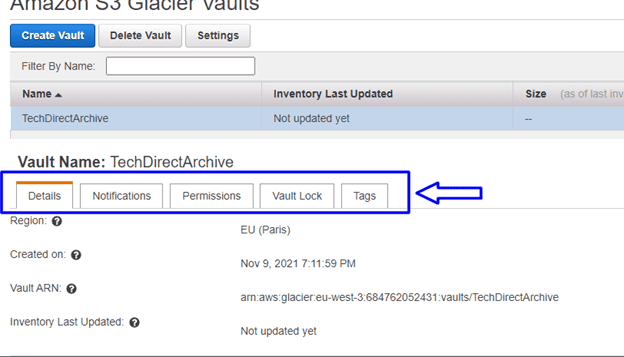
Amazon S3 Glacier Vault Page

You can set a Vault access policy to be able to manage permissions on your vault account.
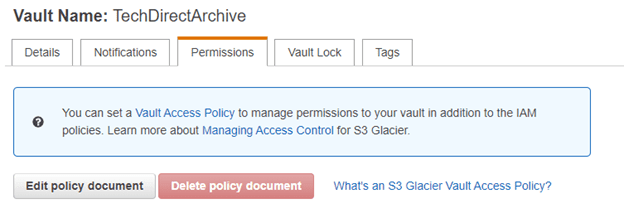
image-4
Setting Permissions for your Vault

You can create a Vault lock policy to enforce compliance controls and automate actions on your vault account.
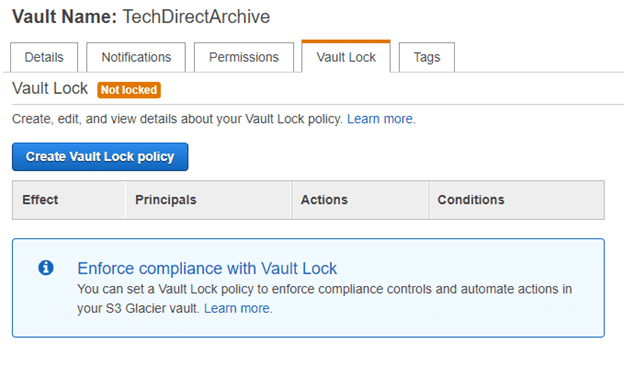
image-5
Enforcing Vault Lock

When setting permissions to your IAM user you can either Add a user to a group, Copy permissions from an existing user or Attach existing policies directly. But in this guide, we will be using the latter with the policy name AmazonGlacierFullAccess
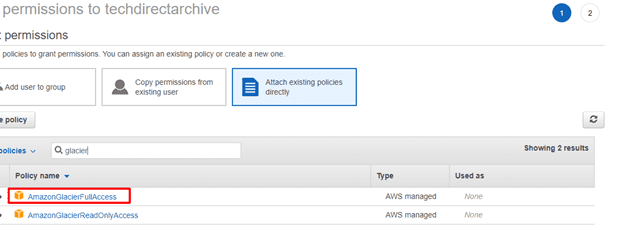
image-6
Setting your IAM Policy

Install FastGlacier

Install FastGlacier and launch the application and create a new account. In the IAM user section copy the Access Key ID and Secret Access Key and insert it into FastGlacier. Click Add new account.
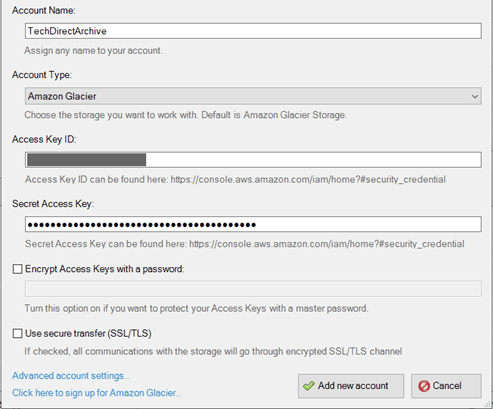
image-7
Setting up your FastGlacier Account

You will need to locate your Region and confirm that your Vault is showing. You can Upload, Download, Delete and create New Folder for your Vault.
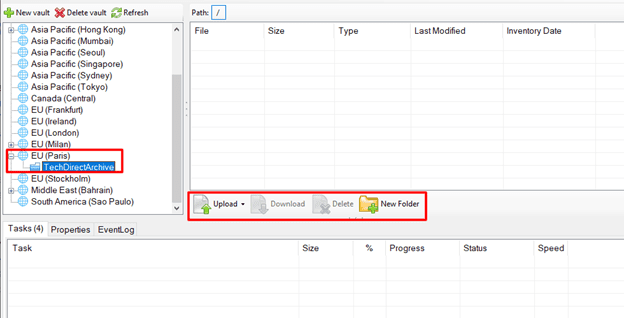
image-8
Locating your Region and Vault on FastGlacier
  • When you click on the Upload button you can either select Upload file(s) or Upload Folder to move your files to Amazon Glacier.
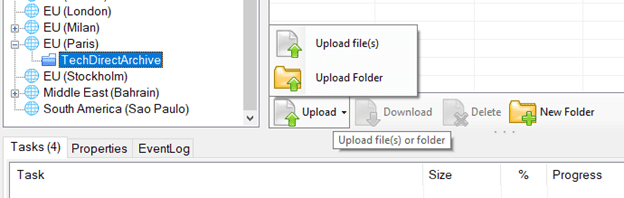
image-9
Uploading your Files or Folder to Amazon Glacier

You can also delete your Vault via FastGlacier
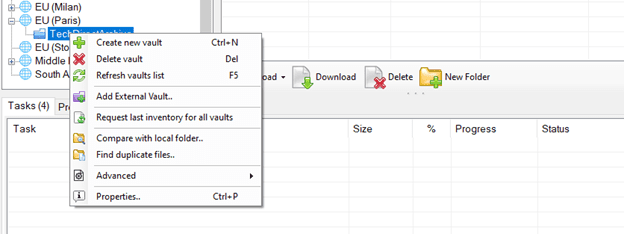
image-10
Creating New Vault and Deleting Vault

I hope you found this blog post on Setting Up your Amazon S3 Glacier and FastGlacier for Your Online Vault very interesting and helpful. In case you have any questions do not hesitate to ask in the comment section.

Rate this post

Thank you for reading this post. Kindly share it with others.

  • Click to share on X (Opens in new window) X
  • Click to share on Reddit (Opens in new window) Reddit
  • Click to share on LinkedIn (Opens in new window) LinkedIn
  • Click to share on Facebook (Opens in new window) Facebook
  • Click to share on Pinterest (Opens in new window) Pinterest
  • Click to share on Tumblr (Opens in new window) Tumblr
  • Click to share on Telegram (Opens in new window) Telegram
  • Click to share on WhatsApp (Opens in new window) WhatsApp
  • Click to share on Pocket (Opens in new window) Pocket
  • Click to share on Mastodon (Opens in new window) Mastodon
  • Click to share on Bluesky (Opens in new window) Bluesky
  • Click to share on Threads (Opens in new window) Threads
  • Click to share on Nextdoor (Opens in new window) Nextdoor
AWS/Azure/OpenShift Tags:AWS, s3

Post navigation

Previous Post: RPORT the free and open source remote management tool
Next Post: Create and monitor Apps using the Azure Kubernetes Service manifest

Related Posts

  • images 5 3
    How to uninstall AWS CLI in Windows AWS/Azure/OpenShift
  • AZMFeature
    Performance and Diagnostics in Microsoft Cloud with Azure Monitor AWS/Azure/OpenShift
  • image 81
    How to Deploy Dynamic Website to AWS EC2 AWS/Azure/OpenShift
  • feature image app services
    How to Migrate Azure Web Apps AWS/Azure/OpenShift
  • Generate SSH Keys
    Associate SSH Public key with Azure Linux VM AWS/Azure/OpenShift
  • s3versioning
    Hosting Static Website and Versioning on AWS S3 AWS/Azure/OpenShift

More Related Articles

images 5 3 How to uninstall AWS CLI in Windows AWS/Azure/OpenShift
AZMFeature Performance and Diagnostics in Microsoft Cloud with Azure Monitor AWS/Azure/OpenShift
image 81 How to Deploy Dynamic Website to AWS EC2 AWS/Azure/OpenShift
feature image app services How to Migrate Azure Web Apps AWS/Azure/OpenShift
Generate SSH Keys Associate SSH Public key with Azure Linux VM AWS/Azure/OpenShift
s3versioning Hosting Static Website and Versioning on AWS S3 AWS/Azure/OpenShift

Leave a Reply Cancel reply

You must be logged in to post a comment.

Microsoft MVP

VEEAMLEGEND

vexpert-badge-stars-5

Virtual Background

GoogleNews

Categories

veeaam100

sysadmin top30a

  • images 5
    How to Set Up a WatchGuard XTM and Access WSM Network | Monitoring
  • banner
    Prevent Microsoft Edge from sending your Search data to Microsoft Windows
  • images 3 4
    What are the differences between an ADM and ADMX file Windows Server
  • Windows10 11
    Block Upgrade to Windows 11 via Group Policy or Registry Windows
  • VMware
    The validation process found problems on the server to which you want to install features, the features are not compatible with the current configuration of your server Virtualization
  • Review of Stellar Repair for Outlook
    A Review of Stellar Repair for Outlook Reviews
  • Azure logo
    Microsoft Azure Active Directory: How to setup Azure AD Tenant AWS/Azure/OpenShift
  • requestedlogon
    Error 1385: The user has not been granted the requested logon type at this time Network | Monitoring

Subscribe to Blog via Email

Enter your email address to subscribe to this blog and receive notifications of new posts by email.

Join 1,836 other subscribers
  • RSS - Posts
  • RSS - Comments
  • About
  • Authors
  • Write for us
  • Advertise with us
  • General Terms and Conditions
  • Privacy policy
  • Feedly
  • Telegram
  • Youtube
  • Facebook
  • Instagram
  • LinkedIn
  • Tumblr
  • Pinterest
  • Twitter
  • mastodon

Tags

Active Directory AWS Azure Bitlocker Microsoft Windows PowerShell WDS Windows 10 Windows 11 Windows Server 2016

Copyright © 2025 TechDirectArchive


Loading Comments...
 

You must be logged in to post a comment.