Skip to content

TechDirectArchive

Hands-on IT, Cloud, Security & DevOps Insights

  • Home
  • About
  • Advertise With US
  • Reviews
  • Contact
  • Toggle search form
Home » Windows » How to import SSL Certificate to Windows Server using DigiCert Utility
  • HypervDisplay
    How to fix HyperV Virtual Machine display taking over the entire screen Windows
  • acctlockout 1
    Configure Local Administrators Account lockout Windows
  • fallocate
    What the Fallocate command does Linux
  • enable WinRM
    WSManFault Message 2144108526 0x80338012: Fix the client cannot connect to the destination specified in the request Windows Server
  • screenshot 2020 03 20 at 00.44.47
    How to check if homebrew is installed on macOS Mac
  • How to pause updates and why
    How to Pause Windows Update via Windows Settings Windows
  • The Port used for the Virtualhost is not an Apache Listen Port
    Fix the Port used for the Virtualhost is not an Apache Listen Port Web Server
  • Norton iOS Calender
    Scan Apple Calendar: Prevent Norton from scanning your Apple Calendar on iOS Anti-Virus Solution

How to import SSL Certificate to Windows Server using DigiCert Utility

Posted on 19/11/202125/08/2023 Temitope Odemo By Temitope Odemo No Comments on How to import SSL Certificate to Windows Server using DigiCert Utility
SSL Certificate

The free DigiCert Certificate Utility for Windows is a very good and indispensable tool for administrators and a must-have for anyone that uses SSL Certificates for Websites and servers or Code Signing Certificates for trusted software. This is a globally accepted tool that you can use for certificate management and various certificate troubleshooting. It is very easy to configure and has a straightforward approach to usage.

You can read more related guides: Enable LDAP over SSL with a Third-party Certification Authority such as DigiCert, Generate a self-signed SSL certificate: How to enable LDAP over SSL with a self-signed certificate, How to use the DigiCert Certificate Utility for Windows to create a CSR and Generating your Trial SSL Certificate for private IP using DigiCert PKI Platform.

Follow these Steps to Import Your SSL Certificate with the DigiCert Utility

  • However, You can buy or request for trial SSL Certificate from DigiCert and follow this guide Generating your Trial SSL Certificate for Private IP using DigiCert PKI Platform on requesting for a trial SSL Certificate.
  • On the Windows Server where you created the CSR, save the generated SSL certificate e.g Your_SSL_CERT.cer to the same folder you saved the DigiCert Certificate Utility executable (DigiCertUtil.exe).
  • Run the DigiCert Certificate Utility.
  • In the DigiCert Certificate Utility for Windows, click SSL and then, click Import.
Windows Server
Importing your SSL Certificate

Moreover, Enter a new friendly name or type a unique name in the default box to identify the certificate.
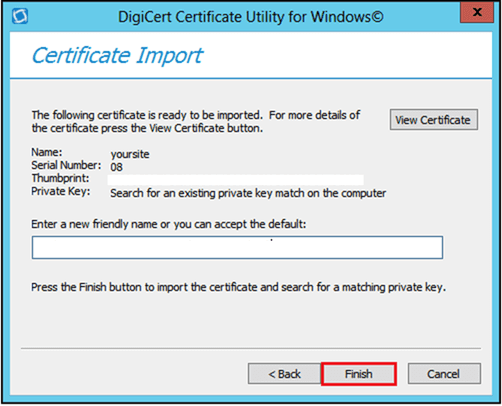
DigiCert Utility
Entering a new friendly name
  • click Finish to complete the certification import.
  • Nonetheless, If the certificate is valid, the system will display a successful message confirming the import and showing the SSL Certificate on the DigiCert Certificate Utility for Windows.
image-72
Certificate Imported
  • After successfully installing the SSL certificate, assign the certificate to the appropriate site, such as IIS.

I hope you found this blog post very interesting and helpful for importing your SSL Certificate to your Windows Server using DigiCert Utility. Furthermore, If you have any questions, do not hesitate to ask in the comment section.
Rate this post

Thank you for reading this post. Kindly share it with others.

  • Click to share on X (Opens in new window) X
  • Click to share on Reddit (Opens in new window) Reddit
  • Click to share on LinkedIn (Opens in new window) LinkedIn
  • Click to share on Facebook (Opens in new window) Facebook
  • Click to share on Pinterest (Opens in new window) Pinterest
  • Click to share on Tumblr (Opens in new window) Tumblr
  • Click to share on Telegram (Opens in new window) Telegram
  • Click to share on WhatsApp (Opens in new window) WhatsApp
  • Click to share on Pocket (Opens in new window) Pocket
  • Click to share on Mastodon (Opens in new window) Mastodon
  • Click to share on Bluesky (Opens in new window) Bluesky
  • Click to share on Threads (Opens in new window) Threads
  • Click to share on Nextdoor (Opens in new window) Nextdoor
Windows, Windows Server Tags:SSL, ssl certificate

Post navigation

Previous Post: What are the differences between dnf and apt package managers?
Next Post: How to enable LDAP over SSL with a third-party Certificate such as DigiCert

Related Posts

  • ssl 600x315 1 1
    Components needed to create a certificate signing request Windows Server
  • Featured image 2
    5 Steps to Fix Outlook continually prompts for passwords Windows
  • article 1280x720.192a2586 1
    How to remove an MDT Deployment Share Windows Server
  • ansible business cards 1600x0 c default
    Kerberos error: Clock skew too great while getting initial credentials Windows Server
  • screenshot 2020 04 27 at 13.30.17
    What are the differences between a Role and a Feature Windows Server
  • screenshot 2020 04 17 at 17.09.01
    How to configure a remote Windows Server to Support Ansible Windows Server

More Related Articles

ssl 600x315 1 1 Components needed to create a certificate signing request Windows Server
Featured image 2 5 Steps to Fix Outlook continually prompts for passwords Windows
article 1280x720.192a2586 1 How to remove an MDT Deployment Share Windows Server
ansible business cards 1600x0 c default Kerberos error: Clock skew too great while getting initial credentials Windows Server
screenshot 2020 04 27 at 13.30.17 What are the differences between a Role and a Feature Windows Server
screenshot 2020 04 17 at 17.09.01 How to configure a remote Windows Server to Support Ansible Windows Server

Leave a Reply Cancel reply

You must be logged in to post a comment.

Microsoft MVP

VEEAMLEGEND

vexpert-badge-stars-5

Virtual Background

GoogleNews

Categories

veeaam100

sysadmin top30a
 
  • HypervDisplay
    How to fix HyperV Virtual Machine display taking over the entire screen Windows
  • acctlockout 1
    Configure Local Administrators Account lockout Windows
  • fallocate
    What the Fallocate command does Linux
  • enable WinRM
    WSManFault Message 2144108526 0x80338012: Fix the client cannot connect to the destination specified in the request Windows Server
  • screenshot 2020 03 20 at 00.44.47
    How to check if homebrew is installed on macOS Mac
  • How to pause updates and why
    How to Pause Windows Update via Windows Settings Windows
  • The Port used for the Virtualhost is not an Apache Listen Port
    Fix the Port used for the Virtualhost is not an Apache Listen Port Web Server
  • Norton iOS Calender
    Scan Apple Calendar: Prevent Norton from scanning your Apple Calendar on iOS Anti-Virus Solution

Subscribe to Blog via Email

Enter your email address to subscribe to this blog and receive notifications of new posts by email.

Join 1,841 other subscribers
  • RSS - Posts
  • RSS - Comments
  • About
  • Authors
  • Write for us
  • Advertise with us
  • General Terms and Conditions
  • Privacy policy
  • Feedly
  • Telegram
  • Youtube
  • Facebook
  • Instagram
  • LinkedIn
  • Tumblr
  • Pinterest
  • Twitter
  • mastodon

Tags

AWS Azure Bitlocker Microsoft Windows PowerShell WDS Windows 10 Windows 11 Windows Deployment Services Windows Server 2016

Copyright © 2025 TechDirectArchive


Loading Comments...
 

You must be logged in to post a comment.