Skip to content

TechDirectArchive

Hands-on IT, Cloud, Security & DevOps Insights

  • Home
  • About
  • Advertise With US
  • Reviews
  • Contact
  • Toggle search form
Home » Windows » How to fix unable to find compatible TPM
  • images copy
    How to disable automatic screen lock in Ubuntu Linux Linux
  • whois4578uh
    How to get Domain information using WHOIS Command in Linux Linux
  • systemd services
    How to use Systemd Timers on Linux Linux
  • Stop teams from auto start
    Prevent Microsoft Teams from starting automatically on Windows Windows
  • Emulate Cisco Router with GNS3
    How to make a router function as a switch in GNS3 Network | Monitoring
  • ad lds 832x400 1
    Active Directory Lightweight Directory Services [AD LDS] Windows Server
  • Generate SSH Keys
    Associate SSH Public key with Azure Linux VM AWS/Azure/OpenShift
  • Banner
    How to Stop OneDrive from Starting Up Automatically on Windows 11 Windows

How to fix unable to find compatible TPM

Posted on 03/02/202217/07/2024 Christian By Christian No Comments on How to fix unable to find compatible TPM
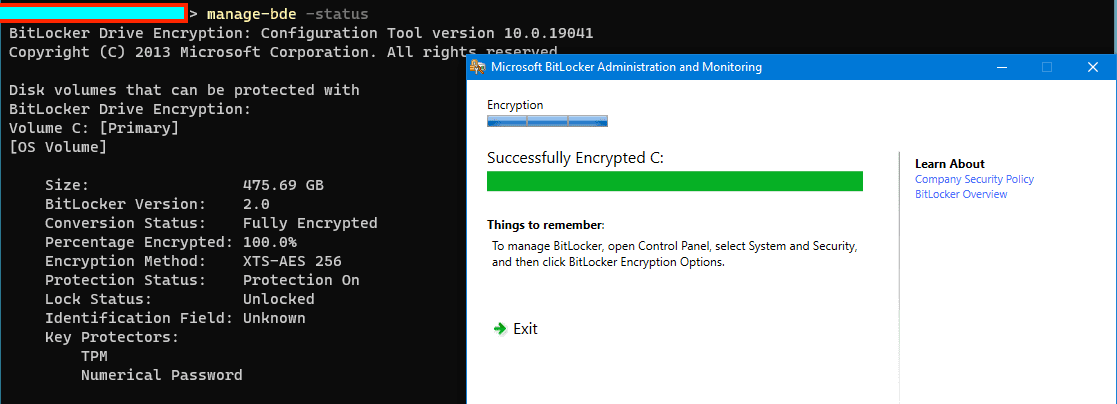
Trust Platform Module

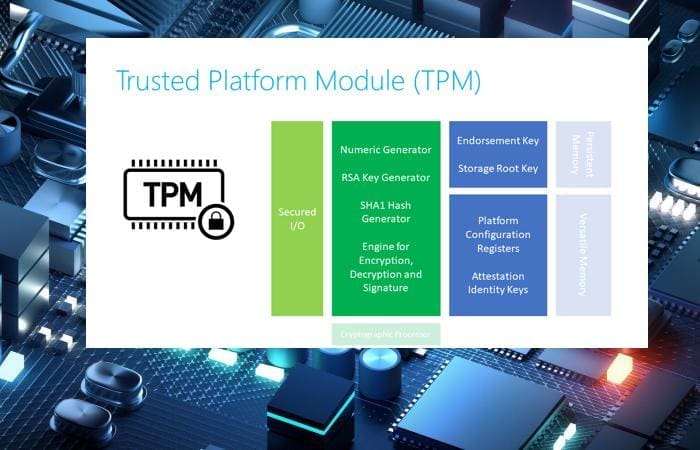
The TPM Chip, also known as the Trusted Platform Module is a hardware security module on your motherboard, designed by the Trusted Computing Group Consortium. It is designed to provide hardware-based, and security-related functions. In this article, I will show you how to fix unable to find compatible TPM. Kindly refer to the following TPM-related guides: How to upgrade Windows 10 with an unsupported CPU and TPM 1.0 to Windows 11​, and how to Install Windows 11 in Oracle VirtualBox with no TPM Support, 

A TPM chip is a secure crypto-processor that is designed to carry out cryptographic operations. The chip includes multiple physical security mechanisms to make it tamper-resistant, and malicious software is unable to tamper with the security functions of the TPM.

Kindly refer to these related guides: How to determine if TPM is present and how to enable TPM in the BIOS via the Command Prompt, How to delegate permissions for backing up TPM password, and how to fix your device cannot use a Trusted Platform Module: Allow BitLocker without a compatible TPM.

Why this TPM error may happen

This error means that TPM has not been enabled in the BIOS. The image below is from the MBAM reports stating the device isn’t compliant and the reason for it.

Capture-01

Also, from the TPM snap-in. You would see a similar error showing that the TPM could not be found.
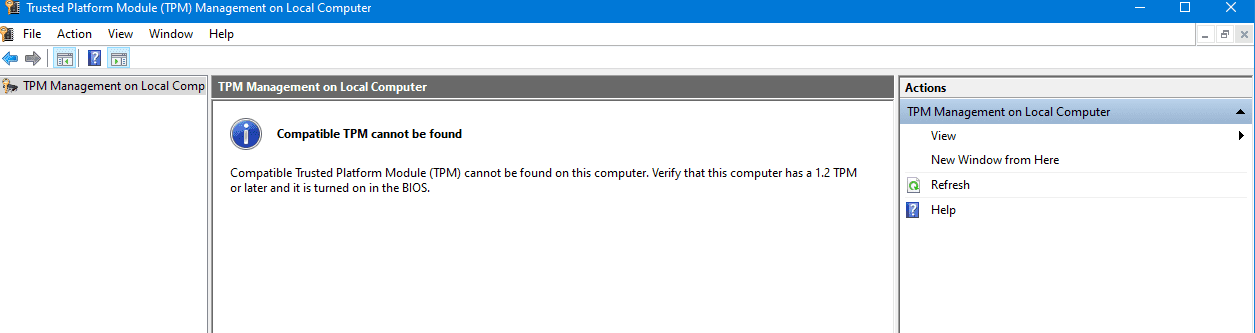
TPM error saying Compatible TPM cannot be found

Here is an exciting article: How to delegate permissions for backing up TPM password, and How to clear the TPM via the management console or Windows Defender Center App.

How to resolve this TPM issue

MBAM reports might show a “compatible TPM not found” status. TPM error occurred due to inactive BIOS TPM or the absence of compatible TPM on the device.

To resolve this issue, however, is actually very simple. You will need to enable the TPM in the BIOS. Here are TPM guides to enhance your understanding: Learn TPM presence detection and BIOS-based TPM activation via Command Prompt.

To enable  TPM (Trusted Platform Module), follow the steps discussed below. Kindly refer to this guide for more information “how to clear, enable or disable TPM in Windows via the BIOS or UEFI“, and “How to clear the TPM via the management console or Windows Defender Center App“.

TPM enabled
  1. Boot computer using F2 into the BIOS setup mode
  2. Locate the “Security” option on the left and expand
  3. Locate the “TPM” option nested under the “Security” setting
  4. To activate TPM settings, mark the box labeled “TPM Security.” This enables encryption for the TPM hard drive security.
  5. To guarantee TPM functionality, activate the “Activate” radio button.
  6. Encryption won’t happen if TPM is ‘Deactivated‘ or TPM Security isn't enabled, until configuring these settings.
  7. Restarting is occasionally necessary to verify applied TPM changes.

Verifying the resolution of the TPM issue

After enabling TPM in the BIOS, several methods exist to confirm its activation.

You can check this via the following basic steps “Device Manager, and the TPM Management snap-in (tpm.msc), or via the Windows Settings”. Kindly take a look at this guide for other steps to determine if TPM is present on your device: How to check if you have Secure Boot and TPM enabled.

As shown below, the device is now encrypted, allowing the MBAM agent to proceed with drive encryption.
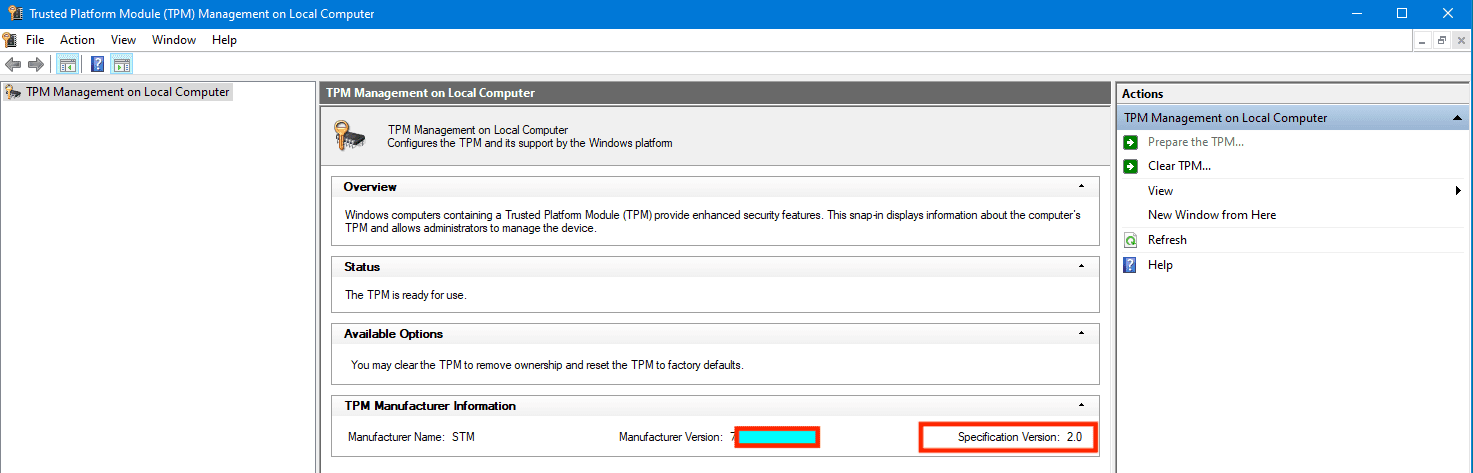
TPM enable, MBAM agent can now get device encrypted

Successfully encrypted device.

Drive successfully encrypted

FAQs

How many characters does the BitLocker key contain?

The recovery password consists of a 48 character numeric string that is generated and displayed by the system. This must be manually entered by the user to recover the volume. After being generated at set-up time, the recovery password can be viewed, saved locally or printed by the user and is sent to the AD server if required by Group Policy.

What happens when AD is not available when setting BitLocker up?

If AD is not available, and AD password saving is required (by policy). Then the BitLocker set-up is halted (stopped). If AD is not required and the user sees the Recovery Password Creation screen. He/she will need to click on one of the links (see the password, save it, print it) to actually generate the password.

I hope you found this blog post on How to fix unable to find compatible TPM helpful. If you have any questions, please let me know in the comment session.

5/5 - (1 vote)

Thank you for reading this post. Kindly share it with others.

  • Click to share on X (Opens in new window) X
  • Click to share on Reddit (Opens in new window) Reddit
  • Click to share on LinkedIn (Opens in new window) LinkedIn
  • Click to share on Facebook (Opens in new window) Facebook
  • Click to share on Pinterest (Opens in new window) Pinterest
  • Click to share on Tumblr (Opens in new window) Tumblr
  • Click to share on Telegram (Opens in new window) Telegram
  • Click to share on WhatsApp (Opens in new window) WhatsApp
  • Click to share on Pocket (Opens in new window) Pocket
  • Click to share on Mastodon (Opens in new window) Mastodon
  • Click to share on Bluesky (Opens in new window) Bluesky
  • Click to share on Threads (Opens in new window) Threads
  • Click to share on Nextdoor (Opens in new window) Nextdoor
Windows Tags:Bitlocker, BitLocker Status, MBAM, Microsoft BitLocker Administration and Monitoring, TPM, Windows 10, Windows 11

Post navigation

Previous Post: System check found some issues during MBAM encryption: Fail, the Power cable must be connected
Next Post: Install Docker Desktop and register GitLab-Runner with Docker-windows executor

Related Posts

  • Windows 10 1903 update 1
    view or change programs that run on startup on Windows Windows
  • Prevent Local Administrators from turning off BitLocker 1
    Prevent Local Administrators from managing BitLocker with the manage-bde command Windows
  • Chocolatey Packages
    Create Chocolatey Package: Upgrade Software with Chocolatey Scripts
  • banner 1
    How to fix Windows Microsoft Store not opening Windows
  • Slide1
    Enable Exploit Protection feature on Windows using the Windows Security App, Microsoft Endpoint Configuration Manager, and Group Policy Windows
  • Capture
    An account with the same name exists in Active Directory: Re-using the account was blocked by a security policy Security | Vulnerability Scans and Assessment

More Related Articles

Windows 10 1903 update 1 view or change programs that run on startup on Windows Windows
Prevent Local Administrators from turning off BitLocker 1 Prevent Local Administrators from managing BitLocker with the manage-bde command Windows
Chocolatey Packages Create Chocolatey Package: Upgrade Software with Chocolatey Scripts
banner 1 How to fix Windows Microsoft Store not opening Windows
Slide1 Enable Exploit Protection feature on Windows using the Windows Security App, Microsoft Endpoint Configuration Manager, and Group Policy Windows
Capture An account with the same name exists in Active Directory: Re-using the account was blocked by a security policy Security | Vulnerability Scans and Assessment

Leave a Reply Cancel reply

You must be logged in to post a comment.

Microsoft MVP

VEEAMLEGEND

vexpert-badge-stars-5

Virtual Background

GoogleNews

Categories

veeaam100

sysadmin top30a
 
  • images copy
    How to disable automatic screen lock in Ubuntu Linux Linux
  • whois4578uh
    How to get Domain information using WHOIS Command in Linux Linux
  • systemd services
    How to use Systemd Timers on Linux Linux
  • Stop teams from auto start
    Prevent Microsoft Teams from starting automatically on Windows Windows
  • Emulate Cisco Router with GNS3
    How to make a router function as a switch in GNS3 Network | Monitoring
  • ad lds 832x400 1
    Active Directory Lightweight Directory Services [AD LDS] Windows Server
  • Generate SSH Keys
    Associate SSH Public key with Azure Linux VM AWS/Azure/OpenShift
  • Banner
    How to Stop OneDrive from Starting Up Automatically on Windows 11 Windows

Subscribe to Blog via Email

Enter your email address to subscribe to this blog and receive notifications of new posts by email.

Join 1,841 other subscribers
  • RSS - Posts
  • RSS - Comments
  • About
  • Authors
  • Write for us
  • Advertise with us
  • General Terms and Conditions
  • Privacy policy
  • Feedly
  • Telegram
  • Youtube
  • Facebook
  • Instagram
  • LinkedIn
  • Tumblr
  • Pinterest
  • Twitter
  • mastodon

Tags

AWS Azure Bitlocker Microsoft Windows PowerShell WDS Windows 10 Windows 11 Windows Deployment Services Windows Server 2016

Copyright © 2025 TechDirectArchive


Loading Comments...
 

You must be logged in to post a comment.