Skip to content

TechDirectArchive

Hands-on IT, Cloud, Security & DevOps Insights

  • Home
  • About
  • Advertise With US
  • Contact
  • Reviews
  • Toggle search form
Home » Windows » How to create a BitLocker System Partition [Part 2]
  • BitLocker
    BitLocker Drive Encryption architecture and implementation types on Windows Windows Server
  • taskbar1
    Hide or Remove Search Button from Windows 11 Taskbar Windows
  • filezilla 1
    Connect to a FileZilla Server: How to install and configure a FileZilla Server on Windows Windows Server
  • Compacting VHD
    How to Compact Virtual Hard Disks on VMware Virtualization
  • Capture 91
    How to install IIS Web Server on Windows Server Web Server
  • SysInternals Tools set
    Download and use Windows Sysinternals Tools locally Windows
  • Spell Check Not Working in Microsoft Word
    How to Fix Spell Check Not Working in Microsoft Word Microsoft Exchange/Office/365
  • YouTubeComment456789
    How to hold comments for review on YouTube JIRA|Confluence|Apps

How to create a BitLocker System Partition [Part 2]

Posted on 27/04/202208/12/2023 Christian By Christian No Comments on How to create a BitLocker System Partition [Part 2]
troubleshoot

If your device is missing the BitLocker partition, this guide will show you how to create a BitLocker System Partition. Securing your data and operating system is paramount, and the BitLocker System Partition is pivotal in achieving this. BitLocker Drive Encryption secures offline data and OS, preventing drive tampering. Please see What are System Partition and Boot Partition in Windows?, how to Disable BitLocker on Windows 10, and Initialize and format a virtual disk: How to add and remove a new virtual disk from a VM on VMware Workstation.

MBAM, an admin interface, is integral, enabling effective encryption management. Using MBAM, you can customize BitLocker encryption policies, optimizing your enterprise configuration and actively monitoring security compliance.

Enabling BitLocker System Partition encryption for devices is not automatic when using local accounts. However, you can manually enable this encryption through the BitLocker Control Panel. Group Policies implement encryption enforcement on the BitLocker System Partition within the MBAM framework.

You may also want to see “How to convert a GPT disk into an MBR disk – Error: Windows cannot be installed on drive 0 Partition 1“, and how to extend System Drive Partition,

The BdeHdCfg.exe is a BitLocker Drive Encryption (Drive Preparation Tool). This file is part of the Microsoft Windows Operating System. It is a system and hidden file usually located in the %SYSTEM% folder. Partitions are necessary because you can’t write files on a blank drive.

Before discussing this solution and ways to fix this issue, instead of running this command on the fly, I would like to discuss the various BitLocker drive encryption hardware requirements.

BitLocker drive encryption hardware requirements

BitLocker drive encryption uses a system partition separate from the Windows partition. The BitLocker system partition must meet the following requirements.

  • The active partition configuration designates the BitLocker system partition.
  • Do not encrypt the BitLocker system partition.
  • The BitLocker system partition must have at least 250 MB of free space, above and beyond any space used by required files. You can utilize this extra system partition to host Windows Recovery Environment (RE) and OEM tools (from the OEM), ensuring it retains a minimum of 250 MB free space.

These same requirements above apply to MBAM. If you are provisioning an MBAM device and encounter an unavailable or uncreatable partition, you’ll receive the error “System Partition not available or large enough.”

MBAM doesn’t create the system partition automatically. You can use the BitLocker drive preparation utility (bdehdcfg.exe) to create the system partition. I have created a guide for some common errors but I feel I should discuss this specific issue in detail.

Please see how to fix System Partition not available or large enough on Microsoft BitLocker Administration and Monitoring [Part 1].

Resolution to fixing missing BitLocker Partition

In order to benefit from the advanced security option associated with UEFI, I will performa re-installation in UEFI -mode. But if it happens that the device is running on UEFI, then the system drive might be full. In this case, you would have to do some disk cleanup using the in-built Disk Cleanup tool.

Note: Now you can decide to create the BitLocker partition using the following command “BdeHdCfg -target default -quiet”, or let BitLocker create it for you automatically. Most installations of Windows will not need to use this tool because BitLocker setup includes the ability to prepare and repartition drive as required. This is because, by default, most system drives are prepared for BitLocker.

Also, the .NET Framework version required by Device Encryption is installed on the endpoints automatically.

fix

You can omit the switch “-quiet” to view the command-line interface output. If the switch is included, to view any errors that occurred during drive preparation, review the system event log under the Microsoft-Windows-BitLocker-DrivePreparationTool event provider below.
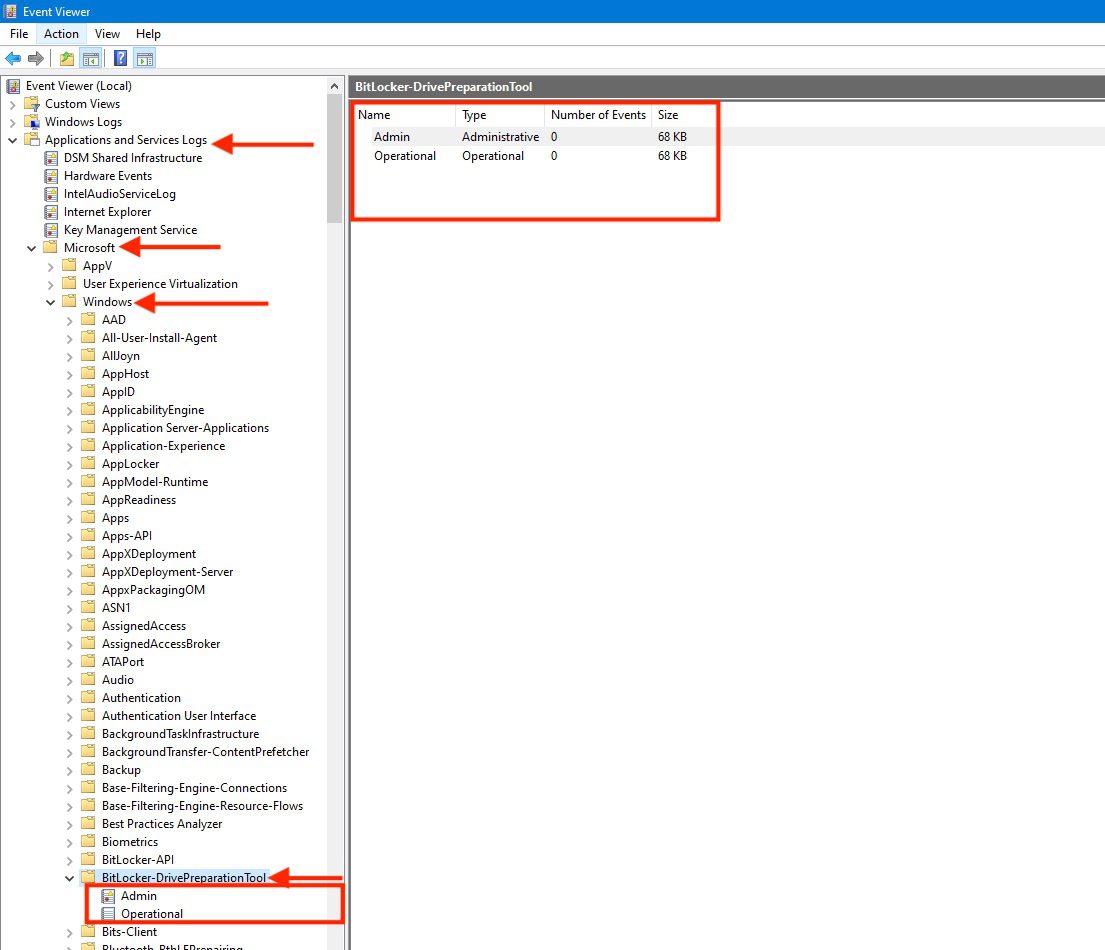
IBitLocker

Also, see  how to create MBAM Enterprise and Compliance, and Recovery Audit reports, and MBAM reports cannot be accessed because it could not load folder contents.

Pre-Encryption Validation Process and Potential Error Scenarios

Note: After resolving the discussed issue, MBAM or BitLocker will conduct these tests before enabling Automatic BitLocker or MBAM encryption on Windows devices. Otherwise, it will fail with any of the following errors: Understanding Microsoft BitLocker Administration and Monitoring compliance state and error status.

  • The device contains a TPM (Trusted Platform Module), either TPM 1.2 or TPM 2.0.
  • Enable UEFI Secure Boot.
  • Enabled, the platform maintains Secure Boot functionality.
  • Enabled DMA protection actively safeguards direct memory access.

Here are some other errors relating to MBAM/BitLocker encryption: System check found some issues during MBAM encryption: Fail, the Power cable must be connected, and What is the effect of renaming an MBAM or BitLocker protected Computer.

I hope you found this blog post helpful. If you have any questions, please let me know in the comment session.

Rate this post

Thank you for reading this post. Kindly share it with others.

  • Click to share on X (Opens in new window) X
  • Click to share on Reddit (Opens in new window) Reddit
  • Click to share on LinkedIn (Opens in new window) LinkedIn
  • Click to share on Facebook (Opens in new window) Facebook
  • Click to share on Pinterest (Opens in new window) Pinterest
  • Click to share on Tumblr (Opens in new window) Tumblr
  • Click to share on Telegram (Opens in new window) Telegram
  • Click to share on WhatsApp (Opens in new window) WhatsApp
  • Click to share on Pocket (Opens in new window) Pocket
  • Click to share on Mastodon (Opens in new window) Mastodon
  • Click to share on Bluesky (Opens in new window) Bluesky
  • Click to share on Threads (Opens in new window) Threads
  • Click to share on Nextdoor (Opens in new window) Nextdoor
Windows Tags:Bitlocker, disk, Disk Partition, Encryption, Full Disk Encryption, harddrive, MBAM, Microsoft BitLocker Administration and Monitoring, Partitions, Windows 10, Windows 11, Windows 11 Security

Post navigation

Previous Post: How to install Amazon RDS using Terraform
Next Post: Why does MBAM not automatically re-encrypt MBAM or Bitlocker-protected devices?

Related Posts

  • How to Activate Full-Screen (Kiosk Mode) in Internet Explorer Windows
  • MicrosoftOneDrive32
    Microsoft OneDrive Setup: Files On-Demand & Key Features Backup
  • Microsoft LAPS
    Configure Windows LAPS Management with Microsoft Intune AWS/Azure/OpenShift
  • 1237968 3d79
    How to perform sysprep in Windows Windows
  • Screenshot 2020 08 14 at 23.03.54
    How to disable Taskbar Web Search in Windows 10 via GPO and Windows Registry Windows
  • rdp error
    The connection was denied because the user account is not authorized for remote login: How to add and remove Remote Desktop Users Windows

More Related Articles

How to Activate Full-Screen (Kiosk Mode) in Internet Explorer Windows
MicrosoftOneDrive32 Microsoft OneDrive Setup: Files On-Demand & Key Features Backup
Microsoft LAPS Configure Windows LAPS Management with Microsoft Intune AWS/Azure/OpenShift
1237968 3d79 How to perform sysprep in Windows Windows
Screenshot 2020 08 14 at 23.03.54 How to disable Taskbar Web Search in Windows 10 via GPO and Windows Registry Windows
rdp error The connection was denied because the user account is not authorized for remote login: How to add and remove Remote Desktop Users Windows

Leave a Reply Cancel reply

You must be logged in to post a comment.

Microsoft MVP

VEEAMLEGEND

vexpert-badge-stars-5

Virtual Background

GoogleNews

Categories

veeaam100

sysadmin top30a

  • BitLocker
    BitLocker Drive Encryption architecture and implementation types on Windows Windows Server
  • taskbar1
    Hide or Remove Search Button from Windows 11 Taskbar Windows
  • filezilla 1
    Connect to a FileZilla Server: How to install and configure a FileZilla Server on Windows Windows Server
  • Compacting VHD
    How to Compact Virtual Hard Disks on VMware Virtualization
  • Capture 91
    How to install IIS Web Server on Windows Server Web Server
  • SysInternals Tools set
    Download and use Windows Sysinternals Tools locally Windows
  • Spell Check Not Working in Microsoft Word
    How to Fix Spell Check Not Working in Microsoft Word Microsoft Exchange/Office/365
  • YouTubeComment456789
    How to hold comments for review on YouTube JIRA|Confluence|Apps

Subscribe to Blog via Email

Enter your email address to subscribe to this blog and receive notifications of new posts by email.

Join 1,841 other subscribers
  • RSS - Posts
  • RSS - Comments
  • About
  • Authors
  • Write for us
  • Advertise with us
  • General Terms and Conditions
  • Privacy policy
  • Feedly
  • Telegram
  • Youtube
  • Facebook
  • Instagram
  • LinkedIn
  • Tumblr
  • Pinterest
  • Twitter
  • mastodon

Tags

AWS Azure Bitlocker Microsoft Windows PowerShell WDS Windows 10 Windows 11 Windows Deployment Services Windows Server 2016

Copyright © 2025 TechDirectArchive


Loading Comments...
 

You must be logged in to post a comment.