Skip to content

TechDirectArchive

Hands-on IT, Cloud, Security, Veeam & DevOps

  • Home
  • About
  • Advertise With US
  • Reviews
  • Contact
  • Toggle search form

Disable Bing Search in Windows: Quick Guide for Windows

Posted on 08/05/202216/08/2026 Matthew By Matthew No Comments on Disable Bing Search in Windows: Quick Guide for Windows
  1. Home
  2. Windows
  3. Disable Bing Search in Windows: Quick Guide for Windows
Feature-post-1

In this guide, we will look at using the Windows Registry and Group Policy editor to disable Bing search, so if the Registry method does not work, you can fall back on the Group Policy Editor method. Microsoft opted to combine Bing Search with the File Explorer search bar in Windows 10, which resulted in a poor experience with an extremely sluggish response. Similarly, the Start Menu search in Windows 11 displays Bing search results alongside local ones. To have a better understanding of what windows registries are, see what is Registry Editor and how to access the registry hives.

When you search for a program or a file, you are presented with “Search the Web” results, which take too long to load and needlessly interfere with the local search. So, if you want to disable Bing Search results from Windows 11 or Windows 10, simply follow the instructions below.

Note: Before editing the Windows registry and making changes, make a backup of the registry. This will allow you to undo any modifications you made in case something goes wrong.

Other related articles you can read about: How to display Windows system information via the Windows registry, What is Cortona: How to disable Cortana via the registry or GPO, if you are looking to upgrade to Windows 11, see the Windows 11 System Requirements and How to upgrade Windows 10 with an unsupported CPU and TPM 1.0 to Windows 11​.

How to Disable Bing Search by Editing the Registry in Windows 11

First, press the Windows key and type in ‘regedit’and click run as administrator to open the registry. Alternatively, you can use the ‘Windows key + R’ to open the run dialog box, type in ‘regedit’ then hold down ‘ctrl + shift’ key and click the OK button to run as administrator.

Turn off Bing Search Windows

Next, copy the below path and paste it into Regedit’s address bar. See the following article on how to search through the Windows registry.

Computer\HKEY_CURRENT_USER\Software\Policies\Microsoft\Windows
Deactivate Bing Search Windows

Now, right-click on “Windows” in the life sidebar and create a new ‘Key’, then rename the key to Explorer.

Disable Bing Web Search

Next, right-click the Explorer key and select New > DWORD (32-Bit) Value. This DWORD value will help you remove Bing search from the Windows 11 Start Menu.

Stop Bing Search Function

Rename the new entry to ‘DisableSearchBoxSuggestions’. Now, right-click the DisableSearchBoxSuggestions and click ‘Modify’, then change the “Value data” to 1.
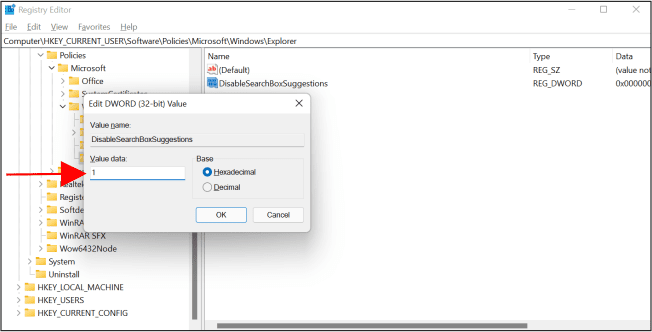
Turn off Bing Search Windows

Finally, restart your computer, and you will see that Bing search results no longer display in the Windows 11 Start menu.

Deactivate Bing Search Windows

How to Disable Bing Search from Windows 11 with Group Policy Editor

This group policy editing guide is applicable to both Windows 11 and Windows 10. Start by launching the group policy editor by clicking Start or press the windows key then enter ‘group policy’. Click the ‘Edit group policy’ shortcut that appears (or press Enter).
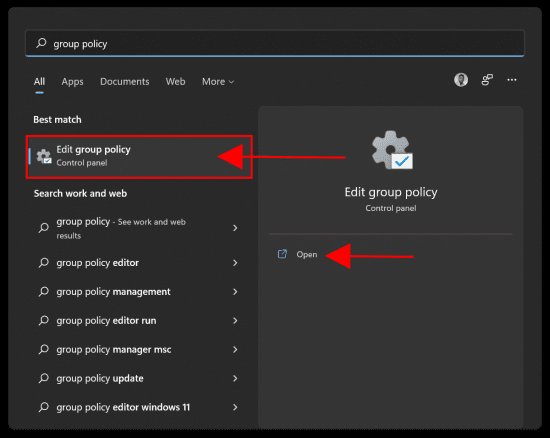
Local-Group-Policy-Editor_0

Next, open “Administrative templates” under “Computer Configuration” and move to Windows Components -> Search on the left pane.

Local-Group-Policy-Editor_1

Click Search and double-click ‘Allow Cortana’ and set to Disable. Press Ok when done.

Local-Group-Policy-Editor_2

Double-click ‘Do not allow web search’ and set to Enable. Press Ok when done.

Local-Group-Policy-Editor_3

Lastly, double-click ‘Don’t search the web or display web results in Search’ and set to Enable. Press Ok when done.

Local-Group-Policy-Editor_4

You will have to restart your computer for your changes to take effect.

Start-menu_GP-1

How to Deactivate in the Start Menu in Windows 10

Begin by launching the Registry Editor by clicking Start and entering “regedit.” Click the “Registry Editor” shortcut that appears and double-click it (or press Enter).

win10_Image1

Using the left pane, navigate to the following key. You may also put the following address into the address bar of the Registry Editor and hit Enter:

Computer\HKEY_CURRENT_USER\SOFTWARE\Policies\Microsoft\Windows\Explorer
win10_Image2

Create a new DWORD value by right-clicking in the right pane and selecting New > DWORD (32-bit) Value.

win10_Image3

Name the value “DisableSearchBoxSuggestions”. Double-click it and set its value data to “1”.

win10_Image4

You can now exit the Registry Editor. Searching your start menu should now return only local results. If the changes do not take effect right away, restart your computer.

I hope you found this blog post helpful. If you have any questions, please let me know in the comment session.

Thank you for reading this post. Kindly share it with others.

  • Share on X (Opens in new window) X
  • Share on Reddit (Opens in new window) Reddit
  • Share on LinkedIn (Opens in new window) LinkedIn
  • Share on Facebook (Opens in new window) Facebook
  • Share on Pinterest (Opens in new window) Pinterest
  • Share on Tumblr (Opens in new window) Tumblr
  • Share on Telegram (Opens in new window) Telegram
  • Share on WhatsApp (Opens in new window) WhatsApp
  • Share on Mastodon (Opens in new window) Mastodon
  • Share on Bluesky (Opens in new window) Bluesky
Windows Tags:Group Policy Management Console, Grouppolicy, Microsoft Windows, Registry Keys, RegistryEditor, Windows 10, Windows 11, Windows Registry

Post navigation

Previous Post: Various methods to Install .NET Framework in Windows
Next Post: How to Add and Format a New Virtual Disk to an EC2 Instance

Related Posts

  • cimInstance wmi
    How to fix Get-CimInstance Access PermissionDenied Windows
  • Bitllockerextdrives
    Manage TPM Protector: How to encrypt additional drives on an MBAM-protected device Windows
  • How do I disable credentials from Remote Desktop
    Disable credential Prompts for Remote Desktop Connections Windows
  • Smartscreen defender blocking application
    Unable to run downloaded Programs due to Defender SmartScreen Windows
  • Create Windows Defender Firewall Rule
    Fix Windows defender blocked incoming connection on Windows Network | Monitoring
  • WIinG
    Capture and Record your Screen in Windows 10 with Xbox Game Bar Windows

More Related Articles

windows 10 keyboard shortcut 1024x512 1 How to create a Desktop shortcut in Windows Windows
xxxxxx 1 Have the taskbar appear on one or both displays in Windows Windows
Featured image Unblock Microsoft Store How to Unblock Microsoft Store on Windows 11 Windows
xcdbfg Folder Access Denied – you require permission from SYSTEM: Unable to delete old Windows folder Windows
linkyourandriodtoyourpc Microsoft Phone Link: Connect Android to Windows 11 Windows
fix windows activation 0x87E10BC6 error Fix Error 0x87E10BC6 on a PC running Windows non-core Edition Windows

Leave a Reply Cancel reply

You must be logged in to post a comment.

Microsoft MVP

vexpert-badge-stars-5

Virtual Background

VEEAMLEGEND

Categories

Top 30 Sysadmin blog

veeaam100

Veeam Vanguard

  • Implement Azure Bicep
    How to Deploy Azure Resources Using Azure Bicep Automation
  • Telegram Bot for wordpress
    Configure Telegram to receive Blog Notifications JIRA|Confluence|Apps
  • Banner 1
    How to Deploy a React Application on Netlify Automation
  • 2019Blacklist Blog
    How does IP Address or Domain blacklist work? Network | Monitoring
  • image 81
    How to generate your trial SSL Certificate using DigiCert PKI platform Windows
  • wmic4
    How to find User Security Identifier (SID) in Windows [Part 1] Windows
  • pst
    Outlook Data File: Fix PST Error – Exceeded Maximum Large Items Network | Monitoring
  • logon failure and requested session denied
    Logon Failure: User has not been granted the requested logon type Windows

Subscribe to Blog via Email

Enter your email address to subscribe to this blog and receive notifications of new posts by email.

Join 1,745 other subscribers
  • RSS - Posts
  • RSS - Comments
  • About
  • Authors
  • Write for us
  • Contact
  • Advertise with us
  • General Terms and Conditions
  • Privacy policy
  • Feedly
  • Telegram
  • Youtube
  • Facebook
  • Instagram
  • LinkedIn
  • Tumblr
  • Pinterest
  • Twitter
  • mastodon
  • Bsky

Tags

Active Directory Azure Bitlocker Microsoft Windows PowerShell WDS Windows 10 Windows 11 Windows Deployment Services Windows Server 2016

Copyright © 2026 TechDirectArchive

Loading Comments...

You must be logged in to post a comment.