Skip to content

TechDirectArchive

Hands-on IT, Cloud, Security & DevOps Insights

  • Home
  • About
  • Advertise With US
  • Contact
  • Reviews
  • Toggle search form
Home » Windows » How to share Files and Restore Previous versions of Files in Microsoft OneDrive

How to share Files and Restore Previous versions of Files in Microsoft OneDrive

Posted on 12/06/202221/03/2024 Matthew By Matthew No Comments on How to share Files and Restore Previous versions of Files in Microsoft OneDrive
onedrived43

In this article, we shall discuss how to share Files and Restore Previous versions of Files in Microsoft OneDrive. OneDrive is a Microsoft cloud service that allows you to access all your files. It allows you to store and safeguard your files, share them with others, and access them from any device. Instead of using a USB flash drive to copy files or send emails, the cloud storage service allows you to share nearly any file with anybody. Please see this detailed guide: Microsoft OneDrive Setup and Key Features Explained, and how to implement Interactive Authentication using MSAL dotNET.

This is accomplished by providing a secure connection through which anyone may view the material, which you can revoke at any moment. For example, since it works across devices and platforms.

You can create a file on one device and continue where you left off on another without having to transfer anything to a USB flash drive or email it to yourself, which not only adds extra steps but also duplicates data.

For a beginner’s guide on OneDrive see: Microsoft OneDrive Setup and Key Features Explained. Here are other interesting guides: How to add Registry keys via DISM in Windows. See how to Remove Windows 10 Apps with DISM: How to remove pre-provisioned apps from Windows Image.

In this guide, we will walk you through how to share files and restore a previous version of the file after it has been modified in OneDrive.

Effortless File Sharing via Cloud Storage

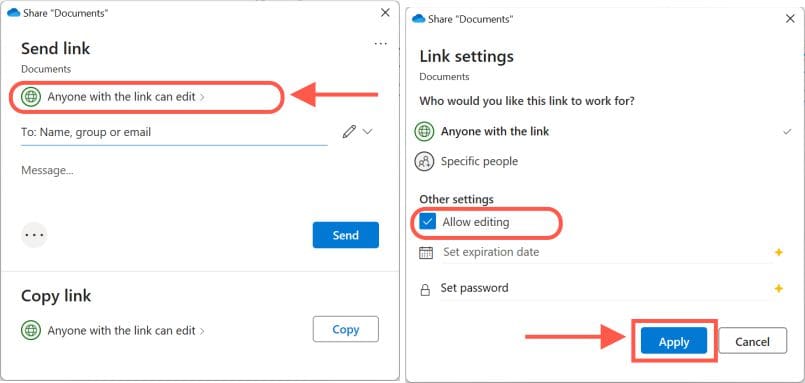
Open the OneDrive folder. Right-click the file you want to share and choose OneDrive, then select the Share option.

File sharing

If you want someone to only see the file and not modify it, click the “Anyone with the link can edit” option and uncheck the “Allow editing” option. If you have a Microsoft 365 subscription or a OneDrive plan.

You can additionally provide an expiration date and password for the file you’re sharing.  Click the Apply button.
OneDrive

If you’re sending the link to someone else, enter their email address and click the Send button. Alternatively, you may copy the URL to the clipboard by selecting Copy Link.

File management

To close the interface, click the X icon in the upper-right corner. The shared file will have a person icon added to it status in the OneDrive folder which indicates that the file is been shared.

Version control

When you are done, the receiver will be sent a link to the shared files. If you copied the link, you could use it to share the files by any means you preferred. 

How to stop sharing files in OneDrive

To stop sharing a specific file saved in the cloud, follow these steps:

Navigate to the OneDrive folder. Right-click the shared file and choose Share.

File sharing

Click the three-dot button in the upper-right corner, then select “Manage access.”

OneDrive

Click the “Can edit” button for the email account you wish to restrict access to, then select “Stop sharing.”

Image6-1

Repeat procedures to delete more users. Other people will no longer be able to view the files once you have removed them.

Retrieve Past Versions in Microsoft Cloud Storage

Like the web version, the OneDrive integration with File Explorer provides “version history,” a feature that allows you to examine and recover prior files, including Office documents, photographs, videos, and nearly any other form of file, including folders.

Follow these procedures to see and restore a previous version of a file in OneDrive:

Navigate to the OneDrive folder. Right-click the shared file and choose Version History. If the file is currently open, close it before restoring a previous version.

Image7-1

Here you will see all the available versions of the file; click the three-dotted button of the version you want to restore and then click the “Restore” button.

Image8-1

If you are uncertain about the version to restore, you can download the file first to view its contents before restoring it.

I hope you found this blog post on how to share Files and Restore Previous versions of Files in Microsoft OneDrive helpful. If you have any questions, please let me know in the comment session.

Rate this post

Thank you for reading this post. Kindly share it with others.

  • Share on X (Opens in new window) X
  • Share on Reddit (Opens in new window) Reddit
  • Share on LinkedIn (Opens in new window) LinkedIn
  • Share on Facebook (Opens in new window) Facebook
  • Share on Pinterest (Opens in new window) Pinterest
  • Share on Tumblr (Opens in new window) Tumblr
  • Share on Telegram (Opens in new window) Telegram
  • Share on WhatsApp (Opens in new window) WhatsApp
  • Share on Mastodon (Opens in new window) Mastodon
  • Share on Bluesky (Opens in new window) Bluesky
  • Share on Threads (Opens in new window) Threads
  • Share on Nextdoor (Opens in new window) Nextdoor
Backup, Windows Tags:DISM, Microsoft OneDrive, Microsoft Windows, OneDrive, Windows 10, Windows 11

Post navigation

Previous Post: Microsoft OneDrive Setup: Files On-Demand & Key Features
Next Post: How to Disable or Uninstall OneDrive on Windows 10 and 11

Related Posts

  • How to Fix Scanning and Repairing Drive on Every Boot
    How to Fix Scanning and Repairing Drive on Every Boot Windows
  • Featured image   The Local Device Name is Already in Use
    How to Fix The Local Device Name is Already in Use Windows
  • schedulepythontasksinWindows
    Run Python Script via Windows Task Scheduler Windows
  • ADDS vs AD LDS
    Differences between AD LDS and AD DS Windows
  • BitLocker renamedevicefghjkl
    What are the effect of renaming an MBAM-Protected Computer Windows
  • How to create a Recovery Partition in Microsoft Windows
    How to create a Recovery Partition in Microsoft Windows 10/11 Windows

More Related Articles

How to Fix Scanning and Repairing Drive on Every Boot How to Fix Scanning and Repairing Drive on Every Boot Windows
Featured image   The Local Device Name is Already in Use How to Fix The Local Device Name is Already in Use Windows
schedulepythontasksinWindows Run Python Script via Windows Task Scheduler Windows
ADDS vs AD LDS Differences between AD LDS and AD DS Windows
BitLocker renamedevicefghjkl What are the effect of renaming an MBAM-Protected Computer Windows
How to create a Recovery Partition in Microsoft Windows How to create a Recovery Partition in Microsoft Windows 10/11 Windows

Leave a Reply Cancel reply

You must be logged in to post a comment.

Microsoft MVP

VEEAMLEGEND

vexpert-badge-stars-5

Virtual Background

GoogleNews

Categories

veeaam100

sysadmin top30a

  • Clear Saved Email Address in Microsoft Edge
    Clear Saved Email Address: Stop Microsoft Edge from remembering your email ID Windows
  • image 77
    How to use the DigiCert certificate utility for Windows to create a CSR Windows
  • ansible logo600 591x296 1
    Ansible_user=UNREACHABLE {Failed to connect to the host via SSH: SSH: Could not resolve hostname (Name or service not known, unreachable true) Configuration Management Tool
  • images 1 3
    Failed to create a new scheduled task name RemoteException: Cannot create the file when that file already exists Windows Server
  • exchange 2016 1
    How to Block Change Password for Specific Exchange Users Network | Monitoring
  • Slide2
    How to Clear Cache on Windows 10 Windows
  • Create Multiboot OS ISO files on a single bootable USB Disk
    Create Multiboot OS ISO files on a single bootable USB Disk Windows
  • Schedule and join Teams Meeting
    How to schedule and join meetings with Microsoft Teams JIRA|Confluence|Apps

Subscribe to Blog via Email

Enter your email address to subscribe to this blog and receive notifications of new posts by email.

Join 1,823 other subscribers
  • RSS - Posts
  • RSS - Comments
  • About
  • Authors
  • Write for us
  • Advertise with us
  • General Terms and Conditions
  • Privacy policy
  • Feedly
  • Telegram
  • Youtube
  • Facebook
  • Instagram
  • LinkedIn
  • Tumblr
  • Pinterest
  • Twitter
  • mastodon

Tags

AWS Azure Bitlocker Microsoft Windows PowerShell WDS Windows 10 Windows 11 Windows Deployment Services Windows Server 2016

Copyright © 2025 TechDirectArchive


Loading Comments...
 

You must be logged in to post a comment.