Skip to content

TechDirectArchive

Hands-on IT, Cloud, Security & DevOps Insights

  • Home
  • About
  • Advertise With US
  • Reviews
  • Contact
  • Toggle search form
Home » Windows » Volume Shadow Copies: How to configure VSS on Windows Server
  • Backup for Microsoft 365 and Azure
    Veeam Backup Deployment options for Microsoft 365 Data AWS/Azure/OpenShift
  • Review of Stellar Repair for Outlook
    A Review of Stellar Repair for Outlook Reviews
  • article 1280x720.166f8634
    Configure Windows client to obtain IP Address via a DHCP Server Windows Server
  • Screenshot 2020 05 13 at 19.23.25
    AWS Command-Line Interface: How to configure AWS CLI [Part 1] AWS/Azure/OpenShift
  • windows 10 spying 1200x687 1
    Error 183: Specified image is being serviced by another DISM operation Windows Server
  • fress install windows server 2025   downgrade of Windows Server datacenter to standard edition
    Convert Windows Server Datacenter to Standard: Install Windows Server via iDRAC Virtual Media Windows Server
  • MM
    How to install Mattermost on Ubuntu and Debian Linux
  • Featured post
    Installing Windows Subsystem for Android (WSA) Windows

Volume Shadow Copies: How to configure VSS on Windows Server

Posted on 28/06/202204/09/2023 Imoh Etuk By Imoh Etuk No Comments on Volume Shadow Copies: How to configure VSS on Windows Server
How-to-configure-Volume-Shadow-Copies-VSS-on-Windows-Server

In this guide, I will show you how to configure Volume Shadow Copies (VSS) on Windows Server. Volume Shadow Copies (VSS) is a feature available in Windows Server 2022, Windows Server 2019, Windows Server 2016, Windows Server 2012 R2, Windows Server 2012, Windows Server 2008 R2, Windows 10, Windows 8.1, Windows 8, Windows 7, and Windows Server 2008. For the purpose of this guide, we’re going to configure VSS on Windows Server 2019. Volume Shadow Copies is also a Windows 11/10/8/7 feature that creates snapshots (shadow copies) of disk volumes even when they are in use. It is implemented as a Windows service known as Volume Shadow Copies. You can use it to make or save shadow copies on a local disk, an external hard drive, or a network drive.

The Shadow Copies feature in Windows Server is one implementation of VSS (called Restore Points in client versions of Windows). On a disk, you enable and schedule shadow copies, and then you can restore a file, folder, or the entire volume. Shadow copies are “differential, block-level backups,” which means they only capture the changed bits of each file and thus don’t take up much space. They are also quick and simple to recover from windows. See also how to create a Restore Point in Windows 10 and Windows 11, Bare-metal Backup: How to setup Windows server backup and create backup jobs, How to create and delete a snapshot on VMware Workstation, SEP Sesam Hybrid Backup, and Disaster Recovery Solution

To create and save shadow copies, the NTFS file system is required. As a result, only NTFS volumes can be protected when Shadow Copy technology is enabled in Windows Backup and Restore. The same can be said of System Restore and File History.

Volume Shadow Copies Service is a Microsoft technology that creates recoverable snapshots of a volume.

Why VSS?

Data must usually be backed up while the applications that generate it are still running. This implies that some of the data files may be open or in an inconsistent state. When the data set is large, backing it up all at once can be difficult.

Shadow Copies can be used to recover accidentally deleted or modified user files. Additionally, Shadow Copies can be enabled on any disk on your server; however, they are most useful for volumes that store user data, such as data disks on a Windows file server that store user profile disks and network drives.

Prerequisite:

Following Microsoft’s best practices, to avoid performance issues, create an additional disk to hold the shadow copies on each server that you want to protect with VSS. To create an additional disk, follow these short steps:

Step 1-From the menu bar, search for Disk Management

Create-disk-under-disk-management
Create Disk Partition for Volume Shadow Copies

Step 2 – From the list of disks that displays, click-right click on the disk you will like to create an additional disk from and select "Shrink Volume" from the drop-down menu.

Click-on-Shrink-Drive
Shrink a disk volume for Volume Shadow Copies

Step 3 – Enter the amount of volume you will like to shrink and click okay. Here, we created a 10GB volume size.

Enter-the-size-of-your-disk
Entering the amount of space

Step 4 – From step 3 above, a new unallocated 10GB size of the disk is created. Right-click on it and select "New Simple Volume". Kindly refer to these related guides: How to extend a VM’s Hard Disk on VMware Workstation, and How to Add a New Virtual Disk to an EC2 Instance and Format it.

Right-click-in-the-new-disk
Right-click on the new simple volume

A new simple volume screen wizard shows up:

Weclome-New-Simple-Volume-Wizard
New Simple Volume Wizard Screen

Step 5 – Click Next to go to specify the volume size screen

Specify-Volume-Size
Specify volume size

Step 6 – Format the new partition using the NTFS file system and assign a name to the new partition and click on Next. Leave the "Perform quick format" box checked.

Name-the-new-drive
Formating Partition

Step 7 – Assign a drive letter and click on Next. Here, we assigned letter F to the new partition

Assign-Drive-Letter-or-Path
Assign a Drive Letter

Step 8 – Click on finished to complete the process

Drive-partition-successful
Finishing the disk partition

Now, navigate to the list of drives in the disk management pane to see the newly created volume.

New-drive-lited-among-drives
New Disk Volume

Configuring Volume Shadow Copies on Disk

Now, let’s configure the shadow copies on one of our disk partitions.

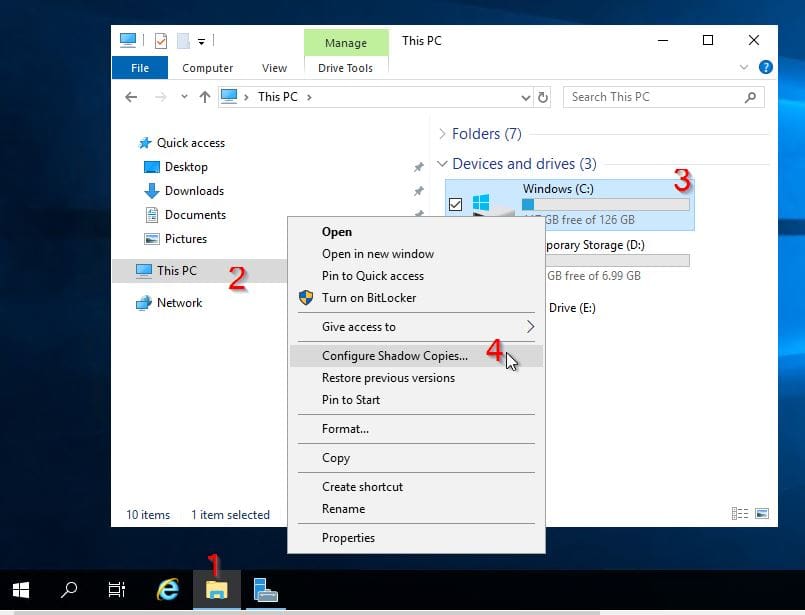
Step 1-Open File Explorer, click on "This PC" and right-click on the drive volume for which you want Shadow Copies enabled, and then select Configure Shadow Copies.
Open-File-Explorer
Configure Shadow Copies.

Step 2 – Click on the Volume you want to enable Shadow Copies for, then click Settings. Here, I want to enable Shadow Copies on the C:\ drive. C:\ drive is the drive with the operating system boot manager.

Click-on-settings

Move the Storage Area to the additional disk you created in the Prerequisite Steps section of this guide. Additionally, you can modify the volume copy size limit, therefore system will automatically delete the oldest copy when it reaches this storage limit.

Configure-settings
Storage Area

You can set a preferred schedule for capturing Shadow Copies using the Schedule button. Configure the settings as desired, then click OK to save your changes in the Schedule and Settings dialogues.

Schedule
Schedule

As shown in the screenshot above, we selected Mon – Fri and scheduled tasks to occur on weekly basis at 7: 00 AM

Step 3 – In the Shadow Copies window, ensure the volume is still selected and click Enable. Windows will create the first Shadow Copy with the settings you implemented and will use the schedule to create subsequent Copies.

Kindly pay attention to the warning displayed in the image below for your production environment setup.
Click-Enabled-to-enable-VSS-1
Enabling Volume Shadows copies

From the above step, you will get a prompt, click yes to continue. The screenshot below shows that the Volume Shadow copies have been enabled fully.

Configured-vss
Create Shadow Copies
Note: You can create more one Volume Shadows Copies in one disk. To create additional shadows copies, simply click on the "Create Now" button. 

To revert or delete the shadow copies, simply select it and click on either revert or delete button. To disable it completely, click on “Disable“.

Note: You cannot revert a volume that contains operating system files or a files that reside on a cluter shared disk. 

In conclusion, you have learned how to configure Volume Shadow Copies on Windows Server and Windows because the same steps stated above also apply to client versions of Windows such as Windows 11 and so on.

Now you have also learned how to create a new disk volume from an existing disk volume. I hope you found this blog post helpful. Please let me know in the comment session if you have any questions.
Rate this post

Thank you for reading this post. Kindly share it with others.

  • Click to share on X (Opens in new window) X
  • Click to share on Reddit (Opens in new window) Reddit
  • Click to share on LinkedIn (Opens in new window) LinkedIn
  • Click to share on Facebook (Opens in new window) Facebook
  • Click to share on Pinterest (Opens in new window) Pinterest
  • Click to share on Tumblr (Opens in new window) Tumblr
  • Click to share on Telegram (Opens in new window) Telegram
  • Click to share on WhatsApp (Opens in new window) WhatsApp
  • Click to share on Pocket (Opens in new window) Pocket
  • Click to share on Mastodon (Opens in new window) Mastodon
  • Click to share on Bluesky (Opens in new window) Bluesky
  • Click to share on Threads (Opens in new window) Threads
  • Click to share on Nextdoor (Opens in new window) Nextdoor
Windows, Windows Server Tags:Disk management, Restore Point, Windows 10, Windows 11

Post navigation

Previous Post: How To Install Google Cloud SDK on a Linux System
Next Post: How to Upgrade From Ubuntu 20.04 LTS to 22.04 LTS

Related Posts

  • VRAM on Windows 1
    Check the Size of Video Random Access Memory (VRAM) in Windows Windows
  • screenshot 2020 03 15 at 00.43.16
    How to permit and run only certain apps in windows Windows
  • feature functionapp
    Deploy a function app from Visual Studio to Azure Platform AWS/Azure/OpenShift
  • Featured image   Missing Taskbar icon
    How to Fix Taskbar Icons Missing on Windows 11 Windows
  • Featured image   Dark mode
    How to enable dark theme in Windows 11 Windows
  • Smartscreen defender blocking application
    Unable to run downloaded Programs due to Defender SmartScreen Windows

More Related Articles

VRAM on Windows 1 Check the Size of Video Random Access Memory (VRAM) in Windows Windows
screenshot 2020 03 15 at 00.43.16 How to permit and run only certain apps in windows Windows
feature functionapp Deploy a function app from Visual Studio to Azure Platform AWS/Azure/OpenShift
Featured image   Missing Taskbar icon How to Fix Taskbar Icons Missing on Windows 11 Windows
Featured image   Dark mode How to enable dark theme in Windows 11 Windows
Smartscreen defender blocking application Unable to run downloaded Programs due to Defender SmartScreen Windows

Leave a Reply Cancel reply

You must be logged in to post a comment.

Microsoft MVP

VEEAMLEGEND

vexpert-badge-stars-5

Virtual Background

GoogleNews

Categories

veeaam100

sysadmin top30a

  • Backup for Microsoft 365 and Azure
    Veeam Backup Deployment options for Microsoft 365 Data AWS/Azure/OpenShift
  • Review of Stellar Repair for Outlook
    A Review of Stellar Repair for Outlook Reviews
  • article 1280x720.166f8634
    Configure Windows client to obtain IP Address via a DHCP Server Windows Server
  • Screenshot 2020 05 13 at 19.23.25
    AWS Command-Line Interface: How to configure AWS CLI [Part 1] AWS/Azure/OpenShift
  • windows 10 spying 1200x687 1
    Error 183: Specified image is being serviced by another DISM operation Windows Server
  • fress install windows server 2025   downgrade of Windows Server datacenter to standard edition
    Convert Windows Server Datacenter to Standard: Install Windows Server via iDRAC Virtual Media Windows Server
  • MM
    How to install Mattermost on Ubuntu and Debian Linux
  • Featured post
    Installing Windows Subsystem for Android (WSA) Windows

Subscribe to Blog via Email

Enter your email address to subscribe to this blog and receive notifications of new posts by email.

Join 1,839 other subscribers
  • RSS - Posts
  • RSS - Comments
  • About
  • Authors
  • Write for us
  • Advertise with us
  • General Terms and Conditions
  • Privacy policy
  • Feedly
  • Telegram
  • Youtube
  • Facebook
  • Instagram
  • LinkedIn
  • Tumblr
  • Pinterest
  • Twitter
  • mastodon

Tags

AWS Azure Bitlocker Microsoft Windows PowerShell WDS Windows 10 Windows 11 Windows Deployment Services Windows Server 2016

Copyright © 2025 TechDirectArchive


Loading Comments...
 

You must be logged in to post a comment.