Skip to content

TechDirectArchive

Hands-on IT, Cloud, Security & DevOps Insights

  • Home
  • About
  • Advertise With US
  • Contact
  • Reviews
  • Toggle search form
Home » Linux » How to Exit Linux Vim or Vi Editor

How to Exit Linux Vim or Vi Editor

Posted on 15/07/202211/12/2023 Raphael Gab-Momoh By Raphael Gab-Momoh No Comments on How to Exit Linux Vim or Vi Editor
feature_photo_quit_vim

This guide shows you how to exit Linux Vim or Vi editor. The screen-based text editor application Vim is open-source and free. Thus, it is a more advanced version of Bill Joy’s vi. Meanwhile, Bill Joy is the creator of Vim. He developed the program from a port of the Stevie editor for the Amiga, and made it available to the public in 1991. By default Vi, comes packaged in every Ubuntu Machine but for Vim you need to install it using the command below. Please see Uninstall Office: How to remove Microsoft Outlook, Teams, Words PowerPoint, and Excel apps from Mac, and Cannot uninstall the OneDrive App: The item “OneDrive” can’t be moved to the Bin because it’s open on Mac.

Like other types of programming, vim script files are kept in plain text and often end in.vim , this doesn’t apply to the .vimrc configuration file for Vim. Note that every command that we run for Vim editor will also work for Vi editor because vim as we mentioned earlier is an improved version of Vi.

Another similar guide can be referenced from this link: How to Save Read-Only Files in VIM Editor in Linux/Unix-like OS. Kindly refer to these interesting guides: Remove Office license file: How do you change the account that Office says it belongs to on a Mac,

Prerequisites to Exit Linux Vim or VI Editor

Below are the prerequisites to exit the editor.

  1. Ubuntu Machine
  2. A user account with Sudo privileges
  3. Terminal

Vim does not come pre-installed, so we need to install it with the command

apt install vim
how to exit Linux vim-apt-install-vim
installed vim

Modes

Below are the various modes available within the Editor.

Normal mode: Vim launches in “normal” mode by default. By hitting Esc key while in another mode, you can return to normal mode. The expected behavior of key presses is not present in Normal mode. In other words, they don’t add text to the page; rather, certain key hits should

Insert Mode: Most individuals will be most familiar with this conduct because it is the second most prevalent mode. I for ’insert’, this immediately switches vim to insert mode by using an insert command from regular mode, you may input it.

Several insert instructions are A for "append,” which advances the cursor after the current character and enters insert mode, and o for "insert,” which inserts a new line below the current line and enters insert mode on the new line.

Exit Vim in Terminal

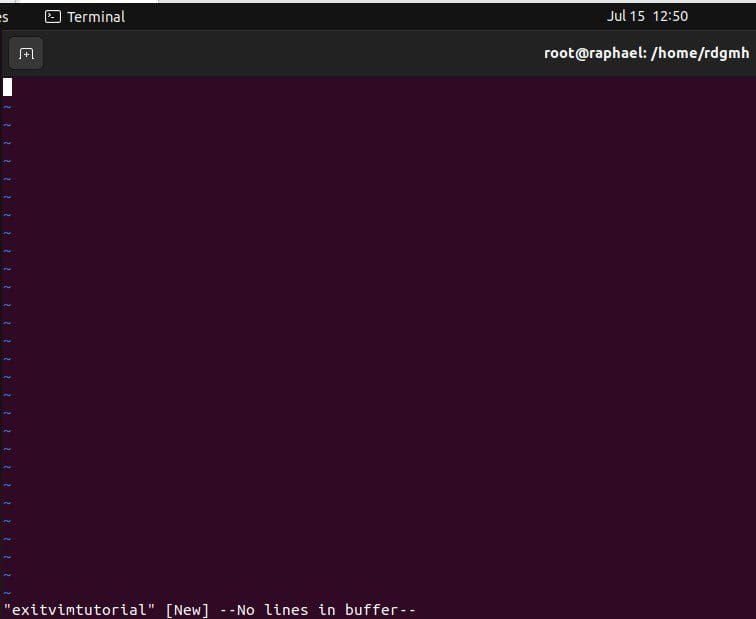
Let’s create a document in Vim and escape. In the demo, we will create a document called exitvimtutorial. We can do this with the command below.

You can choose to call it any name that you want but the most important thing is for the keyword vim to be in front of the name in this format vim <name>

vim exitvimtutorial
vimcreate
created a vim file

To work on the newly created file, we need to hit I for insert mode. And we can type anything to create a file with content in it. As we can see from the screenshot below, we had the steps typed

how to exit Linux vim-Finalexitvim
insert

Steps to exit Linux Vim or Vi editor:

Change to command mode in Vi/Vim to give commands.

  1. Press the Esc key.
  2. Observe the —INSERT— label disappear from the lower-left corner of the screen.
  3. Enter:w followed by Enter to save your changes before exiting. Any modifications made will be saved as a result. In response, Vim will print the filename, whether it is fresh, and the number of characters that were written to the hard disk.
  4. Press Enter after typing:q to leave Vi/Vim.
how to exit Linux vim-EXITVIM

Useful Commands

If you must use Linux via the editor, you will have to familiarize yourself with the following useful commands.

  1. Esc – changes to command mode
  2. :w –list the modifications performed
  3. :q – exit Vim
  4. :q! – exit Vim and discard any changes
  5. :wq – saves the modifications and quits Vim
  6. :x – save the modifications, then quit Vim

Summary

In summary, Vim is a modification of Vi and any command for vim will work for vi. Vi comes installed by default but for vim, you will need to install using the package manager.

We exited vim by following a series of steps as shown above. With the aforementioned steps, you’ll successfully exit Linux Vim and Vi editor.

Rate this post

Thank you for reading this post. Kindly share it with others.

  • Share on X (Opens in new window) X
  • Share on Reddit (Opens in new window) Reddit
  • Share on LinkedIn (Opens in new window) LinkedIn
  • Share on Facebook (Opens in new window) Facebook
  • Share on Pinterest (Opens in new window) Pinterest
  • Share on Tumblr (Opens in new window) Tumblr
  • Share on Telegram (Opens in new window) Telegram
  • Share on WhatsApp (Opens in new window) WhatsApp
  • Share on Mastodon (Opens in new window) Mastodon
  • Share on Bluesky (Opens in new window) Bluesky
  • Share on Threads (Opens in new window) Threads
  • Share on Nextdoor (Opens in new window) Nextdoor
Linux Tags:Linux distro, Ubunt 20.04 LTS, Ubuntu, Ubuntu 20.04 LTS

Post navigation

Previous Post: How to forcefully remove Language Pack on Windows 10 and 11
Next Post: How to fix an attempt was made to reference a Token that does not exist

Related Posts

  • zoom feature
    How to install Zoom video conference software on Linux System Linux
  • screenshot 2020 04 23 at 00.30.09
    How to mount a USB Drive in Linux Linux
  • feature image
    How to install PostgreSQL on Ubuntu Linux
  • DNS FEATURE
    Domain Name System: All you need to know about DNS Linux
  • Screenshot 2024 02 28 at 11.17.41 PM
    GitHub Pages Deployment Guide Linux
  • Errno 256 No more mirrors to try 1
    How to solve Errno 256 Linux

More Related Articles

zoom feature How to install Zoom video conference software on Linux System Linux
screenshot 2020 04 23 at 00.30.09 How to mount a USB Drive in Linux Linux
feature image How to install PostgreSQL on Ubuntu Linux
DNS FEATURE Domain Name System: All you need to know about DNS Linux
Screenshot 2024 02 28 at 11.17.41 PM GitHub Pages Deployment Guide Linux
Errno 256 No more mirrors to try 1 How to solve Errno 256 Linux

Leave a Reply Cancel reply

You must be logged in to post a comment.

Microsoft MVP

VEEAMLEGEND

vexpert-badge-stars-5

Virtual Background

GoogleNews

Categories

veeaam100

Veeam Vanguard

  • Screenshot 2021 02 05 at 22.40.51
    Disable automatic screen lock on Ubuntu Desktop Linux
  • Panic failed
    Panic: Failed to register the GitLab-runner, you may be having network issues Version Control System
  • NFS Storage And Present It To XCP Ng
    Create an NFS Storage on Synology NAS and Present it to XCP-ng Virtualization
  • LDPAs
    Fix LDAP Connection Error 81: Cannot open connection via the ldp.exe tool Windows
  • sign11
    Windows sign-in options and account protection on Windows 11 Windows
  • Fix OneDrive Error
    How to Fix OneDrive Error 0x80071129: The tag present in the reparse point buffer is invalid Windows
  • system
    How to fix the system cannot find the file specified when adding LP, LIP, and FoD packages to Windows Images Windows Server
  • you need the right to sign in through Remote Desktop Services
    Fix you need the right to sign in through Remote Desktop Services Windows

Subscribe to Blog via Email

Enter your email address to subscribe to this blog and receive notifications of new posts by email.

Join 1,814 other subscribers
  • RSS - Posts
  • RSS - Comments
  • About
  • Authors
  • Write for us
  • Advertise with us
  • General Terms and Conditions
  • Privacy policy
  • Feedly
  • Telegram
  • Youtube
  • Facebook
  • Instagram
  • LinkedIn
  • Tumblr
  • Pinterest
  • Twitter
  • mastodon

Tags

Active Directory Azure Bitlocker Microsoft Windows PowerShell WDS Windows 10 Windows 11 Windows Deployment Services Windows Server 2016

Copyright © 2025 TechDirectArchive


Loading Comments...
 

You must be logged in to post a comment.