Skip to content

TechDirectArchive

Hands-on IT, Cloud, Security & DevOps Insights

  • Home
  • About
  • Advertise With US
  • Reviews
  • Contact
  • Toggle search form
Home » Windows » How to create Desktop Stickers in Windows 11
  • RDS Error
    RDP Users are unable to change Passwords Windows Server
  • Server Manager
    How to reinstall Server Manager and disable Server Manager at startup for all users and login users Windows Server
  • loc
    Solve VMware workstation .lck error [Part 1] Virtualization
  • Add camaeras
    Add additional CC400W Cameras to Synology Surveillance Station Backup
  • rdp error
    The connection was denied because the user account is not authorized for remote login: How to add and remove Remote Desktop Users Windows
  • ansible business cards 1600x0 c default
    Kerberos error: Clock skew too great while getting initial credentials Windows Server
  • powershell commands lede 1024x276 1
    PowerShell Remoting: Guide to Windows Management Instrumentation Scripts
  • images 5 1
    How to access MySQL Server from command Prompt Oracle/MSSQL/MySQL

How to create Desktop Stickers in Windows 11

Posted on 28/08/202227/03/2024 Matthew By Matthew No Comments on How to create Desktop Stickers in Windows 11
Custom desktop stickers
Desktop Sticker

We’ll go through how to create Desktop Stickers in Windows 11, as well as how to use them on your desktop. Introducing Windows Stickers: Among the visual enhancements that Windows 11 offers, the upcoming 22H2 update is set to bring further visual improvements and bug fixes. Please see Fix Hyper-V VM Stuck in Stopping State, MDT deployment failed and Stuck at Command Prompt: Windows installation does not proceed via PXE boot, and how to get the Windows 10 Version 22H2 Update.

A recently unveiled feature is the addition of desktop stickers. This playful and experimental functionality enables you to adorn your current desktop background with creative stickers. While it’s initially deactivated, a simple Registry tweak can activate this feature, offering a personalized touch to your desktop experience.

It’s rare for an operating system to have Windows stickers, which are often seen in instant messaging and chat apps. However, if you want to further customize your desktop, you should give it a try.

Here are other related guides you should see: How to Clear Cache in Windows 11, How to Make the Default System Icons Visible on Windows 11 Desktop Environment, and How to disable Ads in Windows 11.

Requirements to Use Stickers in Windows 11

The stickers feature is included in the Windows 11 22H2 release. At the time of writing, this build is only available in the Windows Insider program’s Beta and Dev channels. To use the stickers, you must download the most recent Insider build.

However, Microsoft intends to make the build available to PCs globally. So, if your PC has this update, you can unlock stickers using the Registry editor.

Also, see how to install Windows Subsystem for Android (WSA) in Windows 11, and how to fix “An error has occurred in the script on this page: HTA applications report a Script error after upgrading to ADK for Windows 11, version 22H2“

How to Enable Windows Stickers on Windows 11

To enable desktop stickers in Windows 11, follow the steps below:

To check that you are running Windows 11 build 22H2, press Windows key + R to open the Run dialog and type winverand click “OK.”

Windows 11 desktop customization
Windows Run

A screen will appear displaying the version of Windows you are using. If your version is 22H2, you can proceed.

Personalized Windows decals
Windows version 22H2

Next, press the Windows Key + R keyboard shortcut to open the Run dialog. Enter regedit and press OK.

Sticker design on Windows
Opening Windows Registry

When the Registry Editor opens, go to the following location:

HKEY LOCAL MACHINE\SOFTWARE\Microsoft\PolicyManager\current\device
Custom desktop stickers
Navigating to HKLM in the Windows Registry

Right-click the device key and select New > Key from the option menu, then name the new key Windows stickers and press Enter.
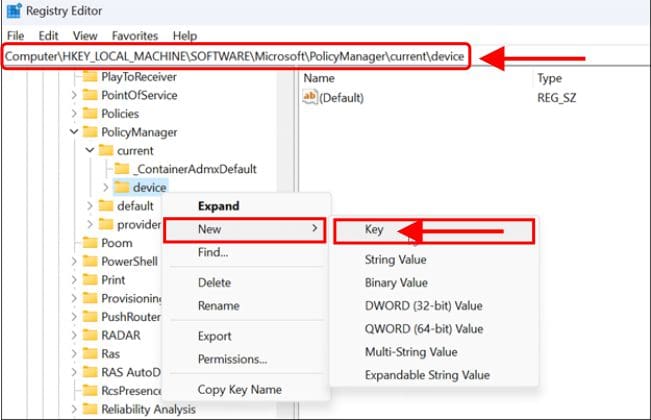
Windows 11 desktop customization
Creating New Key in the Registry

Right-click the newly created Stickers key and choose New > DWORD (32-bit) Value.

Personalized Windows decals
Stickers key created in the Registry

Name the new DWORD (32-bit) value “EnableStickers”.

Picture7-1
Creating the Stickers key DWORD 32 Value

Change its value from 0 to 1 and click OK to save.

Picture8-1
Changing value data from 0 to 1

When complete, close out of the Registry Editor and restart Windows 11.

Also, see how to Fix Windows Stuck on System Restore, and Fix “Getting Windows Ready” Don’t turn off your computer stuck on Windows.

How to Use Windows stickers on Windows 11

Once you get back from the restart, you can begin using the desktop sticker features.

To use Windows stickers on Windows 11, right-click an empty area on the desktop and select Add or edit stickers.

Picture9
Right-click on the Windows desktop to see stickers menu

The option brings up the Stickers picker user interface. You can select from several different stickers to add to the desktop. You can scroll through other options or search for specific types of Windows stickers.

Picture10
Stickers collection

Once you select a sticker, it adds it to the desktop where you can resize it and move it around to different locations. To remove the sticker, click the trash bin icon.

After you add Windows stickers, they’ll display behind your desktop icons like they’re part of the wallpaper.

You can also navigate to Start > Settings > Personalization > Background to add stickers when using the Picture option.

Picture12
Windows Background

Conclusion

It is crucial to note that Windows stickers are currently an experimental feature in Windows 11. As a result, the feature does not always work as intended.

When you add stickers, your desktop icons and taskbar do not appear while you are selecting stickers. If you have any issues, a fast restart should fix them.

It’s unclear whether Microsoft will make this a permanent feature in Windows 11, but you can play with it for the time being.

I hope you found this guide useful on How to create Desktop Stickers in Windows 11. Please feel free to leave a comment below.
Rate this post

Thank you for reading this post. Kindly share it with others.

  • Click to share on X (Opens in new window) X
  • Click to share on Reddit (Opens in new window) Reddit
  • Click to share on LinkedIn (Opens in new window) LinkedIn
  • Click to share on Facebook (Opens in new window) Facebook
  • Click to share on Pinterest (Opens in new window) Pinterest
  • Click to share on Tumblr (Opens in new window) Tumblr
  • Click to share on Telegram (Opens in new window) Telegram
  • Click to share on WhatsApp (Opens in new window) WhatsApp
  • Click to share on Pocket (Opens in new window) Pocket
  • Click to share on Mastodon (Opens in new window) Mastodon
  • Click to share on Bluesky (Opens in new window) Bluesky
  • Click to share on Threads (Opens in new window) Threads
  • Click to share on Nextdoor (Opens in new window) Nextdoor
Windows Tags:desktop, desktopshortcut, Microsoft Windows, Windows 11

Post navigation

Previous Post: Fix Hyper-V VM Stuck in Stopping State
Next Post: How to Fix Microsoft Excel Crash Issues

Related Posts

  • find my device banner
    How to Enable Find My Device on Windows 11 Windows
  • remote desktop connection tabs   rdp tabs
    Guide to Remote Desktop Connection Properties for Secure Access Windows
  • banner
    How to Edit Windows Hosts File via PowerToy Editor Utility Web Server
  • WebLaps
    Configure WebLAPS to manage Microsoft LAPS Windows
  • 2019computers windows 10 window on blue background 131108 29
    This installation package could not be opened: Verify that the package exists and that you can access it Windows
  • print driver
    How to update Printer Drivers on your Windows device Windows

More Related Articles

find my device banner How to Enable Find My Device on Windows 11 Windows
remote desktop connection tabs   rdp tabs Guide to Remote Desktop Connection Properties for Secure Access Windows
banner How to Edit Windows Hosts File via PowerToy Editor Utility Web Server
WebLaps Configure WebLAPS to manage Microsoft LAPS Windows
2019computers windows 10 window on blue background 131108 29 This installation package could not be opened: Verify that the package exists and that you can access it Windows
print driver How to update Printer Drivers on your Windows device Windows

Leave a Reply Cancel reply

You must be logged in to post a comment.

Microsoft MVP

VEEAMLEGEND

vexpert-badge-stars-5

Virtual Background

GoogleNews

Categories

veeaam100

sysadmin top30a
 
  • RDS Error
    RDP Users are unable to change Passwords Windows Server
  • Server Manager
    How to reinstall Server Manager and disable Server Manager at startup for all users and login users Windows Server
  • loc
    Solve VMware workstation .lck error [Part 1] Virtualization
  • Add camaeras
    Add additional CC400W Cameras to Synology Surveillance Station Backup
  • rdp error
    The connection was denied because the user account is not authorized for remote login: How to add and remove Remote Desktop Users Windows
  • ansible business cards 1600x0 c default
    Kerberos error: Clock skew too great while getting initial credentials Windows Server
  • powershell commands lede 1024x276 1
    PowerShell Remoting: Guide to Windows Management Instrumentation Scripts
  • images 5 1
    How to access MySQL Server from command Prompt Oracle/MSSQL/MySQL

Subscribe to Blog via Email

Enter your email address to subscribe to this blog and receive notifications of new posts by email.

Join 1,841 other subscribers
  • RSS - Posts
  • RSS - Comments
  • About
  • Authors
  • Write for us
  • Advertise with us
  • General Terms and Conditions
  • Privacy policy
  • Feedly
  • Telegram
  • Youtube
  • Facebook
  • Instagram
  • LinkedIn
  • Tumblr
  • Pinterest
  • Twitter
  • mastodon

Tags

AWS Azure Bitlocker Microsoft Windows PowerShell WDS Windows 10 Windows 11 Windows Deployment Services Windows Server 2016

Copyright © 2025 TechDirectArchive


Loading Comments...
 

You must be logged in to post a comment.