How to Fix Microsoft Excel Crash Issues


Microsoft Excel is a powerful Microsoft tool that utilizes spreadsheets to organize numbers and data using formulae and functions. Organizations worldwide, regardless of size, utilize Excel analysis for diverse tasks. With a plethora of functions, formulas, and shortcuts, Excel’s functionality can be greatly enhanced. In this article, we shall discuss How to Fix Microsoft Excel Crash Issues. Please see Microsoft OneDrive Setup On Windows 10 and 11, and Key Features Explained, and how to remove Microsoft Outlook, Teams, Words PowerPoint, and Excel apps from Mac.
Excel is ideal for analyzing large amounts of data, but only if your computer is powerful enough. Microsoft Excel can crash due to large volumes of data or a high number of calculations.
This might slow you down, disrupt your productivity, or even cause you to lose data. If Excel keeps crashing, don’t panic because there’s usually a reason why. You can fix the problem by following this guide.
Please see the following related guides: How to install and activate Office 2019 on your Mac PC, How to Cancel Office 365 Family Subscription, how to complete Microsoft Office 365 Family Subscription, and how do you change the account that Office says it belongs to on a Mac.
Update Office and Windows
Microsoft Excel may be crashing as a result of a bug. Check for a new Microsoft Office update or a Windows update that may contain a bug patch to prevent additional crashes or freezes. To upgrade your Office applications, follow these steps:
Open Microsoft Excel or another Office tool on your computer and navigate to File > Account and, under the Product Information section, click the Update Options, followed by Update Now from the dropdown.
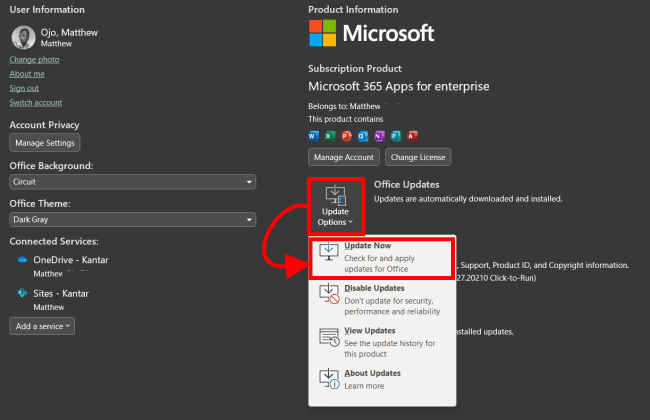
It will look for updates. If any are discovered, the update wizard will ask you to close any open Office applications.
When it’s finished, your applications will reopen, and you’ll get a notice indicating that Office is up to date.
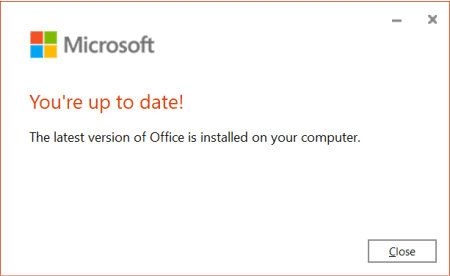
You should also ensure that Windows is up to date. To manually upgrade Windows 11, press Windows key + I to open Settings. Select Windows Update and click Check for updates on the right-pane.

Download and install any updates that it finds. Your system might ask for a restart after installing the updates.
Start Microsoft Excel in Safe Mode
Windows isn’t the only program that can be launched in Safe Mode. To remedy the crashing issue, you may alternatively launch Excel (and other Office programs) in Safe Mode.
Excel in Safe Mode allows you to run the application with limited features and to skip add-ins that may be causing the issue.
To launch Excel in Safe Mode, take the following steps:
- Save your spreadsheet and make a shortcut to it on your desktop or another easily accessible area.
- To start the file, hold down the Ctrl key and double-click it.
- A window will appear asking if you want to open it in Safe Mode; click Yes.
- You can also run Excel in safe mode by pressing Windows key + R to open Run.
- In the Run box, type excel.exe /safe and press OK.

When Excel opens in Safe Mode, it will appear at the top of the spreadsheet.

Remove Add-ins from Excel to fix Microsoft Excel Crash Issues
If you can work in Excel after starting it in safe mode, there may be a problem with an installed add-in.
To disable an Excel add-in, do the following: Go to File > Options.
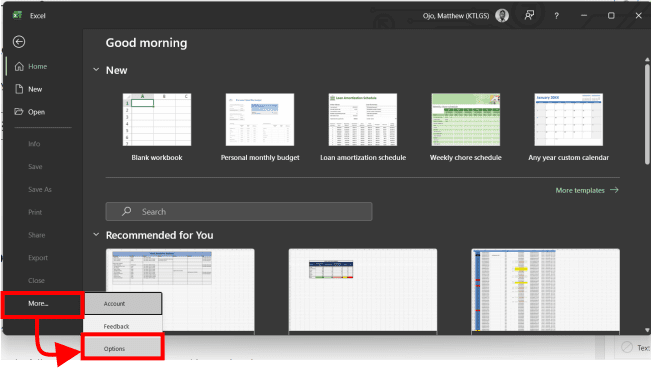
2: In the Excel Options box, select Add-ins from the left column. Click COM Add-ins from the Manage selection and click the Go button.

3: Uncheck all the available Add-ins and then click OK. If Excel no longer crashes, you can go back and add one at a time until you identify the faulty Add-in.

Disable Hardware Graphics Acceleration
Adding simple animations to your Microsoft Excel may surely make them more interesting. They do, however, need more processing and system resources. Animations may necessitate hardware graphics acceleration, which might result in a crashing issue, particularly on laptops and desktops with lower system specifications.
Use the following procedures to disable graphics acceleration:
- Open Excel on your desktop and navigate to File > Options.
- When the Excel Options screen displays, in the left column, pick the Advanced tab. In the right panel, scroll down until you reach the Display area. Uncheck the item that says “Disable hardware graphics acceleration” if present in your version of Office.

Restart Excel and check to see if it crashes again.
Repair Your Microsoft Office Installation
Unfortunately, if Microsoft Excel is still crashing, it might indicate an issue with your Office installation. It’s time to fix any damaged Office installation files. You can fix your Microsoft Office installation by taking the following steps:
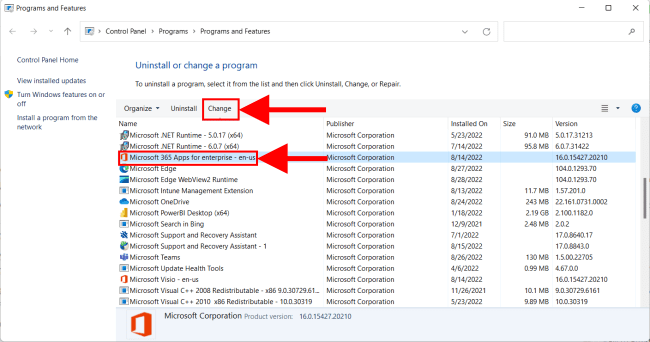
Press the Windows key + R keyboard shortcut to open the Run dialog. In Run, enter appwiz.cpl and press OK.
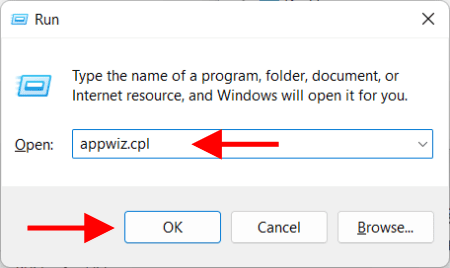
Select Microsoft Office or Microsoft 365 (if you have a subscription) and click the Change button at the top.
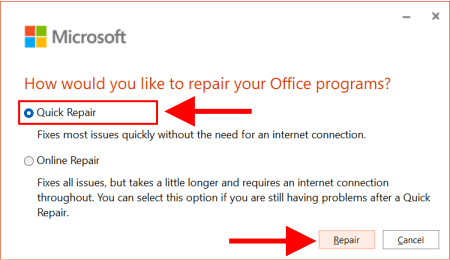
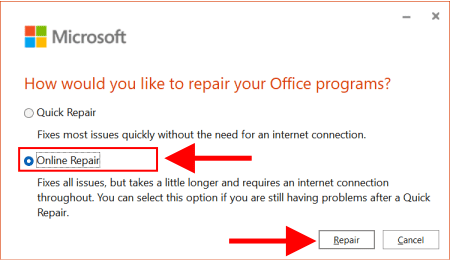
Next, select the Quick Repair option at the top and click the Repair button.
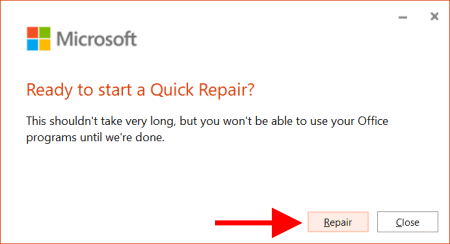
A second screen will display asking you to confirm that you wish to do the Quick Repair. You will not be able to use Office programs during the repair process – click Repair.
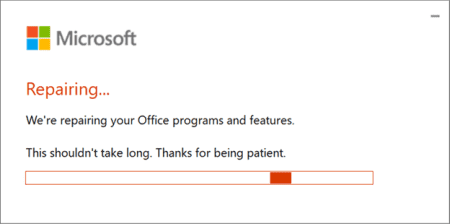
You can monitor the progress of the repair while it is taking place. The time required varies depending on the system.
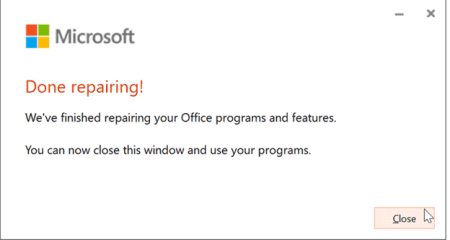
You will be notified when the repair is complete. Click the Close button to exit Excel and check if it crashes again.
If Excel crashes again, go back to repair it, but this time select the Online Repair option. It is a more comprehensive fix that retrieves lost or damaged files straight from Microsoft servers.
Conclusion on how to Fix Microsoft Excel Crash Issues
You don’t want Excel to crash when you’re in the middle of creating a large spreadsheet full of data. If Excel continues freezing, the actions above should get it functioning again. Starting Excel in safe mode is a great solution for finishing it quickly.
Following that, you may perform more advanced troubleshooting, such as fixing the installation.
I hope you found this article useful on how to Fix Microsoft Excel Crash Issues. Please feel free to leave a comment below.