Skip to content

TechDirectArchive

Hands-on IT, Cloud, Security & DevOps Insights

  • Home
  • About
  • Advertise With US
  • Contact
  • Reviews
  • Toggle search form
Home » Windows » When Should I Use TPM or TPM + PIN
  • microsoft authenticator 1280x720 1
    How to setup Microsoft Authenticator Password Manager
  • Change BitLocker Password in Windows
    How to Change BitLocker Password in Windows Security | Vulnerability Scans and Assessment
  • Screenshot 4
    Veeam Agent for AIX: Initial Deploy/UUID Error Network | Monitoring
  • How to create a dev drive
    How to create a Dev Drive on Windows 11 Windows
  • SQL server authentication mode
    Change from SQL Server and Windows Authentication Mode to Windows authentication Mode Oracle/MSSQL/MySQL
  • Azure logo
    Microsoft Azure Active Directory: How to setup Azure AD Tenant AWS/Azure/OpenShift
  • banner 1
    How to fix Windows Microsoft Store not opening Windows
  • screenshot 2020 02 13 at 22.47.41
    Active Directory Flexible Single-Master Operations Roles [FSMO] Windows Server

When Should I Use TPM or TPM + PIN

Posted on 16/10/202224/07/2024 Matthew By Matthew No Comments on When Should I Use TPM or TPM + PIN
Feature-image
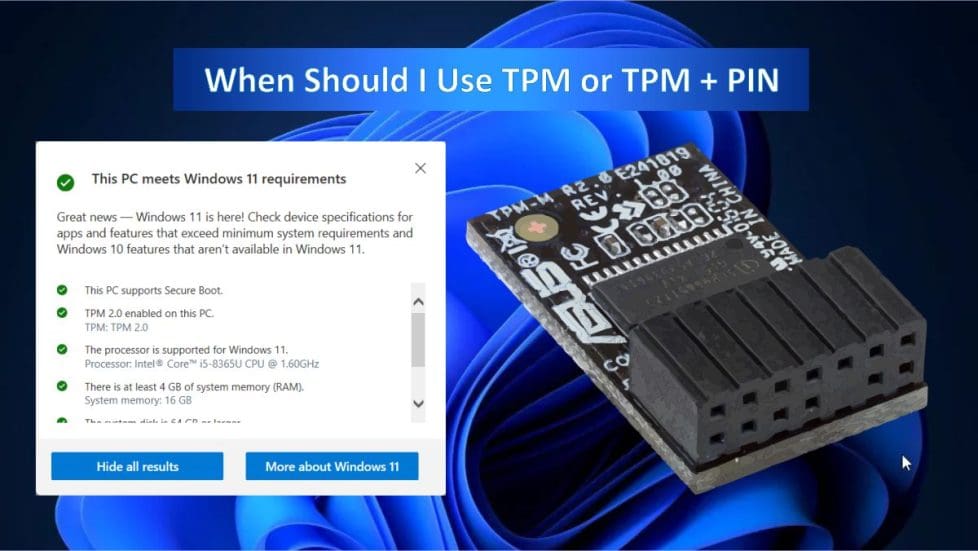
Trusted Platform Module (TPM)

In this guide, you will learn about when Should I Use TPM or TPM + PIN. One of the main requirements in Microsoft’s Windows, particularly Windows 11. The operating system has a little-known PC security feature known as the Trusted Platform Module. If you are looking to build your own Windows 11 PC or upgrade one that is running an earlier version of Windows, this might be cause for concern. Please see this detailed guide on how to Get TPM information: How to determine if TPM is present and how to enable TPM in the BIOS, and How to clear, enable or disable TPM in Windows via the BIOS or UEFI.

So, let’s have a look at what Trusted Platform Module (TPM) is and how it operates in Windows, and when we should use it or activate a TPM + PIN.

For more related information on TPM and other interesting guides please read: Enable or Disable TPM Auto-provisioning: How to fix waiting for TPM auto-provisioning, and Enable BitLocker without Compatible TPM: How to enable Bitlocker Pre-Boot authentication password via the Group Policy.

What is a TPM?

According to Microsoft, TPM is a microprocessor designed to perform basic security operations, most notably encryption key management. When TPM is installed on a computer’s motherboard and connects with the rest of the system through a hardware bus.

Physically, TPMs are designed to be tamper-proof. If an attacker tries to physically retrieve data directly from the chip, they’ll probably destroy the chip in the process. The TPM chip functions similarly to the authenticator software on your phone that you use to log into your bank account.

Turning on your computer is equivalent to putting your username and password into the login screen in this instance. You will be unable to access your money if you do not enter a code within a short period of time.

Similarly, when you turn on a modern PC with full-disk encryption and a TPM, the small chip will offer a unique code known as a cryptographic key. When everything is in order, the disk encryption will be unlocked, and your machine will boot up. Your PC won’t start if there is an issue with the key. Such as if a hacker hijacked your laptop and attempted to tamper with the encrypted disk within. 

Though on the most fundamental level, that is how modern TPM systems work, there is much more they are capable of. The TPM is used by several applications and other PC functionalities once the operating system has been booted. TPM is used by Outlook and Thunderbird email clients to manage encrypted or key-signed communications.

The TPM is also used by Firefox and Chrome web browsers for certain more advanced tasks. Such as keeping track of websites’ SSL certificates. TPMs are used by a wide range of consumer electronics products outside of PCs, including printers and linked home devices. 

Why Should I Enable Two-Factor Authentication

In this section, you will learn it is important to use TPM + PIN. Simply having TPM only enabled on your system is not enough to protect against malicious acts, which is why pre-boot authentication with full-disk encryption properly configured with the TPM is required.

Pre-boot authentication is designed to prevent the encryption key from being loaded to system memory on devices that are vulnerable to certain types of cold boot attacks. If you use BitLocker to encrypt your Windows system disk, you may add a PIN for extra security. Before Windows will even start, you must input the PIN every time you switch on your PC. This is different from a login PIN, which you input after Windows boots up.

By binding the BitLocker encryption key with the TPM and properly configuring the device. It is extremely hard for an attacker to gain access to BitLocker-encrypted data without having an authorized user’s credentials. As a result, computers fitted with a TPM can offer a high level of security against attackers attempting to directly obtain the BitLocker encryption key.

If Windows is unable to access the encryption key. The device will be unable to read or edit the data on the system disk. Even if an attacker steals the entire PC or removes the disk. They will be unable to view or alter the contents without the encryption key. The only way to avoid pre-boot authentication is to input the highly complex 48-digit recovery key.

Does My PC Already Have TPM 2.0? 

If your machine fulfills the other Windows 11 minimum system requirements, it may support TPM 2.0. The standard, however, is very new. If you bought your PC after 2016, it almost definitely came with TPM 2.0. If your machine is more than a few years old, it most likely has the outdated TPM 1.2 version.

To know if your system meets the Windows 11 installation requirements, you can use the Microsoft PC Health Check app.  Please see how to Enable Secure boot and TPM on HyperV: How to fix “This PC Can’t Run Windows 11” on Hyper V.

image4-1
PC Health Check

However, you can still bypass this requirement to install and enjoy the new Windows 11 look and features. Here is a detailed article on how to use and install Windows 11 without TPM 2.0. If your device has TPM 2.0, but it’s not currently enabled, See this guide: How to determine if TPM is present and how to enable it.

I hope you found this blog post helpful. You have learned when Should I Use TPM or TPM + PIN. If you have any questions, please let me know in the comment session.

5/5 - (1 vote)

Thank you for reading this post. Kindly share it with others.

  • Click to share on X (Opens in new window) X
  • Click to share on Reddit (Opens in new window) Reddit
  • Click to share on LinkedIn (Opens in new window) LinkedIn
  • Click to share on Facebook (Opens in new window) Facebook
  • Click to share on Pinterest (Opens in new window) Pinterest
  • Click to share on Tumblr (Opens in new window) Tumblr
  • Click to share on Telegram (Opens in new window) Telegram
  • Click to share on WhatsApp (Opens in new window) WhatsApp
  • Click to share on Pocket (Opens in new window) Pocket
  • Click to share on Mastodon (Opens in new window) Mastodon
  • Click to share on Bluesky (Opens in new window) Bluesky
  • Click to share on Threads (Opens in new window) Threads
  • Click to share on Nextdoor (Opens in new window) Nextdoor
Security | Vulnerability Scans and Assessment, Windows Tags:Bitlocker, BitLocker Drive Encryption Administration Utilities, BitLocker Recovery Keys, Enable BitLocker, Microsoft Windows, TPM, Trusted Platform Module, Windows 10, Windows 11

Post navigation

Previous Post: Domain Naming System: Enabling DNS over TLS in Windows 11
Next Post: How and where to find your BitLocker recovery key on Windows

Related Posts

  • PrintButton
    How to add Print Drivers with PowerShell, RUNDLL32, and VBScript in Windows 10 Windows
  • View installed Updates on Windows
    Get lists of installed Microsoft Windows Updates Windows
  • How to Enable Time Limit to Disconnect Remote Desktop After Inactivity
    How to Enable Time Limit to Disconnect Remote Desktop After Inactivity Windows
  • screenshot 2020 04 22 at 23.28.23
    Remove saved RDP connections in Windows Windows
  • Lets Encryp
    How to install Let’s Encrypt Certificates with IIS on a Windows Server Windows
  • Fix 0x800f0831 Windows Update
    Fix 0x800f0831 Error when installing Windows update Windows

More Related Articles

PrintButton How to add Print Drivers with PowerShell, RUNDLL32, and VBScript in Windows 10 Windows
View installed Updates on Windows Get lists of installed Microsoft Windows Updates Windows
How to Enable Time Limit to Disconnect Remote Desktop After Inactivity How to Enable Time Limit to Disconnect Remote Desktop After Inactivity Windows
screenshot 2020 04 22 at 23.28.23 Remove saved RDP connections in Windows Windows
Lets Encryp How to install Let’s Encrypt Certificates with IIS on a Windows Server Windows
Fix 0x800f0831 Windows Update Fix 0x800f0831 Error when installing Windows update Windows

Leave a Reply Cancel reply

You must be logged in to post a comment.

Microsoft MVP

VEEAMLEGEND

vexpert-badge-stars-5

Virtual Background

GoogleNews

Categories

veeaam100

sysadmin top30a

  • microsoft authenticator 1280x720 1
    How to setup Microsoft Authenticator Password Manager
  • Change BitLocker Password in Windows
    How to Change BitLocker Password in Windows Security | Vulnerability Scans and Assessment
  • Screenshot 4
    Veeam Agent for AIX: Initial Deploy/UUID Error Network | Monitoring
  • How to create a dev drive
    How to create a Dev Drive on Windows 11 Windows
  • SQL server authentication mode
    Change from SQL Server and Windows Authentication Mode to Windows authentication Mode Oracle/MSSQL/MySQL
  • Azure logo
    Microsoft Azure Active Directory: How to setup Azure AD Tenant AWS/Azure/OpenShift
  • banner 1
    How to fix Windows Microsoft Store not opening Windows
  • screenshot 2020 02 13 at 22.47.41
    Active Directory Flexible Single-Master Operations Roles [FSMO] Windows Server

Subscribe to Blog via Email

Enter your email address to subscribe to this blog and receive notifications of new posts by email.

Join 1,839 other subscribers
  • RSS - Posts
  • RSS - Comments
  • About
  • Authors
  • Write for us
  • Advertise with us
  • General Terms and Conditions
  • Privacy policy
  • Feedly
  • Telegram
  • Youtube
  • Facebook
  • Instagram
  • LinkedIn
  • Tumblr
  • Pinterest
  • Twitter
  • mastodon

Tags

AWS Azure Bitlocker Microsoft Windows PowerShell WDS Windows 10 Windows 11 Windows Deployment Services Windows Server 2016

Copyright © 2025 TechDirectArchive


Loading Comments...
 

You must be logged in to post a comment.