Skip to content

TechDirectArchive

Hands-on IT, Cloud, Security & DevOps Insights

  • Home
  • About
  • Advertise With US
  • Reviews
  • Contact
  • Toggle search form
Home » Windows Server » Virtual Machine Scale Set: Demonstrating High Availability in Azure
  • macOS
    How to upgrade macOS Big Sur to macOS Monterey Mac
  • LAMP
    How to setup and configure a Lamp stack on CentOS Linux
  • fix frequent shutdown due to licensing issues   Windows
    Fix Windows Server frequent disconnects and shutdown Windows Server
  • screenshot 2020 03 13 at 20.24.17
    How to view installed packages in Cygwin on Windows Windows
  • Jenkins
    How to Install Jenkins Automation Server on Ubuntu 20.04 LTS Linux
  • Angular 1
    How to deploy an Angular App to AWS S3 AWS/Azure/OpenShift
  • Azure Backup 1
    How to Install Azure Backup Agent AWS/Azure/OpenShift
  • msinfo32 thumbnail
    How to use MSINFO32 to view System Information Windows

Virtual Machine Scale Set: Demonstrating High Availability in Azure

Posted on 30/10/202216/12/2023 Raphael Gab-Momoh By Raphael Gab-Momoh No Comments on Virtual Machine Scale Set: Demonstrating High Availability in Azure
HighA

High availability refers to a group of technologies that reduces IT outages by ensuring business continuity of IT services through redundant, fault-tolerant, or failover-protected components located inside the same data centre. This tutorial explores Azure’s high availability options for business. Please see how to Install PlayonLinux on a Linux System and How to install Redis on a Linux System also How to Install Apache Subversion on a Linux System

In our own case, we will try and achieve this using a Virtual Machine Scale set. Hence, you can deploy and manage a group of load-balanced VMs using Azure virtual machine scale settings. Thus, VM instances can automatically grow or shrink in response to demand or a predetermined schedule and as such ensure that your workload is highly available.

Requirements for Azure Virtual Machine Scale Set

  1. Azure Portal
  2. Command Line Interface
  3. Working Internet

Find other useful articles here: How to solve Could not get lock /var/lib/dpkg/lock Error in Ubuntu Linux and How to set up a third-party DNS server on a Linux Server and

Step1: Create a Resource Group

A resource group is a logical container where all your workload that you want to group together are housed in. So, for evert project, it will make sense to create one and we will create one for this as well.

We can either choose to do this using Azure portal or using the Cli. Thus, we will use both methods. We will label the one we create with cli as techdirectarchivergroup1 and the one we create from the console as techdirectarchivergroup2. So, here is the one created with Cli

az group create --name techdirectarchivergroup1 --location eastus
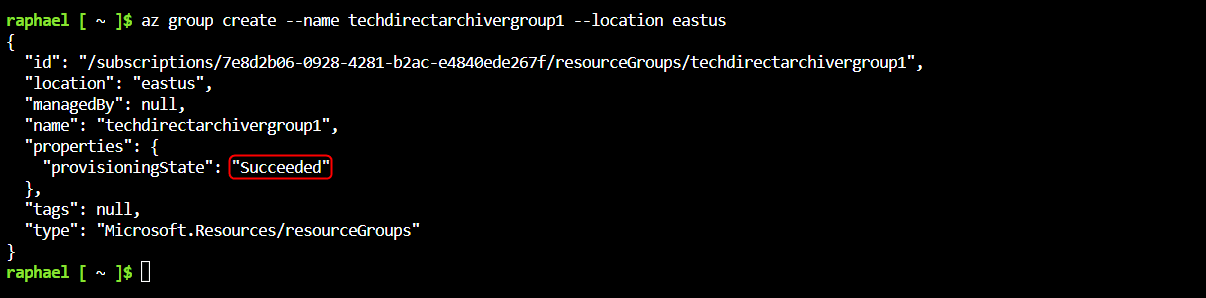
suceeded
succeeded

Thus. here is the one created from the console. Just search for resource group and fill in the information as in the screenshot below:

demonstrating high availability in azure-console
console

Step2: Create a Virtual Machine (VM) Scale Set

You can create a Virtual Machine Scale Set using either the portal or CLI

CLI Option

az vmss create \
  --resource-group techdirectarchivergroup1 \
  --name sampleScaleSet \
  --image UbuntuLTS \
  --upgrade-policy-mode automatic \
  --admin-username azureuser \
  --generate-ssh-keys
virtual machine scale set: demonstrating high availability in azure-vsucess

Portal Option

Notice that we can have the option of placing the Virtual Machine scale sets in availability zones to further protect our workload against datacenter failures, thus making them even more highly available.

virtual machine scale set: demonstrating high availability in azure-vmscalesetp
Scaleset created using Azure portal with the option for Availability Zones

Step3: Loadbalancing

The load balancer was created automatically when we created the scale set using the CLI method. But for the Azure portal method, you will have to enable the option and when you do, everything will be automatically assigned

Virtual machine scale set: Demonstrating high availability in azure-portaload
enable loadbalancing

Create Traffic rules to enable traffic to the application

az network lb rule create \
  --resource-group techdirectarchivergroup1 \
  --name myLoadBalancerRuleWeb \
  --lb-name sampleScaleSetLB \
  --backend-pool-name sampleScaleSetLBBEPool \
  --backend-port 80 \
  --frontend-ip-name loadBalancerFrontEnd \
  --frontend-port 80 \
  --protocol tcp
Virtual machine scale set: Demonstrating high availability in azure-loadbalancer1
succeeded

Step 4: Deploy a sample app for the Azure VM Scale set

We shall install a basic web application. Furthermore, we’ll use The Custom Script Extension below to install a basic NGINX web server as shown below:

az vmss extension set \
  --publisher Microsoft.Azure.Extensions \
  --version 2.0 \
  --name CustomScript \
  --resource-group  techdirectarchivergroup1 \
  --vmss-name sampleScaleSet \
  --settings '{"fileUris":["https://raw.githubusercontent.com/Azure-Samples/compute-automation-configurations/master/automate_nginx.sh"],"commandToExecute":"./automate_nginx.sh"}'
Virtual machine scale set: Demonstrating high availability in azure-saap
Sample app deployment succeeded

Step5: Test Scale set

Therefore, we shall access the sample web application in a web browser. However, the way to go about this is to use the public IP address of the load balancer and we can get it with the command below:

az network public-ip show \
  --resource-group techdirectarchivergroup1 \
  --name sampleScaleSetLBPublicIP \
  --query '[ipAddress]' \
  --output tsv
Virtual machine scale set: Demonstrating high availability in azure-public-ip
public ip

In a web browser, type in the load balancer’s public IP address. The following example demonstrates how the load balancer distributes traffic to one of your virtual machine instances:

sucesss
loadbalancing successful

Although staying in the cloud is good but not following best practices can make you get into trouble and as such, whenever you finish whatever you are doing, it is important to clean up. So, let’s delete the resource group with it’s content using the command:

az group delete --name techdirectarchivergroup1  --yes --no-wait
Virtual machine scale set: Demonstrating high availability in azure-delete
delete

Summary

We can use a Virtual Machine Scale set to ensure high availability for the Azure workload. To this end, the steps to configure this have been shown in this article.

Rate this post

Thank you for reading this post. Kindly share it with others.

  • Click to share on X (Opens in new window) X
  • Click to share on Reddit (Opens in new window) Reddit
  • Click to share on LinkedIn (Opens in new window) LinkedIn
  • Click to share on Facebook (Opens in new window) Facebook
  • Click to share on Pinterest (Opens in new window) Pinterest
  • Click to share on Tumblr (Opens in new window) Tumblr
  • Click to share on Telegram (Opens in new window) Telegram
  • Click to share on WhatsApp (Opens in new window) WhatsApp
  • Click to share on Pocket (Opens in new window) Pocket
  • Click to share on Mastodon (Opens in new window) Mastodon
  • Click to share on Bluesky (Opens in new window) Bluesky
  • Click to share on Threads (Opens in new window) Threads
  • Click to share on Nextdoor (Opens in new window) Nextdoor
AWS/Azure/OpenShift, Windows Server Tags:Azure

Post navigation

Previous Post: How to Install and Use Minikube on a Linux System
Next Post: How To Configure a Domain Password Policy

Related Posts

  • Install Microsoft PKI   ADCS
    Set up Microsoft PKI (ADCS) for SystoLOCK via PowerShell Windows Server
  • Resolvederror MBAM
    MBAM Policy was detected: Verify the OU used for pre-deployment does not apply MBAM policy Windows Server
  • Install Lets Encrypt Certificate on Windows with Certbot
    Install Lets Encrypt Certificate on Windows with Certbot Web Server
  • RDS Error
    RDP Users are unable to change Passwords Windows Server
  • GitLab runner update and upgrade
    How to update Gitlab-runners on Windows Windows
  • dgfhjm
    How to fix DISM Error 87: The package is unknown Windows Server

More Related Articles

Install Microsoft PKI   ADCS Set up Microsoft PKI (ADCS) for SystoLOCK via PowerShell Windows Server
Resolvederror MBAM MBAM Policy was detected: Verify the OU used for pre-deployment does not apply MBAM policy Windows Server
Install Lets Encrypt Certificate on Windows with Certbot Install Lets Encrypt Certificate on Windows with Certbot Web Server
RDS Error RDP Users are unable to change Passwords Windows Server
GitLab runner update and upgrade How to update Gitlab-runners on Windows Windows
dgfhjm How to fix DISM Error 87: The package is unknown Windows Server

Leave a Reply Cancel reply

You must be logged in to post a comment.

Microsoft MVP

VEEAMLEGEND

vexpert-badge-stars-5

Virtual Background

GoogleNews

Categories

veeaam100

sysadmin top30a
 
  • macOS
    How to upgrade macOS Big Sur to macOS Monterey Mac
  • LAMP
    How to setup and configure a Lamp stack on CentOS Linux
  • fix frequent shutdown due to licensing issues   Windows
    Fix Windows Server frequent disconnects and shutdown Windows Server
  • screenshot 2020 03 13 at 20.24.17
    How to view installed packages in Cygwin on Windows Windows
  • Jenkins
    How to Install Jenkins Automation Server on Ubuntu 20.04 LTS Linux
  • Angular 1
    How to deploy an Angular App to AWS S3 AWS/Azure/OpenShift
  • Azure Backup 1
    How to Install Azure Backup Agent AWS/Azure/OpenShift
  • msinfo32 thumbnail
    How to use MSINFO32 to view System Information Windows

Subscribe to Blog via Email

Enter your email address to subscribe to this blog and receive notifications of new posts by email.

Join 1,841 other subscribers
  • RSS - Posts
  • RSS - Comments
  • About
  • Authors
  • Write for us
  • Advertise with us
  • General Terms and Conditions
  • Privacy policy
  • Feedly
  • Telegram
  • Youtube
  • Facebook
  • Instagram
  • LinkedIn
  • Tumblr
  • Pinterest
  • Twitter
  • mastodon

Tags

AWS Azure Bitlocker Microsoft Windows PowerShell WDS Windows 10 Windows 11 Windows Deployment Services Windows Server 2016

Copyright © 2025 TechDirectArchive


Loading Comments...
 

You must be logged in to post a comment.