Skip to content

TechDirectArchive

Hands-on IT, Cloud, Security & DevOps Insights

  • Home
  • About
  • Advertise With US
  • Contact
  • Reviews
  • Toggle search form
Home » Windows » Install and Manage Applications with Winget
  • Screenshot
    Setup iSCSI Target and Storage LUN on Synology DS923+ for VBR Reviews
  • parttt
    Adding a new partition to an existing Linux server Linux
  • Extend C drive with additional Software
    Fix unable to Extend Volume on Windows protected by BitLocker Windows
  • physical
    Linux Machine: Is it Virtual or a Physical server Linux
  • FEATUREIMAGE
    How to work with Azure Cognitive Service AWS/Azure/OpenShift
  • Modernstanby
    Modern Standby: PC is automatically encrypted Windows
  • mssql ubuntu install feature image
    How to reset MSSQL Server SA Password on Ubuntu Oracle/MSSQL/MySQL
  • command prompt powershell 670x335 1
    How to Start, Stop and Restart Windows Server Update WSUS Services via PowerShell and CMD Windows

Install and Manage Applications with Winget

Posted on 28/01/202303/09/2023 Christian By Christian No Comments on Install and Manage Applications with Winget
Wingettool

It will interest you to know now that the Windows Package Manager “Winget” command-line tool is now bundled by default with Windows 11 and modern versions of Windows 10 by default as the App Installer. In this guide, you will learn how to install and manage applications with Winget. Please see LACP Configuration on Cisco 3650 Switch, and PowerShell Script: Uninstalling Applications Made Easy. If you are running an earlier version of Windows and the App Installer is not installed, you can get App Installer from the Microsoft Store.

If it’s already installed, make sure it is updated with the latest version. In Linux, here are some similar command line tools such as “yum” and “apt-get” etc. Kindly refer to these guides on how to install Windows Package Manager (Winget CLI), and Windows App Package: How to Bundle MSIX packages.

Winget Commands for Installing and Managing Applications

The winget command line tool is only supported on Windows 10 1709 (build 16299) or later at the time of writing this guide.

Update- 01.09.2023: Windows Package Manager winget command-line tool is available on Windows 11 and modern versions of Windows 10 as a part of the App Installer. 

As you can see in the image below, the current preview of the Winget tool supports the following commands.
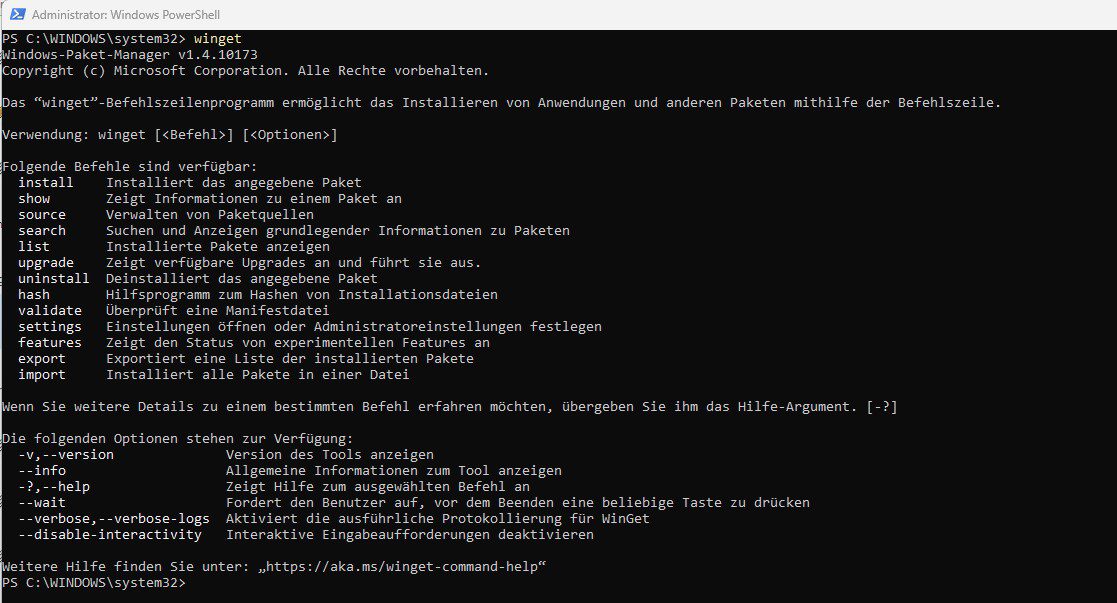
wingetcommands

You may be interested in these articles: How to install, upgrade and uninstall Chocolatey, how to install, upgrade and uninstall software with Chocolatey, and how to install applications with Winget CLI on Windows.

Below is a table showing the various commands and associated descriptions of them.

WingetTable

The Winget list command

The winget list command will display more than just apps installed with the winget. Therefore you can use these commands to quickly and easily remove apps from your PC

wingetlist

Note: You can also use the list tool to find the application. This will display the app name, id and version of the application.

winget list clipchamp

Please see How to install Winget CLI on Windows,

Winget Install Command

The install command of the winget tool installs a specified application you wish to have installed. You can also use the search winget command to identify the application you want to install. Below is the command to search command. After determining that the app you want is available, you can proceed with the installation.

winget search <appname>

The install command requires that you specify the exact string to install. If there is any ambiguity, you will be prompted to further filter the install command to an exact application. To install an application, kindly use the command below if the application name is determined already.

winget install "vlc media player"
wingetintsall

As you can see below, Cipchamp is a single word, and there isn’t any need to have a double quotation (“”) wrapping the application.

winget install clipchamp

If you wish to install a specific version, kindly proceed and include the version number alongside the installation command as shown below. You can also install an application from its ID or install an application by version and ID.

winget install clipchamp --version x.xx.x
winget install --id Microsoft.clipchamp --version x.xx.x

Uninstall Tool – Winget

The uninstall command uninstalls the specified application you wish to remove from your device. The uninstall command requires that you specify the exact string to uninstall. If there is any ambiguity, you will be prompted to further filter the uninstall command to an exact application. To uninstall an application via winget, kindly run the command below followed by the application

winget uninstall "Microsoft to do"
wingetuninstallmultiplewords

Note: Just like the install command, you can uninstall a specific version of an application or uninstall an application using the application ID.

If the query provided to winget does not result in a single application to uninstall, then winget will display multiple results. You can then use additional filters to refine the search for the correct application. Below is an example of how to install an app that has a single name.

wingetuninstall1

Windows Package Manager Upgrade Command

The upgrade command helps upgrade your specified application. This command requires that you specify the exact string to upgrade. If there is any ambiguity, you will be prompted to specify the exact application.

To see already installed applications that require an upgrade, kindly run the following command winget upgrade. This will list available apps that require an upgrade.

winget upgrade
wingetupgrade

To upgrade an app, kindly run the command winget upgrade notepad++.

wingetupgradeapps

Winget Upgrade All

The winget upgrade --all the command will identify all the applications with upgrades available. When you run winget upgrade --all the Windows Package Manager will look for all applications that have updates available and attempt to install the updates.

I hope you found this blog post helpful. Now, you have learned how to install and manage applications with Winget on a Windows PC. If you have any questions, please let me know in the comment session.

5/5 - (1 vote)

Thank you for reading this post. Kindly share it with others.

  • Click to share on X (Opens in new window) X
  • Click to share on Reddit (Opens in new window) Reddit
  • Click to share on LinkedIn (Opens in new window) LinkedIn
  • Click to share on Facebook (Opens in new window) Facebook
  • Click to share on Pinterest (Opens in new window) Pinterest
  • Click to share on Tumblr (Opens in new window) Tumblr
  • Click to share on Telegram (Opens in new window) Telegram
  • Click to share on WhatsApp (Opens in new window) WhatsApp
  • Click to share on Pocket (Opens in new window) Pocket
  • Click to share on Mastodon (Opens in new window) Mastodon
  • Click to share on Bluesky (Opens in new window) Bluesky
  • Click to share on Threads (Opens in new window) Threads
  • Click to share on Nextdoor (Opens in new window) Nextdoor
Windows Tags:Microsoft Windows, Windows 11

Post navigation

Previous Post: Fix macOS Apps opening on the wrong desktop
Next Post: Install and use OCS inventory on Windows

Related Posts

  • FixThunderboltissue
    Fix the Thunderbolt application is not in use and can be safely uninstalled Windows
  • Disable Hardware Acceleration in Browsers and Windows
    How to Disable Hardware Acceleration in Browsers and Windows Windows
  • Capture 12
    How to Generate SSH Keys in Windows 10 Windows
  • MDt
    Failure 5456: Unable to determine destination disk, partition, and/or drive, see BDD Log Windows
  • Featured image
    How to use the voice input instead of typing on Windows Windows
  • how to fix the sorry this file type is not permitted for security reasons error in wordpress 5e4a5632967c7
    Error 1707: Network address invalid when trying to connect remotely Windows

More Related Articles

FixThunderboltissue Fix the Thunderbolt application is not in use and can be safely uninstalled Windows
Disable Hardware Acceleration in Browsers and Windows How to Disable Hardware Acceleration in Browsers and Windows Windows
Capture 12 How to Generate SSH Keys in Windows 10 Windows
MDt Failure 5456: Unable to determine destination disk, partition, and/or drive, see BDD Log Windows
Featured image How to use the voice input instead of typing on Windows Windows
how to fix the sorry this file type is not permitted for security reasons error in wordpress 5e4a5632967c7 Error 1707: Network address invalid when trying to connect remotely Windows

Leave a Reply Cancel reply

You must be logged in to post a comment.

Microsoft MVP

VEEAMLEGEND

vexpert-badge-stars-5

Virtual Background

GoogleNews

Categories

veeaam100

sysadmin top30a
 
  • Screenshot
    Setup iSCSI Target and Storage LUN on Synology DS923+ for VBR Reviews
  • parttt
    Adding a new partition to an existing Linux server Linux
  • Extend C drive with additional Software
    Fix unable to Extend Volume on Windows protected by BitLocker Windows
  • physical
    Linux Machine: Is it Virtual or a Physical server Linux
  • FEATUREIMAGE
    How to work with Azure Cognitive Service AWS/Azure/OpenShift
  • Modernstanby
    Modern Standby: PC is automatically encrypted Windows
  • mssql ubuntu install feature image
    How to reset MSSQL Server SA Password on Ubuntu Oracle/MSSQL/MySQL
  • command prompt powershell 670x335 1
    How to Start, Stop and Restart Windows Server Update WSUS Services via PowerShell and CMD Windows

Subscribe to Blog via Email

Enter your email address to subscribe to this blog and receive notifications of new posts by email.

Join 1,841 other subscribers
  • RSS - Posts
  • RSS - Comments
  • About
  • Authors
  • Write for us
  • Advertise with us
  • General Terms and Conditions
  • Privacy policy
  • Feedly
  • Telegram
  • Youtube
  • Facebook
  • Instagram
  • LinkedIn
  • Tumblr
  • Pinterest
  • Twitter
  • mastodon

Tags

AWS Azure Bitlocker Microsoft Windows PowerShell WDS Windows 10 Windows 11 Windows Deployment Services Windows Server 2016

Copyright © 2025 TechDirectArchive


Loading Comments...
 

You must be logged in to post a comment.