Skip to content

TechDirectArchive

Hands-on IT, Cloud, Security & DevOps Insights

  • Home
  • About
  • Advertise With US
  • Contact
  • Reviews
  • Toggle search form
Home » Scripts » Retrieve Recent Windows Update: How to create batch script files
  • AWS flow log
    AWS Flow Logs IAM Role Setup AWS/Azure/OpenShift
  • article 1280x720.192a2586
    How to fix Scheduled task status prompts error 0x800710E0 Windows Server
  • feature photo terraform
    How to install Amazon RDS using Terraform Linux
  • Connect to FTP Server
    Secure FTP Login Issue: NAT Router Configuration for Passive Mode and Port Forwarding Windows Server
  • On ubuntu mariadb
    How to install MariaDB on Ubuntu Linux
  • openstack ola
    Openstack Deployment with Devstack Linux
  • reboot computer
    Determine the last boot time of a Windows Server Windows Server
  • Cloud Infrastructure and Application Security Best Practices
    [AZURE] Hybrid Cloud Infrastructure and Application Security Best Practices Network | Monitoring

Retrieve Recent Windows Update: How to create batch script files

Posted on 01/07/202324/10/2024 Matthew By Matthew No Comments on Retrieve Recent Windows Update: How to create batch script files
Featured image_batch file
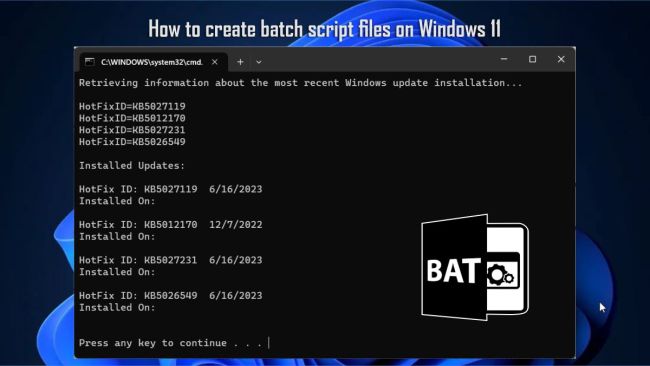
How to create batch script files on Windows 11

In this guide, we’ll explore different ways to create and Retrieve Recent Windows Update: How to create batch script files on Windows 11. Please see How to use Command-Line on Git Bash and GitHub Desktop to PUSH local code to GitHub, and How to Upload Batch Files to Azure Storage Account Using Azure CLI. Batch files, which typically end with a “.bat” extension, are text files containing multiple commands that can be executed in sequence from the Command Prompt.

They are handy on Windows 11 for making system changes, querying system information, automating routines, and launching apps.

Using batch files can save you time, reduce errors, and simplify the process of executing commands or performing specific actions. While PowerShell allows for more comprehensive scripts, batch files executed on the Command Prompt are still valuable for a wide range of tasks due to their simplicity and ease of creation.

Here are other related guides that you will find interesting: Batch rename multiple files on Windows, How to Rename or Move a File or Directory in Linux – Bash Terminal Command, Linux Shell Scripting: How to write a Shell Script that Counts Lines and Words in a File,

How to Create Batch Files on Windows 11

Creating batch files is a straightforward process that only requires basic Command Prompt skills and any text editor like Notepad or Visual Studio Code. Let’s look at some examples to illustrate this. Here is a detailed guide on how to Batch rename multiple files on Windows.

Compose a Basic Batch File

To create a basic batch file on Windows 11, follow these steps. Open the Start menu, search for Notepad and click on the top result to open the text editor.

Open Notepad
Open Notepad

Type the following lines of code in the text file:

@ECHO OFF
ECHO Hi, using batch file to simplify tasks on Windows 11.
PAUSE

Click the “File” menu and select the “Save as” option.

Copy and Paste Batch script in Notepad.
Copy and Paste Batch script in Notepad

Choose a name for the script, such as “test_batch.bat” then save the file.

Save batch file
Save batch file

After completing these steps, double-click the file to run the script. It will automatically display a command prompt with the message “Hi, using batch file to simplify tasks on Windows 11.” on the screen.

Command Prompt Display

Batch files are typically saved with the “.bat” extension, but you can also use “.cmd” or “.btm”.

Compose an Advanced Batch File:

For a more advanced batch script, follow these steps:

Open the Start menu, search for Notepad and open the text editor.

Open Notepad
Open Notepad

Retrieve Recent Windows Update

Type the following lines in the text file to retrieve information about the most recent Windows update installation.

@echo off

REM Retrieve information about the most recent Windows update installation

echo Retrieving information about the most recent Windows update installation...

echo.

REM Query the Windows Update history using WMIC (Windows Management Instrumentation Command-line)

wmic qfe get HotFixID, InstalledOn /format:list | findstr /i /c:"KB"

REM Display the installation date of the updates

echo.

echo Installed Updates:

echo.

REM Iterate through the output and display the HotFix ID and installation date

for /f "skip=1 tokens=1,2 delims=|" %%G in ('wmic qfe get HotFixID^,InstalledOn /format:table') do (

    echo %%G | findstr /i /c:"KB" >nul

    if not errorlevel 1 (

        echo HotFix ID: %%G

        echo Installed On: %%H

        echo.

    )

)

echo.

pause

Click the File menu and select the Save as option.

Copy and paste script in Notepad

Choose a name for the script, such as “update_info.bat.” Then save the file.

Save the batch file
Save the batch file

Running this batch file will display both the HotFix ID and the installation date of the Windows updates.

Update info display in Command Prompt

The output will list the installed updates along with their respective installation dates.

How to Run Batch Files on Windows 11

You can run batch files in three different ways on Windows 11: from Command Prompt, File Explorer, or automatically during startup.

Run Script from Command Prompt:

To run a batch file from Command Prompt, follow these steps:

Open the Start menu, search for Command Prompt, right-click the top result, and select the Run as administrator option.

Open Command Prompt
Open Command Prompt

Navigate to the path where the batch file is saved and press Enter:

E.g. cd C:\Users\Account\Folder\test_batch.bat

After executing these steps, the batch file will run, and the results will be displayed in the console.
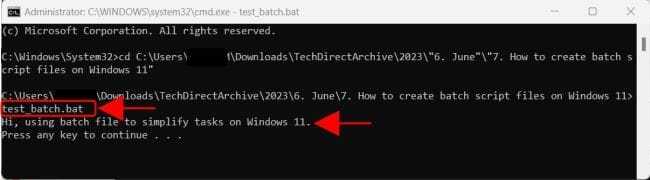
Run batch script from Command Prompt

Since you opened Command Prompt manually, the window won’t close automatically unless the script includes the “Pause” option.

Run Script from File Explorer:

To run a script file from File Explorer, follow these steps:

Open File Explorer, browse to the folder containing the batch file. Right-click the file and select the Open option.

Run batch file from explorer

If elevation is required, right-click the file and select the “Run as administrator” option.

After running the script, the window will either remain open or close automatically, depending on whether you included the “Pause” option.

Run Script at Startup:

To run a batch file automatically at startup, follow these steps:

Navigate to the folder containing the batch file, right-click the file and select the Copy option or simply use the shortcut key “Ctrl + C“.

Copy batch file
Copy batch file

Type “shell:startup” in the address bar and press Enter.

Startup app folder
Startup app folder

Press “Ctrl + V” shortcut key to paste the batch file in the Startup folder.

Startup Update info
Startup Update info

After completing these steps, Windows 11 will run the batch file every time the computer starts, and the user logs into the account.

Conclusion

By following these instructions, you can easily create and run batch files on Windows 11, enabling you to perform various tasks efficiently, automate routines, and customize system settings to suit your needs.

I hope you found this article on how to Retrieve Recent Windows Update: How to create batch script files on Windows 11 helpful. In case you have any questions do not hesitate to ask in the comment section.

5/5 - (1 vote)

Thank you for reading this post. Kindly share it with others.

  • Click to share on X (Opens in new window) X
  • Click to share on Reddit (Opens in new window) Reddit
  • Click to share on LinkedIn (Opens in new window) LinkedIn
  • Click to share on Facebook (Opens in new window) Facebook
  • Click to share on Pinterest (Opens in new window) Pinterest
  • Click to share on Tumblr (Opens in new window) Tumblr
  • Click to share on Telegram (Opens in new window) Telegram
  • Click to share on WhatsApp (Opens in new window) WhatsApp
  • Click to share on Pocket (Opens in new window) Pocket
  • Click to share on Mastodon (Opens in new window) Mastodon
  • Click to share on Bluesky (Opens in new window) Bluesky
  • Click to share on Threads (Opens in new window) Threads
  • Click to share on Nextdoor (Opens in new window) Nextdoor
Scripts, Windows Tags:Microsoft Windows, Windows 10, Windows 11, Windows Server 2016

Post navigation

Previous Post: How to remove malware using Microsoft Safety Scanner on Windows 10 and 11
Next Post: How to Back Up and Restore the Windows Registry

Related Posts

  • DELL Data Protection
    How does DELL Free Fall Data Protection work? Windows
  • powershell01
    How to create a KDS root key using PowerShell Scripts
  • How To Fix “Startup Repair Couldn’t Repair Your PC
    How To Fix “Startup Repair Couldn’t Repair Your PC Windows
  • Featured image 1
    How to Disable Internet Explorer with Group Policy & Registry Windows
  • How to Make More Space Available on the Windows 11 Taskbar
    How to Make More Space Available on the Windows 11 Taskbar Windows
  • winSEARCH
    Hide or Remove Search Button from Windows 10 Taskbar Windows

More Related Articles

DELL Data Protection How does DELL Free Fall Data Protection work? Windows
powershell01 How to create a KDS root key using PowerShell Scripts
How To Fix “Startup Repair Couldn’t Repair Your PC How To Fix “Startup Repair Couldn’t Repair Your PC Windows
Featured image 1 How to Disable Internet Explorer with Group Policy & Registry Windows
How to Make More Space Available on the Windows 11 Taskbar How to Make More Space Available on the Windows 11 Taskbar Windows
winSEARCH Hide or Remove Search Button from Windows 10 Taskbar Windows

Leave a Reply Cancel reply

You must be logged in to post a comment.

Microsoft MVP

VEEAMLEGEND

vexpert-badge-stars-5

Virtual Background

GoogleNews

Categories

veeaam100

sysadmin top30a

  • AWS flow log
    AWS Flow Logs IAM Role Setup AWS/Azure/OpenShift
  • article 1280x720.192a2586
    How to fix Scheduled task status prompts error 0x800710E0 Windows Server
  • feature photo terraform
    How to install Amazon RDS using Terraform Linux
  • Connect to FTP Server
    Secure FTP Login Issue: NAT Router Configuration for Passive Mode and Port Forwarding Windows Server
  • On ubuntu mariadb
    How to install MariaDB on Ubuntu Linux
  • openstack ola
    Openstack Deployment with Devstack Linux
  • reboot computer
    Determine the last boot time of a Windows Server Windows Server
  • Cloud Infrastructure and Application Security Best Practices
    [AZURE] Hybrid Cloud Infrastructure and Application Security Best Practices Network | Monitoring

Subscribe to Blog via Email

Enter your email address to subscribe to this blog and receive notifications of new posts by email.

Join 1,839 other subscribers
  • RSS - Posts
  • RSS - Comments
  • About
  • Authors
  • Write for us
  • Advertise with us
  • General Terms and Conditions
  • Privacy policy
  • Feedly
  • Telegram
  • Youtube
  • Facebook
  • Instagram
  • LinkedIn
  • Tumblr
  • Pinterest
  • Twitter
  • mastodon

Tags

AWS Azure Bitlocker Microsoft Windows PowerShell WDS Windows 10 Windows 11 Windows Deployment Services Windows Server 2016

Copyright © 2025 TechDirectArchive


Loading Comments...
 

You must be logged in to post a comment.