Skip to content

TechDirectArchive

Hands-on IT, Cloud, Security & DevOps Insights

  • Home
  • About
  • Advertise With US
  • Reviews
  • Contact
  • Toggle search form
Home » Windows » How to Create Shared Folder in Windows Sandbox
  • VMware Aria
    VMSA-2022-0026: An arbitrary file read vulnerability in VMware Aria Operations Security | Vulnerability Scans and Assessment
  • Featured image Unblock Microsoft Store
    How to Unblock Microsoft Store on Windows 11 Windows
  • image 38
    How to Fix “Unknown hard error” on Windows Server and Windows 10 Windows
  • How to use DBeaver on MacOS
    Install DBeaver on macOS: Connect to PostgreSQL Database Oracle/MSSQL/MySQL
  • BitLocker34
    BitLocker Back Door: Stolen laptop to inside the company network Security | Vulnerability Scans and Assessment
  • screenshot 2020 03 13 at 21.22.29
    How to determine Cygwin version Windows Server
  • Screenshot 2022 04 02 at 22.17.10
    How to Install Kubectl on Windows 11 Windows
  • Restrict Access to USB Drives
    Deny Execute Access: Restrict Access to USB Drives on Windows [Part 1] Windows

How to Create Shared Folder in Windows Sandbox

Posted on 20/08/202322/01/2024 Temitope Odemo By Temitope Odemo No Comments on How to Create Shared Folder in Windows Sandbox
banner-1

One feature that I personally like from Microsoft is the Windows Sandbox which comes with the latest Windows 10 update. The value of this sandbox cannot be under-emphasized as it allows you to launch your Windows in a virtual environment so that you can test any untrusted applications before installing them on your system or where you can access some malicious websites. Though any changes you make to the sandbox get lost immediately you close the feature, but it keeps the system safe and secure from malicious attacks.

You can enable Windows Sandbox through the Windows Features and there is no difficulty in setting it up, but you can read How to Configure Windows Sandbox and How to Use Windows Sandbox as a security feature in Windows. Immediately you enable this feature you can launch it from the Start menu and you are ready to use it.

But there will always be instances of sharing files between the host and Windows Sandbox, you have the opportunity to create a shared folder in Windows Sandbox, and the shared folder will give you control over how and which files needed to be shared. In this guide, I will show you How to Create Shared Folder in Windows Sandbox.

You can also read about how to Create and access a hidden share folder on Windows.

Create Shared Folder in Windows Sandbox

Follow these steps on How to Create Shared Folder in Windows Sandbox

1: Create a folder and create a text file with any name but you must replace the .txt extension with .wsb.

wsb-file

2. Right-click on the .wsb file and open it with Notepad or any file editor.

open-with-notepad

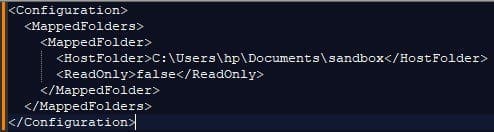
3. Copy the below code and paste it into the file editor and add the folder path to the code.
Shared-Folder-Code

4. You can make the folder to be read-only by changing the false value to true.

Shared-Folder-read-only-Code

5. After adding the code save the file and close it. Now double-click on the .wsb file to launch Windows Sandbox.

You will see the Shared Folder icon on the Windows Sandbox desktop and you can start adding other files you want to share between the host and the windows sandbox.

Start-sharing-file

I hope you found this blog post on How to Create Shared Folder in Windows Sandbox. Interesting and helpful. In case you have any questions do not hesitate to ask in the comment section.

Rate this post

Thank you for reading this post. Kindly share it with others.

  • Click to share on X (Opens in new window) X
  • Click to share on Reddit (Opens in new window) Reddit
  • Click to share on LinkedIn (Opens in new window) LinkedIn
  • Click to share on Facebook (Opens in new window) Facebook
  • Click to share on Pinterest (Opens in new window) Pinterest
  • Click to share on Tumblr (Opens in new window) Tumblr
  • Click to share on Telegram (Opens in new window) Telegram
  • Click to share on WhatsApp (Opens in new window) WhatsApp
  • Click to share on Pocket (Opens in new window) Pocket
  • Click to share on Mastodon (Opens in new window) Mastodon
  • Click to share on Bluesky (Opens in new window) Bluesky
  • Click to share on Threads (Opens in new window) Threads
  • Click to share on Nextdoor (Opens in new window) Nextdoor
Virtualization, Windows Tags:Folder, sandboxing solutions, Windows 10, Windows 11, Windows Server 2016

Post navigation

Previous Post: Mendeley Cite ECITE40001 Error: Fix issue using Microsoft Word Desktop application
Next Post: Why is Google moving from Universal Analytics (UA) property to GA4 property

Related Posts

  • Fixed Sysprep Generalize 1
    How to Fix The Virtual Desktop is Not Sysprep Generalized Virtualization
  • LAPS PAssword Not Showing Up
    LAPS password not showing up in GUI Windows
  • Windows 10 logo wmskill.com
    Handy Shutdown commands available in Windows Windows
  • image 23
    Copy Deployment Share between Servers without using linked Deployment Shares Windows
  • Featured image MsTeams.
    How to share an app window on Microsoft Teams Windows
  • Banner
    How to Stop OneDrive from Starting Up Automatically on Windows 11 Windows

More Related Articles

Fixed Sysprep Generalize 1 How to Fix The Virtual Desktop is Not Sysprep Generalized Virtualization
LAPS PAssword Not Showing Up LAPS password not showing up in GUI Windows
Windows 10 logo wmskill.com Handy Shutdown commands available in Windows Windows
image 23 Copy Deployment Share between Servers without using linked Deployment Shares Windows
Featured image MsTeams. How to share an app window on Microsoft Teams Windows
Banner How to Stop OneDrive from Starting Up Automatically on Windows 11 Windows

Leave a Reply Cancel reply

You must be logged in to post a comment.

Microsoft MVP

VEEAMLEGEND

vexpert-badge-stars-5

Virtual Background

GoogleNews

Categories

veeaam100

sysadmin top30a
 
  • VMware Aria
    VMSA-2022-0026: An arbitrary file read vulnerability in VMware Aria Operations Security | Vulnerability Scans and Assessment
  • Featured image Unblock Microsoft Store
    How to Unblock Microsoft Store on Windows 11 Windows
  • image 38
    How to Fix “Unknown hard error” on Windows Server and Windows 10 Windows
  • How to use DBeaver on MacOS
    Install DBeaver on macOS: Connect to PostgreSQL Database Oracle/MSSQL/MySQL
  • BitLocker34
    BitLocker Back Door: Stolen laptop to inside the company network Security | Vulnerability Scans and Assessment
  • screenshot 2020 03 13 at 21.22.29
    How to determine Cygwin version Windows Server
  • Screenshot 2022 04 02 at 22.17.10
    How to Install Kubectl on Windows 11 Windows
  • Restrict Access to USB Drives
    Deny Execute Access: Restrict Access to USB Drives on Windows [Part 1] Windows

Subscribe to Blog via Email

Enter your email address to subscribe to this blog and receive notifications of new posts by email.

Join 1,841 other subscribers
  • RSS - Posts
  • RSS - Comments
  • About
  • Authors
  • Write for us
  • Advertise with us
  • General Terms and Conditions
  • Privacy policy
  • Feedly
  • Telegram
  • Youtube
  • Facebook
  • Instagram
  • LinkedIn
  • Tumblr
  • Pinterest
  • Twitter
  • mastodon

Tags

AWS Azure Bitlocker Microsoft Windows PowerShell WDS Windows 10 Windows 11 Windows Deployment Services Windows Server 2016

Copyright © 2025 TechDirectArchive


Loading Comments...
 

You must be logged in to post a comment.