How to troubleshoot Active Directory Replication issues


It is recommended to monitor the replication traffic between your domain controllers in your environment to gain valuable insights. Monitoring when replication starts and ends, identifying which AD object attributes are replicated, and detecting replication failures along with their causes are crucial to AD operations. In this article, we shall discuss how to troubleshoot Active Directory Replication issues. Please see how to Install and configure Veeam Backup and Replication Community Edition, and How to add a new Domain Controller to an Existing Domain.
Active Directory employs replication to maintain data consistency between domain controllers. This ensures that changes made to one Domain Controller are replicated to other Domain Controllers within the domain.
Active Directory plays a crucial role in Windows domain networks, enabling centralised management of resources, user accounts, and security protocols. Managing domain controllers requires understanding Active Directory replication.
Without the right troubleshooting skills to address replication issues. When authentication problems and access to network resources arise, you will be fund wanting.
Active Directory (AD) Replication Issues
AD object updates are replicated between DCs to maintain synchronisation of partitions, especially in large companies with multiple domains and sites. This ensuring consistent domain and forest data.
You will find these related articles very useful “how to Perform Key Distribution Center Service [krbtgt] Password reset, and how to perform AD Recovery: Fix device ran into an issue with error 0xc00002e2.
Active Directory replication troubleshooting can be challenging due to various reasons such as network connectivity loss or DNS configuration errors. Below are some common AD replication issues.
- Replication timing out or taking too long.
- Replication not occurring due to DNS issues.
- Access denied errors.
- Conflicts with the replication topology.
- Inconsistencies due to lingering objects.
REPADMIN Command
Active Directory replication status can be checked using command-line and GUI tools. I will show you both very shortly. The REPADMIN command-line tool and the Microsoft’s ADREPLSTATUS GUI tool will be our focus in this guide and will help us identify replication errors if there are in our environment.
Note: On a different PC and not Domain controller (Active directory). To use AD replication PowerShell cmdlets, you must import the Active Directory PowerShell modules using the “Import-Module ActiveDirectory” command.
Also, you must install Remote Server Administration Tools (RSAT) for AD DS on non-domain controllers to use these PowerShell cmdlets.
Please see How to uninstall Veeam Backup and Replication from your server, and how to “Install Veeam Backup And Replication With Dedicated SQL Server. Here is how to upgrade Veeam Backup & Replication to version 12.2.
Troubleshoot AD Replication Issues
REPADMIN is a widely used tool for troubleshooting Active Directory replication problems. To effectively troubleshoot AD replication issues, you can use several built-in tools and commands.
The command repadmin /replsummary provides a summary of the Active Directory replication status, displaying any replication failures or delays across domain controllers. From the image below, you can see there are no errors.
repadmin /replsummary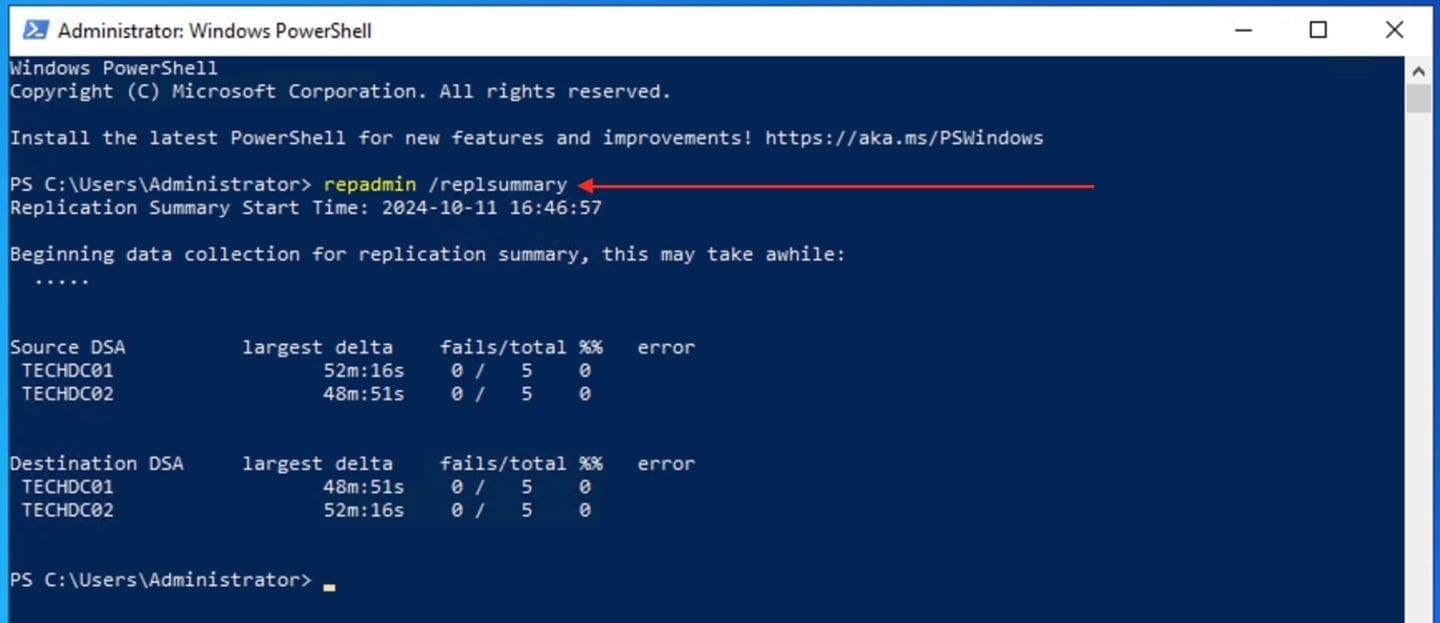
The switch below helps in showing inbound replication partner domain controllers and their recent replication attempts by using the /showrepl switch. As you can see below, there are also no errors.
repadmin /showrepl
The repadmin /syncall command forces a domain controller to immediately synchronize its Active Directory changes with all other domain controllers in the forest. As you can see below, it finished with no errors.
repadmin /syncall
You can run the following Repadmin command “Repadmin /showrepl TechDC02” to check the replication status of TECHDC02.
These commands provide a summary of the replication status, details about the last replication attempt, and force a synchronization across your AD domain controllers, respectively.

Below is an image of other command that can be used to troubleshoot AD replication issues.
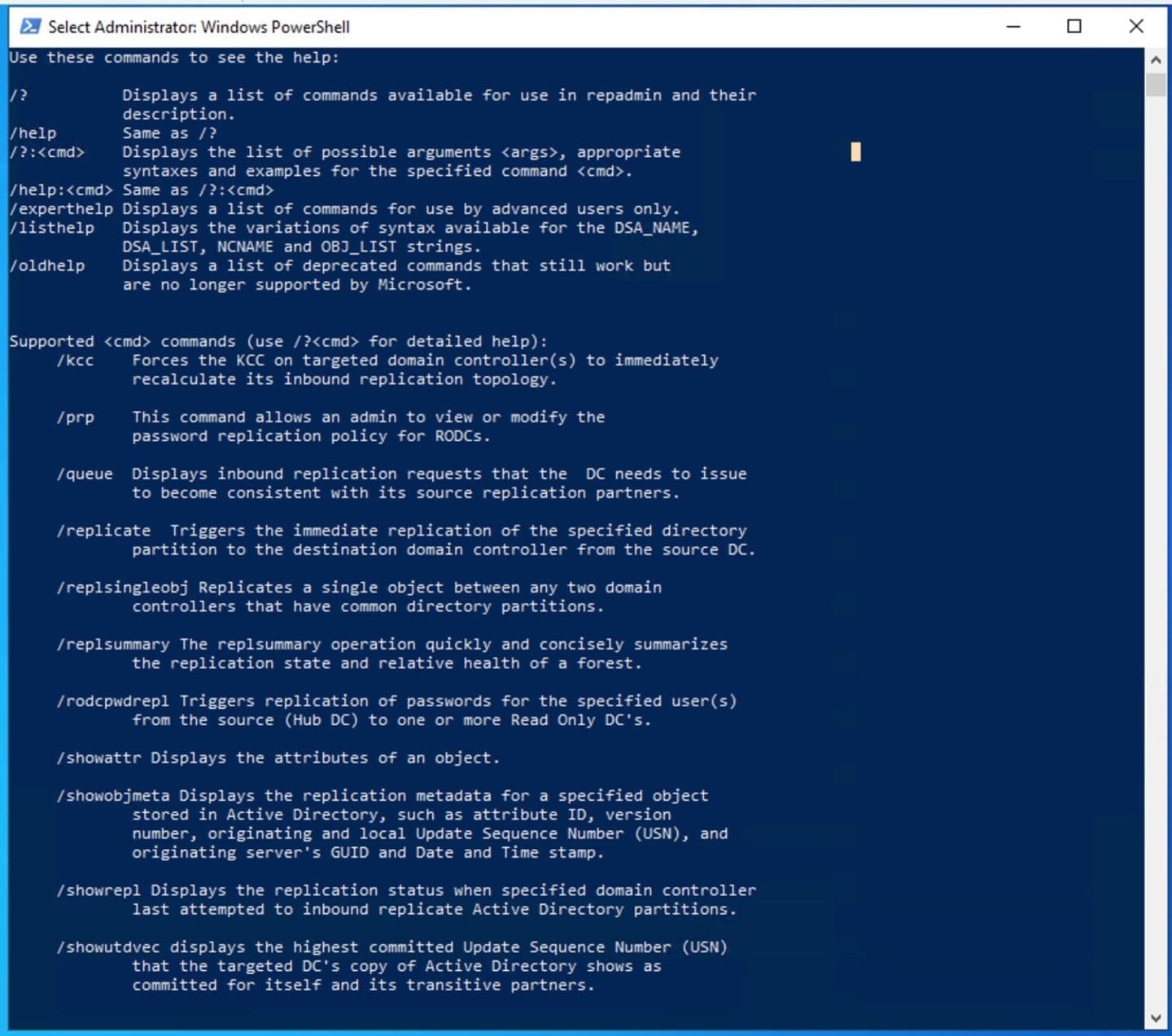
Starting with Windows Server 2012, you can check the replication status by using PowerShell cmdlets.
Get-ADReplicationFailure
The Get-ADReplicationFailure PowerShell cmdlet provides information on AD replication status for specific domain controllers. This includes failure counts, last error, and the failed replication partner, enabling easy monitoring and troubleshooting.
Get-ADReplicationFailure techdc01.techdirectarchive.com
But as you can see above, we have got no errors. Therefore, the output is empty signifying that there is no replication failures found which means that the replication are working as expected for the domain controllers “in”techdc01.techdirectarchive.com”.
Site Replication Status
The command sets the scope to view replication status failure for all domain controllers in a specific site (the Hamburg Active Directory site), and populates the result in a table. In a subsequent article, I will show you how to view the Site Scope via Active Directory Sites and Services and via the PowerShell.
Get-ADReplicationFailure -scope SITE -target Hamburg | FT TechDC01, FirstFailureTime, FailureClount, LastError, Partner -AUTOThe command retrieves replication status for all Hamburg site domain controllers. The output will include the first failure, total failures, last error number, and failed replication partner which can be decoded using the NET HELPMSG command.
Note: The net helpmsg is used to display more information about the numerical network messages you might receive when using net commands. Below is the command to view site location if you have one.
Get-ADReplicationAttributeMetadata
The Get-ADReplicationAttributeMetadata displays the attribute and replication metadata for a specific Active Directory object.
This enables users to determine and retrieve metadata about the replication of specific attributes for an Active Directory object, including details like the version number, originating time, and the server where changes occurred.
Get-ADReplicationAttributeMetadata -Object "DC=techdc01,DC=techdirectarchive,DC=com" -Server Techdc01 -ShowAllLinkedValues 
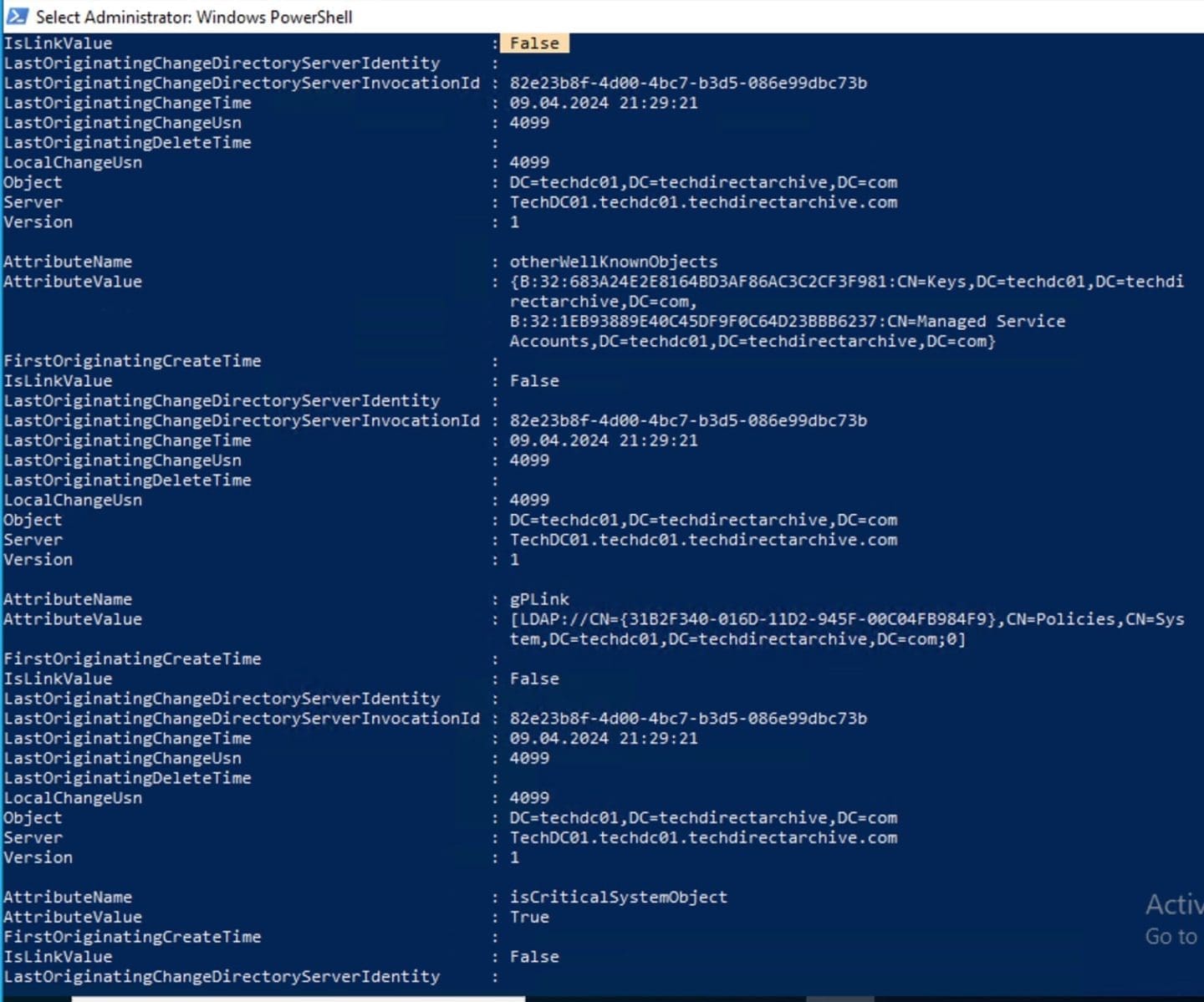
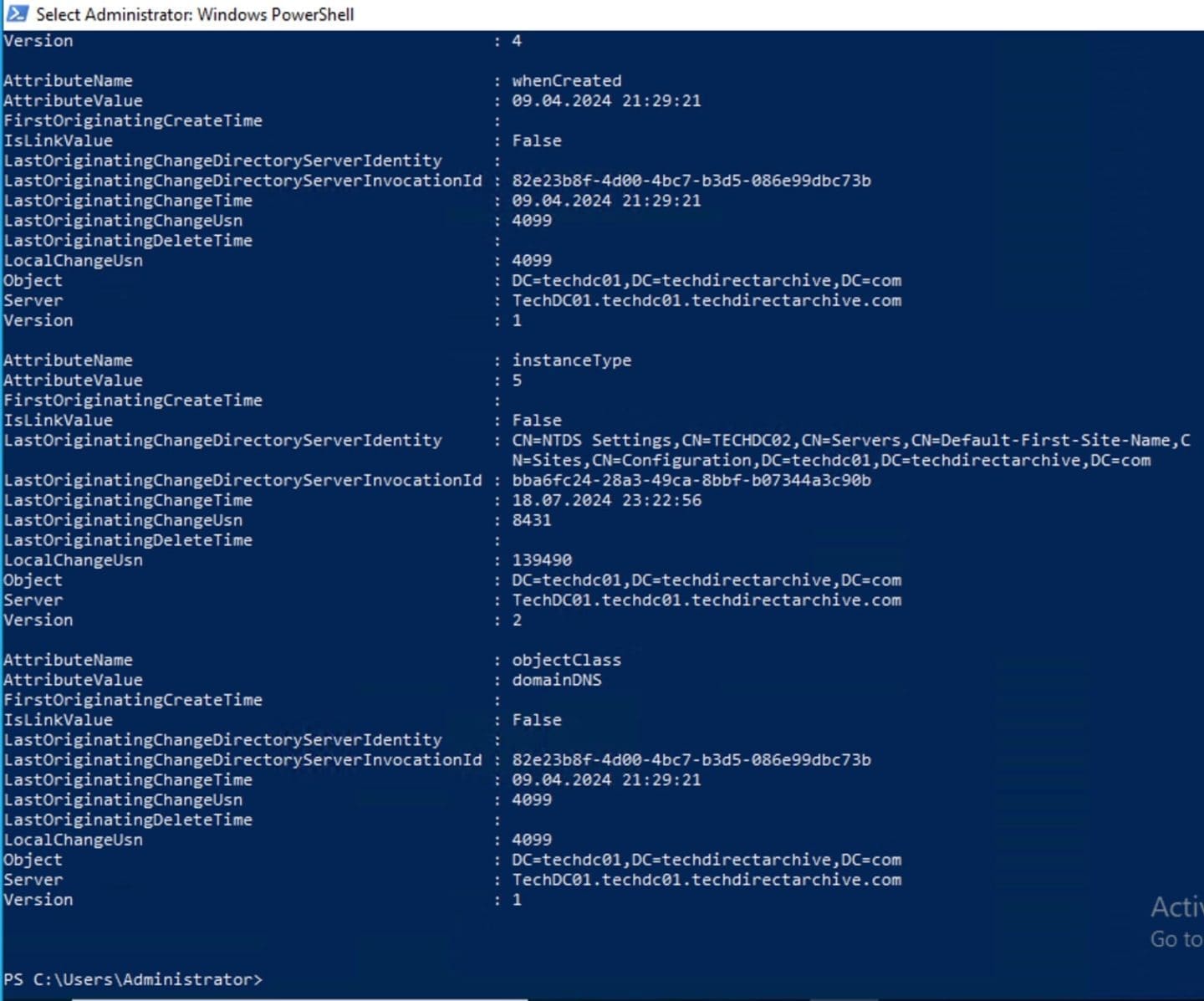
Note: I could not upload all images of this result. It makes no sense as you can as well reproduce these in your test or production environment.
The “ShowAllLinkedValues” parameter shows all linked values for attributes that are multi-valued, such as group membership or access control lists (ACLs). This is vital when dealing with attributes like memberOf (which can contain multiple values) to get detailed replication metadata for each linked value.
Get-ADReplicationPartnerMetadata
To view replication metadata for a replication partner. Please use the Get-ADReplicationPartnerMetadata cmdlet as shown below. This command displays information like LastChangeUSN, compressions enabled, replication attempt date and time, and successful date and time for all domain controllers in an Active Directory forest. Thereby making it useful for obtaining specified metadata
Get-ADReplicationPartnerMetadata -target TECHDC01.techdirectarchive.com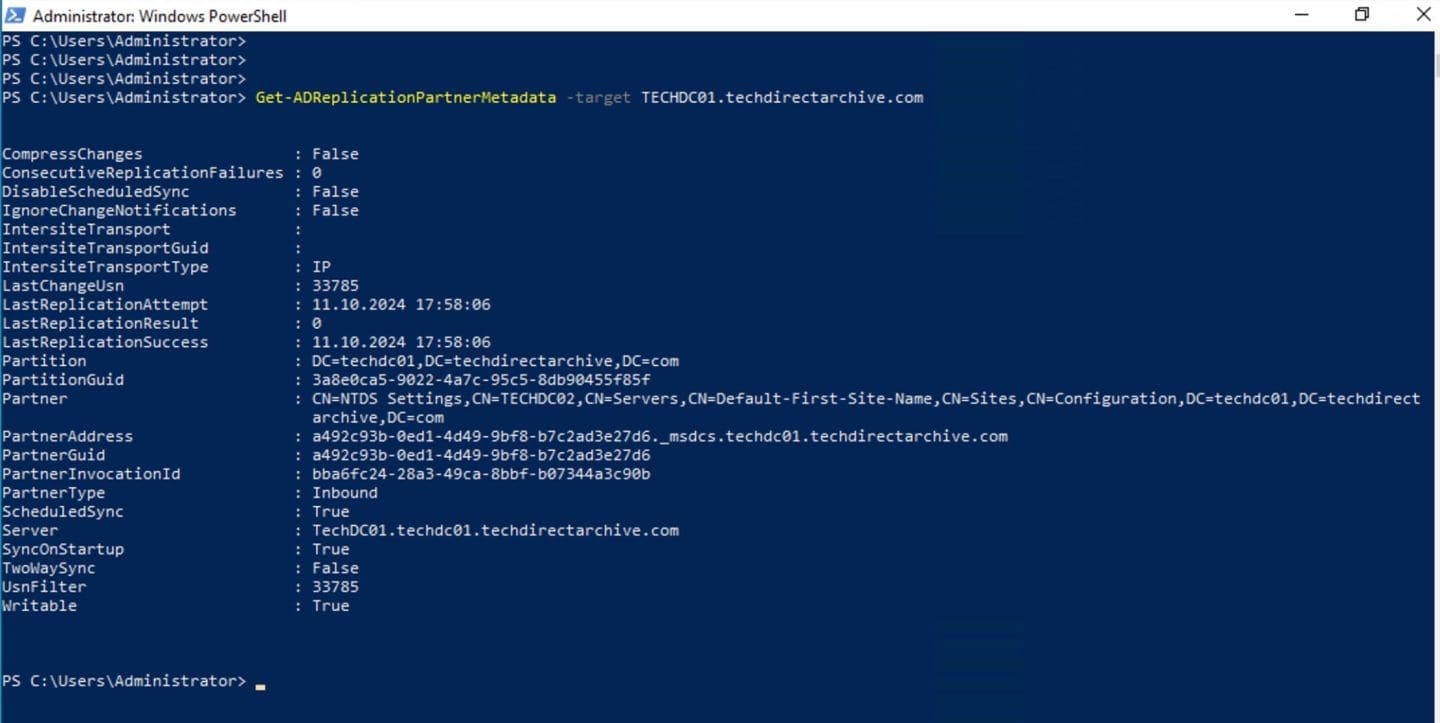
Also, the command retrieves replication metadata for all replication partners on the specified server, filters for any replication attempts that did not succeed (LastReplicationResult not equal to “0”). And displays the server name, last replication attempt, result, and partner in a table format.
Get-ADReplicationPartnerMetadata -Target * -Scope Server | where {$_.LastReplicationResult -ne "0"} | Format-Table Server, LastReplicationAttempt, LastReplicationResult, PartnerGet-ADReplicationQueueOperation
Here, the “Get-ADReplicationQueueOperation” cmdlet is useful for determining if any replication operations are pending on a specific server. You can use the Get-Command cmdlet to see if this cmdlet is present. Like I shared above, starting from Windows Server 2012, Microsoft has made it easy to query replication status via PowerShell cmdlets.

As you can see below, there are no pending replications. An alternative command would be “Get-ADReplicationQueueOperation -Target “Techdc01”

Sync-ADObject
The Sync-ADObject PowerShell cmdlet enables the immediate replication of an Active Directory object to all domain controllers across an Active Directory forest.
It does this by retrieving all domain controllers in the Active Directory. Then synchronises the specified object (“DC=techdc01,DC=techdirectarchive,DC=com”) from the source domain controller (TechDC01) to each destination domain controller’s hostname in the list.
Get-ADDomainController -filter * | ForEach {Sync-ADObject -object "DC=techdc01,DC=techdirectarchive,DC=com" -source TechDC01 -destination $_.hostname}Get-ADReplicationUpToDatenessVectorTable
The Get-ADReplicationUpToDatenessVectorTable command allows Active Directory administrators to determine the highest Update Sequence Number (USN) for a specific domain controller.
Get-ADReplicationUpToDatenessVectorTable -Target TECHD01.techdirectarchive.com 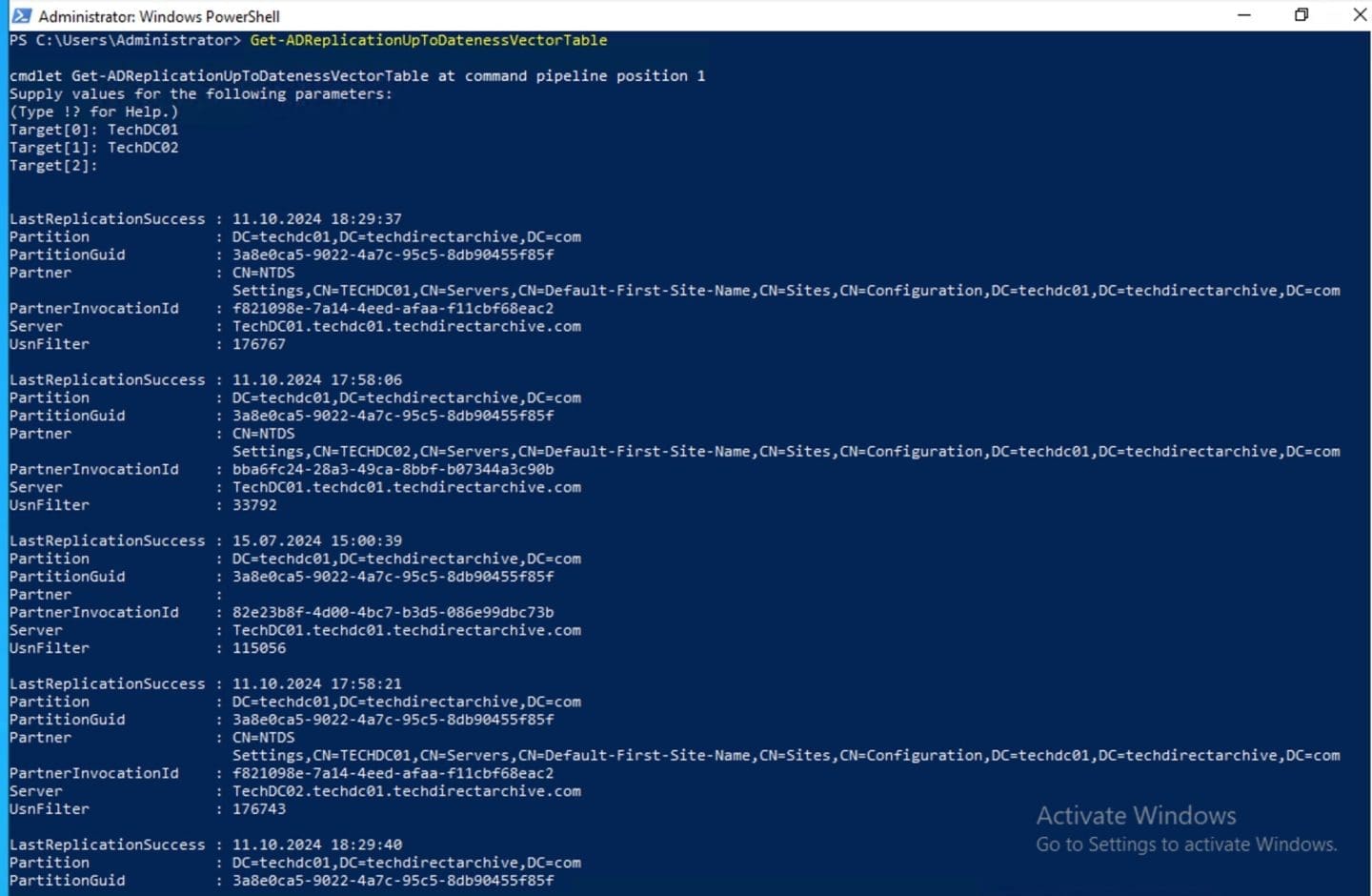
To view the highest USN for a specific Active Directory partition. Please use the -Partition switch as highlighted in the command below. This command retrieves the highest USN of the Schema partition for both the TECHDC01, and TechDC02 domain controllers.
Get-ADReplicationUpToDatenessVectorTable -Target TECHDC01,TechDC02 -Partition Schema 
Eliminating Lingering Objects
Lingering objects are remnants of deleted AD objects that remain on some DCs due to replication failures. To remove lingering objects, you can use the command below.
repadmin /removelingeringobjects /advisory_modeOther Replication Troubleshooting Tool: DCDiag
Microsoft offers several native tools to diagnose Active Directory replication issues.
DCDiag is a general-purpose diagnostic tool that can help identify deeper problems. To use it, open an elevated command prompt or PowerShell on a domain controller experiencing replication problems and enter the DCDiag command.
Windows will run tests to assess the health of Active Directory components. The DCDiag tool can assist in identifying issues in Active Directory that go beyond simple replication problems.


If DCDiag doesn’t detect any issues. Please consider running it on each domain controller within the domain. This is because, this tool can yield varying results depending on its location. For me, I do not have any concerns and the time server error is negligible to me. In a subsequent article, I will show you how to set up and NTP server.
Active Directory Replication Status tool
In addition to the RepAdmin.exe command-line tool. You can use the Active Directory Replication Status Tool (ADREPLSTATUS) which is a graphical user interface (GUI) that can analyzes the replication status of domain controllers within an Active Directory domain or forest.
Note: Unlike the REPADMIN /SHOWREPL * /CSV command that you can import into Excel, ADREPLSTATUS provides significant enhancements, making it easier to visualize and manage replication issues
Therefore, it is safe to say that, ADREPLSTATUS serves as a user-friendly front-end for the commands mentioned earlier, offering a more intuitive way to monitor replication. Yes, Microsoft has discontinued this tool as from As of June 2nd, 2023. But you can still download it from GitHub.
Download ADREPLSTATUS
Use the link shared above to download the ADREPLSTATUS tool. Do not forget to the about the tool from the GitHub page as well. Upon download, please extract the file.

Run the executable as shown below. There is no installation whatever. All need to do is double click on the executable as shown below. Once tool is loaded, you can check the replication on entire forest or specific domains.
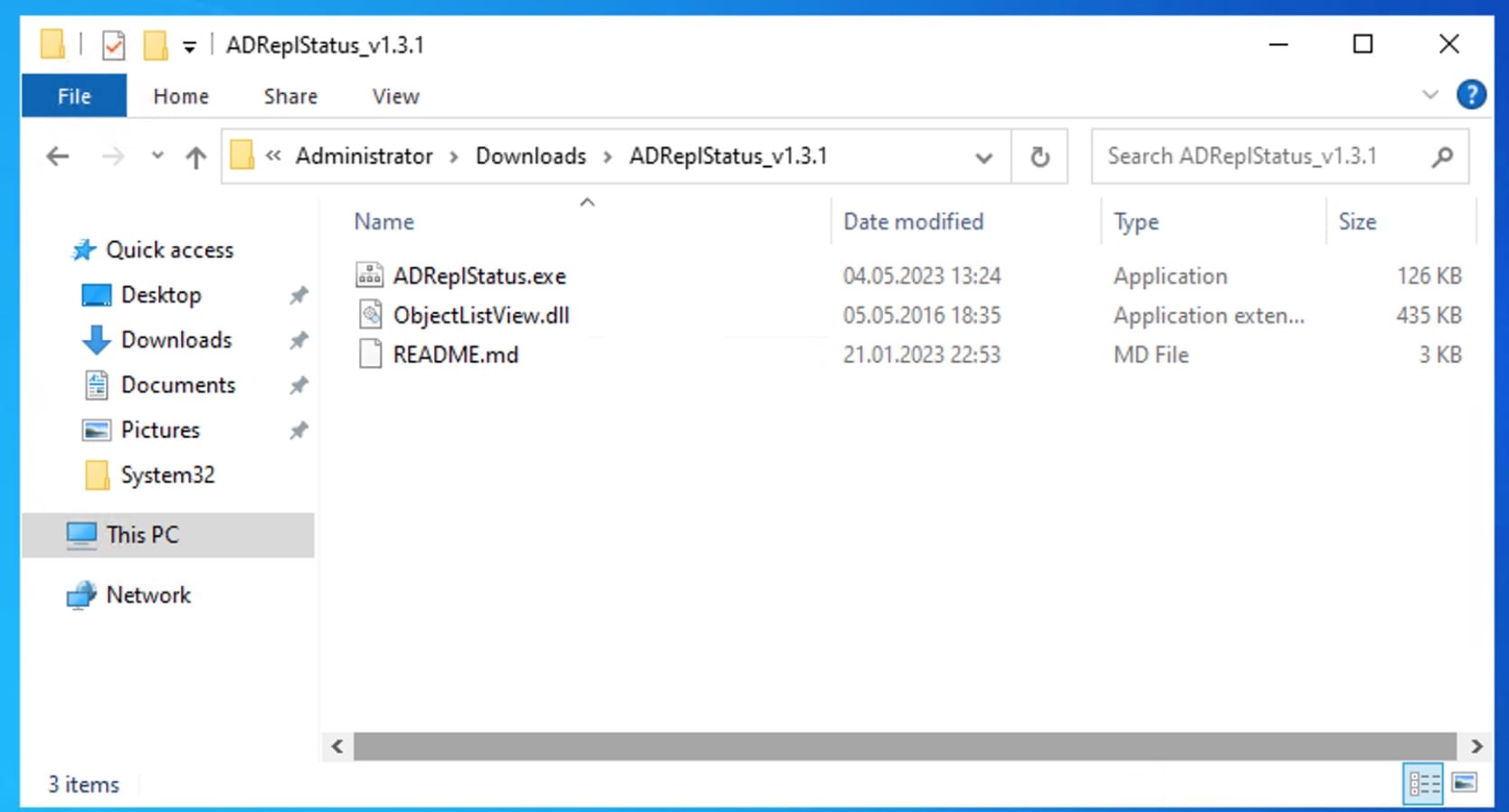
Click on Refresh Replication status as shown below.

This tool identifies your Active Directory environment and provides information on the replication state on domain controllers.

After your selection, click the Refresh Replication Status button. The tool will collect information from your domain controllers and displays the results.
The Environment Discovery tab, which you can see in the previous figure, will display the Active Directory nodes and the status of each. Similarly, the Replication Status Collection Details tab displays where replication is succeeding and where it is failing.

Summary on troubleshooting Active Directory Replication issues
Since Active Directory relies on DNS to locate domain controllers. If you are facing replication issues, ensure that each DC points to the correct DNS server. And that the DNS zones contain the correct service locator (SRV) records.
Also, ensure that the Dynamic DNS updates are functioning correctly. Most times, issues with DNS can often be resolved by restarting the DNS server service or clearing and rebuilding DNS caches.
Active Directory uses replication topology to determine paths, and issues can be resolved using Active Directory Sites and Services tool and Knowledge Consistency Checker (KCC).
repadmin /kcc
the most efficient replication paths
Also, to determine whether there’s basic LDAP connectivity between the machines. To check this, run the following command from TECHDC01.
Repadmin /bind TechDC01
Here is an article on how to delete and restore objects using Active Directory Administrative Center. Also, see how to Fix insufficient access rights to perform this operation when trying to enable Active Directory Recycle Bin.
If you wish to replicate data from one dc to the other for example TechDC01 to TechDC02, run the command below. With these, you would be able to effectively troubleshoot Active Directory Replication issues, and ensure proper functioning of your AD environment.
repadmin /replicate TechDC01 TechDC02 "dc=techdc01,dc=techdirectarchive,dc=com"Ensure that all domain controller clocks are synchronized. This is because Active Directory relies on the Kerberos protocol, which is highly sensitive to clock discrepancies. If the domain controller clocks become out of sync by more than a few minutes. Kerberos will fail to function properly, thereby leading to a range of potential issues.
I hope you fund this article very useful on how to troubleshoot Active Directory Replication issues. Please feel free to leave a comment below.