The AAGON Client Management Platform (ACMP) serves as a central hub for managing your network. This modular client management solution works similarly to Azure Automanage, allowing IT departments to tackle daily challenges through a cohesive and flexible system. In this article, we shall discuss how to Manage Microsoft Defender Antivirus with Argon ACMP. Please, see how to Mitigate Veeam Threat Hunter Service Scanning Interference, and how to View and Clear or Print Norton Security Events on a Mac.
I highly recommend reaching out to AAGON regarding their Client Management Platform (ACMP) and evaluating their available modules. ACMP offers a comprehensive suite of solutions designed to meet the full spectrum of your system management requirements.
Each ACMP module connects seamlessly with the others like interlocking gears. Thereby creating powerful synergy effects across your IT infrastructure. The platform offers a user-friendly interface and supports active network administration with ease.
Thanks to its modular design, you can extend the ACMP inventory with a variety of additional options without needing to learn a new interface. These extensions, referred to as Solutions, enhance the platform’s capabilities even further.
Note: A module in ACMP is a specific tool or feature that provides targeted functionality. Let us think of modules as building blocks or components that perform specific tasks such a Patch management, and inventory etc. While a solution is a broader concept that often combines multiple modules to address a larger IT management use case or workflow such as Endpoint Security, Asset Management.
The image below shows the available solutions. The trial version of ACMP unlocks all features available in any licensed version, giving you full access from the start.

Also, see how to Find saved Wi-Fi Passwords in Windows 10 and 11, how to Backup Mac with Veeam Agent for Mac to Synology DS923+ NAS, and how to Backup Mac with Veeam Agent for Mac to Synology DS923+ NAS.
ACMP Architecture
ACMP uses an asynchronous architecture to manage devices. When you install the ACMP agent on a device or assign a job to a PC. The agent queues the job instead of executing it immediately. The system then processes these jobs one by one.
If the server cannot reach the target PC. Such as when it’s powered off, it keeps the job in the queue and retries after a defined interval. This cycle continues until the agent completes the job or a system administrator deletes it from the queue.
Since each managed device requires an installed agent, the devices regularly check in with the server at predefined intervals to see if there are new jobs to process. This approach ensures stable performance and consistent response times
Please, see “Veeam Agent Vulnerability: Fix Veeam Agent vulnerability for Microsoft Windows“. Also, see “The push installation of the agent failed for the computer – Error message (67) The network cannot be found“.
ACMP Server Installation
The installation of the ACMP Server is very straightforward. Simply mount the ISO image or insert the ACMP installation DVD into the DVD drive of the server (device) on which you want to install the ACMP server. Select ACMP Setup to start the installation.

Double-click on the ACMP folder and select the ACMP setup as shown below.

Like I said before, the installation is really very basic. After selecting the ACMP Setup file, an installation wizard will appear.
Skip the Welcome dialog, read the license agreement and accept the terms, and work through the installation process. In the window below, click the install button.

This installs the ACMP server and ACMP console onto the server.

Note: Since this is a test installation, I installed MSSQL Server 2019 Express Edition as the ACMP database. You are free to choose an existing one or create a new database. Please, keep the following in mind:
- Ensure that you set the ACMP Administrator Password as well.
- For the OS deployment, please accept the defaults.
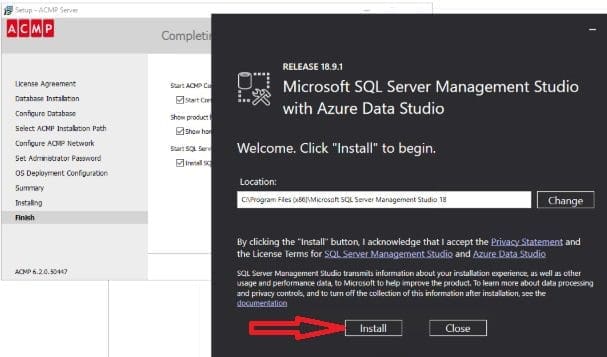
Next, you will be prompted to install the MSSQL Server Management Tools as shown below. You can install or close this window as you wish.
Since this is a PoC, both can be installed on the same device. This will ensure you have the tools to manage, configure, and administer the box.
Here is a guide on Configure SQL Server Instance to listen on a specific TCP Port, how to enable an SA account that has been disabled, and how to verify whether the xp_cmdshell feature is enabled or disabled in MSSQL Server.
Install ACMP Console
While installing the ACMP Server, we also installed the ACMP Console. But having to work on the ACMP server at all times isn’t recommended.
Therefore, there is a need to install the ACMP console on a different PC. In this way, you can remotely connect to the ACMP server and administer it. I will recommend the same behavior for the MSSQL Server Management Tools if we EVER decide to use this tool in production.
Double-click on the setup and select the language to use during the installation.

Now that the installation is complete, you can now access the ACMP console.

Since we have integrated the solution with AD, you can also log in with our AD account.

Below is the ACMP console upon successful login.

kindly take a look at Microsoft SQL Evaluation period has expired: How to upgrade SQL Server instance. Here is also a guide on ‘Windows could not start the SQL Server service on local computer 17051: A network-related or instance-specific error occurred while establishing a connection to SQL Server“.
ACMP for Defender Management
Now that we have successfully installed and configured ACMP, we will focus on ACMP for Defender Management. ACMP Defender Management is designed to give administrators the ability to manage Microsoft Defender Antivirus in a single interface on all clients and servers.
This reduces the effort and ensures cost savings, as no additional antivirus solution is required.
See how to install Microsoft SQL Server Management Studio, how to alter a DATABASE compatibility level, and Windows Defender detects Endpoint Security HipHandlers.dll.
Microsoft Defender Anti-Virus
The Microsoft Defender Anti-Virus is a key next-generation protection component in Microsoft Defender for endpoints. As you already know, the Microsoft Defender Antivirus is available in Windows 10 and Windows 11, as well as versions of Windows Server.
According to independent tests, Microsoft Defender antivirus is pretty safe and has almost 100% real-time protection rates. It also has some additional features for device protection against malware, such as scanning, app and browser control, and account protection options.
See “Missing Windows Defender? Install and manage Microsoft Defender via Windows Security on Windows Server“, and how to safeguard Your PC Against Common Malware Entry Points.
Compatibility with other antivirus products
If you use a non-Microsoft antivirus/antimalware product on your device. You may be able to run Microsoft Defender Antivirus in passive mode with this antivirus solution on client devices.
More information from this link. Please, see how to set Microsoft Defender AV to Passive mode on a Windows Server.
Why then do we need ACMP for Defender Management?
Because Microsoft does not offer companies with critical infrastructures to manage on-premise Microsoft Defender Antivirus. The use of ACMP Defender Management solves this problem.
As ACMP can be used to manage “on-premises” devices. At the time of writing this guide, Microsoft offers a management solution for Microsoft Defender for Endpoint: Introducing Microsoft Defender for Endpoint Plan 1 – Microsoft Community Hub.
Configuration Profile
Let’s not forget, you will also have to configure the Defender Configuration Profile. With this, you can set Microsoft Defender settings on the client and control the update and scan behavior or define the user interface as you wish.
The ACMP contains standard configuration profiles. By default, these are not assigned to a client and can be assigned in several ways.
Note: You can add a new configuration profile, edit an existing one, or delete or simply duplicate a configuration profile. I have decided to duplicate an existing one in order to modify the setting. Double-click on the newly created config profile as shown below. When you are done, do not forget to click on the save button.

Agent Distribution
In order to effectively manage the clients in your network, you first have to capture them. There are four different approaches for Windows clients. Two different approaches are available for capturing Mac OS or Linux clients.
The ACMP agent is installed on a machine to transmit its data to the ACMP server. In addition, this client logs on to the server at set time intervals and looks for unprocessed jobs. These jobs include, among other things, the renewed query of client values, updates of the client as well as the execution of certain actions, so-called client commands.
Installation via Console
You can also manually select from the list of available managed devices, and then click on the “Push ACMP to selected computers’ or the “Push ACMP to specific computer”. As you can see from the menu, you have a lot of available features

Other client deployment types are OneScanClient, the Agentless Scanner, etc for automation. But in this test, I used the Agent push feature via the console.
Note: The XML Importer is used to inventory Linux and macOS clients. It can be installed during the installation of the Agentless Scanner or alone at a later time on the ACMP server.
Microsoft Defender Antivirus with Argon (ACMP) Test
The dashboard below shows the managed client, assigned configuration profiles, alarms, clients with the most alarms, clients with the most quarantined files, and the Microsoft Defender Signature versions available to the clients.
To access this dashboard, kindly expand the client Management node and click on Defender management as shown below.

The image below shows the events triggered on the client PC used for testing. I have filtered the events below to display only the alarms.

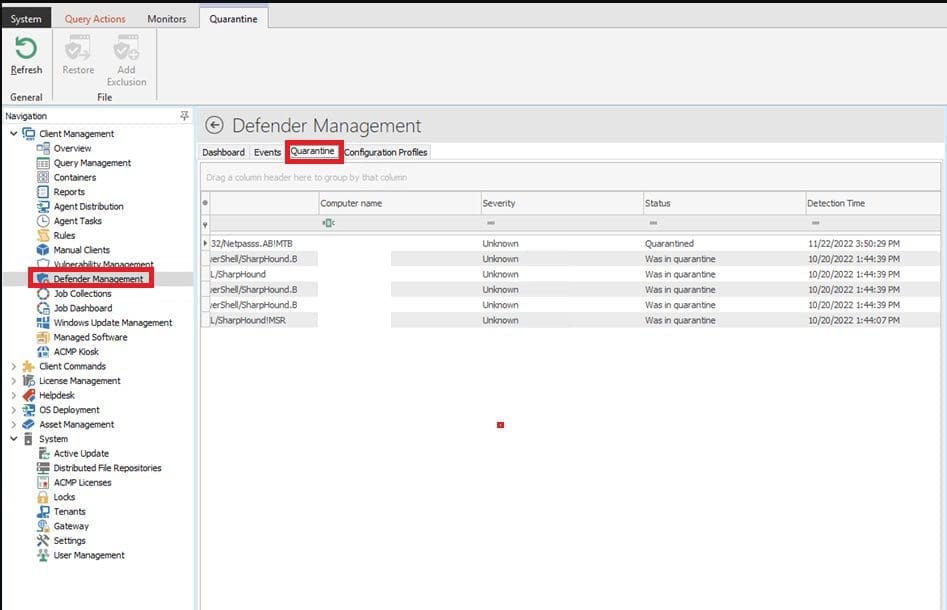
The following events were also reported and quarantined.
Query management
Query management is the central point of contact in the organization of queries. Queries are the basic building blocks for all other actions in the ACMP. In addition to the queries included in the delivery, you also have the option to create your own queries.
By default, there are 5 different categories of queries in query management that relate to the respective solutions. The queries of the base query category are supplied with the ACMP inventory and can be used without restrictions. Here you can identify clients that still use outdated signatures as shown below.

Also, with query management, we can easily determine clients that do not have Tamper Protection enabled as shown below.

Here is a guide on Enable or disable Windows Defender Credential Guard, and how to Mitigate Veeam Threat Hunter Service Scanning Interference.
What is Tamper Protection?
In the event of cyber attacks, bad actors try to disable security features, such as antivirus protection, on your device. When this is achieved, they can easily get access to your data, install malware, or otherwise exploit your data, identity, and devices.
Tamper protection helps prevent these kinds of things from occurring. With tamper protection, malicious apps are prevented from taking actions such as:
- Disabling virus and threat protection
- Disabling real-time protection
- Turning off behavior monitoring
- Disabling antivirus protection, such as IOfficeAntivirus (IOAV)
- Disabling cloud-delivered protection
- Removing security intelligence updates
- Disabling automatic actions on detected threats
- Suppressing notifications in the Windows Security app
- Disabling scanning of archives and network files
I hope you found this article very useful on how to Manage Microsoft Defender Antivirus with Argon ACMP. Please, feel free to leave a comment below.