Skip to content

TechDirectArchive

Hands-on IT, Cloud, Security, Veeam & DevOps

  • Home
  • About
  • Advertise With US
  • Reviews
  • Tech News
  • Contact
  • Toggle search form

How to Assign a Public IP to Azure Virtual Machine (VM)

Posted on 01/06/202623/06/2026 Link State By Link State No Comments on How to Assign a Public IP to Azure Virtual Machine (VM)
  1. Home
  2. AWS/Azure/OpenShift
  3. How to Assign a Public IP to Azure Virtual Machine (VM)
Banner 1

This guide describes the procedure for associating a Public IP address to an Azure Virtual Machine (VM) at the network interface (NIC) level. In Azure, VMs are deployed with private IP addressing by default within an Azure Virtual Network (VNet), ensuring internal-only communication unless explicitly exposed. Please see How to Upgrade Veeam ONE to 13.0.2.6723 to Address Security Fixes, and how to Fix Vulnerable Veeam Backup and Replication 13.0.1.2067 and Earlier.

Assigning a Public IP enables inbound connectivity from external networks over the internet by binding a public endpoint to the VM’s network interface IP configuration (e.g., ipconfig1). This is required for scenarios such as direct administrative access (RDP/SSH), service exposure, or integration with external systems that cannot traverse private networking (e.g., VPN or ExpressRoute).

The Public IP resource in Azure provides a routable IPv4/IPv6 address and can be configured with properties such as SKU (Basic/Standard), allocation method (dynamic/static), and DNS label. When associated with a NIC, Azure automatically performs source NAT (SNAT) and destination NAT (DNAT) to map external traffic to the private IP.

Because this introduces a direct attack surface, it is critical to enforce strict inbound traffic filtering using Network Security Groups (NSGs) and, where applicable, additional controls such as Azure Firewall, Just-In-Time (JIT) access, or Bastion. Proper segmentation and least-privilege access policies are essential to mitigate exposure risks.

Objective and Procedure

Assign a public IP address to an existing Azure Virtual Machine (VM).

Access the Virtual Machine, and navigate to the Azure Portal. Locate and select the target Virtual Machine.

01 VM

Please see How to upgrade Veeam One from v12 to v13, how to Integrate Trellix ePolicy Orchestrator with a Syslog Server, and Veeam Backup and Replication: PowerShell must be Remote Signed.

Networking

Open Network Configuration. In the VM menu, go to Networking. Click on Public IP address, and select Configure.
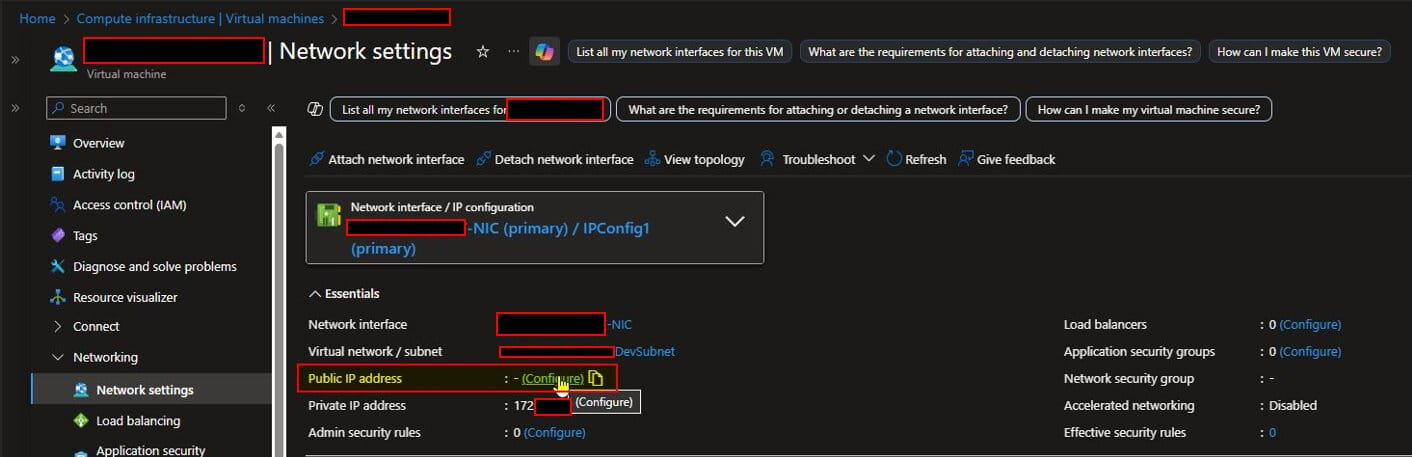
02 VM Net

Edit IP Configuration, and click on Ipconfig1 (or the relevant IP configuration).

03 VM Ipconfig

Please see Prevent Automatic Driver Updates in Windows and Xen-Orchestra, and how to Switch from IP Addresses to DNS for Backup Infrastructure in VBR.

Associate a Public IP

In the configuration pane, select: Associate Public IP Address, and choose an existing Public IP or create a new one.

04 VM Edit Ip Conf
05 VM IPconfig

Save Changes, and click Save to apply the configuration.

06 VM Assign Ip Pub

Please see How to remove a Repository from Veeam Backup and Replication, how to Update Veeam Backup & Replication to Build 13.0.1.2067, and how Fix broken Repository Path in Veeam Scale-Out Backup Repository

Result

The virtual machine is now accessible via a Public IP address.

p.s. Ensure that the Network Security Group (NSG) associated with the VM is carefully reviewed and properly configured to restrict inbound traffic to only the required ports and trusted sources, in order to prevent potential security compromises.

I hope you found this article on how to Assign a Public IP to Azure Virtual Machine (VM) very important. Please feel free to leave a comment below.

5/5 - (1 vote)

Thank you for reading this post. Kindly share it with others.

  • Share on X (Opens in new window) X
  • Share on Reddit (Opens in new window) Reddit
  • Share on LinkedIn (Opens in new window) LinkedIn
  • Share on Facebook (Opens in new window) Facebook
  • Share on Pinterest (Opens in new window) Pinterest
  • Share on Tumblr (Opens in new window) Tumblr
  • Share on Telegram (Opens in new window) Telegram
  • Share on WhatsApp (Opens in new window) WhatsApp
  • Share on Mastodon (Opens in new window) Mastodon
  • Share on Bluesky (Opens in new window) Bluesky
  • Share on Threads (Opens in new window) Threads
  • Share on Nextdoor (Opens in new window) Nextdoor
AWS/Azure/OpenShift Tags:Assign a Public IP Address to VM in Azure, Assign Public IP Address Azure VM, Azure Cloud Networking, Azure Networking, Azure Public IP Address Assignment, Azure Public IP Configuration, Azure Virtual Machine Public IP, Azure VM Internet Access, Azure VM Network Interface, Configure Public IP in Azure, How to Assign a Public IP Address to a Virtual Machine in Azure, Microsoft Azure Virtual Machines

Post navigation

Previous Post: How to Upgrade Veeam ONE to 13.0.2.6723 to Address Security Fixes
Next Post: Azure Arc for SQL Server PAYG: Installation, Connectivity Requirements and Operational Best Practices

Related Posts

  • AWS Budgets
    How to create AWS Budget AWS/Azure/OpenShift
  • azure active director
    AD Connect Error: The Synchronisation service scheduler is currently synchronization and the configuration change cannot be made at this time AWS/Azure/OpenShift
  • CloudFrontAWS
    Serve Private S3 Bucket Contents Via CloudFront AWS/Azure/OpenShift
  • BLOG LOGO
    How to create a static pod in Kubernetes AWS/Azure/OpenShift
  • Screenshot 2020 05 13 at 19.23.25
    AWS Command-Line Interface: How to configure AWS CLI [Part 1] AWS/Azure/OpenShift
  • Webp.net resizeimage 3 1
    How To Configure VM Update Management on Azure Stack Hub AWS/Azure/OpenShift

More Related Articles

AWS Budgets How to create AWS Budget AWS/Azure/OpenShift
azure active director AD Connect Error: The Synchronisation service scheduler is currently synchronization and the configuration change cannot be made at this time AWS/Azure/OpenShift
CloudFrontAWS Serve Private S3 Bucket Contents Via CloudFront AWS/Azure/OpenShift
BLOG LOGO How to create a static pod in Kubernetes AWS/Azure/OpenShift
Screenshot 2020 05 13 at 19.23.25 AWS Command-Line Interface: How to configure AWS CLI [Part 1] AWS/Azure/OpenShift
Webp.net resizeimage 3 1 How To Configure VM Update Management on Azure Stack Hub AWS/Azure/OpenShift

Leave a Reply Cancel reply

You must be logged in to post a comment.

Microsoft MVP

VEEAMLEGEND

vexpert-badge-stars-5

Virtual Background

GoogleNews

Categories

veeaam100

Veeam Vanguard

  • Featured image 2
    5 Steps to Fix Outlook continually prompts for passwords Windows
  • ddf 2
    Add boot and install images to WDS and configure Multicast transmission via the GUI and WDSUTIL Windows Server
  • Feature image
    When Should I Use TPM or TPM + PIN Security | Vulnerability Scans and Assessment
  • Exchange password
    How to block the Change Password Feature for All Users via the Exchange Administrative Center Network | Monitoring
  • self signed sslcert
    Generate self-signed certificate and export in PFX format via PowerShell [Part 2] Windows
  • SUBVERSION FEATURE
    How to Install Apache Subversion on a Linux System Linux
  • requestedlogon
    Error 1385: The user has not been granted the requested logon type at this time Network | Monitoring
  • Featured image 1
    Transfer Windows License from one PC to the other on Windows Windows

Subscribe to Blog via Email

Enter your email address to subscribe to this blog and receive notifications of new posts by email.

Join 1,779 other subscribers
  • RSS - Posts
  • RSS - Comments
  • About
  • Authors
  • Write for us
  • Advertise with us
  • General Terms and Conditions
  • Privacy policy
  • Feedly
  • Telegram
  • Youtube
  • Facebook
  • Instagram
  • LinkedIn
  • Tumblr
  • Pinterest
  • Twitter
  • mastodon

Tags

Active Directory Azure Bitlocker Microsoft Windows PowerShell WDS Windows 10 Windows 11 Windows Deployment Services Windows Server 2016

Copyright © 2026 TechDirectArchive

Loading Comments...

You must be logged in to post a comment.