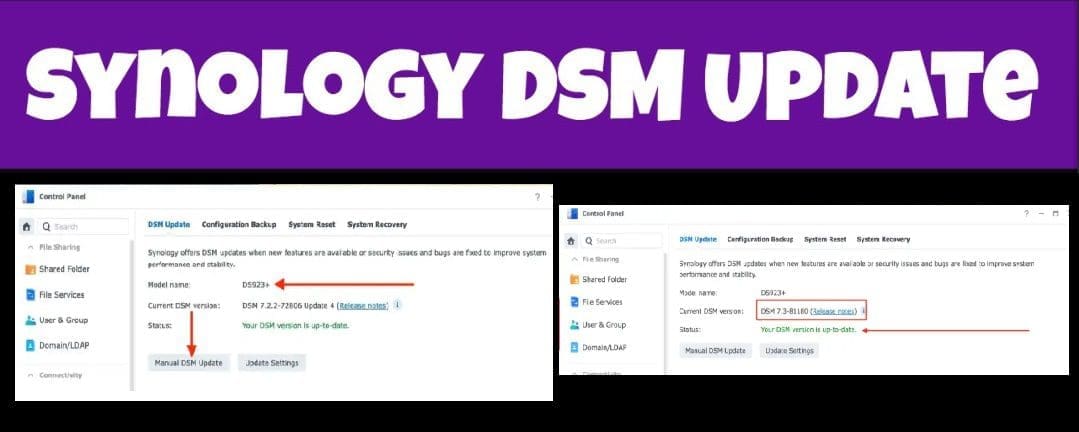
In this guide, we shall discuss how to find what is taking up by Synology NAS Volume Space. According to Synology, volumes provide the basic storage space on your Synology NAS. All of your items such as shared folders, documents, and package data are stored on volumes. Therefore, before you start storing anything on your Synology NAS, you will need to create at least one volume. Please, see Download and update Synology DiskStation NAS to DSM 7.3. Here is how to patch Veeam Backup and replication 12.3.2.3617 to 12.3.2.4165.
In Synology’s storage architecture. A Volume is a fundamental storage unit that you use to actually store data (shared folders, applications, files, databases, etc.). To earn more about volumes, take a look at this KB. In short:
- A volume sits on top of a storage pool (for models that support pools).
- When you create a volume, you allocate space from the storage pool to it.
- All shared folders, application data, and system data reside on one or more volumes.
- It abstracts away the underlying physical disks/RAID configuration. Giving you a simpler interface to manage storage.
Note: Volumes can often be expanded, resized, or reclaimed. This depending on your NAS model and DSM version by adding new disks or expanding the storage pool. We will see some of these steps very shortly.
Also, see how to Create New Users and Join Synology NAS to Active Directory. See also, “DSM Security: How to Protect Synology DS923+ NAS“.
Configuring Alerts on Synology NAS is Critical
Your Synology NAS is a continuously operating data system. It handles essential workloads such as backups, file storage, surveillance footage, and even virtual machine data. Because it runs 24/7, issues can arise at any time. Some of these includes disk failures, degraded RAID, volume warnings/errors, failed backups and snapshot replication, or security threats.
Having alerts properly configured ensures that these problems are detected and communicated immediately, before they cause data loss or service interruption.
As you can see below, here is an email notification that my volume is running out of space. You cannot miss such alerts.

Sends critical event notifications to designated admin or IT contacts via SMTP
Also, this is an email from Active Insights that my volume is low on capacity. Here is a blog post on how to configure Synology Active Insights. Also, see “Docker Setup: Monitoring Synology with Prometheus and Grafana“.
Synology Active Insight service is a dedicated web portal that seamlessly monitors the health, performance, and security of multiple hosts under your Synology Account

Lastly, on the Synology NAS itself, there are notifications to alert you. These are built-in system notifications displayed within DSM and the Notification Center. If you are the type that infrequently connects to your NAS system. You will miss this notification and as such, cannot take immediate actions.


Please, see how to fix The VM appears to be in use: Taking ownership failed. Here is how to Backup MacOS to Synology NAS via Time Machine.
What is filling my Volume Space Up via Usage Details {Method 1}?
You can view detailed volume usage information in Storage Manager. This helps you gain deeper insight into how storage space is being utilized. The analysis provides a breakdown of how different services, shared folders, applications, and system components occupy storage capacity.
By reviewing this data, you can identify which areas or services (for example, Snapshots, Shared Folders, Synology Drive, Virtual Machine Manager, or Surveillance Station) are consuming the most space. Thereby enabling you to take appropriate actions such as adjusting retention policies, deleting old data, or expanding storage. To proceed, luanch the “Storage Manager” as shown below.

Select Volume and on the ellipses (three (3) dots)

Storage Usage Details
Below is the usage details which can help you take prompt actions. Now that you have the usage details, you can proceed and make the appropriate deletions.

The volume usage detail analysis feature is supported only on Btrfs volumes. This can be enabled or disabled only when both the storage pool and volume are in a Healthy state. It is enabled by default for volumes created in DSM 7.0 and later.
Lastly, under the Global Settings, you can ebale Btrfs space reclamation to optimize storage efficiency on your Synology NAS. So when files are deleted or snapshots are removed. Some disk space may remain temporarily occupied until the system performs internal cleanup. The Btrfs space reclamation process helps recover this unused space. It does this by reorganizing and releasing blocks that are no longer in use.
Running this process periodically ensures that your Btrfs volumes maintain optimal performance and available capacity. Especially if you frequently delete large files, use snapshots, or manage virtual machine data. Therefore, do not pause Btrfs space reclamation!
Please, see IP Address blocked on Synology NAS due to forgotten Password, and how to Check and Reset Network Data Usage in Windows 11.
Analyze NAS Volume Space Via Storage Analyzer {Method 2}
The Storage Analyzer for Synology NAS allows you to analyze storage spaces and generate detailed reports on volume usage. Storage Analyzer provides a quick glance at overall usage trends.
This enables you to create and manage tasks for storage analysis, and helps in monitoring volume usage over time. You can also create scheduled tasks to generate reports on volume usage. Which can assist in better management of your storage
To analyze the used storage space on a Synology NAS. The Synology Storage Analyzer is one of the best way to go about it. Navigate to the Package center and install it.

Installation of the Storage Manager is in progress.

We have successfully installed Storage Analyzer to our Synology NAS. There are different ways to launch the Storage Analyzer. You can do this from the Main Menu

This can be done also from the Package Center as shown below.

What is utilising my Volume Space?
When downloaded, I will recommend before creating a Report Profile. You should define a location to also save your report. When the reports are generated, it will be saved into your desired location also.

Next, create your report profile an enter the recipient email as shown below. Define the run time and enter your email if desired to get alerts.

Select Report Items and click on Next

Chose the option that satisfies your need. For me, the first option to analyse existing and future shared folder.

I am okay with the default settings. I will click next to proceed

On the summary page, click on done and select generate reports now if you want. Else, when the scheduled time reaches, the report will be generated automatically.

Report profile is currently running.

Our report has been created. I will proceed and view the historical reports. In the future, you can generate report on the fly using “Generate reports now”.

Clicked on the link to view report

Now, you will redirected to a new window to view the reports. You can also download the report as CSV.

This is a detailed report and I cannot show you the entire output. Below is the shared folder usage and volume usage.

With this information, I moved to delete the non-needed folders/files and defined the retention policies across my NAS and Veeam Backup and Replication to prevent this warning in the future.

Deletion is in progress

As you can see, the volume is now healthy.

Delete Synology Storage Analyzer Report Profile
If you wish to delete the report, follow the steps below. Select the report and click on delete.

I have also decided to delete the generated report saved onto a location I selected ealier. But is the report for your information.

I hope you found this guide very useful on how to determine ehat is taking up by Synology NAS Volume Space. Please, feel free to leave a comment below.