

Have you ever started your PC, and suddenly found yourself staring at a Windows Recovery screen instead of your desktop? Please see Fix Veeam Proxmox VE Backup Error: Failed to prepare disk for backup, Google Drive Broken on Windows: Fix and Prevent it from happening again, and How to fix Error 202: AMD Software Installer Fails to install Update.
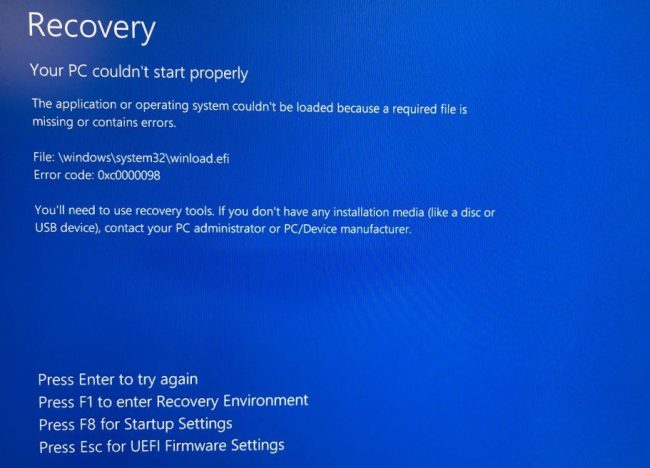
If you see error
0xc0000098and a reference to\Windows\System32\winload.efi, This means Windows cannot read the boot configuration or access the Windows installation through the storage path currently presented by the firmware.
Note: A corrupted BCD is one possible cause, but a change between AHCI, Intel VMD, and RAID can produce a similar symptom. This setting probably changed because of a firmware reset or restored its default storage configuration. On many Dell systems, RAID On is the factory default, even when the installed Windows image was later configured to use AHCI.
INACCESSIBLE_BOOT_DEVICE startup failure and we will discuss this error in the next articleNote: This problem can occur after changes were made to the BIOS storage. Especially when it swiched from between Intel VMD or AHCI in this case to RAID modes. at affect the Windows boot environment.
In this guide, I will show you how to fix this issue by navigating into the UEFI Firmware Setings and switching to the right mode.
Note: A lot of blogposts diagnose and suggest repairing the UEFI boot configuration. This is not the case here! Be careful and understand your enviornment and take not of what changed or if you are having issues with your motherboard as well.
Also, see Resolve Veeam ONE “The specified property cannot be found” and License Mismatch Errors During upgrade, how to fix Update Error 0x800f0831 in Windows or Windows Server, and Backing Up OpenShift Is Not the Same as Recovering It.
Why Is This Error Happening?
This error indicates that Windows cannot continue the boot process because it cannot read the required boot information or access the Windows installation through the configured storage controller. This issue commonly appears after the BIOS storage settings changed from one mode to another as discussed above or below:
- AHCI Mode
- Intel VMD (Volume Management Device)
- RAID Mode
When you power on the computer, UEFI firmware loads Windows Boot Manager. Windows Boot Manager reads the BCD and uses that information to locate the Windows installation and its boot files, including winload.efi. Windows must also load the correct storage-controller driver before it can access the system partition.
If the firmware changes from AHCI to Intel VMD or RAID or changes in the opposite direction, Windows may no longer communicate with the boot drive through the expected controller. In that situation, Windows may display error
0xc0000098, even though the BCD itself is not necessarily corrupted.
In my case, the BCD was not necessarily corrupted. Restoring the storage mode used during the Windows installation resolved the problem without rebuilding the boot configuration.
Please see How to protect Microsoft 365 beyond native limits with VDC [Part 1], how to Update WinPE Boot Images with Windows UEFI CA Certificates [Part 2], and how to perform Tape Drive Cleaning in Practice.
Access the UEFI Firmware Settings
Because restoring the storage mode resolved the problem in my case, I did not need to rebuild the BCD. If changing the storage mode does not resolve the error, investigate the BCD and EFI partition using Windows Recovery Environment. Kindly attempt this short steps below.
On the error screen, press ESC to to enter the UEFI Firmware Settings.

In the left-hand menu, look for “Storage and then SATA/NVMe Operation” On some Dell models it may simply appear as SATA Operation. Then you will see the following options. You will see options such as:
- RAID On
- AHCI
- Disabled
Restore the correct storage mode, click Apply Changes, and select Exit or Save and Exit. Do not select AHCI automatically unless AHCI was the mode used by the Windows installation.

If Windows was originally installed with AHCI enabled, selecting AHCI should allow it to boot normally. If the installation used Intel VMD or RAID, restore that setting instead. After Windows starts, avoid switching storage modes again without preparing the required drivers and creating a verified backup.
I hope you foudn this bologpost on “how to fix Windows Boot Error 0xc0000098 (winload.efi)” very useful. In my case, restoring AHCI in the UEFI firmware resolved the issue because the BIOS storage configuration had changed. Please leave a comment below if you experienced the same problem or used a different solution.


