In this article, we shall discuss how to “Fix Veeam Proxmox VE Backup Error: Failed to prepare disk for backup”. Please see Google Drive Broken on Windows: Fix and Prevent it from happening again, how to fix Error 202: AMD Software Installer Fails to install Update, and Resolve Veeam ONE “The specified property cannot be found” and License Mismatch Errors During upgrade. When backing up a Proxmox VE virtual machine using Veeam Backup & Replication, you may encounter a job failure with the following error message as highligted below or in the image:
- TDASCVMM : Failed to perform backup: Failed to prepare disks for backup
- Attempting to back up the VM TDASCVMM in the “HotAdd” mode.

Note: If your Veeam backup job starts, queues the VM, and then fails with messages like “Failed to prepare disks for backup” or “Operation was canceled by user Administrator,” as shown below. The problem isn’t Veeam Backup and Replication (backup job itself).
In this case, the issue was that the Proxmox VE worker VM did not have enough resources to handle the configured number of concurrent tasks as it is currently processing the Splunk Job (TDASPLUNK VM), and TDAConfigMgr job (TDASCVMM VM).

Please see how to update Proxmox VE 9.0 now Supported by Veeam, how to update Proxmox VE to the latest version 9.2.3 today, and how to Upgrade Veeam ONE to 13.0.2.6723 to Address Security Fixes.
Option 1: Scale the worker VM:
If you have enough resources, increase vCPU and Memory in Proxmox VE. To do this, log in to your Proxmox VE Web GUI. Select the worker VM (e.g., 101 (Worker-PVE01)) in my case.
Open the Hardware menu, and allocate additional RAM (e.g., increase memory beyond 6 GB) and add vCPU cores to handle 4 parallel backup tasks comfortably. Then, save changes and restart the worker VM if required.
Note: This is often the better fix if the backup environment regularly runs multiple jobs at once. But we do not have the resources to assign to our worker.
As you can see, we are very low on on resources on this Mini Pc (Proxmox Server). Therefore, when multiple backup tasks process at the same time, the worker appliance runs out of allocated vCPU or RAM (in Proxmox, memory usage spikes near ~90%, e.g., 5.36 GB out of 6.00 GB used).Therefore, let us proceed with option 2 below.

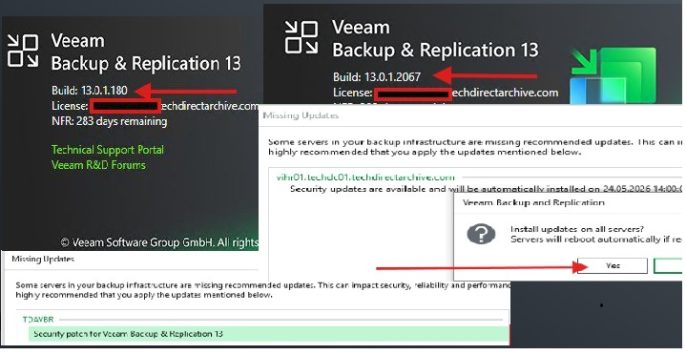
Please see How to Assign a Public IP to Azure Virtual Machine (VM), how to Fix Vulnerable Veeam Backup and Replication 13.0.1.2067 and Earlier, and how to upgrade Veeam One from v12 to v13
Option 2: Reduce Concurrent Tasks
As we can see we have four concurrent tasks but the server resources was not suffienct to perform the task. To do this, open Veeam Backup & Replication.
- Navigate to Backup Infrastructure > Backup Proxies.
- Right-click your Proxmox VE worker (e.g.,
Worker-PVE01) and select Properties (or click Edit Worker in the top menu).

On the Virtual Machine step, locate Max concurrent tasks. Lower the value (for instance, reduce it from 4 to 2 or 1 depending on available host memory). Click Next, complete the wizard, and click Finish.

After adjusting the settings, manually retry the backup job in Veeam Backup & Replication. The job will process the VM in “HotAdd” mode, process data successfully without disk preparation errors, and complete with status Success.

As you can see, the backup has completed successfully.

Fortunately, with the step above. We were able to resolve the issue “Failed to prepare disks for backup”.
Please see Integrate Trellix ePolicy Orchestrator with a Syslog Server, Veeam Backup and Replication: PowerShell must be Remote Signed, and Prevent Automatic Driver Updates in Windows and Xen-Orchestra.
Option 3: Reduce Backup Concurrency Overall
What we could have done also was, if several jobs run at the same time. We could spread them out so the worker does not get overloaded. You can do this any of the following as it applies to my environment only:
Note: Staggering backup schedules by avoiding unnecessary parallelism during backup windows
I hope you found this blogpost on “Fix Veeam Proxmox VE Backup Error: Failed to prepare disk for backup” very useful. Please feel free to leave a comment below.