Skip to content

TechDirectArchive

Hands-on IT, Cloud, Security & DevOps Insights

  • Home
  • About
  • Advertise With US
  • Reviews
  • Contact
  • Toggle search form
Home » Windows Server » How to create a contact in Active Directory

How to create a contact in Active Directory

Posted on 25/01/202022/09/2023 Christian By Christian No Comments on How to create a contact in Active Directory
Active Directory

Active Directory contacts include information about a person or business, such as phone numbers, email addresses, and fax numbers. Creating and managing AD contacts is vital for organizations, as contacts can be listed in a Global Address List (GAL) or another address list, allowing users to access contact information and send messages. For a brief overview on the differences about Active Directory user account and contact, see https://techdirectarchive.com/2020/04/09/difference-between-a-contact-and-a-user-object/

Why would you want to create a contact in Active Directory (AD)?


– Contact is most times needed in AD when you have a member that is not a regular user in your organization, such as an external (3rd party contractor). This will ensure a user account is not created for the user.
– Contact accounts will also help maintain a high level of security in your organization.
– Lastly, it will help save contact and help email software access the contact details.

Note: Contact only contains details about a person and does not contain the SID enabled on the user
Noe: This is similar to contacts in O365

Create a contact in Active Directory
– Under Tools,
– Launch Active Directory Users and Computers
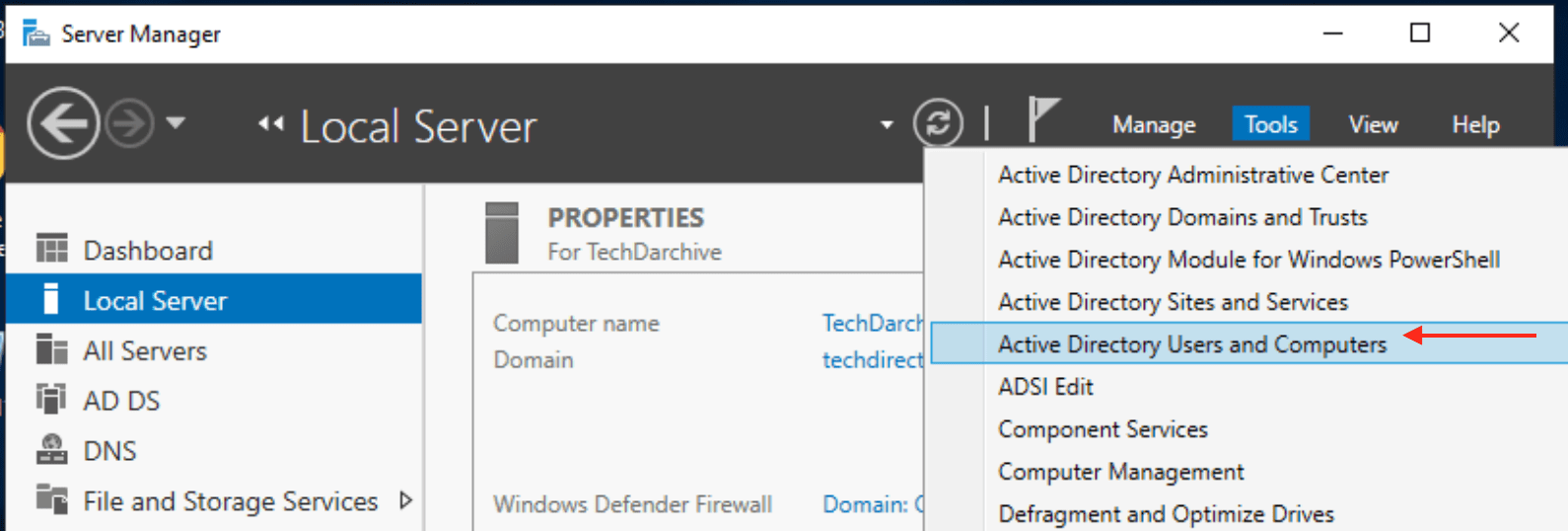
create contact

Right-click on the OU, where you want the contact to be created.
– Click on New
– Click on Contact
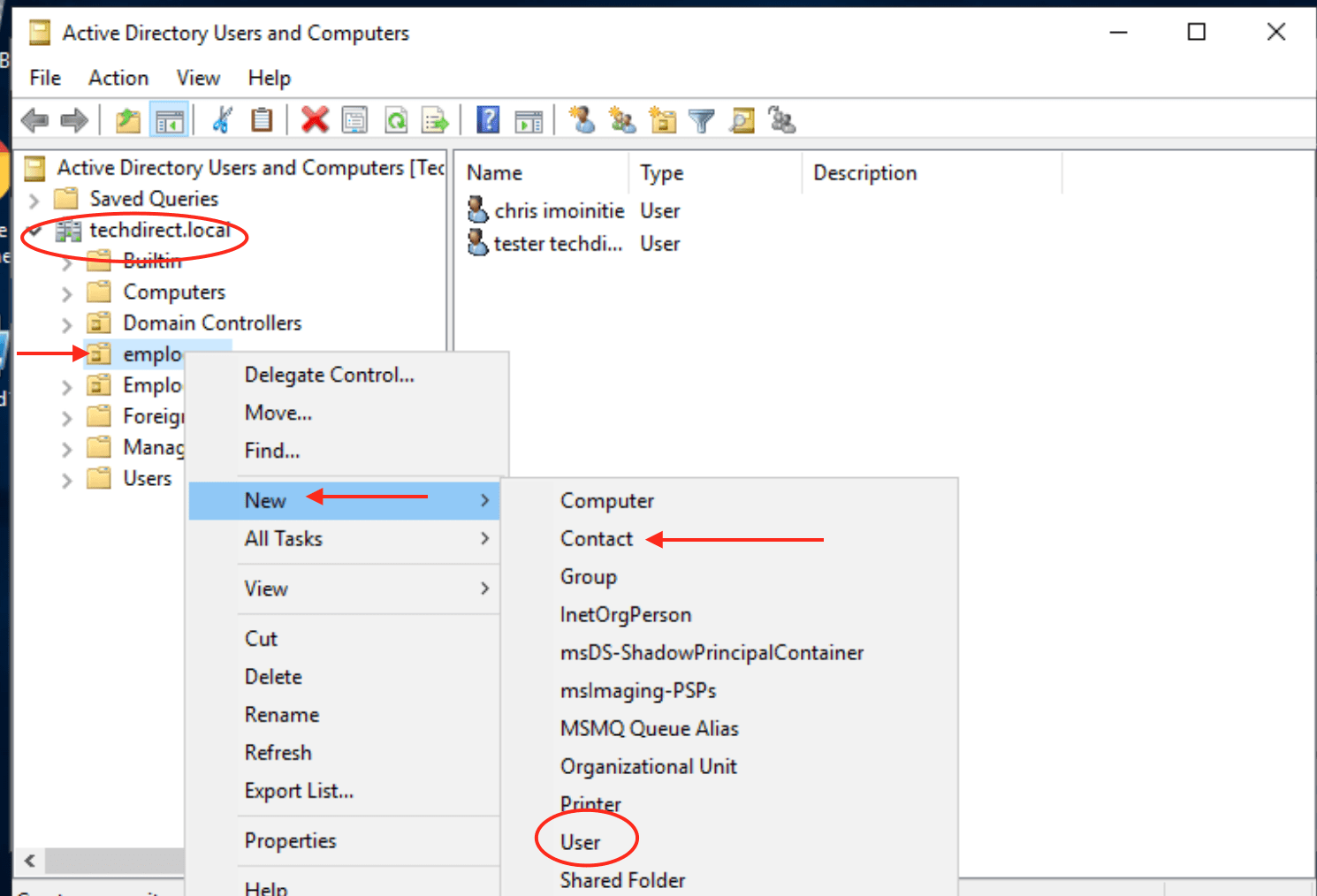
And follow the dialog box displayed to perform the tasks.

When you have it created here, there is no need creating it again an Exchange Server as the exchange server will be able to access the details.

– To configure additional properties
– Right-click on the contact and select properties

Note: You can add the contact to the group etc., despite not having a SID.
Because it does not have the SID enabled, they are not granted access to the group they belong to but only on getting emails sent to the group they belong to.
Rate this post

Thank you for reading this post. Kindly share it with others.

  • Share on X (Opens in new window) X
  • Share on Reddit (Opens in new window) Reddit
  • Share on LinkedIn (Opens in new window) LinkedIn
  • Share on Facebook (Opens in new window) Facebook
  • Share on Pinterest (Opens in new window) Pinterest
  • Share on Tumblr (Opens in new window) Tumblr
  • Share on Telegram (Opens in new window) Telegram
  • Share on WhatsApp (Opens in new window) WhatsApp
  • Share on Mastodon (Opens in new window) Mastodon
  • Share on Bluesky (Opens in new window) Bluesky
  • Share on Threads (Opens in new window) Threads
  • Share on Nextdoor (Opens in new window) Nextdoor
Windows Server Tags:Active Directory, users

Post navigation

Previous Post: Download and use Windows Sysinternals Tools locally
Next Post: Integrating on-premise AD with Azure Active Directory and MFA

Related Posts

  • remote desktop version and protocol
    Determine the Remote Desktop Client Version Windows
  • fix 0x00400d error
    Fix the request to add or remove features failed 0x00400d Windows Server
  • article 1280x720.192a2586 1
    How to apply Windows Updates from WSUS to AWS Instances AWS/Azure/OpenShift
  • Configure NFS on Windows Server
    How to install NFS Server on Windows Server Windows Server
  • dfefeq
    Error 740: Elevated permissions are required to run DISM Windows Server
  • Distributed File System DFS
    All About Distributed File System Windows

More Related Articles

remote desktop version and protocol Determine the Remote Desktop Client Version Windows
fix 0x00400d error Fix the request to add or remove features failed 0x00400d Windows Server
article 1280x720.192a2586 1 How to apply Windows Updates from WSUS to AWS Instances AWS/Azure/OpenShift
Configure NFS on Windows Server How to install NFS Server on Windows Server Windows Server
dfefeq Error 740: Elevated permissions are required to run DISM Windows Server
Distributed File System DFS All About Distributed File System Windows

Leave a Reply Cancel reply

You must be logged in to post a comment.

Microsoft MVP

VEEAMLEGEND

vexpert-badge-stars-5

Virtual Background

GoogleNews

Categories

veeaam100

Veeam Vanguard

  • Featured image
    Exploring the Reasons to use or not use Screensavers in Windows Windows
  • Trellix Upgrade
    Trellix ePO On-prem 5.10.0 Service pack 1 Update 3 upgrade Security | Vulnerability Scans and Assessment
  • Turn Focus on Enable or disable notifications for Apps on Mac
    Turn Focus On/Off: Enable or Disable Notifications for Apps on Mac Mac
  • image 1
    Install and License Devolutions Remote Desktop Manager on Mac Mac
  • VPNonWindows
    Configure VPN on Windows Server: How to allow remote VPN Access for Domain or Local Users Windows Server
  • HiveNightmare
    Workaround for “SeriousSAM or HiveNightmare” registry vulnerability for Windows 10 and 11 Security | Vulnerability Scans and Assessment
  • wac
    Fix Windows Admin Center cannot be reached Windows
  • banner
    What is Phishing Resistant Multi-Factor Authentication? Security | Vulnerability Scans and Assessment

Subscribe to Blog via Email

Enter your email address to subscribe to this blog and receive notifications of new posts by email.

Join 1,817 other subscribers
  • RSS - Posts
  • RSS - Comments
  • About
  • Authors
  • Write for us
  • Advertise with us
  • General Terms and Conditions
  • Privacy policy
  • Feedly
  • Telegram
  • Youtube
  • Facebook
  • Instagram
  • LinkedIn
  • Tumblr
  • Pinterest
  • Twitter
  • mastodon

Tags

Active Directory Azure Bitlocker Microsoft Windows PowerShell WDS Windows 10 Windows 11 Windows Deployment Services Windows Server 2016

Copyright © 2025 TechDirectArchive


Loading Comments...
 

You must be logged in to post a comment.