Skip to content

TechDirectArchive

Hands-on IT, Cloud, Security & DevOps Insights

  • Home
  • About
  • Advertise With US
  • Reviews
  • Contact
  • Toggle search form
Home » Mac » How to remove printers from HP Utility
  • Screenshot 2020 07 25 at 13.09.08
    Fix the following error occurred when DNS was queried for the service location Windows Server
  • Screenshot 2020 12 06 at 17.01.38
    Start Print Spooler Service: How to fix Print Spooler Service not running Windows
  • Screenshot 2020 06 15 at 21.08.38
    How to allow saved credentials for RDP connection Windows
  • microsoft ntlm2
    NT LAN Manager: How to prevent NTLM credentials from being sent to remote servers Security | Vulnerability Scans and Assessment
  • article 1280x720.192a2586 1 1
    How to install WSL on Windows Server Windows Server
  • How to disable web console in Cisco switches Network | Monitoring
  • How to create blue screen using the Not my Fault tool from Sysinternals
    How to create blue screen using the Not my Fault tool from Sysinternals Windows
  • powershell01
    How to create a KDS root key using PowerShell Scripts

How to remove printers from HP Utility

Posted on 11/05/202001/10/2023 Christian By Christian 2 Comments on How to remove printers from HP Utility

HP Utility is printer management software that installs with the full feature mac print driver package. With it, you can check current printer status, view remaining ink levels, check network settings, and more.

This solution explains how to remove printers from HP Utility that was added to your system but it is no longer needed.

Step 1: First ensure the old printer does no longer appear under the printer and scanner as shown below. You can access it from the following areas.
– System Preferences
– Printers & Scanners.

See the following link for more information on How to remove (uninstall) a printer on a macOS.

Printers and Scanners

Step 2: Launch the HP utility as shown below
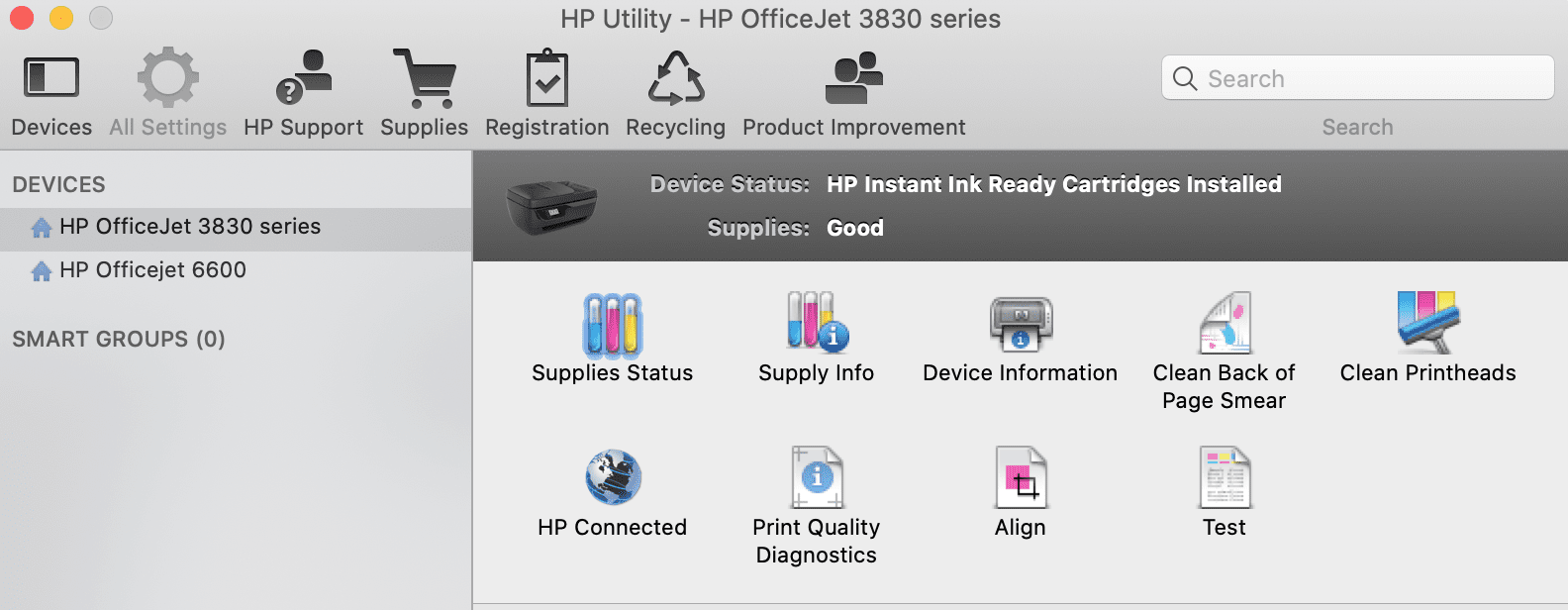
Open HP Utility

Click on the redundant printer that is no longer needed.
– In my case, it is HP OfficeJet 6600

Click on the printer you want to remove

Click on the HP OfficeJet 6600 and use the (-) sign to remove the printer from the HP Utility as shown above.

As you can see from the image below, the printer is no longer available in the list of printers to be managed.

Successfully removed printer from HP Utility

I hope you found this blog post How to remove printers from HP Utility helpful. If you require more information, please leave a comment below.


Rate this post

Thank you for reading this post. Kindly share it with others.

  • Click to share on X (Opens in new window) X
  • Click to share on Reddit (Opens in new window) Reddit
  • Click to share on LinkedIn (Opens in new window) LinkedIn
  • Click to share on Facebook (Opens in new window) Facebook
  • Click to share on Pinterest (Opens in new window) Pinterest
  • Click to share on Tumblr (Opens in new window) Tumblr
  • Click to share on Telegram (Opens in new window) Telegram
  • Click to share on WhatsApp (Opens in new window) WhatsApp
  • Click to share on Pocket (Opens in new window) Pocket
  • Click to share on Mastodon (Opens in new window) Mastodon
  • Click to share on Bluesky (Opens in new window) Bluesky
  • Click to share on Threads (Opens in new window) Threads
  • Click to share on Nextdoor (Opens in new window) Nextdoor
Mac Tags:HP Printer, Printer, Printer Management, Printing, Remove Printer

Post navigation

Previous Post: How to record the screen of macOS
Next Post: How to remove (uninstall) a printer on a macOS

Related Posts

  • maxresdefault 2 7
    How to record your screen with PowerPoint and make slide shows Mac
  • commit trong git 640
    How to uninstall Git from MacOS Mac
  • Teams
    How to install Microsoft Teams on a macOS Mac
  • Synergy software kvm
    Why Software KVMs such as Synergy is replacing Hardware KVMs Linux
  • Delete Expired Profiles on Mac
    Remove Expired Configuration Profiles on Mac Mac
  • disableautomaticoffload
    How to Disable Automatic Offloading of Apps on iPhones Mac

More Related Articles

maxresdefault 2 7 How to record your screen with PowerPoint and make slide shows Mac
commit trong git 640 How to uninstall Git from MacOS Mac
Teams How to install Microsoft Teams on a macOS Mac
Synergy software kvm Why Software KVMs such as Synergy is replacing Hardware KVMs Linux
Delete Expired Profiles on Mac Remove Expired Configuration Profiles on Mac Mac
disableautomaticoffload How to Disable Automatic Offloading of Apps on iPhones Mac

Comments (2) on “How to remove printers from HP Utility”

  1. Avatar photo Printer Support says:
    11/08/2020 at 11:11 AM

    Thanks for the awesome guidelines and this post is useful for me to remove printers from HP Utility. Also I got a huge support service from HP. Thanks for the support and guidelines.

    Log in to Reply
    1. chris Christian says:
      11/08/2020 at 11:23 AM

      Thank you very much for the nice comment, I am glad you found it useful.

      Log in to Reply

Leave a Reply Cancel reply

You must be logged in to post a comment.

Microsoft MVP

VEEAMLEGEND

vexpert-badge-stars-5

Virtual Background

GoogleNews

Categories

veeaam100

sysadmin top30a

  • Screenshot 2020 07 25 at 13.09.08
    Fix the following error occurred when DNS was queried for the service location Windows Server
  • Screenshot 2020 12 06 at 17.01.38
    Start Print Spooler Service: How to fix Print Spooler Service not running Windows
  • Screenshot 2020 06 15 at 21.08.38
    How to allow saved credentials for RDP connection Windows
  • microsoft ntlm2
    NT LAN Manager: How to prevent NTLM credentials from being sent to remote servers Security | Vulnerability Scans and Assessment
  • article 1280x720.192a2586 1 1
    How to install WSL on Windows Server Windows Server
  • How to disable web console in Cisco switches Network | Monitoring
  • How to create blue screen using the Not my Fault tool from Sysinternals
    How to create blue screen using the Not my Fault tool from Sysinternals Windows
  • powershell01
    How to create a KDS root key using PowerShell Scripts

Subscribe to Blog via Email

Enter your email address to subscribe to this blog and receive notifications of new posts by email.

Join 1,839 other subscribers
  • RSS - Posts
  • RSS - Comments
  • About
  • Authors
  • Write for us
  • Advertise with us
  • General Terms and Conditions
  • Privacy policy
  • Feedly
  • Telegram
  • Youtube
  • Facebook
  • Instagram
  • LinkedIn
  • Tumblr
  • Pinterest
  • Twitter
  • mastodon

Tags

AWS Azure Bitlocker Microsoft Windows PowerShell WDS Windows 10 Windows 11 Windows Deployment Services Windows Server 2016

Copyright © 2025 TechDirectArchive


Loading Comments...
 

You must be logged in to post a comment.