Skip to content

TechDirectArchive

Hands-on IT, Cloud, Security & DevOps Insights

  • Home
  • About
  • Advertise With US
  • Reviews
  • Contact
  • Toggle search form
Home » Windows Server » Fix the following error occurred when DNS was queried for the service location

Fix the following error occurred when DNS was queried for the service location

Posted on 28/07/202024/04/2023 Christian By Christian No Comments on Fix the following error occurred when DNS was queried for the service location

A DNS query (also known as a DNS request) is a demand for information sent from a user’s computer (DNS client) to a DNS server. When prompted with the following error as shown below. In this guide, I will show you how to fix “the following error occurred when DNS was queried for the service location (SRV) resource record used to locate an Active Directory Domain Controller (AD DS) for domain: Error code 0x0000232B RCODE_NAME_ERROR”. Please see the following guides: DNS: Unable to register a client to Domain, How to find disabled Active Directory User accounts, how to fix WinRM cannot process the request: The following error occurred while using Kerberos authentication, cannot find the computer.
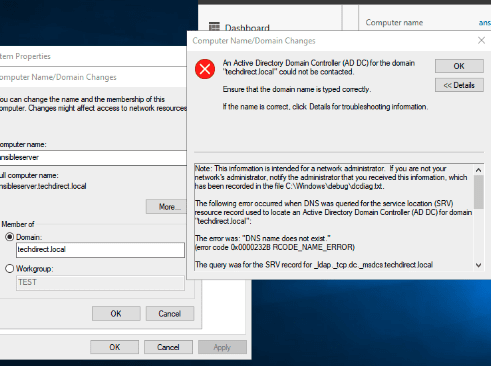
This is a DNS issue, no doubt! Use this guide for the different types of DNS records. When you search on the internet, you may find conflicting tips. In my environment, here are some tips I followed to resolve this issue.

Please see these exciting articles: Domain Name System: How to create a DNS record. How to fix DNS Bad key 9017: The Cluster Name registration failed of one or more associated DNS names. And how to enable God Mode via PowerShell, CLI and GUI.

Resolve Error for “DNS was queried for the service location (SRV)”

Here are  my recommendations below

1: Ensure the client(s) IP parameters (preferred DNS Server) set on the client machine points to the DNS points to internal DNS servers as DNS servers. See a similar error “The following errors occurred attempting to join the domain: The specified domain either does not exist or could not be contacted“.

As you can see, it was pointing to a wrong IP Address (gateway).
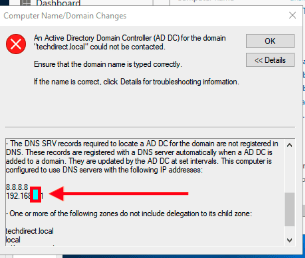
Therefore, I will have to corrected the information.


2: Ensure the DNS server has the right IP address of itself populated for all zones and records. A similar idea was used in resolving this issue “How to fix nslookup unknown: cannot find non-existent domain“.

After ensuring the above two recommendations are met, flush the DNS cache and registered the DNS again using the command below on the DNS server and restart the DNS and netlogon service. You can optionally restart your DNS server. for other DNS troubleshooting parameters, see this link.

ipconfig /registerdns
net stop netlogon
net start netlogon

Now, you should e able to join your device to the domain as shown below. For how to set up a domain, see the following link. Also for how to add a second DC, see the following link. For how to join a PC to a Domain, see the following link.

Note: You will be prompted to restart your device as shown below. Proceed and have it restarted.

I hope you found this blog post helpful on how to fix the following error occurred when DNS was queried for the service location”. If you have any questions, please let me know in the comment session.
Rate this post

Thank you for reading this post. Kindly share it with others.

  • Share on X (Opens in new window) X
  • Share on Reddit (Opens in new window) Reddit
  • Share on LinkedIn (Opens in new window) LinkedIn
  • Share on Facebook (Opens in new window) Facebook
  • Share on Pinterest (Opens in new window) Pinterest
  • Share on Tumblr (Opens in new window) Tumblr
  • Share on Telegram (Opens in new window) Telegram
  • Share on WhatsApp (Opens in new window) WhatsApp
  • Share on Mastodon (Opens in new window) Mastodon
  • Share on Bluesky (Opens in new window) Bluesky
  • Share on Threads (Opens in new window) Threads
  • Share on Nextdoor (Opens in new window) Nextdoor
Windows Server Tags:DNS, DNSRecord, Domain, Domain Controller, FQDN, Windows Server 2016

Post navigation

Previous Post: The following errors occurred attempting to join the domain: The specified domain either does not exist or could not be contacted
Next Post: How to fix “Unable to Sign In: Domain Not Available”

Related Posts

  • image 1
    Install and License Devolutions Remote Desktop Manager on Mac Mac
  • iso10
    Mount an ISO image in Windows 10 and 11 Windows
  • BitLocker removal on Windows Server
    How to correctly disable BitLocker on Windows Server Windows Server
  • Banner
    How to Stop OneDrive from Starting Up Automatically on Windows 11 Windows
  • fix windows activation 0x87E10BC6 error
    Fix Error 0x87E10BC6 on a PC running Windows non-core Edition Windows
  • Screenshot 2020 10 31 at 10.35.37
    How to set the PowerShell Execution Policy via Windows Registry Windows Server

More Related Articles

image 1 Install and License Devolutions Remote Desktop Manager on Mac Mac
iso10 Mount an ISO image in Windows 10 and 11 Windows
BitLocker removal on Windows Server How to correctly disable BitLocker on Windows Server Windows Server
Banner How to Stop OneDrive from Starting Up Automatically on Windows 11 Windows
fix windows activation 0x87E10BC6 error Fix Error 0x87E10BC6 on a PC running Windows non-core Edition Windows
Screenshot 2020 10 31 at 10.35.37 How to set the PowerShell Execution Policy via Windows Registry Windows Server

Leave a Reply Cancel reply

You must be logged in to post a comment.

Microsoft MVP

VEEAMLEGEND

vexpert-badge-stars-5

Virtual Background

GoogleNews

Categories

veeaam100

Veeam Vanguard

  • virtualbox guest additions rcm480x270u
    How to install virtual machine Guest Addition Virtualization
  • DockerEn
    How to Install and Upgrade Docker Engine From Binaries Containers
  • How does key rotation work in MBAM
    How does Key Rotation work in MBAM? Oracle/MSSQL/MySQL
  • Machine does not support XSAve
    How to disable side-channel mitigations on VMware Workstation Virtualization
  • image 29
    How to force your website to redirect from HTTP to HTTPS using a web.config file Network | Monitoring
  • Windowsfilesystemxx
    Failed to remove network for the build, Job failed error: Invalid volume specification: “/cache” Containers
  • windows pe screenshot1 rcm1200x0
    Workaround and Permanent fix for this snap-in performed a non-valid operation and has been unloaded: To continue using this snap-in restart MMC or try loading the snap-in again Windows Server
  • Dellupdate 1
    Fix for security vulnerabilities in the BIOS firmware for some Intel Processors Windows

Subscribe to Blog via Email

Enter your email address to subscribe to this blog and receive notifications of new posts by email.

Join 1,813 other subscribers
  • RSS - Posts
  • RSS - Comments
  • About
  • Authors
  • Write for us
  • Advertise with us
  • General Terms and Conditions
  • Privacy policy
  • Feedly
  • Telegram
  • Youtube
  • Facebook
  • Instagram
  • LinkedIn
  • Tumblr
  • Pinterest
  • Twitter
  • mastodon

Tags

Active Directory Azure Bitlocker Microsoft Windows PowerShell WDS Windows 10 Windows 11 Windows Deployment Services Windows Server 2016

Copyright © 2025 TechDirectArchive


Loading Comments...
 

You must be logged in to post a comment.