Skip to content

TechDirectArchive

Hands-on IT, Cloud, Security & DevOps Insights

  • Home
  • About
  • Advertise With US
  • Reviews
  • Contact
  • Toggle search form
Home » Windows Server » Error 0x800f0830: Discard the modified Image and start again, no operation was performed

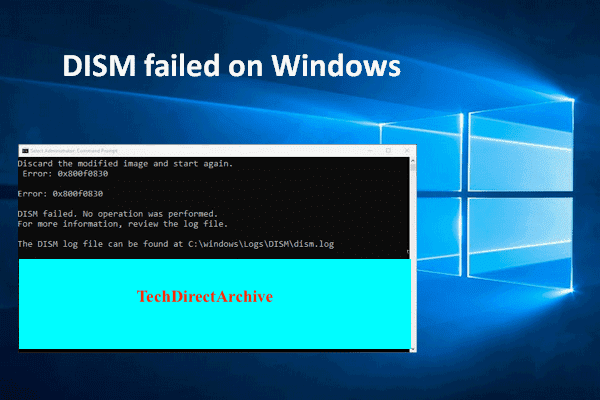
Error 0x800f0830: Discard the modified Image and start again, no operation was performed

Posted on 24/10/202030/12/2023 Christian By Christian No Comments on Error 0x800f0830: Discard the modified Image and start again, no operation was performed
Windows error 0x800f0830

Deployment Image Servicing and Management (DISM) mounts a Windows image (.wim) file or virtual hard disk (.vhd or .vhdx) for servicing. In this guide, we will discuss the following Error 0x800f0830: Discard the modified Image and start again, no operation was performed. Please see Error 183: The specified image is currently being serviced by another DISM operation, and how to modify Windows 11 Taskbar via Intune and GPO.

You can also use the DISM image management command to list the image index numbers, verify the architecture for the image that you are mounting, append an image, apply an image, capture an image, and delete an image.

0x800f0830 Image Error Restart and Discard Changes

Here are some DISM-related errors: Failure 5627: How to fix error 0x800f0805. And error 0xc1420127: The specified image in the specified wim is already mounted for read and write access.

The following error "Error 0x800f0830, discard the modified Image and start again: DISM failed, no operation was performed" was prompted because the packages were already installed and as such could not install the packages again.
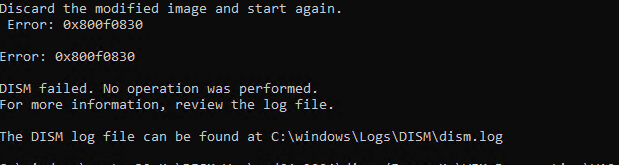
In this case, you have nothing to fix. Simply use the command below to determine if the application has truly been installed.

dism /Image:<MountedDir> /get-features

See ADK, MDT, Microsoft Endpoint Configuration Manager (SCCM), Intune, Autopilot, and WSUS. Also, see how to configure and deploy Windows using Microsoft Deployment Toolkit, and Windows Deployment Services for Windows 10.

FAQs

How can I use DISM to check the health of my Windows image?

You can use the following DISM command to check the health of a Windows image: DISM /Online /Cleanup-Image /CheckHealth

Can DISM be used for driver management in Windows?

DISM can be used for managing drivers in Windows. You can use DISM to add or remove drivers from a Windows image or an offline Windows installation. The /Add-Driver and /Remove-Driver options are used for adding or removing drivers, respectively. See this command for example: DISM /Image:C:\Offline /Add-Driver /Driver:C:\Drivers\MyDriver.inf

I hope you found this blog post helpful on how to fix Error 0x800f0830: Discard the modified Image. Please let me know in the comment session if you have any questions.
Rate this post

Thank you for reading this post. Kindly share it with others.

  • Share on X (Opens in new window) X
  • Share on Reddit (Opens in new window) Reddit
  • Share on LinkedIn (Opens in new window) LinkedIn
  • Share on Facebook (Opens in new window) Facebook
  • Share on Pinterest (Opens in new window) Pinterest
  • Share on Tumblr (Opens in new window) Tumblr
  • Share on Telegram (Opens in new window) Telegram
  • Share on WhatsApp (Opens in new window) WhatsApp
  • Share on Mastodon (Opens in new window) Mastodon
  • Share on Bluesky (Opens in new window) Bluesky
  • Share on Threads (Opens in new window) Threads
  • Share on Nextdoor (Opens in new window) Nextdoor
Windows Server Tags:DISM, Microsoft Deployment Toolkit (MDT), WDS, Windows 10

Post navigation

Previous Post: The action cannot be completed because the folder or file is open in another program: Determine where a file is open in Windows
Next Post: Error 0xc1420117: The directory could not be completely unmounted

Related Posts

  • Screenshot 2020 05 19 at 02.57.10
    Create Central Store for Group Policy Administrative Templates Windows Server
  • configure kerberos
    Configure Kerberos Delegation in Windows Windows
  • QueryBitLocker1
    Query Windows BitLocker status remotely Windows
  • ADBA for Windows
    Configure Active Directory-Based Activation (ADBA) for Windows Windows Server
  • original 1
    DISM “Failed to open image” CWimImageInfo Mount(hr:0x8007000d): Fix Error DISM WIM Provider Windows
  • How to Block IP Addresses Using Group Policy (GPO) in Active Directory
    Block IP Addresses Using Group Policy (GPO) in Active Directory Network | Monitoring

More Related Articles

Screenshot 2020 05 19 at 02.57.10 Create Central Store for Group Policy Administrative Templates Windows Server
configure kerberos Configure Kerberos Delegation in Windows Windows
QueryBitLocker1 Query Windows BitLocker status remotely Windows
ADBA for Windows Configure Active Directory-Based Activation (ADBA) for Windows Windows Server
original 1 DISM “Failed to open image” CWimImageInfo Mount(hr:0x8007000d): Fix Error DISM WIM Provider Windows
How to Block IP Addresses Using Group Policy (GPO) in Active Directory Block IP Addresses Using Group Policy (GPO) in Active Directory Network | Monitoring

Leave a Reply Cancel reply

You must be logged in to post a comment.

Microsoft MVP

VEEAMLEGEND

vexpert-badge-stars-5

Virtual Background

GoogleNews

Categories

veeaam100

Veeam Vanguard

  • banner 2
    How to Configure NIC Teaming on Windows Server Network | Monitoring
  • Delete Expired Profiles on Mac
    Remove Expired Configuration Profiles on Mac Mac
  • Wyebot
    A comprehensive guide on Wyebot Wireless Intelligence Platform Reviews
  • Convert OST to PST
    How to install and work with Stellar Converter for OST Reviews
  • UpdateOfficeOnlineServer 1
    Perform Office Online Server Update via the Microsoft Update Catalog Network | Monitoring
  • GRADLE FEATURE
    How to install Gradle on Ubuntu Linux
  • veeam.n2ws
    How to implement N2WS Backup & Recovery (CPM) Backup
  • veeamONE integration with VBR
    Install Veeam ONE and Add VBR: Fix failed to connect to VBR Backup

Subscribe to Blog via Email

Enter your email address to subscribe to this blog and receive notifications of new posts by email.

Join 1,819 other subscribers
  • RSS - Posts
  • RSS - Comments
  • About
  • Authors
  • Write for us
  • Advertise with us
  • General Terms and Conditions
  • Privacy policy
  • Feedly
  • Telegram
  • Youtube
  • Facebook
  • Instagram
  • LinkedIn
  • Tumblr
  • Pinterest
  • Twitter
  • mastodon

Tags

Active Directory Azure Bitlocker Microsoft Windows PowerShell WDS Windows 10 Windows 11 Windows Deployment Services Windows Server 2016

Copyright © 2025 TechDirectArchive


Loading Comments...
 

You must be logged in to post a comment.