Windows deployment cannot continue, the operating system is missing via MDT deployment


Windows Deployment Services (WDS) is a service role that allows you to deploy the Windows operating system to a PXE-enabled client. and will enable you to deploy a Windows operating system to multiple clients at the same time. In this article, we shall discuss how to fix “Windows deployment cannot continue, the operating system is missing via MDT deployment”. See this article on how to set up and install the WDS role. If you are using Oracle VirtualBox, you may encounter an error: “No bootable media found system halted: Unable to PXE boot WDS to Virtualbox, see this article for a fix“.
Microsoft Deployment Toolkit (MDT) is a unified collection of tools, processes, and guidance for automating desktop and server deployment. For more information on this step, see how to configure and deploy Windows using Microsoft Deployment Toolkit, and Windows Deployment Services for Windows 10. You may be interested in the following articles below.
Understanding the ‘Operating System is Missing’ Error During Installation
During installation, you will notice the following error during the task sequence selection “The Operating System is missing”.
This error was prompted because the Windows Operating System was not selected in the task sequence and as such, the Windows installation would not proceed. In this piece “MDT accidental OS deletion: Mistakenly deleted your Operating Systems over Microsoft Deployment Toolkit“, we also discussed the consequence of not selecting the “operating system to install” via the task sequence.
Resolve the ‘Operating System is Missing’ issue
You must launch the Open the Deployment Share and perform the following steps.
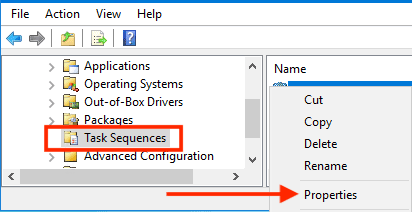
Expand on the Deployment share, and select Task Sequence. Select properties and when the task sequence opens up, select the Task Sequence Menu bar on the top as shown below
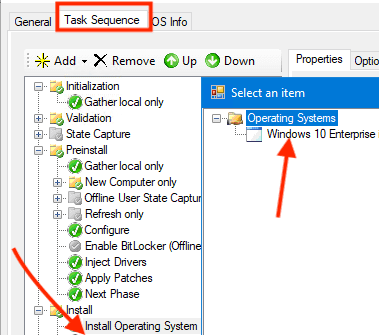
Next, scroll down to the following area under ‘Install’ as shown below, and address any issues related to MDT Deployment OS Missing.”
Select “Install Operating System”. On the right pane of the window, under properties. Click on browse under the “Operating system to install” and select the install.wim file.
When this is done, click on Apply and OK. Now, you can now continue with your Windows 10 or server installation and it will complete successfully. See related Windows 10 deployment via WDS, how to set up a VM via PXE boot on a Generation 1 VM – Hyper-V and how to set up a VM via PXE boot on a Generation 2 VM – Hyper-V.
Lastly, also ensure that the properties window of the Task Sequence. That is, the unattended.xml is pointing to the right image as well to avoid ‘MDT Deployment OS Missing’. Follow the steps below to perform this step.
- Under the OS Info
- Edit the unattended XML file and
- Ensure the "under the Answer file" window
- The Operating System points to the right OS.
- Validate and save the Answer File.
WDS configuration interacts closely with DHCP, PXE, DNS, and Active Directory. As all of these functions are part of the Windows Server platform.
See the following links for more details on DHCP. IP assignment via Dynamic Host Configuration Protocol (DHCP). How to install Dynamic Host Configuration Protocol on Windows Server 2019. And how to configuring DHCP: Post-deployment of Dynamic Host Configuration Protocol.
FAQs on Windows deployment cannot continue via MDT
What does the error message “Windows deployment cannot continue, the operating system is missing” indicate via MDT?
This error message shows that the Microsoft Deployment Toolkit (MDT) is unable to locate the OS files required for deployment. During the deployment process, MDT relies on the presence of a Windows OS image to install or upgrade the target computer. If these files are missing or inaccessible, this error will be prompted.
What is Microsoft Deployment Toolkit (MDT), and how does it differ from other deployment solutions?
Microsoft Deployment Toolkit (MDT) is a free solution for deploying Windows operating systems and software in an enterprise environment. MDT is often used in together with Windows Deployment Services (WDS). You can also use it with System Center Configuration Manager (SCCM) for larger deployments.
The key difference between MDT and other deployment solutions lies in its flexibility and customization options. MDT allows IT administrators to create highly customized deployment processes. This includes the ability to integrate drivers, applications, and updates into the deployment, making it a powerful tool for managing diverse hardware and software requirements.
I hope you found this blog post on MDT Deployment OS Missing helpful. If you have any questions, please let me know in the comment section.


