Solve VMware workstation .lck error [Part 1]


One error you are bound to meet within your career as a Linux Administrator is a ”frozen” screen. It can be quite frustrating if you do not know what to do or where to look for the error logs. This Image below could be like this for a long time, not going further than this and not allowing any interaction on the machine. Our focus will be to discuss the steps to fix “the process cannot access the file because another process has locked a portion of the file. Resolve VMware workstation .lck error”. Please see How to install Windows Server 2022 on VMware Workstation, and How to Install Windows 10 on VMware Workstation.
Lock files are created when a virtual machine is powered on. Their purpose is to prevent multiple VMware processes from accessing the same virtual machine at the same time. The existence of a lock file indicates to VMware that the associated virtual machine is powered on.
Reason for VMware workstation .lck error
There are circumstances in which one or more lock files exist in a virtual machine’s directory. Even when the virtual machine is powered off. When this occurs, the only way that the virtual machine can be powered on is to manually remove the lock files.

Some of the major causes could be Acute Shortage of Space and system resource exhaustion. Other times, the virtual machine creates lock files to prevent consistency problems on the virtual disk.
Please see How to disable automatic screen lock in Ubuntu Linux, and The security database on the server does not have a computer account for this workstation trust relation [Part 1].
Fix “The process cannot access the file because another process has locked a portion of the file”
One of the things you need to look for first is the iso image mirror. It is usually stored on the /Document/Virtual Machines folder if you are working with a Virtual Machine. It is always located in the same directory as the .vmdk files.

Open the folder locate the files and folder that have .lck extensions and delete them. Following the steps on ‘How to solve VMware Workstation .lck error.’
However, be sure these are not production processes locking the system down while they execute.
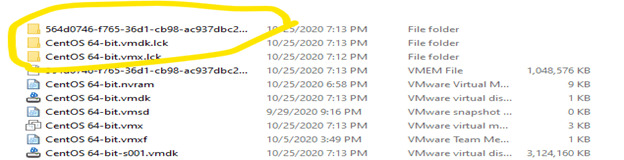
After deleting them, you will have to restart the machine. If it is hosted on a Virtual Machine. You may need to restart both the Virtual Machine and the host machine. After this, your system should start normally.
Furthermore, I hope you found this blog post on “How to solve VMware workstation .lck error” helpful. Please let me know in the comment section if you have any questions.


thanks a lot