Skip to content

TechDirectArchive

Hands-on IT, Cloud, Security & DevOps Insights

  • Home
  • About
  • Advertise With US
  • Reviews
  • Contact
  • Toggle search form
Home » Windows » Device cannot use a Trusted Platform Module: Allow BitLocker without a compatible TPM
  • install ssl certificate
    Configure SSL connection for WSUS Upstream and Downstream Servers Windows Server
  • How to create an Advanced Windows Scheduled Task Windows Server
  • powerpoint 1280x720 1
    How to change the speller and proofing language in PowerPoint Microsoft Exchange/Office/365
  • image 10
    How to use Microsoft SQL Server Management Studio to Export and Import your MsSQL database from Azure to local computer AWS/Azure/OpenShift
  • task kill keyboard feature 1000x450 1
    Task Kill vs Stop Process: How to search for a service PID Windows Server
  • ccsC
    NTuser.dat file: How to correctly load Windows Registry Hive Windows
  • img 1686
    The trust relationship between this workstation and the primary domain failed Windows Server
  • HyperV 1
    An error occurred while attempting to connect to the server: Check if the Virtual Machine Management service is running or you are not authorized to connect to this server Virtualization

Device cannot use a Trusted Platform Module: Allow BitLocker without a compatible TPM

Posted on 30/12/202018/09/2024 Christian By Christian No Comments on Device cannot use a Trusted Platform Module: Allow BitLocker without a compatible TPM
Device TPM compatibility

The trusted platform module (TPM) is a hardware component installed in many newer computers by computer manufacturers. It works with BitLocker to help protect user data and to ensure that a computer has not been tampered with while the system was offline. In this article, you will learn how to fix your device that cannot use a Trusted Platform Module: Allow BitLocker without a compatible TPM. Please see how to delegate permissions for backing up TPM password, and How to clear the TPM via the management console or Windows Defender Center App.

BitLocker offers the option to lock the normal startup process until the user supplies a personal identification number (PIN). Or inserts a removable USB device, such as a flash drive, that contains a startup key. This makes it possible to allow BitLocker without needing a compatible TPM.

These additional security measures provide multifactor authentication and assurance that the computer will not start. Or resume hibernation until the correct PIN or startup key is presented. Below is a YouTube Video on how to Fix the device that cannot use a TPM module.

Kindly refer to the following TPM related guides: How to upgrade Windows 10 with an unsupported CPU and TPM 1.0 to Windows 11​, and How to Install Windows 11 in Oracle VirtualBox with no TPM Support, 

Here is an example of an FDE solution with PBA “how to download DriveLock software and install DriveLock” that I have tested. kindly take a look at this guide as well “Important DriveLock components to master.

BitLocker without TPM USB key

Note: Furthermore, On devices without TPM version 1.2 and above. You can still use BitLocker to encrypt the Windows OS drive without a compatible TPM. However, this implementation will require the user to insert a USB startup key to start the computer.

However, resume from hibernation and does not provide the pre-startup system integrity verification offered by BitLocker working with a TPM.

Note: Moreover, There is no dare consequence of having BitLocker without a TPM. The difference here is that the encryption key will be saved to a USB instead of being stored on the chip itself.

The following error below was prompted when I tried simulating what could happen on devices without TPM. "This device can't use a Trusted Platform Module. Your administrator must select the "Allow BitLocker without a compatible TPM" option in the "Require additional authentication at startup" policy for OS volumes".
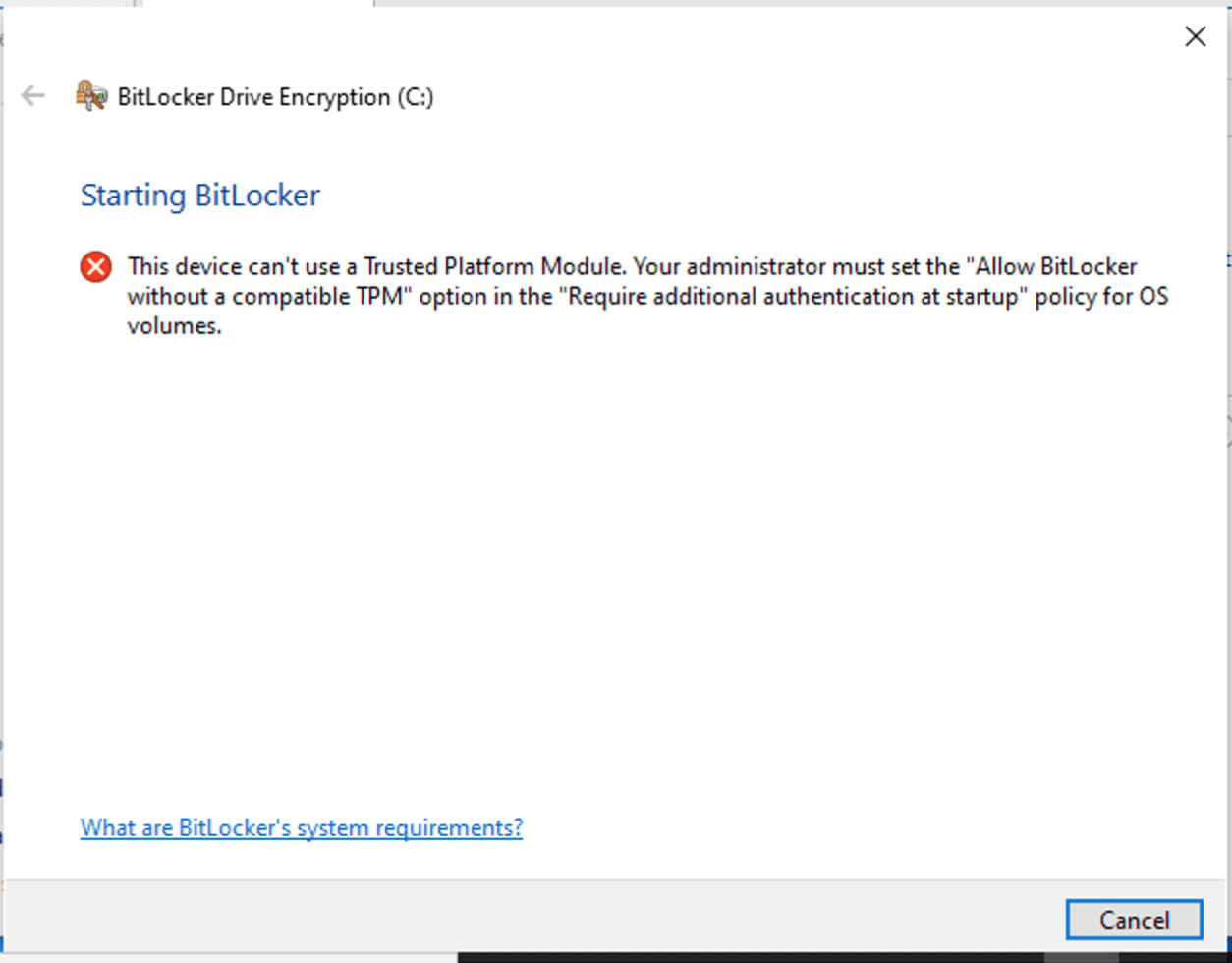
BitLocker without TPM

To resolve this error, we must configure the local Group Policy settings to “Allow BitLocker without a compatible TPM”. In addition, For more information on Group Policy.

Please see the following guides “what is Group Policy Object and how can it be launched“, how to analyze group policies applied to a user and computer account, and for a comprehensive list of articles I have written on GPO, please visit the following link.

Nonetheless, There are numerous ways to launch the Group Policy Editor in Windows 10.
– Open the Group Policy Editor by pressing the Windows Key + R and type “gpedit.msc”
– Or from the Windows search box, type “gpedit.msc” and press Enter.

Trusted Platform Module issues

This will open the Local Group Policy Editor as shown below

TPM bypass for BitLocker
Local Group Policy Editor

Navigate to the following path as shown below. – Computer Configuration – Administrative Templates – Windows Components – BitLocker Drive Encryption – Operating System Drives

On the right pane of the window, you will see an option called “Require additional authentication at startup”. Double-click on that option.

This is currently set to “Not Configured”. We will have to change this by selecting the “Enabled” radio button.  

This will check the Allow BitLocker without a compatible TPM box by default as shown below.

Click on Okay. As you can see the policy has been enabled.

Now you can now proceed and continue with your BitLocker activation as described in this guide “How to enable BitLocker on Windows 10” or this link.

Note: These Group Policy changes take effect immediately,, there is no need for reboot or apply GPupdate. See this guide for more information on GPUpdate Switches: GPUpdate vs GPUpdate force

I hope you found this blog post helpful. If you have any questions, please let me know in the comment session.

5/5 - (1 vote)

Thank you for reading this post. Kindly share it with others.

  • Click to share on X (Opens in new window) X
  • Click to share on Reddit (Opens in new window) Reddit
  • Click to share on LinkedIn (Opens in new window) LinkedIn
  • Click to share on Facebook (Opens in new window) Facebook
  • Click to share on Pinterest (Opens in new window) Pinterest
  • Click to share on Tumblr (Opens in new window) Tumblr
  • Click to share on Telegram (Opens in new window) Telegram
  • Click to share on WhatsApp (Opens in new window) WhatsApp
  • Click to share on Pocket (Opens in new window) Pocket
  • Click to share on Mastodon (Opens in new window) Mastodon
  • Click to share on Bluesky (Opens in new window) Bluesky
  • Click to share on Threads (Opens in new window) Threads
  • Click to share on Nextdoor (Opens in new window) Nextdoor
Windows Tags:Bitlocker, Container encryption, Encryption, encrytp, File and Folder Encryption Software, Full Disk Encryption, TPM, Windows 10

Post navigation

Previous Post: Full Disk Encryption with PBA or without PBA, UEFI, Secure Boot, BIOS, File and Directory Encryption and Container Encryption
Next Post: Enable or disable BitLocker Drive Encryption on Windows

Related Posts

  • Permission1
    How to create a Shortcut That enables Standard Users to run Applications as Administrator Windows
  • Featured image 4
    How to remove a Device from your Microsoft Account Microsoft Exchange/Office/365
  • 1 WeXxkEX0JG3oB781HD8Hrg 1
    Command Prompt in Windows: Creating Volumes Guide Windows
  • powershell commands lede 1024x276 1
    PowerShell Remoting: Guide to Windows Management Instrumentation Scripts
  • Slide1 1
    Enable or disable Secure Boot in Windows via UEFI Firmware Settings Windows
  • Test your webcam and microphone before meeting
    How to Test Your Webcam And Microphone Before Meeting Windows

More Related Articles

Permission1 How to create a Shortcut That enables Standard Users to run Applications as Administrator Windows
Featured image 4 How to remove a Device from your Microsoft Account Microsoft Exchange/Office/365
1 WeXxkEX0JG3oB781HD8Hrg 1 Command Prompt in Windows: Creating Volumes Guide Windows
powershell commands lede 1024x276 1 PowerShell Remoting: Guide to Windows Management Instrumentation Scripts
Slide1 1 Enable or disable Secure Boot in Windows via UEFI Firmware Settings Windows
Test your webcam and microphone before meeting How to Test Your Webcam And Microphone Before Meeting Windows

Leave a Reply Cancel reply

You must be logged in to post a comment.

Microsoft MVP

VEEAMLEGEND

vexpert-badge-stars-5

Virtual Background

GoogleNews

Categories

veeaam100

sysadmin top30a
 
  • install ssl certificate
    Configure SSL connection for WSUS Upstream and Downstream Servers Windows Server
  • How to create an Advanced Windows Scheduled Task Windows Server
  • powerpoint 1280x720 1
    How to change the speller and proofing language in PowerPoint Microsoft Exchange/Office/365
  • image 10
    How to use Microsoft SQL Server Management Studio to Export and Import your MsSQL database from Azure to local computer AWS/Azure/OpenShift
  • task kill keyboard feature 1000x450 1
    Task Kill vs Stop Process: How to search for a service PID Windows Server
  • ccsC
    NTuser.dat file: How to correctly load Windows Registry Hive Windows
  • img 1686
    The trust relationship between this workstation and the primary domain failed Windows Server
  • HyperV 1
    An error occurred while attempting to connect to the server: Check if the Virtual Machine Management service is running or you are not authorized to connect to this server Virtualization

Subscribe to Blog via Email

Enter your email address to subscribe to this blog and receive notifications of new posts by email.

Join 1,841 other subscribers
  • RSS - Posts
  • RSS - Comments
  • About
  • Authors
  • Write for us
  • Advertise with us
  • General Terms and Conditions
  • Privacy policy
  • Feedly
  • Telegram
  • Youtube
  • Facebook
  • Instagram
  • LinkedIn
  • Tumblr
  • Pinterest
  • Twitter
  • mastodon

Tags

AWS Azure Bitlocker Microsoft Windows PowerShell WDS Windows 10 Windows 11 Windows Deployment Services Windows Server 2016

Copyright © 2025 TechDirectArchive


Loading Comments...
 

You must be logged in to post a comment.