Skip to content

TechDirectArchive

Hands-on IT, Cloud, Security & DevOps Insights

  • Home
  • About
  • Advertise With US
  • Contact
  • Reviews
  • Toggle search form
Home » Mac » Application in bin: You can not open this application

Application in bin: You can not open this application

Posted on 02/02/202130/09/2023 Christian By Christian No Comments on Application in bin: You can not open this application

This issue is very trivial and relatively very easy to resolve. Before diving into the resolution, the application folder is one of the default folders on Mac and it is where apps reside. It houses macOS native apps and also third-party apps that are downloaded onto the device. Also, it is worth noting that the “Application folder” makes navigation easier. Here are some related contents on mac Os, how to take a screenshot on a mac device, how to enable or disable automatic software updates on Mac, how to check if homebrew is installed on Mac OS, and how to stop apps from launching automatically upon startup on Mac.

This is actually not an error because you must have deleted the application from the "Application Folder" and the residue was left in the dock because it was previously opened as shown below. You have two options now, you can either remove it from the dock or have it restored from the bin.

application in bin
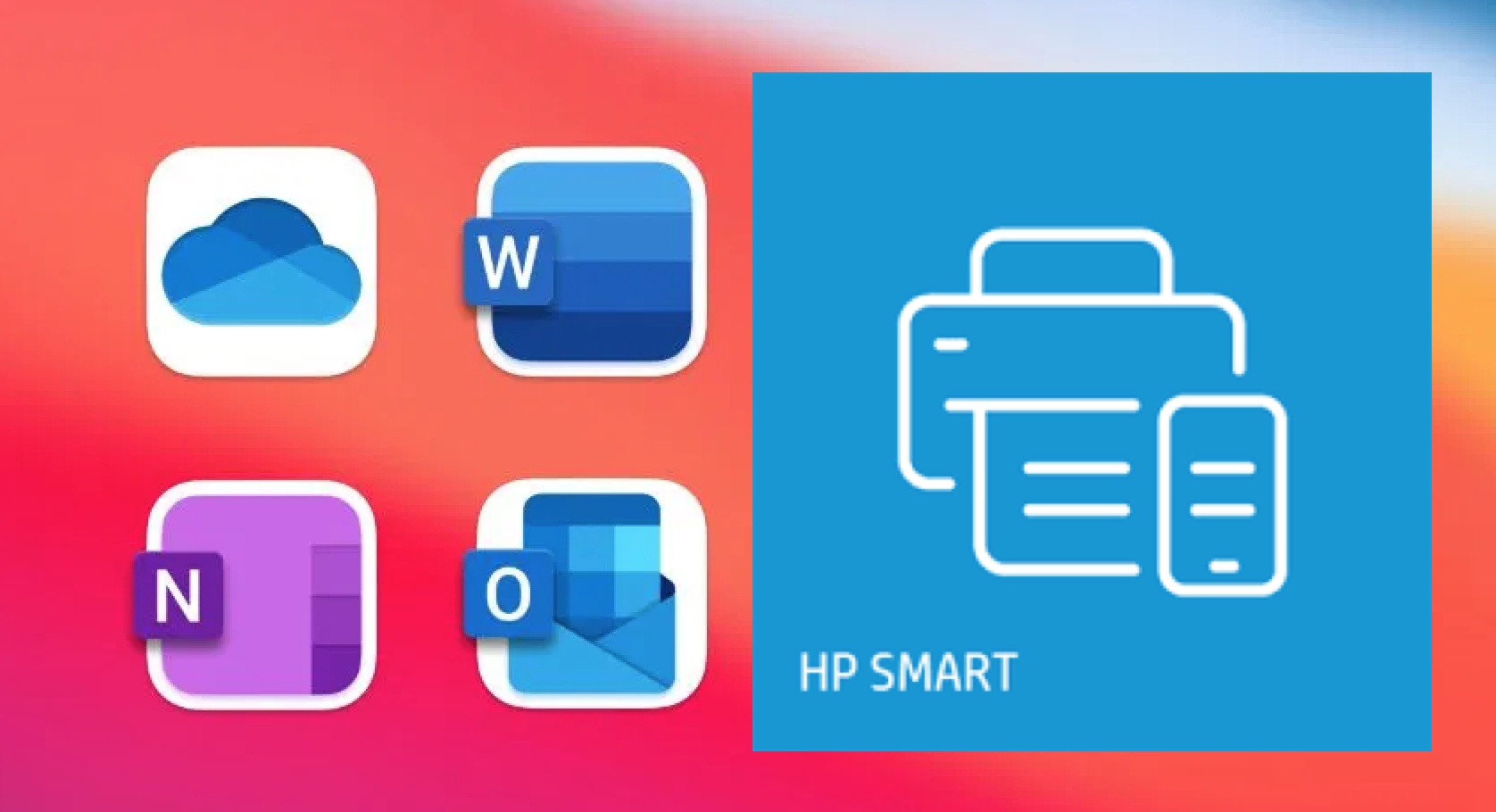
And when you click on the "supposed" HP smart application to open it up, you will be prompted with the error "you can not open this application because it is in the bin. 

If your intention is to have the application deleted, you should right-click on the icon as shown below. Then select “Remove from Dock”.

Remove from Dock

To have it restored from the bin, open the bin and move the HP Smart icon from the bin to your “Applications” folder on the sidebar.

Move HP Smart Icon back to Application Folder

You will be required to enter your password to confirm this move (restoration). Now, you should be able to open (launch) the HP Smart henceforth as an application. If you wish to keep it in the dock, please right-click on it.

Enter Password

I welcome you to subscribe to my YouTube Channel. I hope you found this blog post helpful. If you have any questions, please let me know in the comment session.

I hope you found this blog on application in bin post helpful. If you have any questions, please let me know in the comment session.

Rate this post

Thank you for reading this post. Kindly share it with others.

  • Share on X (Opens in new window) X
  • Share on Reddit (Opens in new window) Reddit
  • Share on LinkedIn (Opens in new window) LinkedIn
  • Share on Facebook (Opens in new window) Facebook
  • Share on Pinterest (Opens in new window) Pinterest
  • Share on Tumblr (Opens in new window) Tumblr
  • Share on Telegram (Opens in new window) Telegram
  • Share on WhatsApp (Opens in new window) WhatsApp
  • Share on Mastodon (Opens in new window) Mastodon
  • Share on Bluesky (Opens in new window) Bluesky
  • Share on Threads (Opens in new window) Threads
  • Share on Nextdoor (Opens in new window) Nextdoor
Mac

Post navigation

Previous Post: VM is not accessible: Fix Taking ownership of a VM failed
Next Post: How to install SCConfigMgr Driver Automation Tool on Windows

Related Posts

  • Authentication Failed
    Authentication Failed: How to fix critical error could not connect to WordPress SFTP Server Mac
  • Screenshot 2021 03 29 at 01.56.17
    How to prevent VLC player from reverting to the native video size on Mac Mac
  • macos app switcher shortcuts
    How to enable or disable automatic software updates on Mac Mac
  • Synergy software kvm
    Why Software KVMs such as Synergy is replacing Hardware KVMs Linux
  • fkeys
    Unable to change screen brightness and volume: Disable standard function keys on Mac Mac
  • offloadanapp
    How to Offload Individual Apps on iPhone Mac

More Related Articles

Authentication Failed Authentication Failed: How to fix critical error could not connect to WordPress SFTP Server Mac
Screenshot 2021 03 29 at 01.56.17 How to prevent VLC player from reverting to the native video size on Mac Mac
macos app switcher shortcuts How to enable or disable automatic software updates on Mac Mac
Synergy software kvm Why Software KVMs such as Synergy is replacing Hardware KVMs Linux
fkeys Unable to change screen brightness and volume: Disable standard function keys on Mac Mac
offloadanapp How to Offload Individual Apps on iPhone Mac

Leave a Reply Cancel reply

You must be logged in to post a comment.

Microsoft MVP

VEEAMLEGEND

vexpert-badge-stars-5

Virtual Background

GoogleNews

Categories

veeaam100

Veeam Vanguard

  • Stop teams from auto start
    Prevent Microsoft Teams from starting automatically on Windows Windows
  • Protecting DS923 NAS
    DSM Security: How to Protect Synology DS923+ NAS Reviews
  • hero azure activedirectory
    How to add and verify a custom domain name to Azure Active Directory AWS/Azure/OpenShift
  • Hadoop installation
    How to Install Hadoop on Linux Network | Monitoring
  • Veeam backup and replication update
    How to update Veeam Backup and Replication [VBR] Backup
  • images 5
    How to use the Pleasant Password Server tool Password Manager
  • fghjk
    Map a Network Drive: How to mount a Network Drive Windows
  • bluetooth headphones to mac 1200x628 1
    How to remove a Bluetooth device and connect a new Bluetooth device to Macbook Mac

Subscribe to Blog via Email

Enter your email address to subscribe to this blog and receive notifications of new posts by email.

Join 1,817 other subscribers
  • RSS - Posts
  • RSS - Comments
  • About
  • Authors
  • Write for us
  • Advertise with us
  • General Terms and Conditions
  • Privacy policy
  • Feedly
  • Telegram
  • Youtube
  • Facebook
  • Instagram
  • LinkedIn
  • Tumblr
  • Pinterest
  • Twitter
  • mastodon

Tags

Active Directory Azure Bitlocker Microsoft Windows PowerShell WDS Windows 10 Windows 11 Windows Deployment Services Windows Server 2016

Copyright © 2025 TechDirectArchive


Loading Comments...
 

You must be logged in to post a comment.