Skip to content

TechDirectArchive

Hands-on IT, Cloud, Security, Veeam & DevOps

  • Home
  • About
  • Advertise With US
  • Reviews
  • Contact
  • Toggle search form

What are the differences between MDT and WDS

Posted on 01/03/202127/08/2026 Christian By Christian No Comments on What are the differences between MDT and WDS
  1. Home
  2. Windows Server
  3. What are the differences between MDT and WDS
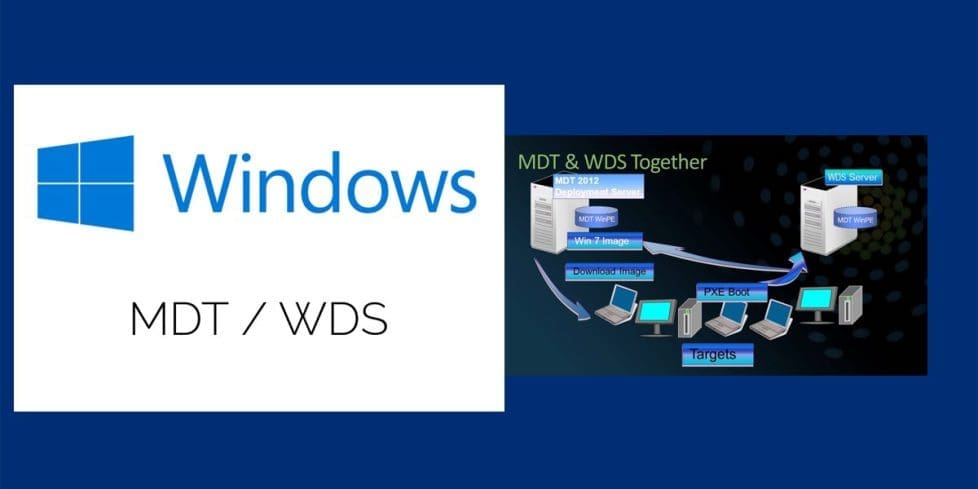
differences between MDT and WDS-WDSMDT

In this article, we will discuss “What are the differences between MDT and WDS”. Microsoft Deployment Toolkit (MDT), formerly known as Business Desktop Deployment is a free tool for automating Windows and Windows Server operating system deployment, leveraging the Windows Assessment and Deployment Kit (ADK) for Windows 10. Kindly refer to these related guides: How to remove the Windows Deployment Services role via the GUI and PowerShell, how to add boot and install images to WDS and configure Multicast transmission via the GUI and WDSUTIL, and how to deploy images to computers or virtual machines using WDS.

MDT is a unified collection of tools, processes, and guidance for automating desktop and server deployment. Read on to discover the differences between MDT and WDS.

You can use it to create reference images or as a complete deployment solution. It is worth noting that “MDT and WDS” help install Windows OS. To do this, MDT uses a series of steps in a task sequence that perform the installation.

Kindly refer to the following guides for more information on WDS and MDT. Windows Deployment Services: How to setup and install WDS role, and how to configure DHCP Server option 60, 66, and 67 for WDS.

Differences Between MDT and WDS

MDT uses two ways to connect to the server over the network, a USB key, or the PXE. Pre-execution Environment (PXE) requires the use of a Windows Server configured with the Windows Deployment Services (WDS) role. Here’s a detailed article on ADK, MDT, and WDS: How to deploy Windows using MDT, and WDS.

MDT works alongside WDS by providing the PXE server capabilities on the network. Furthermore, it handles the connection to the MDT Share using a pre-generated MDT boot file. If you want your clients to use OS images from WDS, you’ll need to import these boot images in WDS.

WDS can also help capture images of your reference device. In addition, it deploy them with driver support to various devices within your environment using PXE. While MDT is more of a design tool MDT is creating boot images with various step-by-step deployment sequences.

Another way MDT differ from WDS is that Windows Deployment Services  (WDS) is a server technology that performs network-based installation of Windows OS. WDS is the revised version of Remote Installation Services (RIS) and it enables the deployment of Windows operating systems. You can use WDS to set up new clients via a network-based installation.

Here’s an article on the differences between High-Touch, Lite-Touch, and Zero-Touch installation? Also, see the following guide “MDT accidental OS deletion: Mistakenly deleted your Operating Systems over Microsoft Deployment Toolkit“.

FAQs

I encountered the error: “The computer restarted unexpectedly or encountered an unexpected error. Windows installation cannot proceed.” How can I reinstall Windows to fix this issue?

If you run into this error, you have two options to reinstall Windows:
1: PXE Boot: Ensure the Ethernet cable is connected, then boot from the network using PXE to reinstall Windows.
2: ISO or USB Installation: Use a bootable Windows ISO or USB drive to perform a clean installation.
computer restarted unexpectedly

Why does my computer keep restarting during Windows installation, and how can I fix it?

Frequent restarts during Windows installation could be due to corrupted installation files, hardware issues, or incorrect boot settings. Below are some steps to fix this:
– Check Installation Media: If using a USB or ISO, ensure the installation files are not corrupted by recreating the bootable media using Rufus or the Media Creation Tool.
– Verify BIOS/UEFI Settings: Make sure Secure Boot is enabled or disabled depending on your system requirements, and confirm the correct boot order.
– Try a Different Installation Method: If the issue persists, use PXE boot (if available) or install Windows from a different USB port or another bootable device.

I hope you found this blog post on “What are the differences between MDT and WDS?’ helpful. Please let me know in the comment session if you have any questions.

Thank you for reading this post. Kindly share it with others.

  • Share on X (Opens in new window) X
  • Share on Reddit (Opens in new window) Reddit
  • Share on LinkedIn (Opens in new window) LinkedIn
  • Share on Facebook (Opens in new window) Facebook
  • Share on Pinterest (Opens in new window) Pinterest
  • Share on Tumblr (Opens in new window) Tumblr
  • Share on Telegram (Opens in new window) Telegram
  • Share on WhatsApp (Opens in new window) WhatsApp
  • Share on Mastodon (Opens in new window) Mastodon
  • Share on Bluesky (Opens in new window) Bluesky
Windows Server Tags:microsoft, Microsoft Deployment Tool kit, Microsoft Deployment Toolkit (MDT), Microsoft Windows, WDS, Windows 10

Post navigation

Previous Post: What are the differences between Lite-Touch and Zero-Touch installation?
Next Post: PowerShell Deployment Extension for MDT: How to deploy Windows using PSD, Microsoft Deployment Toolkit, and Windows Deployment Services

Related Posts

  • WinPE
    How to uninstall and upgrade ADK, WinPE, and MDT Windows Server
  • HyperV 2
    Fix no disks suitable for the cluster were found Windows Server
  • Remote Desktop Connection
    Connect to the Remote Desktop Console from Command Prompt Windows
  • sdfgh 1
    How to fix “Unable to Sign In: Domain Not Available” Windows Server
  • Task Scheduler Errors and Success Codes
    All Task Scheduler Errors and Success Codes Windows Server
  • AGMP replacement e1778595633716
    AGMP extended support ends April 2026: Find alternative solution Windows Server

More Related Articles

WinPE How to uninstall and upgrade ADK, WinPE, and MDT Windows Server
HyperV 2 Fix no disks suitable for the cluster were found Windows Server
Remote Desktop Connection Connect to the Remote Desktop Console from Command Prompt Windows
sdfgh 1 How to fix “Unable to Sign In: Domain Not Available” Windows Server
Task Scheduler Errors and Success Codes All Task Scheduler Errors and Success Codes Windows Server
AGMP replacement e1778595633716 AGMP extended support ends April 2026: Find alternative solution Windows Server

Leave a Reply Cancel reply

You must be logged in to post a comment.

Microsoft MVP

vexpert-badge-stars-5

Virtual Background

VEEAMLEGEND

Categories

veeaam100

Veeam Vanguard

  • zoom
    How to update Zoom Desktop Client on macOS Mac
  • Norton RDP
    Can’t connect via RDP upon installing Norton 360 Anti-Virus Solution
  • Delete Edit or Revert a Snapshot on vSphere
    Manage VMware Snapshots: Delete or Edit or Revert a Snapshot Virtualization
  • scandium
    How to Test Web Applications Using Scandium Configuration Management Tool
  • Featured image This network connection does not exist
    How to fix this network connection does not exist Windows
  • how to Configure Autologin for a VM in VMware Workstation
    Configure Autologin for a VM in VMware Workstation Virtualization
  • windows update 03
    How to automate Windows Update with PowerShell Scripts
  • Actualidad 211741393 129861581 1050x760
    Edge GPO settings: All Group Policies available to configure Microsoft Edge Settings Windows Server

Subscribe to Blog via Email

Enter your email address to subscribe to this blog and receive notifications of new posts by email.

Join 1,759 other subscribers
  • RSS - Posts
  • RSS - Comments
  • About
  • Authors
  • Write for us
  • Contact
  • Advertise with us
  • General Terms and Conditions
  • Privacy policy
  • Feedly
  • Telegram
  • Youtube
  • Facebook
  • Instagram
  • LinkedIn
  • Tumblr
  • Pinterest
  • Twitter
  • mastodon
  • Bsky

Tags

Active Directory Azure Bitlocker Microsoft Windows PowerShell WDS Windows 10 Windows 11 Windows Deployment Services Windows Server 2016

Copyright © 2026 TechDirectArchive

Loading Comments...

You must be logged in to post a comment.