
Skip to content

TechDirectArchive

Hands-on IT, Cloud, Security & DevOps Insights

  • Home
  • About
  • Advertise With US
  • Reviews
  • Contact
  • Toggle search form
Home » Windows » Error Code: 0x80070035: MDT unable to access the Log share, the Network Path was not found
  • images 4 1
    How to export passwords from KeePass Database to Pleasant Password Server Password Manager
  • veeam backup for Proxmox VE
    Backup and Restore Proxmox VE virtual machines with Veeam Backup
  • screenshot 2020 02 08 at 15.53.31
    Enable Automatic Logon on Windows Windows Server
  • Turn Focus on Enable or disable notifications for Apps on Mac
    Turn Focus On/Off: Enable or Disable Notifications for Apps on Mac Mac
  • GitLab runner update and upgrade
    How to update Gitlab-runners on Windows Windows
  • Featured image IE mode.
    How to Enable Internet Explorer Mode in Edge in Windows 11 Windows
  • How to fix Windows Update Fails with Error 0x80092004
    How to fix Windows Update Fails with Error 0x80092004 Windows
  • Setup is unable to access the SQL UDP port 1434
    Setup is unable to access the SQL UDP Port 1434 on the specified SQL Server Oracle/MSSQL/MySQL

Error Code: 0x80070035: MDT unable to access the Log share, the Network Path was not found
Posted on 11/03/202120/03/2024 Christian By Christian No Comments on Error Code: 0x80070035: MDT unable to access the Log share, the Network Path was not found
Error Code

This article will discuss “MDT unable to access the Log share: Network Path was not found”. Kindly refer to the following guides for more information on WDS and MDT. How to setup and install WDS role, how to configure WDS and DHCP Deployment Scenarios: Configure DHCP Options 60, 66, and 67, and Folder Access Denied, you require permission from SYSTEM: Unable to delete old windows folder.

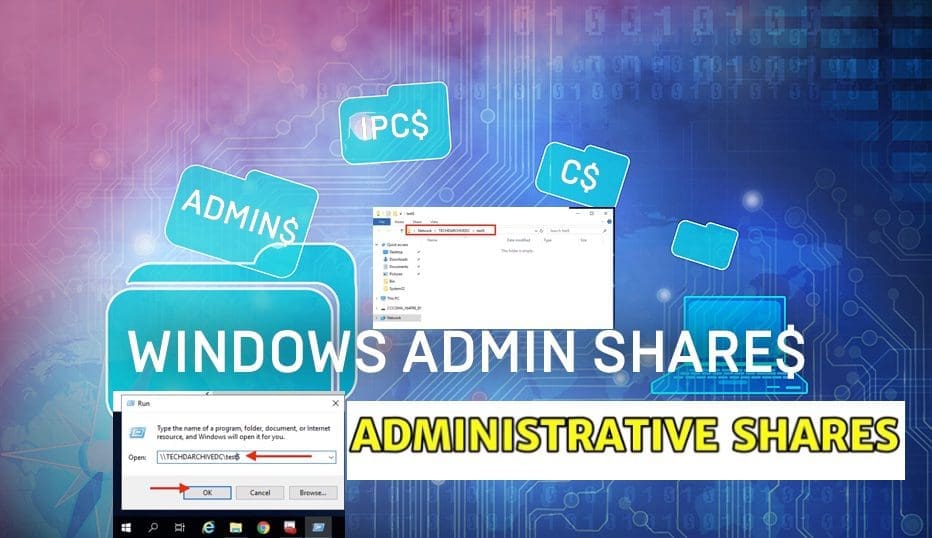
Administrative shares are also called “hidden shares. These file shares are hidden shares on Windows PCs with a name appended at the end with a dollar sign, for example, "test$". These shares are not visible when viewing them from other PC’s shares, but still accessible if the hidden share name (test$) is known.

Windows includes some Administrative shares, such as PRINT$, FAX$, C$, IPC$, and ADMIN$. This idea is beneficial when you wish to hide resources (directories) from users without completely denying them access will ACLs.

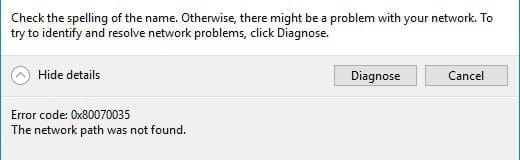
This error was prompted after the deployment of Windows 10 was completed and the log entries were not available in the specified directory due to inaccessibility of the hidden share. When you copy the path into the run dialog box as shown here “\\TECHDARCHIVEDC\test$” The following error below was prompted. You may want to see the difference between MDT and WDS.

MDT Log Share Network Path Error
MDT

To resolve this issue, understand your environment and determine if other configurations or policies need adjustment to ensure the accessibility of shares in your network. In my case, no additional settings were required, as they had been configured beforehand.

Therefore, kindly follow the steps discussed below. All you need to do is to ensure the dollar sign “$” is added to the folder name “Deploymentlogs$” under the advanced sharing option. You may want to see this guide on how to create a hidden share (Administrative Shares) folder on Windows devices“

To do this, you will have to Open File Explorer, navigate to the folder you want to share.
– Right-click the folder and select the Properties option.

Log share

Next, you will have to click the Sharing tab and click the Advanced Sharing button.

Network Path

This will open the Folder’s (test) Advanced Sharing Window. On the advanced Sharing Window

Click on “Share this Folder”. Under the “Settings” section. Type a name share name, and add the “$” character at the end to make the folder hidden.

Note: You do not need to add spaces within the share name. Click on Apply.

MDT
Error Code

Click on Ok and Finally click on close as shown below to close the Test (folder) properties window.

Screenshot-2021-03-11-at-14.19.12
Optional: Specific to MDT only!!!

Ensure the following rules are added to Deploymenet Share in MDT. The folder defined for the log as described here "SLShare=\\TECHDARCHIVEDC\Deploymentlogs$" and the monitoring rule as well.

The shared folder will be invisible henceforth using File Explorer on any device. However, it’ll still be accessible using the folder path\\TECHDARCHIVEDC\test$.

Screenshot-2021-03-11-at-14.24.04
Screenshot-2021-03-11-at-14.24.12

To see all the available shares on this server, launch the Computer Management Tool as shown below and navigate to the shared folder.

Screenshot-2021-03-12-at-23.46.06-1

I hope you found this blog post on MDT unable to access the Log share: Network Path was not found helpful. Please let me know in the comment session if you have any questions.

Rate this post

Thank you for reading this post. Kindly share it with others.

  • Click to share on X (Opens in new window) X
  • Click to share on Reddit (Opens in new window) Reddit
  • Click to share on LinkedIn (Opens in new window) LinkedIn
  • Click to share on Facebook (Opens in new window) Facebook
  • Click to share on Pinterest (Opens in new window) Pinterest
  • Click to share on Tumblr (Opens in new window) Tumblr
  • Click to share on Telegram (Opens in new window) Telegram
  • Click to share on WhatsApp (Opens in new window) WhatsApp
  • Click to share on Pocket (Opens in new window) Pocket
  • Click to share on Mastodon (Opens in new window) Mastodon
  • Click to share on Bluesky (Opens in new window) Bluesky
  • Click to share on Threads (Opens in new window) Threads
  • Click to share on Nextdoor (Opens in new window) Nextdoor
Windows Tags:Microsoft Deployment Tool kit, Microsoft Deployment Toolkit (MDT), WDS, Windows 10, Windows Deployment Services

Post navigation

Previous Post: Create and access a hidden share folder on Windows
Next Post: How to check the version of Windows ADK

Related Posts

  • cimInstance wmi
    How to fix Get-CimInstance Access PermissionDenied Windows
  • xxxxxx
    How to make a screenshot of Windows 10 Screen / Login Screen Windows
  • Error 1069 Windows could not start
    Fix Error 1069: Windows could not start the Veeam backup service on local computer Backup
  • GitLab runner update and upgrade
    How to update Gitlab-runners on Windows Windows
  • banner
    How to hide Folders and Files from Search Results in Windows Windows
  • install python 3 and pip
    How to upgrade and downgrade PIP on Windows Windows

More Related Articles

cimInstance wmi How to fix Get-CimInstance Access PermissionDenied Windows
xxxxxx How to make a screenshot of Windows 10 Screen / Login Screen Windows
Error 1069 Windows could not start Fix Error 1069: Windows could not start the Veeam backup service on local computer Backup
GitLab runner update and upgrade How to update Gitlab-runners on Windows Windows
banner How to hide Folders and Files from Search Results in Windows Windows
install python 3 and pip How to upgrade and downgrade PIP on Windows Windows

Leave a Reply Cancel reply

You must be logged in to post a comment.

Microsoft MVP

VEEAMLEGEND

vexpert-badge-stars-5

Virtual Background

GoogleNews

Categories

veeaam100

sysadmin top30a

  • images 4 1
    How to export passwords from KeePass Database to Pleasant Password Server Password Manager
  • veeam backup for Proxmox VE
    Backup and Restore Proxmox VE virtual machines with Veeam Backup
  • screenshot 2020 02 08 at 15.53.31
    Enable Automatic Logon on Windows Windows Server
  • Turn Focus on Enable or disable notifications for Apps on Mac
    Turn Focus On/Off: Enable or Disable Notifications for Apps on Mac Mac
  • GitLab runner update and upgrade
    How to update Gitlab-runners on Windows Windows
  • Featured image IE mode.
    How to Enable Internet Explorer Mode in Edge in Windows 11 Windows
  • How to fix Windows Update Fails with Error 0x80092004
    How to fix Windows Update Fails with Error 0x80092004 Windows
  • Setup is unable to access the SQL UDP port 1434
    Setup is unable to access the SQL UDP Port 1434 on the specified SQL Server Oracle/MSSQL/MySQL

Subscribe to Blog via Email

Enter your email address to subscribe to this blog and receive notifications of new posts by email.

Join 1,839 other subscribers
  • RSS - Posts
  • RSS - Comments
  • About
  • Authors
  • Write for us
  • Advertise with us
  • General Terms and Conditions
  • Privacy policy
  • Feedly
  • Telegram
  • Youtube
  • Facebook
  • Instagram
  • LinkedIn
  • Tumblr
  • Pinterest
  • Twitter
  • mastodon

Tags

AWS Azure Bitlocker Microsoft Windows PowerShell WDS Windows 10 Windows 11 Windows Deployment Services Windows Server 2016

Copyright © 2025 TechDirectArchive


Loading Comments...
 

You must be logged in to post a comment.