Skip to content

TechDirectArchive

Hands-on IT, Cloud, Security & DevOps Insights

  • Home
  • About
  • Advertise With US
  • Reviews
  • Contact
  • Toggle search form
Home » Windows » How to check the version of Windows ADK
  • sadx
    Error 0x80070002: When trying to mount an image file Windows Server
  • cannot connect to the virtual machine try to connect again HyperV
    Could not connect to virtual machine try to connect again Hyper-V Virtualization
  • IIS
    How to Change the Log File Directory location in IIS Web Server
  • linux windows 10
    Windows Subsystem for Linux: How to install WSL on Windows 10 Linux
  • APIFEATURE
    Benefits of Azure API Management and how to create an API instance AWS/Azure/OpenShift
  • Norton Antivirus Free Download For Mac 1st
    How to fix repeated app-blocking connection alerts from Norton on Mac Mac
  • Norton RDP
    Can’t connect via RDP upon installing Norton 360 Anti-Virus Solution
  • Windows 10 new Start menu
    Make Cortana search with a different web browser instead of Edge Windows

How to check the version of Windows ADK


Posted on 12/03/202128/09/2023 Christian By Christian No Comments on How to check the version of Windows ADK
fddd

Windows Assessment and Deployment Kit (ADK) contains core assessment and deployment tools and technologies which includes Deployment Image Servicing and Management (DISM), Windows Imaging and Configuration Designer (Windows ICD). In addition, the ADK Windows encompasses System Image Manager (Windows SIM), User State Migration Tool (USMT), Volume Activation Management Tool (VAMT), Windows Preinstallation Environment (Windows PE), Windows Assessment Services, Windows Performance Toolkit (WPT), Application Compatibility Toolkit (ACT), and Microsoft SQL Server Express. Meanwhile, are you looking to check the version of Windows ADK? You’re in the right place.

To help effectively deploy the Windows operating system and applications in your organization, it is vital that you know about the available tools to help with the process. Thus, see this article on the differences between MDT and WDS? Here are some related DISM tasks. How to Add Packages to Windows image the DISM Tool, and how to add languages to Windows image using DISM and PowerShell. Furthermore, for WinPE-related guides, please see “how to deploy Windows using ADK, MDT, and WDS“, and MDT deployment failed and Stuck at Command Prompt, and unable to determine destination disk, partition, and/or drive.

Note: When you chose to install Windows ADK, you will be provided the option to select any of the tools mentioned in paragraph 1 above. You may not be needing all the tools, this depends on your environment setup.

Steps to Check Windows ADK Version

To check the Windows ADK version, kindly follow the steps discussed below.
– Launch the Windows Control Panel,

ADK1-1

This will open the Windows Control Panel Window. Afterward, click on Programs

Prog1

Now, you will have to click on Program and Features as shown below.

check the version of Windows ADK-Screenshot-2021-03-12-at-13.16.41

To check the version of Windows ADK, go to Uninstall or Change a Program. Then, scroll through your installed programs and find “Windows Assessment and Deployment Kit – Windows 10”. Moreover, look at the version column to locate the version, as depicted below.
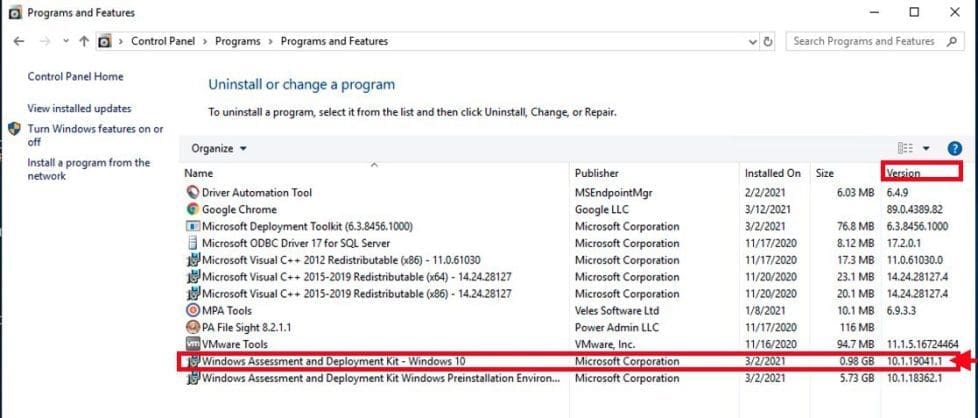
check the version of Windows ADK-ADK12

You can also achieve this by using the Windows Settings as shown below.

check the version of Windows ADK-settings

I hope you found this blog post helpful. If you have any questions, please let me know in the comment session. With the steps above, you can check the version of Windows ADK seamlessly.

Rate this post

Thank you for reading this post. Kindly share it with others.

  • Click to share on X (Opens in new window) X
  • Click to share on Reddit (Opens in new window) Reddit
  • Click to share on LinkedIn (Opens in new window) LinkedIn
  • Click to share on Facebook (Opens in new window) Facebook
  • Click to share on Pinterest (Opens in new window) Pinterest
  • Click to share on Tumblr (Opens in new window) Tumblr
  • Click to share on Telegram (Opens in new window) Telegram
  • Click to share on WhatsApp (Opens in new window) WhatsApp
  • Click to share on Pocket (Opens in new window) Pocket
  • Click to share on Mastodon (Opens in new window) Mastodon
  • Click to share on Bluesky (Opens in new window) Bluesky
  • Click to share on Threads (Opens in new window) Threads
  • Click to share on Nextdoor (Opens in new window) Nextdoor
Windows Tags:Control Panel, Microsoft Deployment Toolkit (MDT), Windows 10, Windows Deployment Services, Windows Settings

Post navigation

Previous Post: Error Code: 0x80070035: MDT unable to access the Log share, the Network Path was not found
Next Post: How to Create Service Accounts, Organisation Units and Active Directory Security Groups

Related Posts

  • 1 WeXxkEX0JG3oB781HD8Hrg 1
    How to convert a GPT disk into an MBR disk error: Windows cannot be installed on drive 0 Partition 1 Windows
  • Startup delay mbam
    Force immediate MBAM Encryption: Why does the MBAM Agent delay most times in encrypting devices? Windows
  • image 8
    Enable or disable Core Isolation Memory Integrity in Windows 10 and 11 Windows
  • image 1
    Install and License Devolutions Remote Desktop Manager Mac
  • windows update 03
    Check if Windows Updates were installed Windows
  • screenshot 2020 03 15 at 00.43.16
    How to permit and run only certain apps in windows Windows

More Related Articles

1 WeXxkEX0JG3oB781HD8Hrg 1 How to convert a GPT disk into an MBR disk error: Windows cannot be installed on drive 0 Partition 1 Windows
Startup delay mbam Force immediate MBAM Encryption: Why does the MBAM Agent delay most times in encrypting devices? Windows
image 8 Enable or disable Core Isolation Memory Integrity in Windows 10 and 11 Windows
image 1 Install and License Devolutions Remote Desktop Manager Mac
windows update 03 Check if Windows Updates were installed Windows
screenshot 2020 03 15 at 00.43.16 How to permit and run only certain apps in windows Windows

Leave a Reply Cancel reply

You must be logged in to post a comment.

Microsoft MVP

VEEAMLEGEND

vexpert-badge-stars-5

Virtual Background

GoogleNews

Categories

veeaam100

sysadmin top30a

  • sadx
    Error 0x80070002: When trying to mount an image file Windows Server
  • cannot connect to the virtual machine try to connect again HyperV
    Could not connect to virtual machine try to connect again Hyper-V Virtualization
  • IIS
    How to Change the Log File Directory location in IIS Web Server
  • linux windows 10
    Windows Subsystem for Linux: How to install WSL on Windows 10 Linux
  • APIFEATURE
    Benefits of Azure API Management and how to create an API instance AWS/Azure/OpenShift
  • Norton Antivirus Free Download For Mac 1st
    How to fix repeated app-blocking connection alerts from Norton on Mac Mac
  • Norton RDP
    Can’t connect via RDP upon installing Norton 360 Anti-Virus Solution
  • Windows 10 new Start menu
    Make Cortana search with a different web browser instead of Edge Windows

Subscribe to Blog via Email

Enter your email address to subscribe to this blog and receive notifications of new posts by email.

Join 1,841 other subscribers
  • RSS - Posts
  • RSS - Comments
  • About
  • Authors
  • Write for us
  • Advertise with us
  • General Terms and Conditions
  • Privacy policy
  • Feedly
  • Telegram
  • Youtube
  • Facebook
  • Instagram
  • LinkedIn
  • Tumblr
  • Pinterest
  • Twitter
  • mastodon

Tags

AWS Azure Bitlocker Microsoft Windows PowerShell WDS Windows 10 Windows 11 Windows Deployment Services Windows Server 2016

Copyright © 2025 TechDirectArchive


Loading Comments...
 

You must be logged in to post a comment.