Configure VPN on Windows Server: How to allow remote VPN Access for Domain or Local Users


Remote access is used to access your network remotely. This provides an encrypted and secure connection over an insecure network such as the Internet. A remote access connection consists of a server(s) and clients that remotely access the contents of the server (network). Then, what is a virtual private network (VPN)? A VPN is a means of connecting to a private network such as your corporate network. A VPN combines the virtues of a dial-up connection to a dial-up server with the ease and flexibility of an Internet connection. These steps to can be used to configure VPN on Windows Server 2016, 2019, and 2022. Here are some related contents: Windows 10 Always On VPN (AOVPN), Quick Steps in Setting Up AWS VPC, how to Activate (License) Cisco ASA 5505, how to create a certificate template for BitLocker Network Unlock, and how to configure AnyConnect SSL VPN Client Connections.
This guide will demonstrate how to install, configure and use Windows Server VPN. In this guide, we will be using "Only VPN" for providing remote access to your clients. In the next guide, I will be showing you how to use the rich remote access experience based on DirectAccess by enabling DirectAccess on this server. The two tunneling protocols included with Windows are:
- Point-to-Point Tunneling Protocol (PPTP): Provides data encryption using Microsoft Point-to-Point Encryption.
- Layer Two Tunneling Protocol (L2TP): Provides data encryption, authentication, and integrity using IPSec.
Step A
This step is optional and it depends if you will be using L2TP to configure VPN on Windows in your environment. In this case, you will have to install a certificate to the VPN server and VPN client or on the VPN Server only. You may want to see how to install and configure Active Directory Certificate Services. Please see the following interesting related how-to articles on how to import a certificate into the Trusted Root and Personal file certificate store, how to request a certificate signing request in Windows using Microsoft Management Console, and how to export a certificate in PFX format in Windows. You may also be interested in this guide: How to install and configure Active Directory Certificate Services.
Step B
Launch the server Manager from the Start Menu as shown below

On this window, click on “Add Roles and Features”.

Click on Next as this window provides you with information only. You may also want to skip this step in the future by checking n the skip button.

Select Role-Based or Feature-based installation.
– Please see some role and feature-based installations I have configured previously. How to Setup a Domain Controller, how to add a second Domain Controller to your environment, how to set up and install WDS role, and how to install DHCP role on Windows Server, etc.

Click on Next on the Server selection window. We only have one server in the pool, there no much work to do here 🙂

Select the Remote Access Role and click Next.


Click on the Next button again

In the step, select the DirectAccess and VPN (RAS), Click on the Add features and click on Next to procced.


On the final step, select install to install the Remote Access role.

You can now close this window. A restart is not required for this installation.

Part C -Post-deployment Configuration
After the features are installed, you see the link, click on “Open the Getting Started Wizard“.

Select Deploy VPN only as shown below.
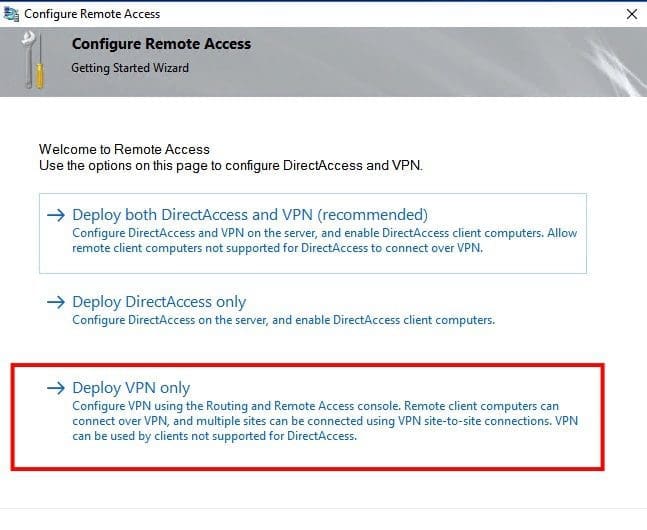
This will open the Routing and Remote Access Management Console. Right click on the Server name and click on “Configure and Enable Routing and Remote Access“.

On this Window, click on Next

Select Custom configuration and click on Next

Select “VPN Access“ as shown below and click on Next to proceed

Click on Finish. Click on start the service that is prompted. This will ensure the “Routing and Remote Access” Service is started.


Right click on your server name and click on Properties.

This will open the Properties Windows as shown below. On the general tab, I am okay with the settings.

– Click on the Security tab and ensure that you only have EAP and MS-CHAP v2 selected


On the IPv4 tab, select Static address pool. if you have a DHCP server, select “Dynamic Host Configuration Protocol (DHCP).
– I will statically define the pool range as shown below. You will see later that the IP address from this pool will be assigned to my VPN client.


Select the Logging tab and check the Log additional Routing and Remote Access information box.

Part D
To Allow Remote VPN Access for a Domain User: The process of configuring a user’s property settings to allow remote VPN access is slightly different when the account is a domain user account, as opposed to a local user account. Local user property settings are adjusted through the computer management utility in Windows operating systems while domain user property settings are adjusted through the active directory users and computers utility in Windows server software. In order to grant a domain user remote VPN access, you have to have access to your network’s domain controller computer.
- Active Directory Users and Computers" to open the Active Directory Users and Computers window.
- Double-click on the domain user account you would like to grant remote VPN access to. The Properties box for the selected domain user will open up.
- Go to the Dial-in tab. In the Remote Access Permissions (Dial-in or VPN) section, click the "Allow access" radio button. Click "Apply" to save your new settings. Click "OK" to close the Properties box.
If you wish to create local accounts to access your VPN, please follow the steps discussed here. Alternatively, you can launch there this via the server manager as well.
- Click on Start, type "run" and type "compmgmt.msc" to access computer management.
- Right click on Users and click New User. Give the user a name and password.
You can proceed to Part F and part E is optionally and start testing by connecting to the VPN server.Part E – Create firewall rules (Optional step)
Since I will be demonstrating the L2PT setup, let me create the following rules. Open the Windows Firewall with Advanced Security applet via Windows Administrative tool or via Server Manager as shown below.

Right click on Inbound Rules and click New Rule. You could also create a new rule under “Actions” as shown below.

Select Port and click Next under Rule Type

Since I will be demonstrating the L2PT setup, let me create the following rules (You do not need to create them). Select UDP and type port 500,1701 and 4500 then click Next.

Click Allow the connection and then click Next

Apply the rule to all profiles and click on Next

Enter your desired rule name and description if you wish and click on Finish.

As you can see, we have our firewall rule ready for L2TP VPN Server.

Part F – Creating VPN Client Connection (Profile)
Whether it’s for work or personal use, you can connect to a virtual private network (VPN) on your Windows 10 PC. A VPN connection can help provide a more secure connection and access to your company’s network and the internet. I recommend setting up a shared connection.

Set up (create) a new VPN connection: Before you can connect to a VPN, you must have a VPN profile on your PC. You can either create a VPN profile on your own or set up a work account to get a VPN profile from your company.

Select connect to a workplace as shown below.

Select use my internet connection (VPN)

You will be prompted to enter the domain name or IP address etc. Click on Remember my credential and
– Allow other people to use this connection.
– When you are done, click on Create.

As you can see, our connection profile is now available. You can now connect to the VPN. This basically means, that when you have a VPN profile, you’re ready to connect to your organization’s network.
– If the Connect button displays under the VPN connection, select connect or

Sign-in method
For the Type of sign-in info, we are using a username and password.
Note: Depending on your setup (authentication method), you could use a one-time password, certificate, or a smart card.


As you can see, I am now connected to my VPN server.

Let’s verify some basic settings. You can see we now have an additional network interface for our VPN connection as shown below.


You will also notice my client’s has an IP address assigned from the defined IP address range, which is “192.168.xxx.101.”

Other ways to see if you’re connected to the VPN
Select the Network icon on the far right of the taskbar, then see if the VPN connection says Connected as shown below.

As you can see from the image below, we have connected to the server I via the domain user account I enabled remote access for.

I hope you found this blog post on Configuring VPN on Windows Server helpful. If you have any questions, please let me know in the comment session.




Can you use OpenVPN (or other) as an alternative Windows client to connect on to a Windows Server VPN Server? Thanks
Unfortunately, I haven’t used this VPN client. Perhaps you should visit this page for more information: https://openvpn.net/client-connect-vpn-for-windows/