Skip to content

TechDirectArchive

Hands-on IT, Cloud, Security & DevOps Insights

  • Home
  • About
  • Advertise With US
  • Reviews
  • Contact
  • Toggle search form
Home » Backup » Failed to connect to Veeam Backup and Replication server: Remote Channel Sink UriNotPublished, remote connection refused, and failed to start the service
  • RDP
    The connection was denied because the user is not authorized for remote Login: Enable Remote Desktop Connection on Windows 11 for non-administrators or selected users Windows
  • screenshot 2020 02 08 at 20.02.50
    Windows 10 Administrative Shortcut command key Windows Server
  • MP Tools
    Veles Software: How to install and configure MPA Tools Reviews
  • Fix Windows Security Blank Screen Issue
    How to Fix Windows Security Blank Screen Issue Network | Monitoring
  • Perform Site Maintenance or reset this site greyed out
    Fix “Perform Site Maintenance or reset this site” greyed out Windows Server
  • coding
    Git GUI and Gitk won’t open “Missing Tcl / Tk Aqua libraries” Version Control System
  • screenshot 2020 03 13 at 20.24.17
    How to install additional packages via Cygwin Windows Server
  • filezilla 1
    Connect to a FileZilla Server: How to install and configure a FileZilla Server on Windows Windows Server

Failed to connect to Veeam Backup and Replication server: Remote Channel Sink UriNotPublished, remote connection refused, and failed to start the service

Posted on 24/05/202108/09/2023 Christian By Christian No Comments on Failed to connect to Veeam Backup and Replication server: Remote Channel Sink UriNotPublished, remote connection refused, and failed to start the service
Veeam Backup

Veeam Backup and Replication is comprehensive data protection and disaster recovery solution which is capable of creating image-level backups of virtual, physical servers, cloud machines, and restoration as well. You may encounter the following errors when installing the Veeam backup and replication tool “VEEAM service is unable to start, error 1064: An exception occurred in the service when handling the control request”.

Here are some related articles: How to migrate Veeam MsSQL Database to a new MsSQL Server, Cloud Protection Manager:How to recover backup via N2WS Veeam CPM, Advantage of using a 3rd party software for Backup (N2WS by Veeam) over AMI, how to recover backup via N2WS Veeam CPM, how to implement N2WS Veeam Cloud Protection Manager (CPM 2.3.0d), how to stop Windows backup job via the Windows Server Backup utility(Wbadmin), how to setup Windows server backup and create backup jobs, and how to create a HyperV checkpoint.

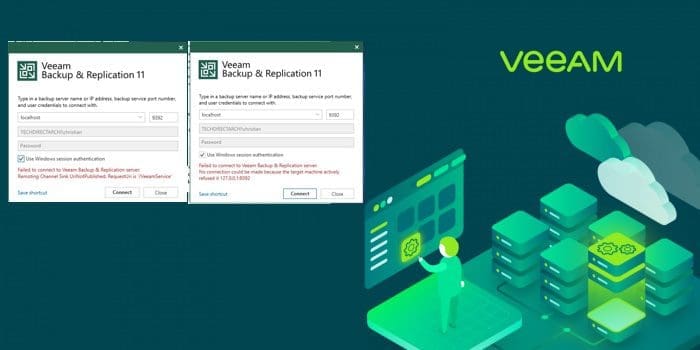
If you are here reading this troubleshooting guide "new Veeam Backup server but then Veeam won’t start", this means you must have recently installed Veeam Backup and Replication Server or must have recently upgared it. As you can see from the images below, these are some errors I encountered while installing Veeam Backup and Replication in my lab enviornment. Because I do not want to create a dedicated article for each problem as they are similar, I decided to group them as shown below. Here is an article on how to install and configure Veeam Backup and Replication 11 Community Edition.

Note: The following errors in itself do not make sense "Failed to start service / connect to Veeam" and "connection refused". This is not a connection or firewall issue as well. Please continue reading to learn how I resolved these issue. To fix this, you may want to review the Veeam logs and the event viewer for more information". Here is the the to the log file C:\ProgramData\Veeam\Setup\Temp
Remote connection refused
Screenshot 2021 05 23 at 21.19.47
Remote Channel Sink UriNotPublished
Replication server

Veeam Service Startup Error and Registry Keys

Because of this error, you will also notice that most Veeam services are not running. Also, the SQL Server Express was stopped at this moment. Therefore, the error “Remoting Channel Sink UriNotPublished. RequestUri is ‘/VeeamService’ simply means the Veeam Service has not started yet“. To fix these issues, ensure the following registry keys have your server name and the SQL instance and Veeam database name are correct in the windows registry. If everything is fine here just as it is in my case, please proceed to the steps below. Below are the registry keys that need to be verified.

HKEY_LOCAL_MACHINE\SOFTWARE\Veeam\Veeam Backup and Replication\SqlInstanceName
HKEY_LOCAL_MACHINE\SOFTWARE\Veeam\Veeam Backup and Replication\SqlServerName
HKLM\SOFTWARE\Veeam\Veeam Backup Catalog\CatalogSharedFolderPath
Replication server
Screenshot 2021 05 24 at 12.59.46
Veeam Backup
Screenshot 2021 05 24 at 12.59.07

Also, try to ensure the Veeam Backup and Replication services and the database services are running. If you get an error as shown below while trying to start any of the services, please proceed to the recommended solution below.

Remote connection refused
Screenshot 2021 05 23 at 21.25.20
Remote Channel Sink UriNotPublished
Screenshot 2021 05 23 at 20.55.27

Recommended solution: From my log reviews and programs installed on my Server, It seems Veeam Backup and Replication was not correctly installed as I never got any installation success message. Also, these updates were missing and therefore, Veeam installation failed.
–I will have to repair the installation. To do this, run the Veeam setup.exe file again as shown below.

Remote connection refused

This will open the Veeam Backup and Replication window. Click on install Veeam Backup and replication.

Screenshot-2021-05-23-at-04.52.34

You will now be prompted with the maintenance mode window. Select Repair and click on Next to continue

Screenshot-2021-05-23-at-22.45.31

Service Account Configuration for Veeam

Specify your service account. Veeam recommends using the local system account, but you can create your own service again due to security reasons.

Screenshot-2021-05-23-at-22.46.01

The repair process will start as shown below. In between you will be asked to apply updates, please apply these updates and continue.

Screenshot-2021-05-23-at-22.46.31

As we can see, the installation has succeeded.

Screenshot-2021-05-23-at-23.15.40

As you can see below, all services have been started successfully. See this article on how to install and configure Veeam Backup and Replication 11 Community Edition.

Screenshot-2021-05-24-at-13.04.04

Henceforth, Veeam backup and Replication should work as expected. Start the Veeam Backup and Replication Console: From the Start menu, select Apps > Veeam > Veeam Backup & Replication Console. Alternatively, to access the Backup and Replication console, open Veeam using the Veeam Backup and Replication Console shortcut created on your desktop and click on connect as shown below.

Screenshot-2021-05-23-at-15.54.17
If you wish to uninstall Veeam Backup and Replication from your server, please follow the steps discussed in this link.

I hope you found this blog post helpful. If you have any questions, please let me know in the comment session.

Rate this post

Thank you for reading this post. Kindly share it with others.

  • Share on X (Opens in new window) X
  • Share on Reddit (Opens in new window) Reddit
  • Share on LinkedIn (Opens in new window) LinkedIn
  • Share on Facebook (Opens in new window) Facebook
  • Share on Pinterest (Opens in new window) Pinterest
  • Share on Tumblr (Opens in new window) Tumblr
  • Share on Telegram (Opens in new window) Telegram
  • Share on WhatsApp (Opens in new window) WhatsApp
  • Share on Pocket (Opens in new window) Pocket
  • Share on Mastodon (Opens in new window) Mastodon
  • Share on Bluesky (Opens in new window) Bluesky
  • Share on Threads (Opens in new window) Threads
  • Share on Nextdoor (Opens in new window) Nextdoor
Backup Tags:hyperV, IMAGE, Image backup, Veeam, Veeam Backup and Replication, VMware, Windows Server Backup

Post navigation

Previous Post: Google Chrome reports your clock is behind: How to fix clock synchronization issues in Windows
Next Post: How to extend a VM Hard Disk on VMware Workstation

Related Posts

  • veeamcmce 2
    A review of the VMCE training and certification Backup
  • vmwarevinchin
    3 Ways to Convert VMware VMs to Hyper-V Backup
  • Norton backup
    How to set up Norton Cloud Backup on Windows Anti-Virus Solution
  • veeam
    Error 1064: An exception occurred in the service when handling the control request Backup
  • Diskspd
    Veeam Backup and Replication Disk I/O with diskspd Backup
  • Screenshot 2022 04 02 at 23.18.48
    CVE-2022-26503 Veeam Agent for Microsoft Windows Vulnerability Backup

More Related Articles

veeamcmce 2 A review of the VMCE training and certification Backup
vmwarevinchin 3 Ways to Convert VMware VMs to Hyper-V Backup
Norton backup How to set up Norton Cloud Backup on Windows Anti-Virus Solution
veeam Error 1064: An exception occurred in the service when handling the control request Backup
Diskspd Veeam Backup and Replication Disk I/O with diskspd Backup
Screenshot 2022 04 02 at 23.18.48 CVE-2022-26503 Veeam Agent for Microsoft Windows Vulnerability Backup

Leave a Reply Cancel reply

You must be logged in to post a comment.

Microsoft MVP

VEEAMLEGEND

vexpert-badge-stars-5

Virtual Background

GoogleNews

Categories

veeaam100

sysadmin top30a

  • RDP
    The connection was denied because the user is not authorized for remote Login: Enable Remote Desktop Connection on Windows 11 for non-administrators or selected users Windows
  • screenshot 2020 02 08 at 20.02.50
    Windows 10 Administrative Shortcut command key Windows Server
  • MP Tools
    Veles Software: How to install and configure MPA Tools Reviews
  • Fix Windows Security Blank Screen Issue
    How to Fix Windows Security Blank Screen Issue Network | Monitoring
  • Perform Site Maintenance or reset this site greyed out
    Fix “Perform Site Maintenance or reset this site” greyed out Windows Server
  • coding
    Git GUI and Gitk won’t open “Missing Tcl / Tk Aqua libraries” Version Control System
  • screenshot 2020 03 13 at 20.24.17
    How to install additional packages via Cygwin Windows Server
  • filezilla 1
    Connect to a FileZilla Server: How to install and configure a FileZilla Server on Windows Windows Server

Subscribe to Blog via Email

Enter your email address to subscribe to this blog and receive notifications of new posts by email.

Join 1,834 other subscribers
  • RSS - Posts
  • RSS - Comments
  • About
  • Authors
  • Write for us
  • Advertise with us
  • General Terms and Conditions
  • Privacy policy
  • Feedly
  • Telegram
  • Youtube
  • Facebook
  • Instagram
  • LinkedIn
  • Tumblr
  • Pinterest
  • Twitter
  • mastodon

Tags

Active Directory AWS Azure Bitlocker Microsoft Windows PowerShell WDS Windows 10 Windows 11 Windows Server 2016

Copyright © 2025 TechDirectArchive


Loading Comments...
 

You must be logged in to post a comment.