
The Remote Desktop Protocol (RDP) is a protocol developed by Microsoft for remote access to a device running the Windows operating system. With this protocol, screen displays and control commands can be encrypted and transmitted over IP networks. Kindly refer to the related guide on how to reset your built-in (Local) Administrator’s password in Windows 10, how to reset your built-in (Local) Administrator password in Windows 10. The Remote Desktop Protocol was created from an extension of a protocol from the T.120 protocol family of the International Telecommunication Union (ITU). The Remote Desktop Protocol works as a terminal server protocol in client-server mode. Here are some RDP related guides: How to allow saved credentials for RDP connection, how to remove saved RDP entries in Windows 10, how to remove server connection entries from RDP, how to prevent the saving of Remote Desktop Credentials in Windows, and the logon attempt failed for the remote desktop connection.
Ensure the following are adhered to in order to successfully establish a remote desktop connection to another device:
- The computer to which you will connect has to allow remote connections (Enable RDP on the device).
- You need to know the servername or the IP address of the device you are connecting to.
- You need to be added as a member of the Remote User Group or have the necessary permission to connect to the device remotely.
Remote Desktop User Authorization Error
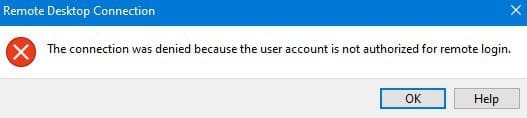
However, The error “The connection was denied because the user account is not authorized for remote login” occurs when the account you use to connect to the target system remotely does not have the appropriate rights to connect to the server. Furthermore, This means the user account you are trying to establish a remote connection does not belong to a Remote Desktop Users group.
To resolve this issue, there are different ways to go about this. The quickest and easiest way is to use the first step discussed below (add the user to the .
Step 1: Add the user as a member of the remote user group on the local computer. In addition, On the device you wish to access remotely, you need to be added as a member of the remote user group. Moreover, Type and search lusrmgr.msc in the Taskbar search box or,
– Search for Computer Management (Can be accessed via the server Manager or Windows Administrative Tool),

This will open the Computer Management snap-in. Expand the Local Users and Groups as shown and click on Groups.
– Groups
– Double click on Remote Desktop Users

This will open the Remote Desktop Users’ Properties

This will open the Select Users, Computers, Service Account, or Group wizard.
– Click on OK.

On the Remote Desktop User Properties windows, click on Ok. If you wish to perform other tasks, then you can click on Apply. In this way, the window will not be closed.

Nonetheless, To remove a desktop user, please follow the steps mentioned above.
– Click on the user you wish to remove and
– Click on Remove.

Consequently, the user has been removed and can no longer connect to the device remotely.
– Click on OK to close the window.

Step 2: Creating a New Security Group:
To fix the issue, you might want to create a new security group whose members will have the power to establish a Remote Desktop connection. Similarly, Type the command secpol.msc in the Start search box and hit Enter or,
– Press Windows Key + R to open Run.
– Type in “secpol.msc” or “Local Security Policy” and press Enter.

– Navigate to the Local Policies
– User Rights Assignment and
– Double click on “Allow log on through Remote Desktop Services”.

Remote Desktop Services Properties
This will open the “Allow log on through Remote Desktop Services” properties window. As you can see, the Administrators and Remote Desktop users are already part of this group.
– To add your users or group of users, click “Add USers or Group” as shown below.

This will open the Select Users, Computers, Service Account, or Group wizard. The steps are exactly the same as discussed in step 1 right now.
– Enter the user name and click on check names.


As you can see below, the user has been added.

T remove the use, follow the same steps and click on the remove button as shown below.

The user has been removed and can no longer connect via RDP to the host except he is part of the Remote Desktop USer Groups or Administrators group.

Step 3 – Add the user to the Local Administrator Group: I do not recommend doing his except the user is an Administrator and has been proven worthy over time.
– Launch the Computer Management snap-in
– Expand the Local Users and Group
– Double click on the Administrators group and add the user as shown below.

Below are some related remote Desktop Connection errors:
– Remote Desktop cannot find the computer in the specified network: Verify the computer name and domain that you are trying to connect
– Remote Desktop can not find the computer FQDN and this might mean that FQDN does not belong to the specified network
– We could not connect to the remote PC with error code 0x204 and make sure the PC is turned on and connected to the network – Part 1
– Error 0x204: How to fix Remote Desktop Connection issues
– How to fix Remote Desktop can’t connect to the remote computer for one of these reasons.
I welcome you to follow me on Twitter and Facebook. I hope you found this blog post helpful. If you have any questions, please let me know in the comment session.


