Skip to content

TechDirectArchive

Hands-on IT, Cloud, Security & DevOps Insights

  • Home
  • About
  • Advertise With US
  • Contact
  • Reviews
  • Toggle search form
Home » AWS/Azure/OpenShift » How to manage costs with AWS Budgets
  • 1 ifg3ir3l 8ejus3pueqt0a
    Fix cannot find KDC for realm while getting initial credentials and kinit configuration file does not specify default realm Configuration Management Tool
  • credentialguard
    Enable or disable Windows Defender Credential Guard Security | Vulnerability Scans and Assessment
  • dns error
    Domain Name System Protocol: Client Registration Issue Windows Server
  • ansible 1
    Kinit Error: Fix Malformed representation of principal when parsing name Configuration Management Tool
  • Screenshot 2020 11 17 at 12.20.15
    PA Server Monitor Ultra: How to setup PA Server Monitor Reviews
  • images 1 1
    How To Use Pleasant Password Private Folder Password Manager
  • hh
    Graphical Network Simulator: How to install GNS3 on a Windows device Windows
  • RSAT 678x381 1
    DNS manager console missing from RSAT tools on Windows 10 Windows

How to manage costs with AWS Budgets

Posted on 07/09/202104/09/2023 Temitope Odemo By Temitope Odemo No Comments on How to manage costs with AWS Budgets
AWS cost management

With AWS Budgets you can track and take necessary action on your AWS cost and usage. AWS Budgets can help you to monitor your aggregate utilization and can help you with your savings plans. This guide will focus on discussing how to manage costs with AWS Budgets. Please see How to Control Cloud Cost Using Azure VM, Cost Management in Azure Using Cost Analysis Tool, and learn about the “Advantage of using a 3rd party software for Backup (N2WS by Veeam) over AMI“.

AWS Budgets is very good in tracking simple-to-complex cost and usage tracking, by helping you track all costs that are associated with your account and you can get alerted for actual and forecasted spending. This system can be configured to help you stay within the service quotas for a specific service, for instance, you can set up a custom IAM policy that denies any attempt to provision additional resources on your subscription.

If you need a guide on how to deploy an Angular App on AWS please check this How to deploy an Angular App to AWS S3. Below are the types of budgets you can create:

  • Cost budget
  • Usage budget
  • Savings Plans budget, and
  • Reservation budget

In this article, we shall be covering the below topics: Creating a budget, Viewing your budgets, and Editing a budget. Our first case study on budget creation will be cost budget

Manage AWS Costs by creating a cost budget

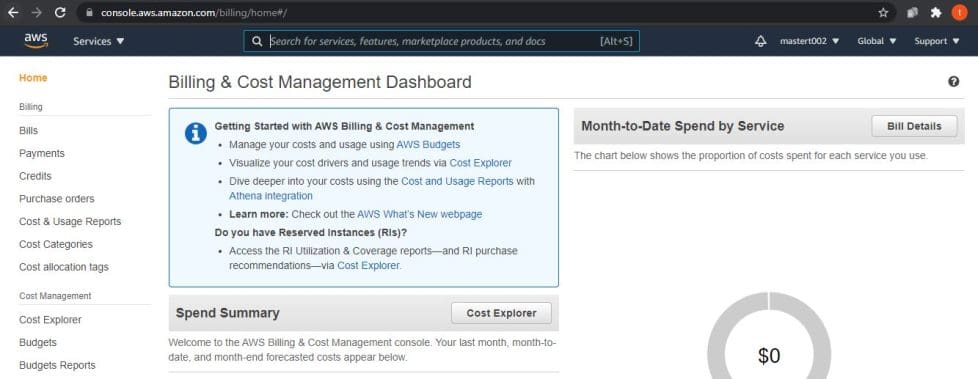
Use these steps to create a cost budget. Sign in to the AWS Management Console https://console.aws.amazon.com/billing/. The Billing and Cost Management dashboard opens.

  1. In the menus, choose Budgets.
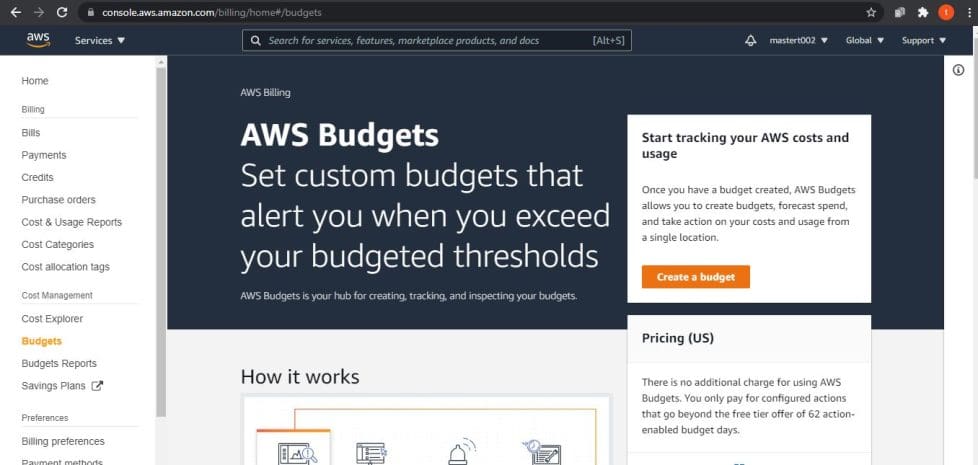
  2. On the open page, choose Create budget.
Budget tracking AWS
Billing & Cost Management Dashboard

The following image is the landing page for creating a budget
AWS spending control
Landing page to Create a Budget

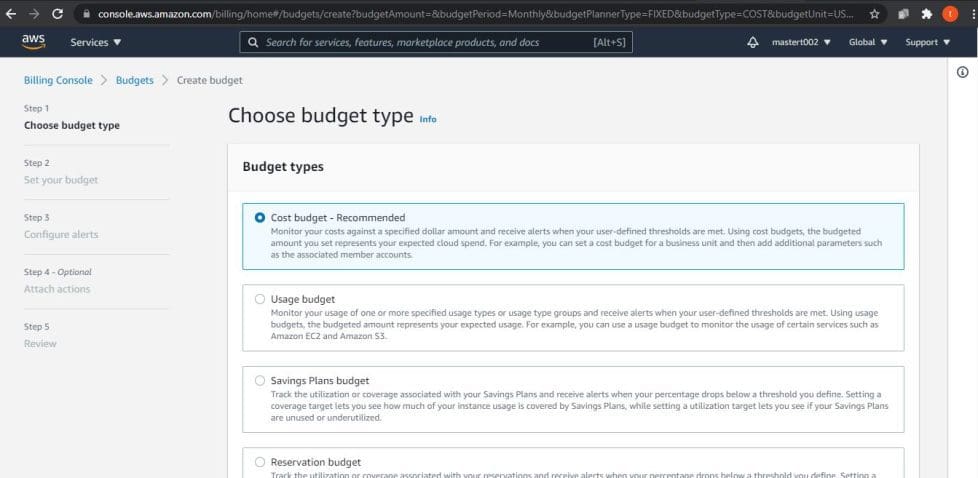
4. Choose budget type, select Cost budget. Then, click Next.
Cloud cost optimization
Choosing Budget Type

You may be interested in these: Change Account Lockout Threshold for Local Accounts in Windows: The reference account is locked, and Performance and Diagnostics in Microsoft Cloud with Azure Monitor.

Customize Budget Reset Frequency

5. In the Set budget amount, in the Period section drop-down select how frequently you want the budget to reset the actual and forecasted cost within the period.

Note: Daily budgets do not support enabling forecasted alerts, daily budget planning, or attaching actions.

AWS cost management
Setting your Budget

6. In the Budget effective date, select Recurring budget for a budget that resets after the budget period while Expiring budget for a one-time budget that doesn’t reset after the budget period.

7. Select a start date or period to start tracking your budgeted amount. If you choose Expiring budget, select the end date or period for the budget to end.

8. If your budget period is Daily, Monthly, Quarterly, and Annually: in the Enter your budgeted amount box enter the total amount that you want to spend in each budget period.

budget5

Setting your Budget

9. Budget scoping – optional, for Filters it’s optional.

10. Under Details enter the Budget name which must be unique within your account. Click Next.

budget6
Enter you budget Name

Click on Add an alert threshold

12. Under the Set alert threshold, set the Threshold by entering the amount that must be reached for you to be notified. This amount can be an absolute or a percentage value. For example, let’s say your budget is $15,000.

For you to be notified when the budget is reduced to $7,500 you will enter $7,500 as an absolute value and 50 for the percentage value.

Select Actual to create an alert for actual spend while Forecasted to create an alert for forecasted spend.

budget7
Setting Alert Threshold

13. You can decide to set the Notification preferences which is optional. You can either select Amazon SNS Alerts or Amazon Chatbot Alerts.

budget8
Notification Preferences

14. Choose Next. But note that for you to proceed, you must configure at least one of the following:

  • An email recipient for notifications
  • An Amazon SNS topic for notifications
  • A budget action
budget0
Setting your IAM permission to run action on your Budget

15. Review your budget settings and click Create budget.

budget9-2
Budget Config information

Viewing your budgets

Sign in to the AWS Management Console https://console.aws.amazon.com/billing/. The Billing and Cost Management dashboard opens.

On the Menu choose Budgets. Select the budget’s name from the list of budgets. The budget dashboard will open where you can check your cost variances for your budgets.

budget10-1
Budget Overview

The image below is a dashboard where you can view vital info on your budget

budget11
Budget Dashboard

An image of the monthly costs history

budget12
Monthly Cost View

Manage Costs by Editing a budget

Sign in to the AWS Management Console https://console.aws.amazon.com/billing/. The Billing and Cost Management dashboard opens.

On the Menu choose Budgets. On the Budgets page pick your choice from the list of budgets and click Edit.

budget13
Budget Dashboard

4. You can make any necessary changes to the budget but you cannot change the budget name.
5. After making your changes on each budget configuration page, click Next.
6. Click Save.

I hope you found this blog post helpful on how to manage costs with AWS Budgets. If you have any questions, please let me know in the comment session.

Rate this post

Thank you for reading this post. Kindly share it with others.

  • Click to share on X (Opens in new window) X
  • Click to share on Reddit (Opens in new window) Reddit
  • Click to share on LinkedIn (Opens in new window) LinkedIn
  • Click to share on Facebook (Opens in new window) Facebook
  • Click to share on Pinterest (Opens in new window) Pinterest
  • Click to share on Tumblr (Opens in new window) Tumblr
  • Click to share on Telegram (Opens in new window) Telegram
  • Click to share on WhatsApp (Opens in new window) WhatsApp
  • Click to share on Pocket (Opens in new window) Pocket
  • Click to share on Mastodon (Opens in new window) Mastodon
  • Click to share on Bluesky (Opens in new window) Bluesky
  • Click to share on Threads (Opens in new window) Threads
  • Click to share on Nextdoor (Opens in new window) Nextdoor
AWS/Azure/OpenShift Tags:AWS

Post navigation

Previous Post: Add or Remove Network Interface from a VM in Azure
Next Post: Azure DevOps: Docker and Kubernetes Deployment with GitHub

Related Posts

  • New OpenShift Featured Image
    OpenShift common Commands AWS/Azure/OpenShift
  • Convert PEM to PPK 1
    Convert a PEM Key to a PPK Key on a Linux and Windows AWS/Azure/OpenShift
  • Azure logo
    Microsoft Azure Active Directory: How to setup Azure AD Tenant AWS/Azure/OpenShift
  • image 12
    How to Use Postman with the Amazon Pinpoint API AWS/Azure/OpenShift
  • Azure VM Creation With CLI 1
    Deploy a Linux virtual machine (VM) on Azure using the Azure CLI AWS/Azure/OpenShift
  • Webp.net resizeimage 3 1
    How To Configure VM Update Management on Azure Stack Hub AWS/Azure/OpenShift

More Related Articles

New OpenShift Featured Image OpenShift common Commands AWS/Azure/OpenShift
Convert PEM to PPK 1 Convert a PEM Key to a PPK Key on a Linux and Windows AWS/Azure/OpenShift
Azure logo Microsoft Azure Active Directory: How to setup Azure AD Tenant AWS/Azure/OpenShift
image 12 How to Use Postman with the Amazon Pinpoint API AWS/Azure/OpenShift
Azure VM Creation With CLI 1 Deploy a Linux virtual machine (VM) on Azure using the Azure CLI AWS/Azure/OpenShift
Webp.net resizeimage 3 1 How To Configure VM Update Management on Azure Stack Hub AWS/Azure/OpenShift

Leave a Reply Cancel reply

You must be logged in to post a comment.

Microsoft MVP

VEEAMLEGEND

vexpert-badge-stars-5

Virtual Background

GoogleNews

Categories

veeaam100

sysadmin top30a

  • 1 ifg3ir3l 8ejus3pueqt0a
    Fix cannot find KDC for realm while getting initial credentials and kinit configuration file does not specify default realm Configuration Management Tool
  • credentialguard
    Enable or disable Windows Defender Credential Guard Security | Vulnerability Scans and Assessment
  • dns error
    Domain Name System Protocol: Client Registration Issue Windows Server
  • ansible 1
    Kinit Error: Fix Malformed representation of principal when parsing name Configuration Management Tool
  • Screenshot 2020 11 17 at 12.20.15
    PA Server Monitor Ultra: How to setup PA Server Monitor Reviews
  • images 1 1
    How To Use Pleasant Password Private Folder Password Manager
  • hh
    Graphical Network Simulator: How to install GNS3 on a Windows device Windows
  • RSAT 678x381 1
    DNS manager console missing from RSAT tools on Windows 10 Windows

Subscribe to Blog via Email

Enter your email address to subscribe to this blog and receive notifications of new posts by email.

Join 1,841 other subscribers
  • RSS - Posts
  • RSS - Comments
  • About
  • Authors
  • Write for us
  • Advertise with us
  • General Terms and Conditions
  • Privacy policy
  • Feedly
  • Telegram
  • Youtube
  • Facebook
  • Instagram
  • LinkedIn
  • Tumblr
  • Pinterest
  • Twitter
  • mastodon

Tags

AWS Azure Bitlocker Microsoft Windows PowerShell WDS Windows 10 Windows 11 Windows Deployment Services Windows Server 2016

Copyright © 2025 TechDirectArchive


Loading Comments...
 

You must be logged in to post a comment.