Skip to content

TechDirectArchive

Hands-on IT, Cloud, Security & DevOps Insights

  • Home
  • About
  • Advertise With US
  • Reviews
  • Contact
  • Toggle search form
Home » Windows Server » RDP Users are unable to change Passwords
  • Allow and Disallow Simultaneous Connection to Domain and Non Domain network
    Allow and Disallow Simultaneous Connection to Domain and Non-Domain network Network | Monitoring
  • Untitled Design 25
    Install and Configure Hyper-V on Windows Server Server 2019, and 2022 via the Server Manager, PowerShell or DISM Virtualization
  • Feature image Install.wim file
    How To Get Install.WIM From Windows 10 Installation File Windows
  • 111615smarthomeNG
    Unspecified GSS failure: How to fix Clock skew too great Web Server
  • Screenshot 2020 05 16 at 17.41.31
    Tomcat Keystore Update: How to rebind Tomcat Keystore with a new Certificate Web Server
  • How to Upgrade Windows 10 with an Unsupported CPU TPM 1.0 to Windows 11
    Upgrading from Windows 10 with Unsupported CPU and TPM 1.0 Windows
  • The evolution of Windows authentication   NTLM to Keberos
    Bidding Farewell to NTLM in favour of Kerberos Windows
  • feature image nodejs
    How to install Node.js on Ubuntu Linux

RDP Users are unable to change Passwords

Posted on 15/09/202104/03/2025 Christian By Christian 3 Comments on RDP Users are unable to change Passwords
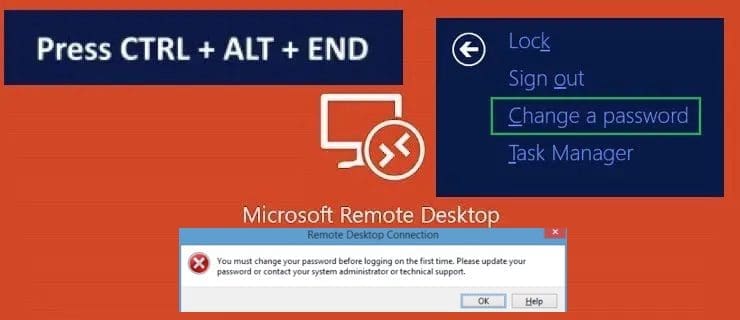
RDS-Error

A password is a string of characters used to verify the identity of a user during the authentication process. This guide will show you how to fix “RDP Users are unable to change Passwords”. Kindly refer to the following guides on how to perform these related tasks: How to create a desktop shortcut in Windows 10 to switch User Accounts: Fast user switching (Session Disconnection Utility), How to enable or disable Fast User Switching in Windows 10.

This session will discuss the “You must change your password before logging on the first time, please update your password” error.

Your password has expired and you have to log on to change your password, but you cannot log on until you’ve changed your password.

Screenshot-2021-07-29-at-22.00.56

Issue 1: – Why you might be unable to change your password

Remote Desktop Users (RDS users) are unable to change their passwords upon first log-in or after password expiration, if their AD accounts have the “User must change password at next logon” option enabled as shown below.

You may want to uncheck this for remote users. To do this, see issue 2 below.

Screenshot-2021-07-29-at-21.45.43

Please see how to disable or enable automatic login from the sign-in screen in Windows., and how to determine your AD user account or service account password. How to run an App as a different User and switch Users in Windows

Issue 2 – Reasons to change your password

Also when the Users cannot change the password on the account tab as shown below. This is because “User must change password at next logon” was selected in their AD account.

Please uncheck this for the RDS user. Please see how to Resolve Account restrictions are preventing this user from signing in: User Account Password has expired

Screenshot-2021-07-29-at-21.49.04

Solution

We will need to launch Active Directory Users and Computers as shown below via the Server Manager.

Alternatively from the “Windows Search” or “Run” command and type dsa.msc, or from the Control Panel\System and Security\Administrative Tools and click on Active Directory Users and Computers

Launch Active Directory User and Computer Console

Locate the OU that has the user and right-click on the User Account. In order to resolve this issue for this specific RDP user, we will need to uncheck the “User” must change password at the next logon. In this way, the user will be able to connect to the remote device.

This will ensure that the account can be reset and not greyed out. Here is a fantastic piece on “Windows 10 and Windows 11 updates will now expire for better performance“.

Screenshot-2021-09-15-at-22.52.58

Note: I do not recommend checking the option “Users cannot change password” or password never expires for security best practice! These settings are there just for a different purpose.

Note: You cannot select “User must change password at next logon” + “User cannot change password” at the same time. If you select, “User must change password at next logon”, you must uncheck “Password Never expires”. Else a warning sign will be prompted!

Reset the AD Password

Please see How to change your Windows Computer login Password, how to Prevent the Saving of RDP Credentials in Windows 10. How to fix “DriveLock Error: The server could not be reached or validated: Timeout expired. The Time out expired prior to obtaining a connection from the pool“.

Select User must change password at next logon

Note: If you select user cannot change password. The option will be greyed out when resetting the password and this will mitigate the issue.

Password Change or reset in Active Directory

But I do not recommend selecting the option “Users cannot change password”. Your organization will have to define a policy for this.

Screenshot-2021-09-15-at-22.57.05
Screenshot-2021-09-15-at-22.57.53

Now, Remote Desktop Users should be able to log on to their devices without having to change their password, thereby resolving the issue associated with RDP Users being unable to change Passwords.

Here are some related guides that might be interesting to you. How to reset your lost or forgotten Windows 10 Password, and how to reset your built-in (Local) Administrator’s password in Windows 10.

I hope you found this blog post helpful on how to fix RDP Users who are unable to change Passwords. If you have any questions, please let me know in the comment session.

5/5 - (1 vote)

Thank you for reading this post. Kindly share it with others.

  • Click to share on X (Opens in new window) X
  • Click to share on Reddit (Opens in new window) Reddit
  • Click to share on LinkedIn (Opens in new window) LinkedIn
  • Click to share on Facebook (Opens in new window) Facebook
  • Click to share on Pinterest (Opens in new window) Pinterest
  • Click to share on Tumblr (Opens in new window) Tumblr
  • Click to share on Telegram (Opens in new window) Telegram
  • Click to share on WhatsApp (Opens in new window) WhatsApp
  • Click to share on Pocket (Opens in new window) Pocket
  • Click to share on Mastodon (Opens in new window) Mastodon
  • Click to share on Bluesky (Opens in new window) Bluesky
  • Click to share on Threads (Opens in new window) Threads
  • Click to share on Nextdoor (Opens in new window) Nextdoor
Windows Server Tags:Microsoft Windows, RDP, Remote Access, Remote Desktop, remote desktop app, Remote Desktop Connection, Remote Desktop Protocol, Remote Desktop Services, Windows 10, Windows Server 2016

Post navigation

Previous Post: How to Setup SonarLint in VS Code for Your App Project
Next Post: Creating and Deploying Docker Registry Using Docker Image

Related Posts

  • Remote Desktop 2 1
    How to install RDS via Quick Start Deployment: Install, Publish, Update, and Uninstall Remote Desktop Web Client Web Server
  • remote desktop connection tabs   rdp tabs
    Guide to Remote Desktop Connection Properties for Secure Access Windows
  • Shrink and Compact Virtual Hard Disks
    How to Shrink and Compact Virtual Hard Disks in Hyper-V Virtualization
  • How to configure Volume Shadow Copies VSS on Windows Server
    Volume Shadow Copies: How to configure VSS on Windows Server Windows
  • DC creation as recommended by Microsoft
    Setup a Domain Controller as Recommended by Microsoft Windows Server
  • SystoLOCK Passwordless Authentication
    Protect your Windows Devices with MFA with SystoLOCK Security | Vulnerability Scans and Assessment

More Related Articles

Remote Desktop 2 1 How to install RDS via Quick Start Deployment: Install, Publish, Update, and Uninstall Remote Desktop Web Client Web Server
remote desktop connection tabs   rdp tabs Guide to Remote Desktop Connection Properties for Secure Access Windows
Shrink and Compact Virtual Hard Disks How to Shrink and Compact Virtual Hard Disks in Hyper-V Virtualization
How to configure Volume Shadow Copies VSS on Windows Server Volume Shadow Copies: How to configure VSS on Windows Server Windows
DC creation as recommended by Microsoft Setup a Domain Controller as Recommended by Microsoft Windows Server
SystoLOCK Passwordless Authentication Protect your Windows Devices with MFA with SystoLOCK Security | Vulnerability Scans and Assessment

Comments (3) on “RDP Users are unable to change Passwords”

  1. Avatar photo Qui says:
    13/11/2023 at 1:37 AM

    Great explanation.

    Log in to Reply
    1. chris Christian says:
      04/03/2025 at 10:07 PM

      You are welcome!

      Log in to Reply
  2. Avatar photo Nyle says:
    04/03/2025 at 5:32 PM

    While this explains the problem and that if you turn off the option the user can log in. I have not read a good explanation as to why Microsoft and RDP no longer support requiring users to change their password on login.

    This seems like a standard practice when creating a new account or resetting a password to a temporary password for a user. Assuming that the user will change the temporary password you set, seems like a very bad practice.

    Log in to Reply

Leave a Reply Cancel reply

You must be logged in to post a comment.

Microsoft MVP

VEEAMLEGEND

vexpert-badge-stars-5

Virtual Background

GoogleNews

Categories

veeaam100

sysadmin top30a
 
  • Allow and Disallow Simultaneous Connection to Domain and Non Domain network
    Allow and Disallow Simultaneous Connection to Domain and Non-Domain network Network | Monitoring
  • Untitled Design 25
    Install and Configure Hyper-V on Windows Server Server 2019, and 2022 via the Server Manager, PowerShell or DISM Virtualization
  • Feature image Install.wim file
    How To Get Install.WIM From Windows 10 Installation File Windows
  • 111615smarthomeNG
    Unspecified GSS failure: How to fix Clock skew too great Web Server
  • Screenshot 2020 05 16 at 17.41.31
    Tomcat Keystore Update: How to rebind Tomcat Keystore with a new Certificate Web Server
  • How to Upgrade Windows 10 with an Unsupported CPU TPM 1.0 to Windows 11
    Upgrading from Windows 10 with Unsupported CPU and TPM 1.0 Windows
  • The evolution of Windows authentication   NTLM to Keberos
    Bidding Farewell to NTLM in favour of Kerberos Windows
  • feature image nodejs
    How to install Node.js on Ubuntu Linux

Subscribe to Blog via Email

Enter your email address to subscribe to this blog and receive notifications of new posts by email.

Join 1,841 other subscribers
  • RSS - Posts
  • RSS - Comments
  • About
  • Authors
  • Write for us
  • Advertise with us
  • General Terms and Conditions
  • Privacy policy
  • Feedly
  • Telegram
  • Youtube
  • Facebook
  • Instagram
  • LinkedIn
  • Tumblr
  • Pinterest
  • Twitter
  • mastodon

Tags

AWS Azure Bitlocker Microsoft Windows PowerShell WDS Windows 10 Windows 11 Windows Deployment Services Windows Server 2016

Copyright © 2025 TechDirectArchive


Loading Comments...
 

You must be logged in to post a comment.
