Skip to content

TechDirectArchive

Hands-on IT, Cloud, Security & DevOps Insights

  • Home
  • About
  • Advertise With US
  • Reviews
  • Contact
  • Toggle search form
Home » Windows » The connection was denied because the user is not authorized for remote Login: Enable Remote Desktop Connection on Windows 11 for non-administrators or selected users
  • How to Upgrade Windows 10 with an Unsupported CPU TPM 1.0 to Windows 11
    Upgrading from Windows 10 with Unsupported CPU and TPM 1.0 Windows
  • AZMFeature
    Performance and Diagnostics in Microsoft Cloud with Azure Monitor AWS/Azure/OpenShift
  • screenshot 2017 06 07 11.30.45
    How to Enable or Disable Touch Screen in Windows 10 Windows
  • awscli56
    Configure AWS Command Line Interface AWS/Azure/OpenShift
  • article 1280x720.13392821
    How to use command prompt to shutdown and restart your computer Windows
  • hgjk
    Understanding the different types of Proxy Servers Web Server
  • Permission1
    How to create a Shortcut That enables Standard Users to run Applications as Administrator Windows
  • Lets Encryp
    How to install Let’s Encrypt Certificates with IIS on a Windows Server Windows

The connection was denied because the user is not authorized for remote Login: Enable Remote Desktop Connection on Windows 11 for non-administrators or selected users

Posted on 06/10/202126/08/2023 Christian By Christian No Comments on The connection was denied because the user is not authorized for remote Login: Enable Remote Desktop Connection on Windows 11 for non-administrators or selected users
Remote Desktop Connection

The Microsoft Remote Desktop Protocol (RDP) provides remote display and input capabilities over network connections for Windows-based applications running on a server. RDP is designed to support different types of network topologies and multiple LAN protocols. Remote Desktop Protocol or just RDP allows a user to establish a connection between two computers and access the Desktop of a remote host. See the following guide on how to remove saved RDP credentials entries in Windows 10 and How to remove RDP connection entries. RDP is based on, and an extension of, the ITU T.120 family of protocols. How to allow saved credentials for RDP connection, How to change a password on a Remote Desktop session, and  How to fix Windows 11 Remote Desktop Connectivity issues.

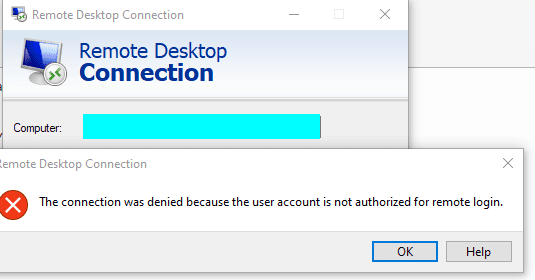
Having tried connecting to a Windows 11 device, the following error below was prompted. RDP was enabled and connection wasn't possible as shown from the image below. This is basically because, the user account that was trying to connect remotely does not have sufficient permissions. Kindly see "How to enable and disable Remote Desktop in Windows 10 for all users or selected users via CMD, PowerShell, Control Panel, and Windows Settings".
Windows 11

Resolution 1: Enable RDP for selected users

You have got so many options to launch the Remote Desktop Connection Settings windows. Here is a link to all troubleshooting guides relating to RDP.
– You can click on the Start Menu and click on settings as shown below.
– You can use the Windows Search button and type Remote Desktop Connection and select Settings for Remote Desktop.

Non-administrators
Screenshot 2021 09 02 at 20.23.15
Enable Remote Desktop
Screenshot 2021 09 02 at 20.24.00

Ensure Remote Desktop is enabled as shown below

Remote Desktop Connection

If you wish to add or enable selected users only, click on the Remote Desktop Users as shown below.

Windows 11

This will open the Remote Desktop Users wizard as shown below. Click on Add to add a user. As you can see, I can only connect to this device via RDP as I already have RDP access granted.

Enable Remote Desktop

In the Select Users window, type the name of the user and click on check names. When found, click on Ok. You will be required to click on Okay to complete the settings.

Screenshot-2021-09-02-at-20.27.50

Resolution 2: Add the User to the Remote Desktop Users Group

I would personally use this method to enable Remote Desktop Connection. In this method, you will not have to select selected users that can connect to your server (PC). When these steps are completed, the specific user should be able to connect via RDP without any further issues.
_ To do this, launch the Computer Management and
– Expand Local Users and Groups
– Click on Groups
– Click on Remote Desktop Users

Screenshot-2021-10-06-at-21.52.15

This can also be done via the following shortcut. – Press Winkey + R to open Run (or just search for it from the search window). – Type in lusrmgr.msc and press Enter.

Screenshot-2021-10-06-at-23.38.41

Moreover, Add the selected users to this group as shown below. You may also want to see “how to install and configure VPN on a Windows Server 2016, 2019, and 2022: Allow remote VPN Access for Domain or local users“.

Note: In an Active Directory environment, you can also use this similar method to enable remote Desktop Connection. 
- I used the word "similar" because, after the server has been promoted to a domain controller, you cannot manage the users via the Computer Management (mmc console) anymore. Therefore, you will not be able to use the "local users and groups" from the Computer Management. The Domain Controller uses the built-in domain group Remote Desktop Users (located in the Builtin container). You can manage this group from the ADUC console or from the command prompt to manage your Domain Cntroller.
Screenshot-2021-10-06-at-21.53.32

Furthermore, I hope you found this blog post helpful. However, If you have any questions, please let me know in the comment session

Rate this post

Thank you for reading this post. Kindly share it with others.

  • Click to share on X (Opens in new window) X
  • Click to share on Reddit (Opens in new window) Reddit
  • Click to share on LinkedIn (Opens in new window) LinkedIn
  • Click to share on Facebook (Opens in new window) Facebook
  • Click to share on Pinterest (Opens in new window) Pinterest
  • Click to share on Tumblr (Opens in new window) Tumblr
  • Click to share on Telegram (Opens in new window) Telegram
  • Click to share on WhatsApp (Opens in new window) WhatsApp
  • Click to share on Pocket (Opens in new window) Pocket
  • Click to share on Mastodon (Opens in new window) Mastodon
  • Click to share on Bluesky (Opens in new window) Bluesky
  • Click to share on Threads (Opens in new window) Threads
  • Click to share on Nextdoor (Opens in new window) Nextdoor
Windows Tags:Microsoft Windows, RDP, Remote Access, Remote Desktop, RemoteConnection, Windows 10, Windows 11

Post navigation

Previous Post: The term “git” was not used as the name of a cmdlet, function, script file, or executable Program recognized
Next Post: How to fix this computer is a domain controller: The snap-in cannot be used on a domain controller

Related Posts

  • Capture
    An account with the same name exists in Active Directory: Re-using the account was blocked by a security policy Security | Vulnerability Scans and Assessment
  • schedulepythontasksinWindows
    Task Scheduler shows task still running despite successful Windows
  • Enable only Windows Admin to shutdown PC
    Allow only Administrators to shut down and reboot Server Windows
  • you need the right to sign in through Remote Desktop Services
    Fix you need the right to sign in through Remote Desktop Services Windows
  • Security updated something did not go well as planned
    Something did not go well as planned: Windows Security update fails to install Windows
  • BANNER
    How to Install and Set Lively Wallpaper on Windows 11 Windows

More Related Articles

Capture An account with the same name exists in Active Directory: Re-using the account was blocked by a security policy Security | Vulnerability Scans and Assessment
schedulepythontasksinWindows Task Scheduler shows task still running despite successful Windows
Enable only Windows Admin to shutdown PC Allow only Administrators to shut down and reboot Server Windows
you need the right to sign in through Remote Desktop Services Fix you need the right to sign in through Remote Desktop Services Windows
Security updated something did not go well as planned Something did not go well as planned: Windows Security update fails to install Windows
BANNER How to Install and Set Lively Wallpaper on Windows 11 Windows

Leave a Reply Cancel reply

You must be logged in to post a comment.

Microsoft MVP

VEEAMLEGEND

vexpert-badge-stars-5

Virtual Background

GoogleNews

Categories

veeaam100

sysadmin top30a
 
  • How to Upgrade Windows 10 with an Unsupported CPU TPM 1.0 to Windows 11
    Upgrading from Windows 10 with Unsupported CPU and TPM 1.0 Windows
  • AZMFeature
    Performance and Diagnostics in Microsoft Cloud with Azure Monitor AWS/Azure/OpenShift
  • screenshot 2017 06 07 11.30.45
    How to Enable or Disable Touch Screen in Windows 10 Windows
  • awscli56
    Configure AWS Command Line Interface AWS/Azure/OpenShift
  • article 1280x720.13392821
    How to use command prompt to shutdown and restart your computer Windows
  • hgjk
    Understanding the different types of Proxy Servers Web Server
  • Permission1
    How to create a Shortcut That enables Standard Users to run Applications as Administrator Windows
  • Lets Encryp
    How to install Let’s Encrypt Certificates with IIS on a Windows Server Windows

Subscribe to Blog via Email

Enter your email address to subscribe to this blog and receive notifications of new posts by email.

Join 1,841 other subscribers
  • RSS - Posts
  • RSS - Comments
  • About
  • Authors
  • Write for us
  • Advertise with us
  • General Terms and Conditions
  • Privacy policy
  • Feedly
  • Telegram
  • Youtube
  • Facebook
  • Instagram
  • LinkedIn
  • Tumblr
  • Pinterest
  • Twitter
  • mastodon

Tags

AWS Azure Bitlocker Microsoft Windows PowerShell WDS Windows 10 Windows 11 Windows Deployment Services Windows Server 2016

Copyright © 2025 TechDirectArchive


Loading Comments...
 

You must be logged in to post a comment.