Skip to content

TechDirectArchive

Hands-on IT, Cloud, Security & DevOps Insights

  • Home
  • About
  • Advertise With US
  • Reviews
  • Contact
  • Toggle search form
Home » AWS/Azure/OpenShift » Creating Profiles for your AWS Access Credentials for AWS Toolkit in Visual Studio
  • image 78
    How to enable LDAP over SSL with a third-party Certificate such as DigiCert Windows
  • maxresdefault
    Error 0x8007232B: Can’t activate Windows on this device as we can’t connect to your organization’s activation server Windows
  • Diskspd
    Veeam Backup and Replication Disk I/O with diskspd Backup
  • Telegram Bot for wordpress
    Configure Telegram to receive Blog Notifications JIRA|Confluence|Apps
  • Razer
    Administrative rights gained through Razer devices on Windows 10 Security | Vulnerability Scans and Assessment
  • Synology Cloud Sync
    How to Sync Data in Cloud Drives to Synology NAS Backup
  • windows pe screenshot1 rcm1200x0
    Workaround and Permanent fix for this snap-in performed a non-valid operation and has been unloaded: To continue using this snap-in restart MMC or try loading the snap-in again Windows Server
  • Fatal Refusing to Merge
    How to Fix Fatal Git Error Refusing to Merge Unrelated Histories Version Control System

Creating Profiles for your AWS Access Credentials for AWS Toolkit in Visual Studio

Posted on 19/10/202123/11/2023 Temitope Odemo By Temitope Odemo No Comments on Creating Profiles for your AWS Access Credentials for AWS Toolkit in Visual Studio
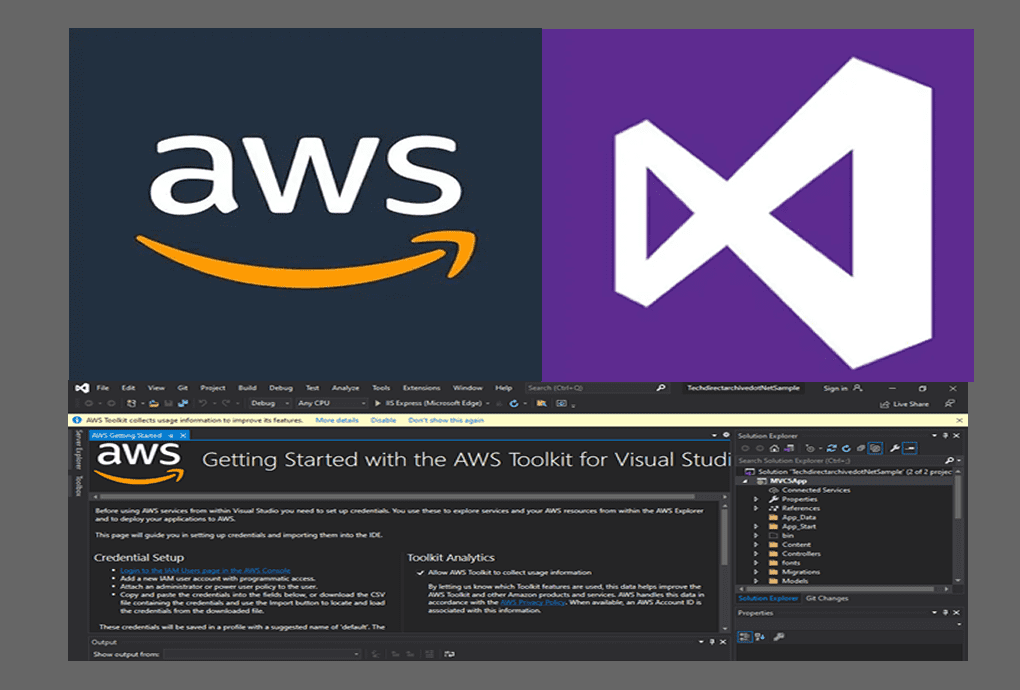
AWS Toolkit for Visual Studio

With the AWS Toolkit for Visual Studio, you can interact with different AWS services. Furthermore, you need an IAM account that has all the necessary permissions to interact with these services. It is possible to create a profile through the help of a toolkit that provides access to all the AWS services. Please see The following guides can help you with your daily deployments to the AWS platform: How to deploy a .NET application to AWS Elastic Beanstalk using AWS Tool Kit, How to Deploy MVC Application to AWS EC2 Using RDP Connection and Web Deploy, and how to Deploy Dynamic Website to AWS EC2

Meanwhile, the access keys which was created through the IAM console will be configured on the profile which will form the access credentials for AWS Toolkit for Visual Studio. Note that it is very possible to store multiple profiles in shared AWS credentials files or in the SDK Store for anyone you choose.

You might want to see: Hosting Static Website and Versioning on AWS S3, How to deploy an Angular App to AWS S3, How to manage cost with AWS Budgets, and steps in Creating IAM Users, Adding MFA and Policies on AWS.

AWS Access Credentials for AWS Toolkit in Visual Studio

In this guide, I will be showing you how to use the AWS Explorer interface in the AWS Toolkit for Visual Studio to add profiles to your AWS credentials

Obtaining access keys

So, to get your access keys, go to the IAM console or dashboard.
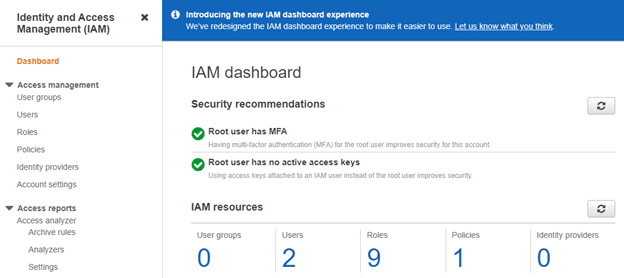
AWS IAM Dashboard
Identity and Access Management (IAM)

Click on Users from the navigation bar and then choose your AWS user name.
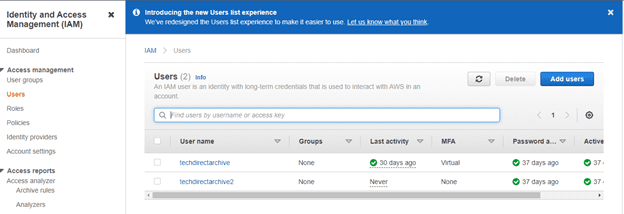
Choose your AWS Username
Identity and Access Management (IAM)

Now select the Security credentials tab, and then click the Create access key button.

Click on Security Credentials and Create Access Key
Creating your access key

So, immediately you click on the Create access key button, the dialog box that shows your access key ID and secret access key will be displayed.

Thus, choose Download .csv file and store it in a secure location.
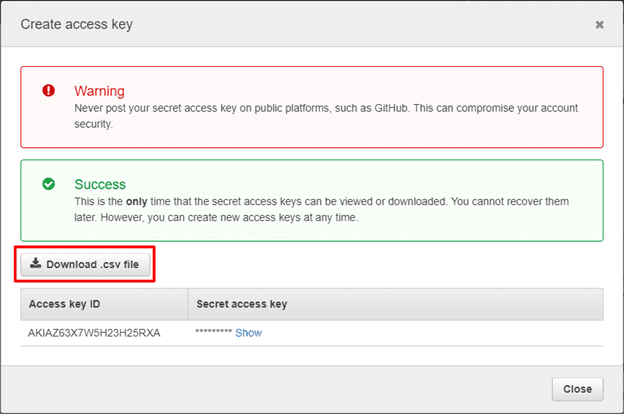
Create Access Key and Download CSV file
Downloading the .csv file

After you’ve stored your access keys securely, you can then add them to the set of credentials defined by a profile.

Add a Profile

To add a profile to the SDK Store or the shared AWS credentials Using AWS Explorer. Execute the subsequent steps to add a profile to the SDK Credential Store or the shared AWS credentials file.

Open your Visual Studio and click on the View tab, select AWS Explorer.
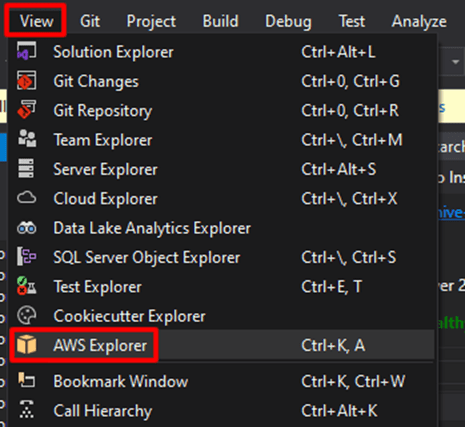
Select AWS Explorer in Visual Studio Vioew tab
AWS Explorer

At the top left click on the New Account Profile icon to the right of the Credentials.

Click on create Account
Credentials and Region Input

The New Account Profile dialog box opens. Then, craft the credential profile by inputting details in the dialogue box below. Afterwards, import the .csv file and select OK.
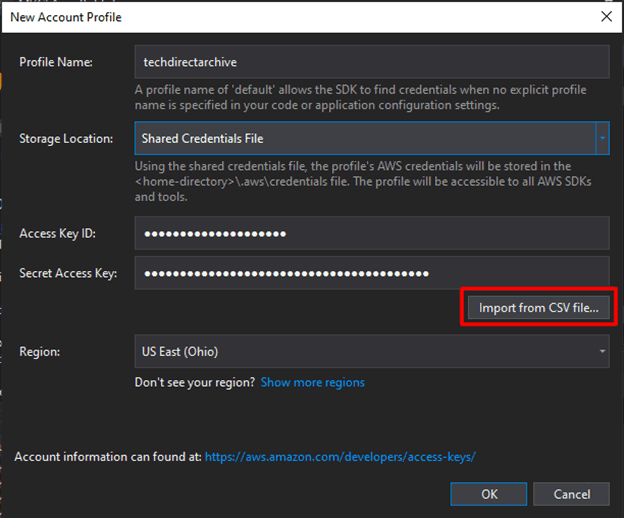
Enter details and import CSV file
New Account Profile Dialogue Box

After clicking OK, you should get the below image showing your credentials and region and displaying different AWS Services. When you see this it means the new account profile creation is successful.
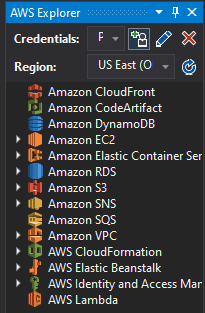
Account profile created successfully

I hope you found this blog post on Creating Profiles for your AWS Access Credentials for AWS Toolkit in Visual Studio very interesting and helpful. In case you have any questions do not hesitate to ask in the comment section.

Rate this post

Thank you for reading this post. Kindly share it with others.

  • Click to share on X (Opens in new window) X
  • Click to share on Reddit (Opens in new window) Reddit
  • Click to share on LinkedIn (Opens in new window) LinkedIn
  • Click to share on Facebook (Opens in new window) Facebook
  • Click to share on Pinterest (Opens in new window) Pinterest
  • Click to share on Tumblr (Opens in new window) Tumblr
  • Click to share on Telegram (Opens in new window) Telegram
  • Click to share on WhatsApp (Opens in new window) WhatsApp
  • Click to share on Pocket (Opens in new window) Pocket
  • Click to share on Mastodon (Opens in new window) Mastodon
  • Click to share on Bluesky (Opens in new window) Bluesky
  • Click to share on Threads (Opens in new window) Threads
  • Click to share on Nextdoor (Opens in new window) Nextdoor
AWS/Azure/OpenShift Tags:AWS

Post navigation

Previous Post: How to deploy a .NET application to AWS Elastic Beanstalk using AWS Tool Kit
Next Post: View Microsoft Defender Antivirus Update Details on Windows Image

Related Posts

  • New OpenShift Featured Image
    OpenShift common Commands AWS/Azure/OpenShift
  • AWS flow log
    AWS Flow Logs IAM Role Setup AWS/Azure/OpenShift
  • awscli56
    Configure AWS Command Line Interface AWS/Azure/OpenShift
  • a Multiple SPF Records  Issues and Examples@2x
    How to setup SPF and TXT Records in AWS AWS/Azure/OpenShift
  • image 73
    How to manage and use Amazon S3 access points using the AWS Management Console AWS/Azure/OpenShift
  • Microsoft 365 Developer Program instant
    Get your free Microsoft 365 E5 Sandbox today AWS/Azure/OpenShift

More Related Articles

New OpenShift Featured Image OpenShift common Commands AWS/Azure/OpenShift
AWS flow log AWS Flow Logs IAM Role Setup AWS/Azure/OpenShift
awscli56 Configure AWS Command Line Interface AWS/Azure/OpenShift
a Multiple SPF Records  Issues and Examples@2x How to setup SPF and TXT Records in AWS AWS/Azure/OpenShift
image 73 How to manage and use Amazon S3 access points using the AWS Management Console AWS/Azure/OpenShift
Microsoft 365 Developer Program instant Get your free Microsoft 365 E5 Sandbox today AWS/Azure/OpenShift

Leave a Reply Cancel reply

You must be logged in to post a comment.

Microsoft MVP

VEEAMLEGEND

vexpert-badge-stars-5

Virtual Background

GoogleNews

Categories

veeaam100

sysadmin top30a

  • image 78
    How to enable LDAP over SSL with a third-party Certificate such as DigiCert Windows
  • maxresdefault
    Error 0x8007232B: Can’t activate Windows on this device as we can’t connect to your organization’s activation server Windows
  • Diskspd
    Veeam Backup and Replication Disk I/O with diskspd Backup
  • Telegram Bot for wordpress
    Configure Telegram to receive Blog Notifications JIRA|Confluence|Apps
  • Razer
    Administrative rights gained through Razer devices on Windows 10 Security | Vulnerability Scans and Assessment
  • Synology Cloud Sync
    How to Sync Data in Cloud Drives to Synology NAS Backup
  • windows pe screenshot1 rcm1200x0
    Workaround and Permanent fix for this snap-in performed a non-valid operation and has been unloaded: To continue using this snap-in restart MMC or try loading the snap-in again Windows Server
  • Fatal Refusing to Merge
    How to Fix Fatal Git Error Refusing to Merge Unrelated Histories Version Control System

Subscribe to Blog via Email

Enter your email address to subscribe to this blog and receive notifications of new posts by email.

Join 1,836 other subscribers
  • RSS - Posts
  • RSS - Comments
  • About
  • Authors
  • Write for us
  • Advertise with us
  • General Terms and Conditions
  • Privacy policy
  • Feedly
  • Telegram
  • Youtube
  • Facebook
  • Instagram
  • LinkedIn
  • Tumblr
  • Pinterest
  • Twitter
  • mastodon

Tags

Active Directory AWS Azure Bitlocker Microsoft Windows PowerShell WDS Windows 10 Windows 11 Windows Server 2016

Copyright © 2025 TechDirectArchive


Loading Comments...
 

You must be logged in to post a comment.