Skip to content

TechDirectArchive

Hands-on IT, Cloud, Security & DevOps Insights

  • Home
  • About
  • Advertise With US
  • Reviews
  • Contact
  • Toggle search form
Home » Windows » Upgrading from Windows 10 with Unsupported CPU and TPM 1.0
  • tredfghgfde3456578
    How to install Java Runtime Environment on Mac OS Mac
  • Enable or Disable Mac asking for Password
    Enable or Disable Mac asking for Password after Sleep or Screen Saver Mac
  • Remove Bing Chat Button from Edge Sidebar
    How to Remove Bing Chat Button from Edge Sidebar Windows
  • 5rgh65436
    New Windows 11 encryption features and security enhancements for Hybrid Work Security | Vulnerability Scans and Assessment
  • MBAM report errors
    Understanding MBAM compliance state and error status Windows
  • windows server
    How to backup and restore a Windows DHCP Server via the DHCP Manager and PowerShell Windows Server
  • windows update 03
    How to automate Windows Update with PowerShell Scripts
  • sql
    How to alter a DATABASE compatibility level Oracle/MSSQL/MySQL

Upgrading from Windows 10 with Unsupported CPU and TPM 1.0

Posted on 07/11/202113/01/2024 Imoh Etuk By Imoh Etuk No Comments on Upgrading from Windows 10 with Unsupported CPU and TPM 1.0
How-to-Upgrade-Windows-10-with-an-Unsupported-CPU-TPM-1.0-to-Windows-11

In this post, I will show you the steps in upgrading from Windows 10 with an unsupported CPU and TPM 1.0 to Windows 11 even if your PC has an unsupported CPU with a TPM below the 2.0 recommended version by Microsoft. Certainly, a lot of us became panicked when Microsoft released the minimum requirements for installing Windows 11 on our PCs. Please see Installing Windows 11 without TPM Support, How to install Windows Server 2022 on VirtualBox, and how to bypass unsupported CPU and Processor by upgrading to Windows 11 via Windows Update.

Nonetheless, there is always a walkaround. Before you even think of installation, you should manually check the PC health check to see if your PC qualifies. If your PC is not qualified, don’t worry it is not the end of life. You can still hold on to your Windows 10 as Microsoft said they will still support Windows 10 through 2025.

You may decide to use the VirtualBox Manager. But if you face the issue of the Windows 11 Image failing to startup as expected, you can check out my previous post on how to fix “Failed to open session in VirtualBox to install the Image. If you’re a Linux user, can check out most of my last post on A brief Introduction to Linux and how to create disk partition in Ubuntu Linux.

Backup Your PC for Windows 11 Upgrade

When you upgrade to Windows 11, you don’t keep all the files and apps you have to back up your PC. You can use external hard drive storage or Flash drive storage. Or probably use the easiest and cloud-based approach which is Microsoft OneDrive to back up your PC.

Hence, if you’re interested in learning how OneDrive works, you can learn about it here. With that now out of the way. Let’s talk about how you can upgrade to Windows 11 in a few simple steps.

Free Upgrade

To get started with the upgrade, these simple steps below will help you!

  • Click Start Menu
  • Select Settings
  • Then select, Updates & Security
  • If your PC is qualified and the "Download and Install Windows 11" updates notice shows up or your PC is not qualify, head to download Windows 11 . On this website, you have three different options for upgrading and installing Windows 11. The first one uses Windows 11 installation assistant which is probably the easiest one to use. (I recommend this approach if your PC support Windows 11 by default). The second option allows you to create Windows 11 installation media. The third option gives you an option to download the ISO installation file. Let’s say your PC doesn’t support Windows 11 and you can’t wait to have it installed, then the Download Windows 11 Disk Image approach is the best option for you.

Modifying PC Registry

Alternatively, you can upgrade or install Windows 11 on an unsupported CPU or TPM by modifying your PC Registry. Then add a new DWORD value to it.

To do so, press the Windows Key + S and search for the term Registry Editor
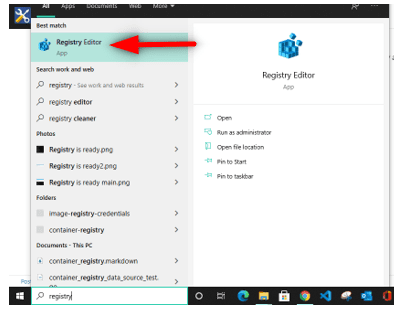
Registry-Editor
PC Registry Editor

Then, click the path with the "HKEY_LOCAL_MACHINE"

CREATING-DWORD-IN-REGISTRY
Modifying PC Registry

Next, Right-Click anywhere on the screen -> New -> DWORD (32-bit) Value as shown on the screenshot above.

Afterwards, rename the new registry with "AllowUpgradesWithUnsupportedTPMOrCPU"

Renaming-the-new-registry
Rename the New Registry

Then, modify the DWORD Value from 0 to 1 and Click Ok, and close out the registry Window
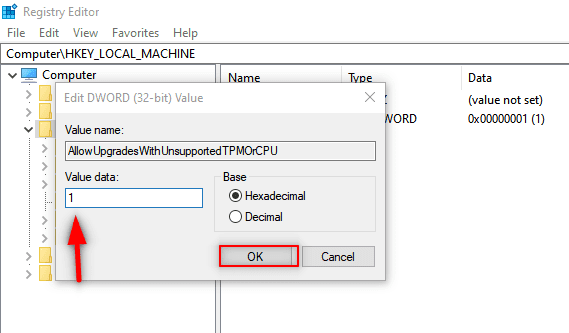
Modify-DWORD-Value

Locate Windows 11 installation media

Next, locate Windows 11 installation media under the “This PC” to run it from either a USB installation media or CD/DVD disk media
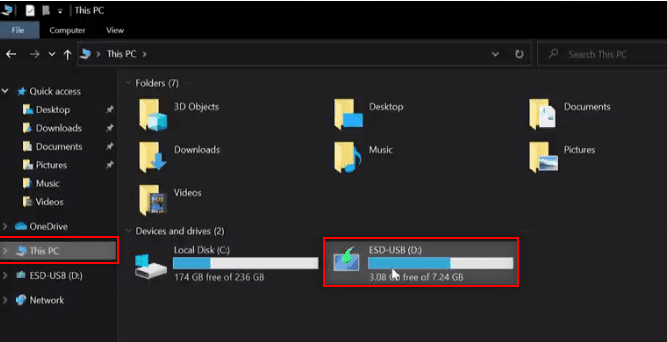
Windows-11-Installation-Media
Windows 11 Installation Media File

Then, double click to open the installation files and locate the Setup files.
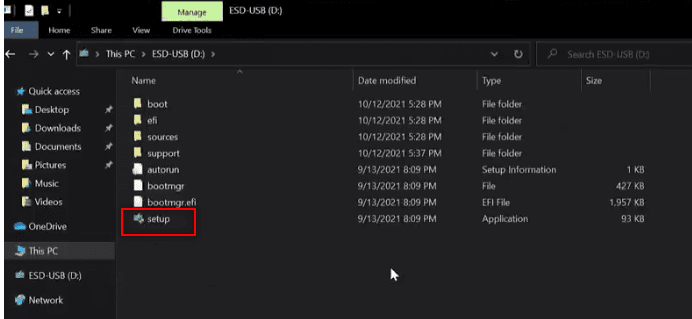
Setup-files-for-Windows-11
Windows 11 Setup Files

Wait for the installation files to get populated.

This will take to a warning screen by Microsoft stressing that your PC doesn't meet the minimum system requirements for running Windows 11. 

Furthermore, you won’t be getting security updates. So, if you are satisfied with it that way, proceed to click the "Accept" and continue with your installation.
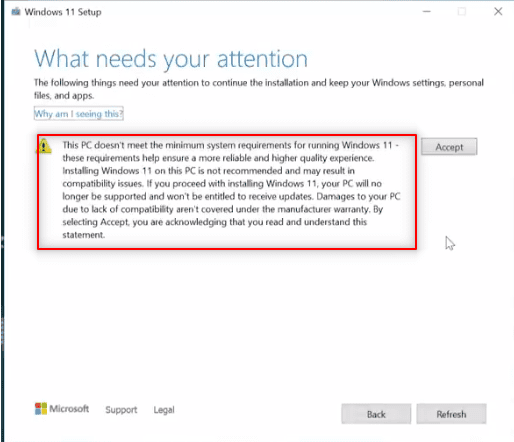
Microsoft-Warning

Security Updates Warning!

Note: Microsoft has seriously warned that if you install Windows 11 on a PC that doesn’t meet the minimum requirements your PC will no longer receive security updates!

So by this warning by Microsoft, if you go ahead with the option stated in this article you’re doing so at your own risk as Microsoft or your PC manufacturer will NOT be held responsible for any security breaches that happen to your PC!

I hope you found this article useful on upgrading from Windows 10 with Unsupported CPU and TPM 1.0. Please feel free to leave a comment below.
Rate this post

Thank you for reading this post. Kindly share it with others.

  • Click to share on X (Opens in new window) X
  • Click to share on Reddit (Opens in new window) Reddit
  • Click to share on LinkedIn (Opens in new window) LinkedIn
  • Click to share on Facebook (Opens in new window) Facebook
  • Click to share on Pinterest (Opens in new window) Pinterest
  • Click to share on Tumblr (Opens in new window) Tumblr
  • Click to share on Telegram (Opens in new window) Telegram
  • Click to share on WhatsApp (Opens in new window) WhatsApp
  • Click to share on Pocket (Opens in new window) Pocket
  • Click to share on Mastodon (Opens in new window) Mastodon
  • Click to share on Bluesky (Opens in new window) Bluesky
  • Click to share on Threads (Opens in new window) Threads
  • Click to share on Nextdoor (Opens in new window) Nextdoor
Windows Tags:TPM, Trusted Platform Module, Windows 11

Post navigation

Previous Post: Create, list, lock, deploy, and delete Azure Resource Group via Azure CLI
Next Post: Azure Virtual Networks: Preparing Azure and On-Premises Virtual Networks with Azure CLI Commands

Related Posts

  • Hide or Show User Accounts from Login Screen on Windows 10 and 11
    How to Hide or Show User Accounts from Login Screen on Windows 10 and 11 Windows
  • Featured Image 3
    How to enable Secure Boot on PC to install Windows 11 Windows
  • Block ZIPRAR Attachments in Outlook 2016 – 2007
    How to Block ZIP/RAR Attachments in Outlook Windows
  • Disable BitLocker
    How to Disable BitLocker on Windows 10 Windows
  • Best Disk Partition Manager for Mac
    How to extend System Drive Partition on Windows Windows
  • How to configure Volume Shadow Copies VSS on Windows Server
    Volume Shadow Copies: How to configure VSS on Windows Server Windows

More Related Articles

Hide or Show User Accounts from Login Screen on Windows 10 and 11 How to Hide or Show User Accounts from Login Screen on Windows 10 and 11 Windows
Featured Image 3 How to enable Secure Boot on PC to install Windows 11 Windows
Block ZIPRAR Attachments in Outlook 2016 – 2007 How to Block ZIP/RAR Attachments in Outlook Windows
Disable BitLocker How to Disable BitLocker on Windows 10 Windows
Best Disk Partition Manager for Mac How to extend System Drive Partition on Windows Windows
How to configure Volume Shadow Copies VSS on Windows Server Volume Shadow Copies: How to configure VSS on Windows Server Windows

Leave a Reply Cancel reply

You must be logged in to post a comment.

Microsoft MVP

VEEAMLEGEND

vexpert-badge-stars-5

Virtual Background

GoogleNews

Categories

veeaam100

sysadmin top30a
 
  • tredfghgfde3456578
    How to install Java Runtime Environment on Mac OS Mac
  • Enable or Disable Mac asking for Password
    Enable or Disable Mac asking for Password after Sleep or Screen Saver Mac
  • Remove Bing Chat Button from Edge Sidebar
    How to Remove Bing Chat Button from Edge Sidebar Windows
  • 5rgh65436
    New Windows 11 encryption features and security enhancements for Hybrid Work Security | Vulnerability Scans and Assessment
  • MBAM report errors
    Understanding MBAM compliance state and error status Windows
  • windows server
    How to backup and restore a Windows DHCP Server via the DHCP Manager and PowerShell Windows Server
  • windows update 03
    How to automate Windows Update with PowerShell Scripts
  • sql
    How to alter a DATABASE compatibility level Oracle/MSSQL/MySQL

Subscribe to Blog via Email

Enter your email address to subscribe to this blog and receive notifications of new posts by email.

Join 1,841 other subscribers
  • RSS - Posts
  • RSS - Comments
  • About
  • Authors
  • Write for us
  • Advertise with us
  • General Terms and Conditions
  • Privacy policy
  • Feedly
  • Telegram
  • Youtube
  • Facebook
  • Instagram
  • LinkedIn
  • Tumblr
  • Pinterest
  • Twitter
  • mastodon

Tags

AWS Azure Bitlocker Microsoft Windows PowerShell WDS Windows 10 Windows 11 Windows Deployment Services Windows Server 2016

Copyright © 2025 TechDirectArchive


Loading Comments...
 

You must be logged in to post a comment.