Skip to content

TechDirectArchive

Hands-on IT, Cloud, Security & DevOps Insights

  • Home
  • About
  • Advertise With US
  • Reviews
  • Contact
  • Toggle search form
Home » Windows » Block Upgrade to Windows 11 via Group Policy or Registry

Block Upgrade to Windows 11 via Group Policy or Registry

Posted on 14/11/202108/09/2024 Imoh Etuk By Imoh Etuk 2 Comments on Block Upgrade to Windows 11 via Group Policy or Registry
Windows10-11

In this short guide, I will show you how you can block Windows 11 upgrades through Group Policy or Windows Registry. The official release of Windows 11 by Microsoft is the latest talk in town. Yes, it’s the latest because a lot of people didn’t believe Microsoft was going to make a U-turn from their initial decision that Windows 10 would be the last Windows version for desktop Operating systems. Please see how to Harden your Veeam Backup Server with Microsoft AppLocker, and Force BitLocker Recovery: Perform BitLocker Recovery via the Self-Service Portal and Helpdesk.

So while we were sleeping Microsoft came scratching our backs. Hey guys! the plan has changed, it’s time to launch a new OS with more powerful and sophisticated features that will bring you closer to what you want.

An OS that is properly aligned with the technological needs of the modern workplace and end-users needs. With these handy features in mind, Windows 11 which was officially released on October 5, 2021, is an Operating System everyone would probably love to install and use.

The features are so amazing that you wouldn’t like to resist upgrading your Windows 10 to it but what if you choose to stay with your Windows 10 since you will still be receiving adequate security updates and support till 2025?  Microsoft has already made its point known that end users won’t be persuaded to force-upgrade their Windows 10 to Windows 11. 

So if you want to upgrade, you will have to do it manually by going from Settings > Update & Security > Windows Update but if you don’t want to upgrade, simply don’t touch the settings option of your PC. Therefore, note, you will not receive an automatic update notice from Microsoft to upgrade to Windows 11. 
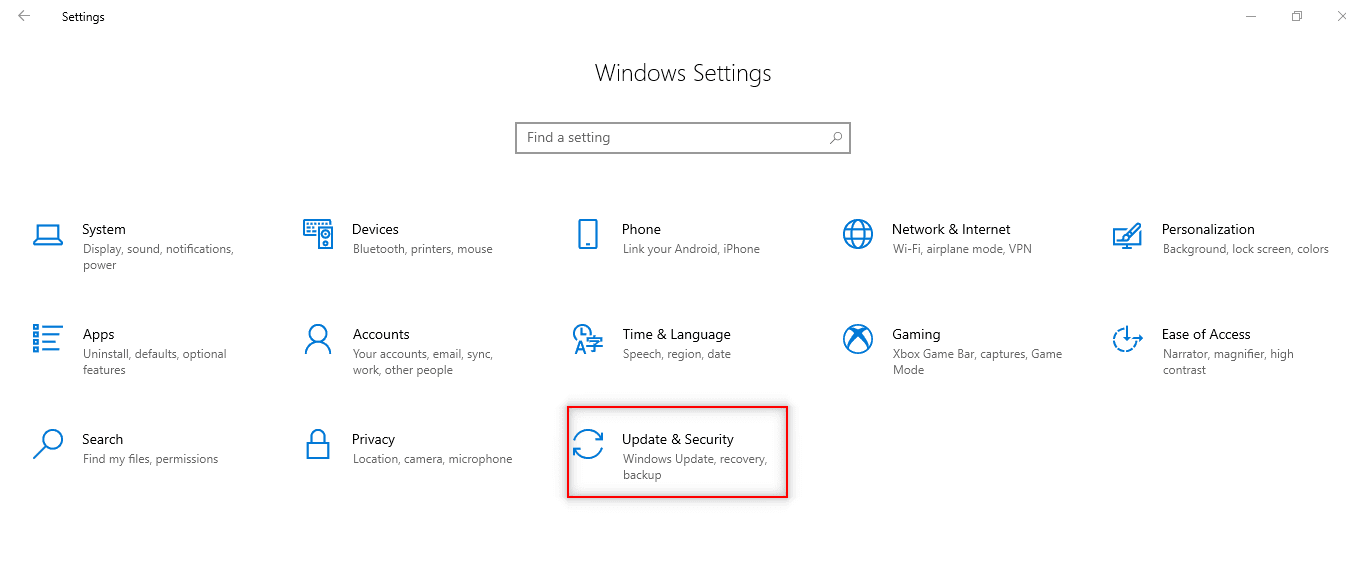
Blocking Upgrade from Windows 10-update-security

Hence, if you’re using Windows 10 Pro, Education, or Enterprise, it is possible to delay feature update installations through the method I am about to show you in the guide.

You may also be interested in reading about how to upgrade Windows 10 with an unsupported CPU and TPM 1.0 to Windows 11​, and how to fix “Failed to open session in VirtualBox to install Windows 11 Image” .

Disable Using Group Policy Editor

Press the Windows Key + R, to open the Run dialog box.
– Then, type in gpedit.msc in the Run dialog box and hit the Enter Key. This will load up and display the Group Policy Editor 

Blocking Upgrade from Windows 10-Windows 11-Screenshot-2021-11-18-at-12.31.59

Head to Local Computer Policy > Computer Configuration > Administrative Templates > Windows Components > Windows Update > Windows Update for Business

Blocking Upgrade from Windows 10-Windows 11-Screenshot-2021-11-18-at-14.02.43

Double-click on “Select the target feature update version”
– Set the policy to Enabled
– Type 21H1 into the field
– Click on “Apply” if you still wish to play on the page else,
-Click “Okay” on the fly as shown below.

21H1

Close the Group Policy Editor, and that is all you need to do via the Local Group Policy Editor.

Disable Using Registry Editor

Press the Windows Key + R, to open the Run dialog box.

Type in regedit.exe in the Run dialog box and hit the Enter Key -> This will prompt you to press “Ok” to open up the Registry Editor (You must have the Admin privileges to do this)

Hkey

Go to HKEY_LOCAL_MACHINE\SOFTWARE\Policies\Microsoft\Windows\WindowsUpdate. As you can see, this does not exist.

Hence, we have to create the WindowsUpdate key and the associated values and strings.

As you can see below, the key has been created and we can access the registry hive and find the right key.

Afterward, double click on the ProductVersion and Enter Windows 10 as the value data and click OK.

Set the Dword TargetReleaseVersion to 1. However, if the value does not exist, right-click on Windows Update, and select New > Dword (32-bit) Value.

Block Upgrade to Windows 11
Blocking Upgrade to Windows 11

Set the value of TargetReleaseVersionInfo to 21H1. Meanwhile, if the value does not exist, right-click on Windows Update, and select New > String Value as shown below.

Block Upgrade to Windows 11

When you are done, the Registry Settings should look this way.

Block Upgrade to Windows 11

See also how to Save Read-Only Files in VIM Editor in Linux/Unix-like OS, how to Stop, Remove and Name a Docker Container, and how to locate, Find, and Grep: How to search for files and patterns in Linux/Unix-like OS.

Conclusion

Note the points stated above are optional as you can choose to allow updates or block to continue to use Windows 10 since Microsoft plans to support Windows 10 through 2025.

In other words, there’s no rush to update if you’re happy with what Windows 10 currently offers. Guess you’ve learned how to block upgrade to Windows 11.

I hope you found this article on how to Block Upgrade to Windows 11 via Group Policy or Registry very useful. Please feel free to leave a comment below.
5/5 - (1 vote)

Thank you for reading this post. Kindly share it with others.

  • Share on X (Opens in new window) X
  • Share on Reddit (Opens in new window) Reddit
  • Share on LinkedIn (Opens in new window) LinkedIn
  • Share on Facebook (Opens in new window) Facebook
  • Share on Pinterest (Opens in new window) Pinterest
  • Share on Tumblr (Opens in new window) Tumblr
  • Share on Telegram (Opens in new window) Telegram
  • Share on WhatsApp (Opens in new window) WhatsApp
  • Share on Mastodon (Opens in new window) Mastodon
  • Share on Bluesky (Opens in new window) Bluesky
  • Share on Threads (Opens in new window) Threads
  • Share on Nextdoor (Opens in new window) Nextdoor
Windows Tags:Windows 10, Windows 11

Post navigation

Previous Post: How to install a software package from source file in Linux
Next Post: How to configure user resource limits and restrictions in Linux

Related Posts

  • remote desktop version and protocol
    Determine the Remote Desktop Client Version Windows
  • How to Remove Hyper V
    How to uninstall Hyper-V on a Windows PC Virtualization
  • Screenshot 2022 04 27 at 00.50.35
    How to create a BitLocker System Partition [Part 2] Windows
  • Remove Frequently Used Folders from Quick Access in Windows 11
    How to Remove Frequently Used Folders from Quick Access in Windows 11 Windows
  • MBAM roles
    Understanding Microsoft BitLocker Administration and Monitoring Roles Windows
  • certificate import and export on windows
    Export and Convert Private Keys to .PEM Format in Windows Windows

More Related Articles

remote desktop version and protocol Determine the Remote Desktop Client Version Windows
How to Remove Hyper V How to uninstall Hyper-V on a Windows PC Virtualization
Screenshot 2022 04 27 at 00.50.35 How to create a BitLocker System Partition [Part 2] Windows
Remove Frequently Used Folders from Quick Access in Windows 11 How to Remove Frequently Used Folders from Quick Access in Windows 11 Windows
MBAM roles Understanding Microsoft BitLocker Administration and Monitoring Roles Windows
certificate import and export on windows Export and Convert Private Keys to .PEM Format in Windows Windows

Comments (2) on “Block Upgrade to Windows 11 via Group Policy or Registry”

  1. Avatar photo Bright says:
    08/01/2022 at 2:20 PM

    Thanks a lot for sharing this post as it has been very helpful.

    Log in to Reply
    1. E Imoh1 Imoh Etuk says:
      13/01/2022 at 3:58 PM

      Hi @Bright, I’m glad that you found this post helpful. Keep exploring the blog for more helpful articles. Cheers!

      Log in to Reply

Leave a Reply Cancel reply

You must be logged in to post a comment.

Microsoft MVP

VEEAMLEGEND

vexpert-badge-stars-5

Virtual Background

GoogleNews

Categories

veeaam100

Veeam Vanguard

  • Certificate does not contain the private key
    Server Certificate could not be updated: Private key does not match Windows Server
  • feature image app services
    How to Migrate Azure Web Apps AWS/Azure/OpenShift
  • images
    How to perform vulnerability scan on Microsoft SQL Server Security | Vulnerability Scans and Assessment
  • Harica cert request and CSR
    Generate CSR and Request a Certificate from Herica CA Windows
  • settings app not working featured 800x400 1
    How to save and stop modification to Microsoft Management Console Windows
  • VBR upgrade
    Upgrade Veeam Backup and Replication to version 12.2 Backup
  • Screenshot 2021 04 03 at 18.30.29
    Setup Windows server backup and create backup jobs with Bare metal backup Backup
  • SASS in VsCode
    How to Install SASS on VsCode Scripts

Subscribe to Blog via Email

Enter your email address to subscribe to this blog and receive notifications of new posts by email.

Join 1,819 other subscribers
  • RSS - Posts
  • RSS - Comments
  • About
  • Authors
  • Write for us
  • Advertise with us
  • General Terms and Conditions
  • Privacy policy
  • Feedly
  • Telegram
  • Youtube
  • Facebook
  • Instagram
  • LinkedIn
  • Tumblr
  • Pinterest
  • Twitter
  • mastodon

Tags

Active Directory Azure Bitlocker Microsoft Windows PowerShell WDS Windows 10 Windows 11 Windows Deployment Services Windows Server 2016

Copyright © 2025 TechDirectArchive


Loading Comments...
 

You must be logged in to post a comment.