Docker Engine Installation on Ubuntu


Docker is an increasingly popular containerized software package that helps organizations and individuals create an isolated runtime environment for their applications. Developing in Docker speeds up applications, as it shares the kernel and other resources, instead of requiring dedicated server resources as is the case of Virtual Machines. In this article, we shall discuss Docker Engine Installation on Ubuntu. Please see Azure DevOps and GitHub integration for Docker and Kubernetes deployment, how to create a static pod in Kubernetes, and how to install, register and start GitLab Runner on Windows.
There are two versions of Docker, they are Docker CE (Community Edition) and Docker EE (Enterprise Edition). Meanwhile, if you have a small-scale project, or you’re just learning, you will want to use Docker CE.
In this tutorial, I will show you how to install Docker on Ubuntu. To learn how to install Docker Desktop on Windows using Windows Subsystem for Linux, see the guide on how to Pull your first Nginx Container Image from Docker Hub and deploy it to your local machine and,how to create and deploy a local Registry Server with Docker Image.Prerequisites
To install Docker engine, you need either Ubuntu Impish 21.10, Ubuntu Hirsute 21.04, Ubuntu Focal 20.04 (LTS) or Ubuntu Bionic 18.04 (LTS) – Docker Engine is supported on x86_64 (or amd6), armhf, arm64, and s390x architectures
A user account with sudo privileges. Command-line/terminal (CTRL-ALT-T or simply launch it from the favorites tab). Docker software repositories (optional)
Kindly refer to these related guides: How to create and deploy a local Registry Server with Docker Image, how to Pull your first Nginx Container Image from Docker Hub and deploy it to your local machine,
Option 1: Install Docker Engine on Ubuntu Using Default Repositories
Step 1: Update Software Repositories
Before you get started with installing Docker Engine on Ubuntu, it is ideal to update the local database of software to make sure you’ve got access to the latest revisions. You may also want to see this guide: How to install and uninstall Docker Desktop on Windows 10 and Windows Server.
Open a terminal window and type:
$sudo apt-get updateThen, ensure you allow the operation to complete.
Step 2: Uninstall Old Versions of Docker
Next, it is recommended to uninstall any old Docker software before proceeding.
– Use the command:
$sudo apt-get remove docker docker-engine docker.io
Step 3: Install Docker on Ubuntu
To install Docker on Ubuntu, in the terminal window enter the command:
$sudo apt install docker.io
Afterward, wait for all the dependencies to finish downloading and installing.
Step 4: Start and Automate Docker
The Docker service needs to be set up to run at startup. To do so, input the following commands sudo systemctl start docker and sudo systemctl enable docker into the terminal and press enter.
Step 5 (Optional): Check Docker Engine
To verify the installed Docker version number, enter:
$docker --version
Option 2: Install Docker Engine from Official Repository
Step 1: Update Local Database
Update the local database with the command:
$sudo apt-get updateStep 2: Download Dependencies
You’ll need to run these commands to allow your operating system to access the Docker repositories over HTTPS.
So, in the terminal window, type:
$sudo apt-get install apt-transport-https ca-certificates curl software-properties-commonTo fully understand the command above, here’s a brief breakdown of it:
- apt-transport-https: Allows the package manager to transfer files and data over https
- ca-certificates: Allows the system (and web browser) to check security certificates
- curl: This is a tool for transferring data
- software-properties-common: Adds scripts for managing software
Step 3: Add Docker’s GPG Key
The GPG key is a security feature. To ensure that the software you’re installing is authentic, enter the following:
$curl -fsSL https://download.docker.com/linux/ubuntu/gpg | sudo apt-key add –
To install the Docker repository, enter the command below:
Step 4: Install the Docker Engine
$sudo add-apt-repository "deb [arch=amd64] https://download.docker.com/linux/ubuntu $(lsb_release -cs) stable“The command “$(lsb_release –cs)” scans and returns the codename of your Ubuntu installation – in my our case, it’s Bionic because we are running Ubuntu 18.04.2 LTS. Also, the final word of the command – stable– is the type of Docker release.
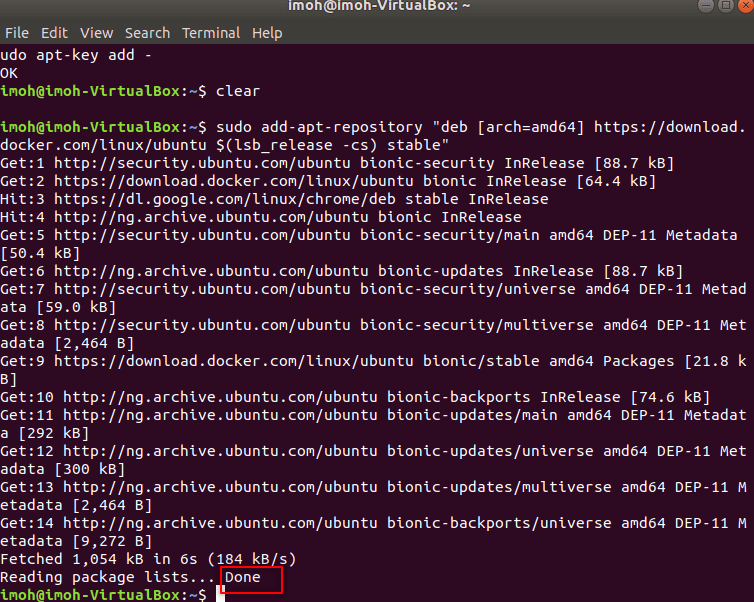
A stable release is tested and confirmed to work, but updates are released less frequently. You may substitute edge if you’d like more frequent updates, at the cost of potential instability. There are other repositories, but they are riskier – more info can be found on the Docker web page.
Step 5: Update Repositories.
So, update the repositories you just added:
$sudo apt-get update
Step 6: Install the Latest Version of Docker Engine
To install the latest version of docker:
$sudo apt-get install docker-ce
Step 7 (Optional): Install Specific Version of Docker Engine
List the available versions of Docker by entering the following in a terminal window:
$apt-cache madison docker-ceThe system should return a list of available versions as in the image above. At this point, type the command:
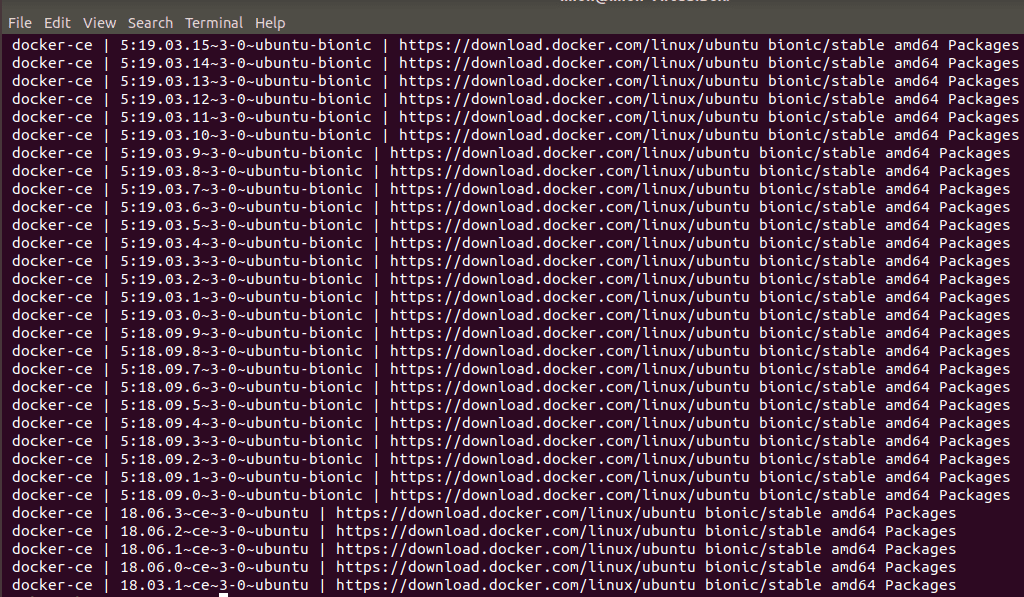
However, substitute [version] for the version you want to install (pulled from the list you just generated). For example:
Option 3: Install Docker from a .deb Package
You can also install Docker manually by downloading the Docker .deb file.
- First, navigate to the Docker download page.
- Next, click on the pool link, then stable, then amd64. This is the location of the stable Docker releases for Ubuntu 18.04
- Click on the Docker engine you want to install and the .deb package downloads automatically. However, make a note of the path where you saved it.
- To install Docker, run the following command (using the path of the downloaded Docker package):
$sudo dpkg -i /path/to/docker.package.deb
Allow the installer to run.
Option 4: Install Docker from a Convenience Script
For installing edge or testing versions of Docker, you can use convenience scripts. This method should not be used in production environments or if you already have another version of Docker installed on your system. Make sure to inspect the scripts before downloading and running them on your system.
Install Docker Engine – Community
To install the latest Docker engine, use the get.docker.com script by running the following command:
$curl -fsSL https://get.docker.com -o get-docker.shThen, run the script to start the installation:
$sh get-docker.shSoon, the Docker service will start automatically.
Install Docker Testing Version
To install the latest testing version of Docker, use the test.docker.com script:
$curl -fsSL https://test.docker.com -o test-docker.shAfter that, start the installation by running the command:
$sh test-docker.shGreat job! You’ve got four (4) different options for installing Docker on Ubuntu
I hope you found this article useful on Docker Engine Installation on Ubuntu. Please feel free to leave a comment below.