Skip to content

TechDirectArchive

  • Home
  • About
  • Advertise With US
  • Reviews
  • Contact
  • Toggle search form
Home » Windows Server » How to install NFS Server on Windows Server
  • Migrate RDS CALs
    How to Migrate RDS CALs Windows
  • images 5 1
    How to access MySQL Server from command Prompt Oracle/MSSQL/MySQL
  • image 26
    Add an EBS volume to AWS EC2 via the AWS Console and CLI AWS/Azure/OpenShift
  • Prevent Standard Users from Changing BitLocker Password
    How to Prevent Standard Users from Changing BitLocker Password Windows
  • trip wire feature
    How to install and configure Tripwire on Ubuntu Linux
  • Install Lets Encrypt Certificate on Windows with Certbot
    Install Lets Encrypt Certificate on Windows with Certbot Web Server
  • bannerr
    How to Disable Driver Signature Enforcement in Windows 11 Windows
  • Screenshot 2020 08 28 at 12.51.10
    The service could not be started either because it is disabled or because it has no enabled devices associated with it Windows Server

How to install NFS Server on Windows Server

Posted on 24/11/202123/10/2024 Imoh Etuk By Imoh Etuk No Comments on How to install NFS Server on Windows Server
Configure-NFS-on-Windows-Server

In this guide, we will install the NFS Server on Windows Server. NFS stands for Network File System and these steps also apply to Windows Server 2022, Windows Server 2019, Windows Server 2016, Windows Server 2012 R2, and Windows Server 2012. Nevertheless, you are free to use any version of Windows Server. In this article, we shall discuss Network File System: How to install NFS Server on Windows Server. Please see how to ,Restrict the number of tabs a user can open in Chrome and Edge, and How to create Synology Snapshot Replication.

Furthermore, NFS is an efficient way to share a directory with other client machines in your organization. You can use it as a central repository that can be mounted to clients so they are able to access similar files as though they were part of the system.

Note: Network File System (NFS) provides a file-sharing solution that lets you transfer files between computers running Windows Server and UNIX operating systems using the NFS protocol. This topic describes the steps you should follow to deploy NFS.

Please see how to fix “Failed to open session in VirtualBox to install Windows 11 Image” and how to install and upgrade Docker Engine from binaries on Windows Server.

Setup Network File System

To get the NFS setup, we will do the following:

  1. First Launch the Server Manager.
  2. Then the Role-based
  3. Choose NFS Server (Host)
  4. Select Server Roles
  5. Features
  6. Confirm and Install
  7. How to Connect to NFS Server on Windows Server NFS Server’s Share using umount.exe
  8. Confirm the share in File Manager

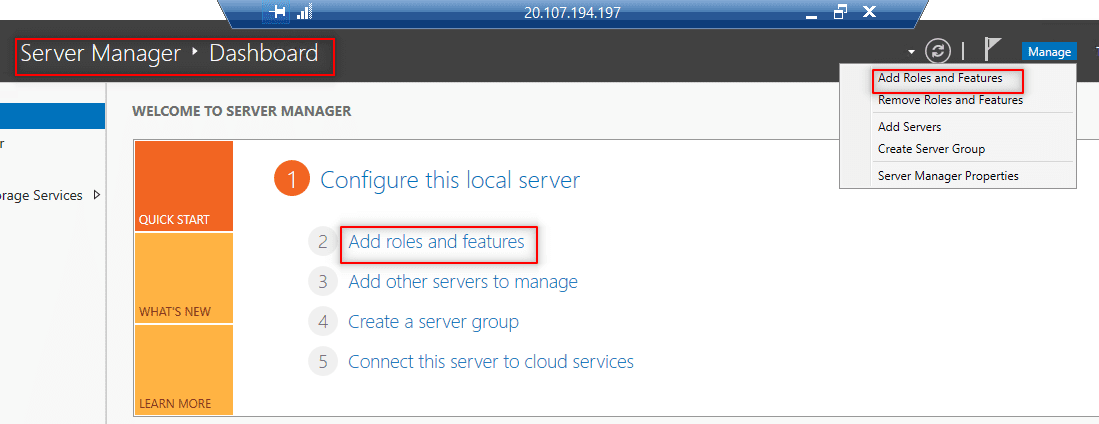
Firstly, Launch Server Manager. Click on Add Roles and Features and click Next on the wizard.
Server-Manager
Server Manager Dashboard Windows Server

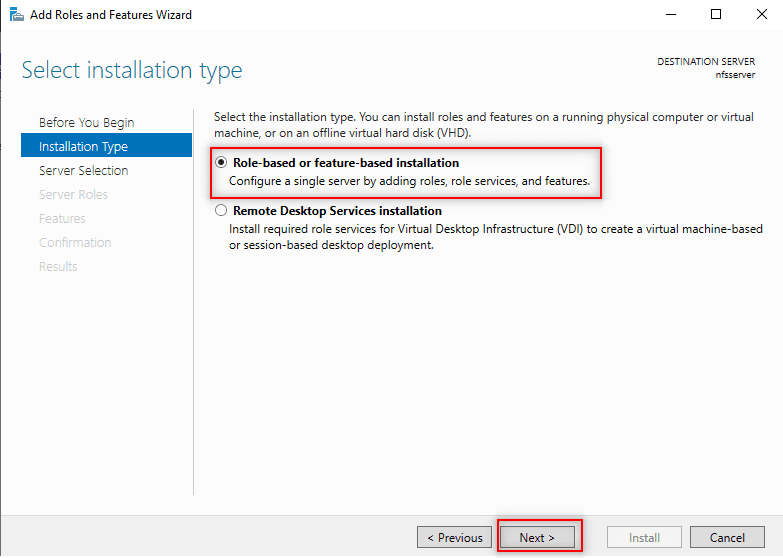
2. Secondly, on the Select Installation type page. Select Role-based or feature-based installation and click Next.
Roles-Based
Role-Based or Feature-based

3. Thirdly, select the server or host you will like to install NFS on. Then click Next. Our Server or the hostname is nfsserver from the screenshot below.

Select-the-host-server
Select Destination NFS Server or Host on Windows Server

You also check out the following guides: How to block upgrade to Windows 11 through Local Group Policy or Registry Editor from Windows 10, how to upgrade Windows 10 with an unsupported CPU and TPM 1.0 to Windows 11​.

Select Server for NFS Role

4. Fourthly, in this Select Server roles part, expand the File and Storage Services options. Select File and iSCSI Services. Ensure the server for NFS is selected as highlighted below in the screenshot click Next.

Select-Server-for-NFS
Select Server Roles

5. Also, in this Select the features page, check the Client for NFS box. Then click Next.

Clients-for-NFS
Clients for NFS

6. Also, confirm and install – Confirm your installation selections and click on install to install on the NFS Server.

Confirmation-page
Confirm NFS Installation

NFS Server Role installed

Let it finish installing then click Close and you will have finished the NFS Client installation process.

Close-it-now
Installation Complete

7. When Installation is complete. You may now click the close button and do nothing more!

Finally, with the help of this ultimate guide, we’ve been able to install the NFS Server on a Windows Server.

5/5 - (1 vote)

Thank you for reading this post. Kindly share it with others.

  • Click to share on X (Opens in new window) X
  • Click to share on Reddit (Opens in new window) Reddit
  • Click to share on LinkedIn (Opens in new window) LinkedIn
  • Click to share on Facebook (Opens in new window) Facebook
  • Click to share on Pinterest (Opens in new window) Pinterest
  • Click to share on Tumblr (Opens in new window) Tumblr
  • Click to share on Telegram (Opens in new window) Telegram
  • Click to share on WhatsApp (Opens in new window) WhatsApp
  • Click to share on Pocket (Opens in new window) Pocket
  • Click to share on Mastodon (Opens in new window) Mastodon
  • Click to share on Bluesky (Opens in new window) Bluesky
  • Click to share on Threads (Opens in new window) Threads
  • Click to share on Nextdoor (Opens in new window) Nextdoor
Windows Server Tags:Windows Server 2016

Post navigation

Previous Post: Azure Storage: How to create Blob Storage and upload files
Next Post: How to create and configure a Shared Folder on Windows Server

Related Posts

  • hero windowsadmincenter
    Failed to create a scheduled task: There is no disconnected command associated with the runspace Windows Server
  • cv
    Add languages to Windows images using DISM and PowerShell Windows Server
  • banner 1
    How to fix Windows Microsoft Store not opening Windows
  • How to visualize MBAM Recovery Audit Report with Python
    Visualize MBAM Recovery Audit Report with Python Automation
  • MBAM Replacement
    MBAM extended support ends April 2026: Find alternative solution Security | Vulnerability Scans and Assessment
  • update
    Client Visibility Issues: Fix WSUS Clients appear then disappear in the console Windows Server

More Related Articles

hero windowsadmincenter Failed to create a scheduled task: There is no disconnected command associated with the runspace Windows Server
cv Add languages to Windows images using DISM and PowerShell Windows Server
banner 1 How to fix Windows Microsoft Store not opening Windows
How to visualize MBAM Recovery Audit Report with Python Visualize MBAM Recovery Audit Report with Python Automation
MBAM Replacement MBAM extended support ends April 2026: Find alternative solution Security | Vulnerability Scans and Assessment
update Client Visibility Issues: Fix WSUS Clients appear then disappear in the console Windows Server

Leave a Reply Cancel reply

You must be logged in to post a comment.

VEEAMLEGEND

vexpert-badge-stars-5

Virtual Background

GoogleNews

Categories

veeaam100

Microsoft MVP

  • Migrate RDS CALs
    How to Migrate RDS CALs Windows
  • images 5 1
    How to access MySQL Server from command Prompt Oracle/MSSQL/MySQL
  • image 26
    Add an EBS volume to AWS EC2 via the AWS Console and CLI AWS/Azure/OpenShift
  • Prevent Standard Users from Changing BitLocker Password
    How to Prevent Standard Users from Changing BitLocker Password Windows
  • trip wire feature
    How to install and configure Tripwire on Ubuntu Linux
  • Install Lets Encrypt Certificate on Windows with Certbot
    Install Lets Encrypt Certificate on Windows with Certbot Web Server
  • bannerr
    How to Disable Driver Signature Enforcement in Windows 11 Windows
  • Screenshot 2020 08 28 at 12.51.10
    The service could not be started either because it is disabled or because it has no enabled devices associated with it Windows Server

Subscribe to Blog via Email

Enter your email address to subscribe to this blog and receive notifications of new posts by email.

Join 1,843 other subscribers
  • RSS - Posts
  • RSS - Comments
  • About
  • Authors
  • Write for us
  • Advertise with us
  • General Terms and Conditions
  • Privacy policy
  • Feedly
  • Telegram
  • Youtube
  • Facebook
  • Instagram
  • LinkedIn
  • Tumblr
  • Pinterest
  • Twitter
  • mastodon

Tags

AWS Azure Bitlocker Microsoft Windows PowerShell WDS Windows 10 Windows 11 Windows Deployment Services Windows Server 2016

Copyright © 2025 TechDirectArchive


Loading Comments...
 

You must be logged in to post a comment.