Skip to content

TechDirectArchive

Hands-on IT, Cloud, Security & DevOps Insights

  • Home
  • About
  • Advertise With US
  • Reviews
  • Contact
  • Toggle search form
Home » Windows » Download your MySQL database from Azure to a local PC with MySQL Workbench


Download your MySQL database from Azure to a local PC with MySQL Workbench

Posted on 14/12/202108/04/2023 Temitope Odemo By Temitope Odemo No Comments on Download your MySQL database from Azure to a local PC with MySQL Workbench
image-19

MySQL Database is a database service that you can run on your local server. And can also be on a cloud platform like Azure and AWS. MySQL is free to download. It can be used by both small and big corporate organizations to make use of structured query language (SQL). It has some advanced features and support is always available for any issues. The data in a MySQL database are structured and stored in tables. The table is a collection of related data, and it consists of columns and rows. MySQL Workbench is a visual database design tool that you can use to integrate SQL development, administration, database design, creation and maintenance into one integrated development environment (IDE). In this article, you will learn how to download your MySQL database from Azure to a local PC with MySQL Workbench.

Download your MySQL database from Azure to a local PC with MySQL Workbench

Firstly, you would need to download both MySQL Database and MySQL Workbench from https://dev.mysql.com/downloads and install them. Please see some exciting articles, How to delete a MySQL User Account. And how to Deploy WordPress on Azure App Service: How to install MySQL to work with Azure Database.

Launch the MySQL Workbench

After installing go ahead and launch the MySQL Workbench. For a related guide on MySQL read these articles. How to fix there is no connection to the MySQL Server, How to reset Mysql Root password. How to create and delete MySQL database, and how to access MySQL Server from command Prompt.

image-11
Workbench Connect to Database

Enter a name in the Stored Connection text box, and leave the connection method on Standard (TCP/IP).

Connect to the Azure Database for MySQL.

To get the Hostname, Username. Log in to your Azure account and click on Azure Database for MySQL. Then click on the MySQL database you want to connect to.
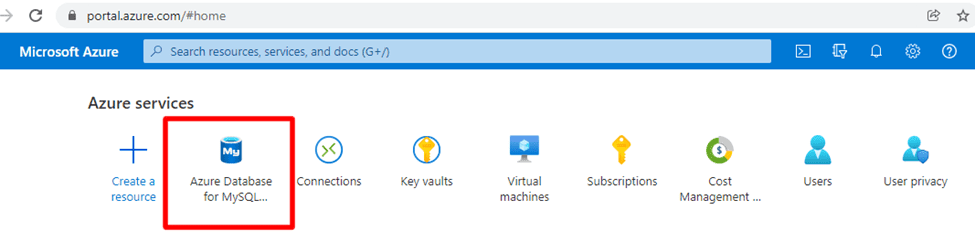
image-12
Microsoft Azure Portal

Copy the Server name and paste in the Hostname text field. Copy the Server admin login name and paste into the Username text field.

Click on the Connection security menu on the left. And add your system IP to be allowed access to Azure services.

image-13
Azure Database for MySQL server

Enter the password to access your database on Azure by clicking on the button Store in Vault

image-14
Inserting your Password

Input your valid password and click OK
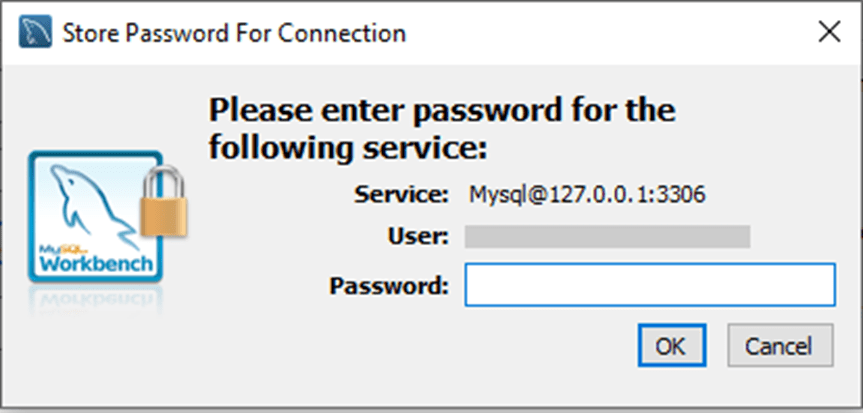
image-15
Store Password for Connection

If all goes well and you supplied valid credentials. Then you should be able to connect to your Azure MySQL Database.

Display the list of MySQL Databases

On the Query panel type show databases to display all the databases that exist.

image-16
MySQL Workbench

Export your Database

To start downloading or exporting your database. Click on Data Export. In the drop-down, you can select Dump Structure and Data. In the Objects to Export section, you can decide to check all.

Select the destination where you want your database to be located locally. And the method you want is either Export to Dump Project Folder or Export to Self-Contained File.

After all these click on Start Export.

image-17
Data Export

After all these click on Start Export and you will have your MySQL Database locally exported in no time.
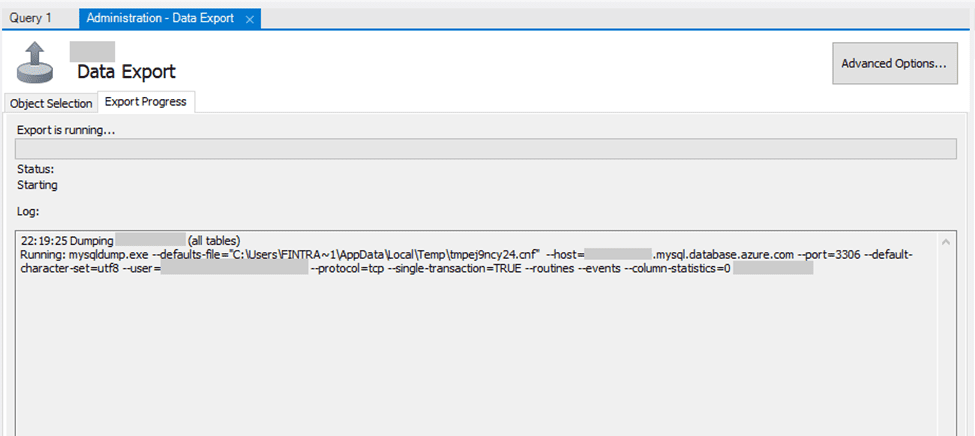
image-18
Data Export

I hope you found this blog post on how to download your MySQL database from Azure to a local PC with MySQL Workbench helpful. In case you have any questions do not hesitate to ask in the comment section.

Rate this post

Thank you for reading this post. Kindly share it with others.

  • Share on X (Opens in new window) X
  • Share on Reddit (Opens in new window) Reddit
  • Share on LinkedIn (Opens in new window) LinkedIn
  • Share on Facebook (Opens in new window) Facebook
  • Share on Pinterest (Opens in new window) Pinterest
  • Share on Tumblr (Opens in new window) Tumblr
  • Share on Telegram (Opens in new window) Telegram
  • Share on WhatsApp (Opens in new window) WhatsApp
  • Share on Mastodon (Opens in new window) Mastodon
  • Share on Bluesky (Opens in new window) Bluesky
  • Share on Threads (Opens in new window) Threads
  • Share on Nextdoor (Opens in new window) Nextdoor
AWS/Azure/OpenShift, Oracle/MSSQL/MySQL, Windows, Windows Server Tags:Azure, Database, MySQL, MySQL database, MySQL-server

Post navigation

Previous Post: How to use Microsoft SQL Server Management Studio to Export and Import your MsSQL database from Azure to local computer
Next Post: How to Fix “Insufficient System Resources Exist to Complete the Requested Service” error

Related Posts

  • How to Lock the Find My Device Option in Windows 11
    How to Lock the Find My Device Option in Windows 11 Windows
  • Featured image   Dark mode
    How to enable dark theme in Windows 11 Windows
  • VRAM on Windows 1
    Check the Size of Video Random Access Memory (VRAM) in Windows Windows
  • SQL EvaluationExpired
    Windows could not start the SQL Server service on local computer 17051: A network-related or instance-specific error occurred while establishing a connection to SQL Server Oracle/MSSQL/MySQL
  • sandbox
    How to Configure Windows Sandbox Virtualization
  • FileNotFoundError Errno 2 No such file or directory
    Fix FileNotFoundError: [Errno 2] No such file or directory Scripts

More Related Articles

How to Lock the Find My Device Option in Windows 11 How to Lock the Find My Device Option in Windows 11 Windows
Featured image   Dark mode How to enable dark theme in Windows 11 Windows
VRAM on Windows 1 Check the Size of Video Random Access Memory (VRAM) in Windows Windows
SQL EvaluationExpired Windows could not start the SQL Server service on local computer 17051: A network-related or instance-specific error occurred while establishing a connection to SQL Server Oracle/MSSQL/MySQL
sandbox How to Configure Windows Sandbox Virtualization
FileNotFoundError Errno 2 No such file or directory Fix FileNotFoundError: [Errno 2] No such file or directory Scripts

Leave a Reply Cancel reply

You must be logged in to post a comment.

Microsoft MVP

VEEAMLEGEND

vexpert-badge-stars-5

Virtual Background

GoogleNews

Categories

veeaam100

sysadmin top30a

  • homebrew social card
    Package Manager for macOS: How to install Homebrew on macOS Mac
  • Featured image Unblock Microsoft Store
    How to Unblock Microsoft Store on Windows 11 Windows
  • Configure Synology DS923+ NAS for File Sharing
    How to Configure Synology DS923+ NAS for File Sharing [Part 2] Reviews
  • Uninstall MicrosoftDefenderUpdate
    What you need to know about Microsoft Defender Antivirus Security | Vulnerability Scans and Assessment
  • header picture
    Creating and Deploying Docker Registry Using Docker Image AWS/Azure/OpenShift
  • proxmox ve 6.1 released
    Installing Proxmox VE: Fix Volume Group Creation Error Virtualization
  • How to Decrypt Files and Folders Encrypted with EFS in Windows 10
    How to decrypt Files and Folders Encrypted with an Encryption File System (EFS) in Windows Windows
  • Untitled Design 25
    Setup Hyper-V via the Server Manager or PowerShell or DISM Virtualization

Subscribe to Blog via Email

Enter your email address to subscribe to this blog and receive notifications of new posts by email.

Join 1,825 other subscribers
  • RSS - Posts
  • RSS - Comments
  • About
  • Authors
  • Write for us
  • Advertise with us
  • General Terms and Conditions
  • Privacy policy
  • Feedly
  • Telegram
  • Youtube
  • Facebook
  • Instagram
  • LinkedIn
  • Tumblr
  • Pinterest
  • Twitter
  • mastodon

Tags

AWS Azure Bitlocker Microsoft Windows PowerShell WDS Windows 10 Windows 11 Windows Deployment Services Windows Server 2016

Copyright © 2025 TechDirectArchive


Loading Comments...
 

You must be logged in to post a comment.