Understanding Microsoft BitLocker Administration and Monitoring Roles


Microsoft BitLocker Administration and Monitoring (MBAM) provides a simplified administrative interface that you can use to manage BitLocker drive encryption. In this article, we shall discuss “Microsoft BitLocker Administration and Monitoring Roles”. You can also report on the encryption status of an individual computer and on the entire enterprise. Please see MBAM Frequent Report Errors: Understanding Microsoft BitLocker Administration and Monitoring compliance state and error status.
As part of the prerequisites, you must define certain roles and accounts that are used in MBAM to provide security and access rights to specific servers and features. Such as the databases that are running on the instance of SQL Server and the web applications that are running on the Administration and Monitoring Server.
Kindly refer to the following guide: How to fix you are not allowed to view this folder on SSRS, how to correctly disable Microsoft BitLocker Administration and Monitoring encrypted devices, and how to hide the Default BitLocker Drive Encryption item in the Windows Control Panel.
Note: Once the installation of Microsoft BitLocker Administration and Monitoring (MBAM) concludes for all server features, administrative users should receive access to these features.
Users and Groups created in Active Directory to support MBAM installation
For optimal practice, assign administrators to Active Directory security groups. Then, add these groups to the relevant MBAM administrative local group. This ensures efficient management of MBAM server features.
We established the subsequent groups and users within Active Directory. Users do not have to have greater user rights. A domain user account is sufficient. You’ll have to specify the name of these groups during the configuration of MBAM 2.5.
Below are the created service accounts and security groups. Service Accounts (users) do not need to have greater user rights.

Once the Microsoft BitLocker Administration and Monitoring (MBAM) Setup concludes, all server features are ready. Now, we can grant access to these features for administrative users.
For optimal practice, administrators handling Microsoft BitLocker Administration and Monitoring Server features ought to join Domain Services security groups.
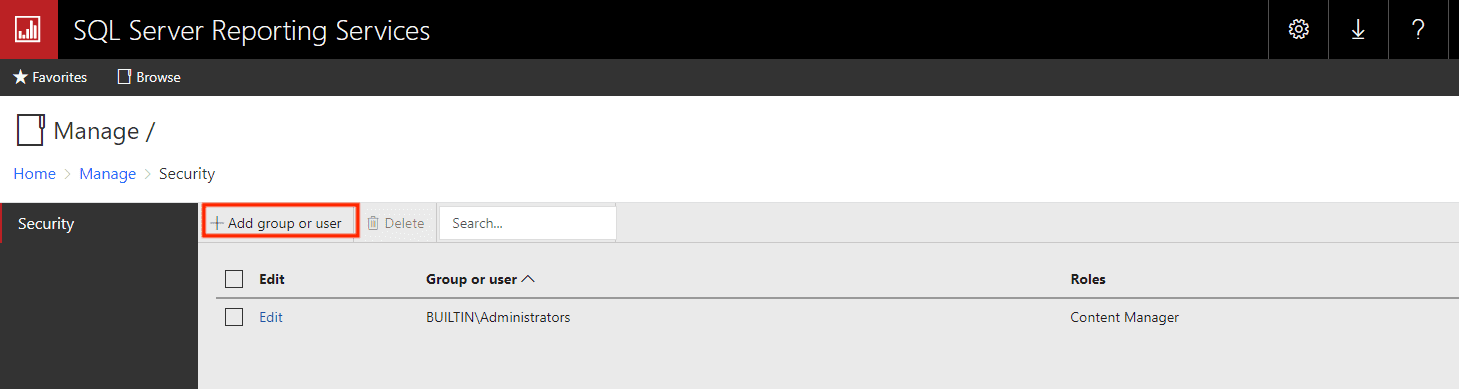
Next, ensure the inclusion of these groups in the appropriate MBAM administrative local group. This approach surpasses directly adding users to SSRS Users/Groups for MBAM report administration, as depicted in the image.
You are free to use any name of your choice. The image above and the table below illustrate my usage of descriptive names for clear identification within my Lab environment. You are free to use the name you like or as documented in the Microsoft guide.
Also, see how to check if Microsoft BitLocker Administration and Monitoring (MBAM) is installed on Windows and Unable to install Microsoft Bitlocker Administration: Uninstall your current version of MBAM and run setup again.
Example of Description Names to use within Lab Environment
| Name | SA/ SG | Description |
| MBAM-RO-SVC | User Account | Read-only service account: Domain user group whose members have read-only access to the reports in the Reports area of the Administration and Monitoring Website |
| MBAM-RW-SVC | User Account | Read/write service account |
| MBAM-IISAP-SVC | User Account | IIS application pool service account: Domain user account to be used by the application pool for the web applications. The same account also used to Configure Databases page. |
| MBAM Helpdesk Users | Security Group | Members of this group are granted read-only access to the helpdesk portal |
| MBAM Advanced Helpdesk Users | Security Group | Members of this group are provided with helpdesk access without the need to specify user and computer details for recovery |
| MBAM Report Users | Security Group | Members of this group have access to the MBAM SSRS reports |
| MBAM Database Read-Only | Security Group | Security Group for adding Read-Only DB members |
| MBAM Database Read-Write | Security Group | Security Group for adding Read-Write DB members |
The image below illustrates how we added these accounts and groups to the MBAM (SQL) Server, supporting MBAM deployment. In the post-installation of SQL Server, make sure that you provide the user accounts in SQL Server.
You can allocate permissions to users or groups responsible for setting up the MBAM database and reporting roles on the server. These same prerequisites also apply to the compliance and audit database.

To manage MBAM Administrator Role memberships
These roles are vital for the installation of MBAM features and the post-installation of MBAM features as well.
Kindly refer to this guide on Deploy MBAM. Also, see how these roles were used in the installation of the MBAM MBAM/features. On the Administration and Monitoring Server, add users to the following local groups to give them access to the MBAM Help Desk website features:
- MBAM Helpdesk Users: Members of this local group can access the Drive Recovery and Manage TPM features on the MBAM Administration and Monitoring website. A Helpdesk User must complete all fields in Drive Recovery and Manage TPM as they are all mandatory.
- MBAM Advanced Helpdesk Users: Members of this local group have advanced access to the Drive Recovery and Manage TPM features on the MBAM Administration and Monitoring website. Advanced Helpdesk Users need to fill only the Key ID field in Drive Recovery. For Manage TPM, only the “Computer Domain” and “Computer Name” fields are obligatory.
On the Administration and Monitoring Server. Add users to the following local group to enable them to access the Reports feature on the MBAM Administration and Monitoring website:
- MBAM Report Users: Members of this local group can access the Reports features on the MBAM Administration and Monitoring website. The image below illustrates how the installation of MBAM reports utilizes this group.

I hope you found this blog post on Microsoft BitLocker Administration and Monitoring Roles helpful. If you have any questions, please let me know in the comment session.





The Content is very useful.
I want a suggestion from you regarding MBAM,
We have MBAM application which is Upgraded from Windows 2012 R2 Data Center to Windows 2019 Data Center, and it is linked to SQL database which in running on Windows 2012 R2, our MBAM application is not working after the upgradation, Will there be any problem with these version difference or this is the only reason behind not working of MBAM application.
Thank you for your kind comment. Do you have also the servicing updates installed?
Yes, servicing updates are installed
Not sure if this issue still persists. If it does, I would advise you to share the error messages with me. Please take a look at this: MBAM for BitLocker Administration setup.