Skip to content

TechDirectArchive

Hands-on IT, Cloud, Security & DevOps Insights

  • Home
  • About
  • Advertise With US
  • Reviews
  • Contact
  • Toggle search form
Home » Windows » How to Fix Windows Error 0x80070057
  • yarnfinalfeature
    How to Install and Uninstall Yarn on Ubuntu Linux Linux
  • screenshot 2020 02 07 at 21.59.33
    Prerequisites for setting up a Single and Multi App Kiosk Windows
  • feature linux boot process
    Linux Boot Process Explained Step by Step for Beginners Linux
  • GNS 3
    Graphical Network Simulator: How to uninstall GNS3 in Windows Windows
  • You are currently signed in as
    How to fix “You are currently signed in as: Use a different account-this account is managed by your organisation” Microsoft Exchange/Office/365
  • windowsztrf
    Microsoft Desktop Optimization Pack [MDOP] at a glance Windows
  • Featured image System Tray icons
    How to Fix System Tray Icons not showing in Taskbar on Windows 11 Windows
  • Veeam Virtual Appliance for Backup and Restore
    How to setup Veeam Software Appliance v13 Backup

How to Fix Windows Error 0x80070057

Posted on 13/02/202223/08/2023 Temitope Odemo By Temitope Odemo No Comments on How to Fix Windows Error 0x80070057
Error 0x80070057 prompt on Windows setup

This error 0x80070057 is another Windows error that is no longer strange to every Windows user. From the reigning days of Windows XP till now this issue has persisted and is never an error that cannot be fixed. In this guide we will be showing you a few steps that you can take to bring this error to a halt. How to fix the issue “The Security Database on the Server does not have a Computer Account for this Workstation Trust Relationship” on Windows Server [Part 2], How to Quickly Fix Windows Search Bar Not Working, How to fix the issue “The remote session was disconnected because there are no Remote Desktop License Servers available to provide a license”, How to Fix “Insufficient System Resources Exist to Complete the Requested Service” error, Connecting Windows to printer failed: Error 0x000004f8.
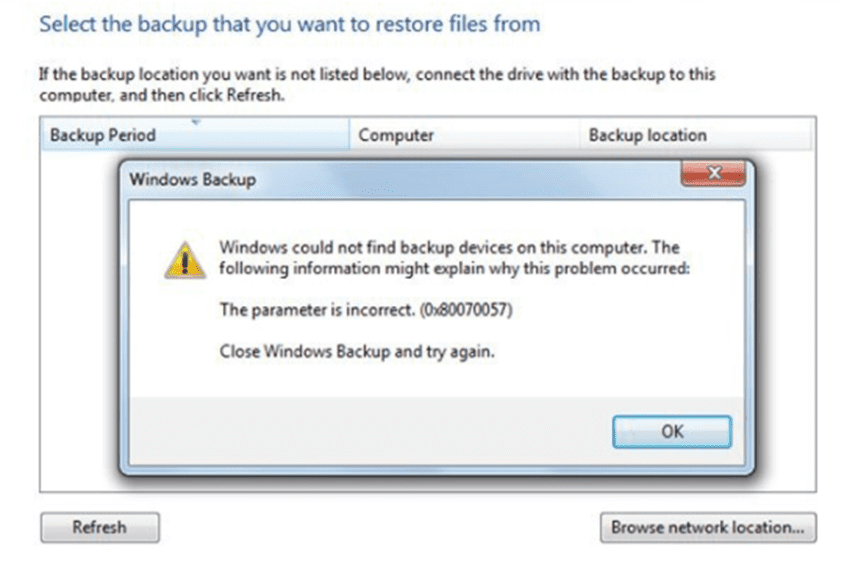
Windows Backup Error 0x80070057
Error 0x80070057

But what exactly is this Windows Error Code 0x80070057?

The 0x80070057 error code means that your Windows system ran into a storage issue. It could be that your HDD or SSD does not have any free space to accommodate any operation like copying of files, downloading or carrying out an installation. But this Window error could also mean that there exists a file system incompatibility, a corrupt file, a corrupt HDD, or any other storage-related issue.

This Error 0x80070057 occurs whenever you try doing this:

  • Backing up your files, and there is corruption.
  • When installing a Windows operating system and one of the partitions is corrupted.
  • When some external forces are interfering with the Windows Update process.
  • While installing updates the system encounters some hindrance, and the system will try to complete installation.

Most times it is always difficult to guess right what causes this error, but if it happens while performing Windows updates or copying of files the chance is that your system ran out of disk space.

We will show you a few steps on fixing Error 0x80070057 anytime you encounter this Windows error.

  • Disk Drive Cleanup

Always strive to conduct disk drive cleanup on your system. So many times, the system keeps the old version of your OS into a folder called Windows.old and some other irrelevant files that have really taken up disk space on your computer. Executing this cleanup process will eliminate unwanted files, retaining accepted ones and reducing occurrences of this Windows error.

Disk Clean Up
Disk Cleanup

  • Check Windows Update

Sometimes this error could be a result of a missing update. You simply need to check for any missing updates by confirming the presence of pending updates. Just go to Update and Security and click Check for Updates immediately the update is completed it will be installed.

Your Device is missing Important security and quality fixes
Windows Update
  • Run Chkdsk

Every Sysadmin knows the value of the command Chkdsk. It is the quickest and easiest command to use in finding and fixing any corrupted files. All this command does is to scan your entire disk drive with the possibility of finding any error.  

On your command prompt just type the command. Then you can also specify the drive you want to check and you can hit Enter.

Check Drive using command prompt chkdsk
CHKDSK Command

If you don’t want to go through the command prompt route, you can go through the drive properties. Then select the Tools tab and click on the Check button.

Check drive using the Local Disk properties
Error checking

I hope you found this blog post on Error 0x80070057: How to Fix Windows Update Error very interesting and helpful. In case you have any questions do not hesitate to ask in the comment section.

Rate this post

Thank you for reading this post. Kindly share it with others.

  • Click to share on X (Opens in new window) X
  • Click to share on Reddit (Opens in new window) Reddit
  • Click to share on LinkedIn (Opens in new window) LinkedIn
  • Click to share on Facebook (Opens in new window) Facebook
  • Click to share on Pinterest (Opens in new window) Pinterest
  • Click to share on Tumblr (Opens in new window) Tumblr
  • Click to share on Telegram (Opens in new window) Telegram
  • Click to share on WhatsApp (Opens in new window) WhatsApp
  • Click to share on Pocket (Opens in new window) Pocket
  • Click to share on Mastodon (Opens in new window) Mastodon
  • Click to share on Bluesky (Opens in new window) Bluesky
  • Click to share on Threads (Opens in new window) Threads
  • Click to share on Nextdoor (Opens in new window) Nextdoor
Windows, Windows Server Tags:Microsoft Windows, Windows 10, Windows Server 2016

Post navigation

Previous Post: Enable Exploit Protection feature on Windows using the Windows Security App, Microsoft Endpoint Configuration Manager, and Group Policy
Next Post: Fix for security vulnerabilities in the BIOS firmware for some Intel Processors

Related Posts

  • MBAM Client
    How to Check if MBAM Agent is installed on Windows PC Windows
  • screenshot 2020 03 26 at 22.14.14
    How to create a scheduled task with Windows Admin Center Windows Server
  • firewall windows 1
    How to create a Windows firewall rule on Windows Windows Server
  • article 1280x720.192a2586 1
    How to apply Windows Updates from WSUS to AWS Instances AWS/Azure/OpenShift
  • newsroom hero image password security
    Unable to update the password value provided for the new password and Password Policy Windows Server
  • Screenshot 2020 05 19 at 18.54.21
    Unable to find File Explorer in the Group Policy Editor when resolving the security tab missing under properties Windows Server

More Related Articles

MBAM Client How to Check if MBAM Agent is installed on Windows PC Windows
screenshot 2020 03 26 at 22.14.14 How to create a scheduled task with Windows Admin Center Windows Server
firewall windows 1 How to create a Windows firewall rule on Windows Windows Server
article 1280x720.192a2586 1 How to apply Windows Updates from WSUS to AWS Instances AWS/Azure/OpenShift
newsroom hero image password security Unable to update the password value provided for the new password and Password Policy Windows Server
Screenshot 2020 05 19 at 18.54.21 Unable to find File Explorer in the Group Policy Editor when resolving the security tab missing under properties Windows Server

Leave a Reply Cancel reply

You must be logged in to post a comment.

VEEAMLEGEND

vexpert-badge-stars-5

Virtual Background

GoogleNews

Categories

veeaam100

Microsoft MVP

  • yarnfinalfeature
    How to Install and Uninstall Yarn on Ubuntu Linux Linux
  • screenshot 2020 02 07 at 21.59.33
    Prerequisites for setting up a Single and Multi App Kiosk Windows
  • feature linux boot process
    Linux Boot Process Explained Step by Step for Beginners Linux
  • GNS 3
    Graphical Network Simulator: How to uninstall GNS3 in Windows Windows
  • You are currently signed in as
    How to fix “You are currently signed in as: Use a different account-this account is managed by your organisation” Microsoft Exchange/Office/365
  • windowsztrf
    Microsoft Desktop Optimization Pack [MDOP] at a glance Windows
  • Featured image System Tray icons
    How to Fix System Tray Icons not showing in Taskbar on Windows 11 Windows
  • Veeam Virtual Appliance for Backup and Restore
    How to setup Veeam Software Appliance v13 Backup

Subscribe to Blog via Email

Enter your email address to subscribe to this blog and receive notifications of new posts by email.

Join 1,843 other subscribers
  • RSS - Posts
  • RSS - Comments
  • About
  • Authors
  • Write for us
  • Advertise with us
  • General Terms and Conditions
  • Privacy policy
  • Feedly
  • Telegram
  • Youtube
  • Facebook
  • Instagram
  • LinkedIn
  • Tumblr
  • Pinterest
  • Twitter
  • mastodon

Tags

AWS Azure Bitlocker Microsoft Windows PowerShell WDS Windows 10 Windows 11 Windows Deployment Services Windows Server 2016

Copyright © 2025 TechDirectArchive


Loading Comments...
 

You must be logged in to post a comment.