Skip to content

TechDirectArchive

Hands-on IT, Cloud, Security & DevOps Insights

  • Home
  • About
  • Advertise With US
  • Reviews
  • Contact
  • Toggle search form
Home » Linux » Sudo Error on Ubuntu: Fixing ‘unknown uid 1000: Who are you?’
  • why use bitlocker drive encryption.width 800
    This device cannot use a Trusted Platform Module, allow BitLocker without a compatible TPM when turning on Bitlocker Windows
  • Docker Guide
    Pull and Deploy Nginx Container Images from Docker Hub AWS/Azure/OpenShift
  • Windows11
    How to change Regional Settings for all users on Windows 11 Windows
  • Windows server 2016 606x400 1
    How to install Windows Server 2016 Operating System on VirtualBox Windows Server
  • Storage Explorer
    How to Install Azure Storage Explorer on Windows AWS/Azure/OpenShift
  • Slide2
    How to Clear Cache on Windows 10 Windows
  • WhatsApp
    How to retrieve deleted WhatsApp messages on iPhone JIRA|Confluence|Apps
  • how to Configure Autologin for a VM in VMware Workstation
    Configure Autologin for a VM in VMware Workstation Virtualization

Sudo Error on Ubuntu: Fixing ‘unknown uid 1000: Who are you?’

Posted on 24/02/202207/09/2023 Imoh Etuk By Imoh Etuk No Comments on Sudo Error on Ubuntu: Fixing ‘unknown uid 1000: Who are you?’
Slide2-3

As system administrators, we encounter countless system problems on a daily basis. These problems could be Linux, Windows, or macOS related, but what matters most is finding a quick way to fix them asap so as not to impact the overall productivity of the business. In this post, I will show you how to quickly fix the Sudo: unknown uid 1000: who are you? error on Ubuntu. In Linux, every user has a unique user ID, with the root user account assigned the default UID 0. Please see How to fix DISM Error 87: The package is unknown.

In addition, Linux users also have unique group ids (GID) assigned to them. You may also be interested in learning about how to fix similar errors and carry out some administrative tasks such as how to fix Su: Authentication Failure and Sudo: Permission denied Prompt in Ubuntu, how to Create Multiple Users and Set Password for each User in Linux, how to create Symbolic Links in Linux, how to install Docker Engine on Ubuntu, and warning useradd: the home directory already exists. Not copying any file from skel director into it.

What is UID?

Linux assigns a unique number, called a uid (user identifier), to each user on the system. The system uses this number to identify the user and determine their access to system resources. UIDs are stored in the /etc/passwd file.
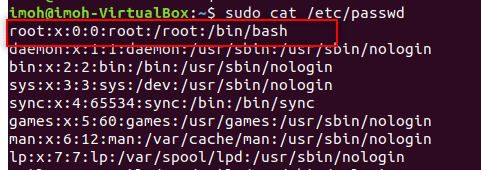
Root-Account-ID
Root User ID

The third field represents the UID. Notice that the root user has the UID of 0 as shown in the screenshot above. Most Linux distributions reserve the first 100 UIDs for system use. New users are assigned UIDs starting from 500 or 1000. For example, new users in Ubuntu start from 1000. See the screenshot below for clarity.
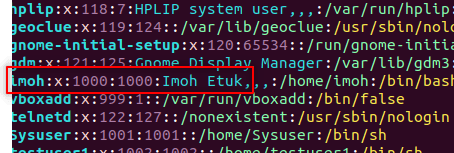
User-UID
User ID

Here are some exciting guides: Nslookup unknown: Fix cannot find non-existent domain, Change your root password: How to enable and disable the root user on your macOS, and how to fix Unknown Hard Error on Windows Server and Windows 10.

The Cause of Sudo Error on Ubuntu: “unknown uid 1000: who are you?” Problem

This problem is caused if you edit the /etc/passwd directory without sudo elevated privileges and attempt to assign the root user ID (0) to a regular user in order to enable them execute high-level commands without being prompted for a password. See the screenshot below:
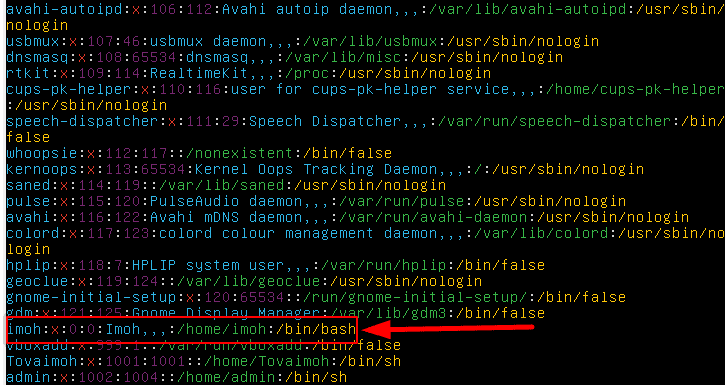
Changing-UID-to-1000-1
Changing Regular User ID

The aftereffect of this error is that it will disable the regular user account completely, and you will be left with no user account to log into your system. See the screenshot below:
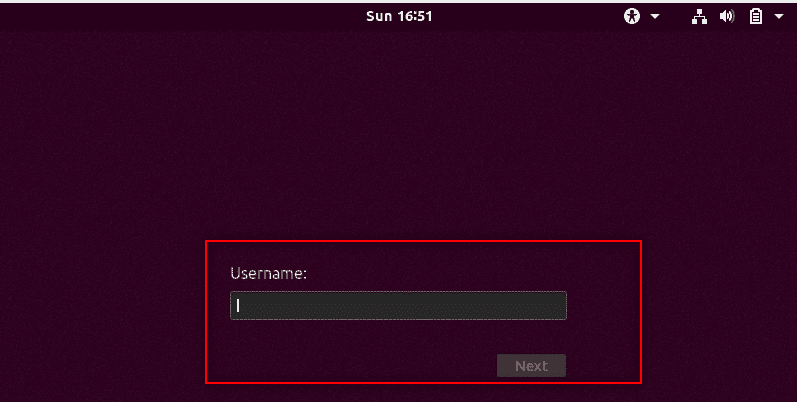
Effect-of-editing-the-UID-1
User Account Disabled

Here is how to fix How to Fix “Unknown hard error” on Windows Server and Windows 10, and How to use WonderFox Video Watermark.

Fix Sudo Error on Ubuntu: “unknown uid 1000: who are you?” Problem

Two ways you can resolve this problem are either creating a new account in the recovery mode using the Root account or by editing the /etc/passwd file and changing the UID back to the previous UID or assigning a new UID entirely.

In our case, the previous UID was1000. So we’re going to re-assign the same UID number to the user right away.

Step 1 – Boot into Ubuntu Console Menu by pressing the SHIFT key and selecting the advanced option

Boot-into-Recovery-Mode
Ubuntu Boot Console Menu

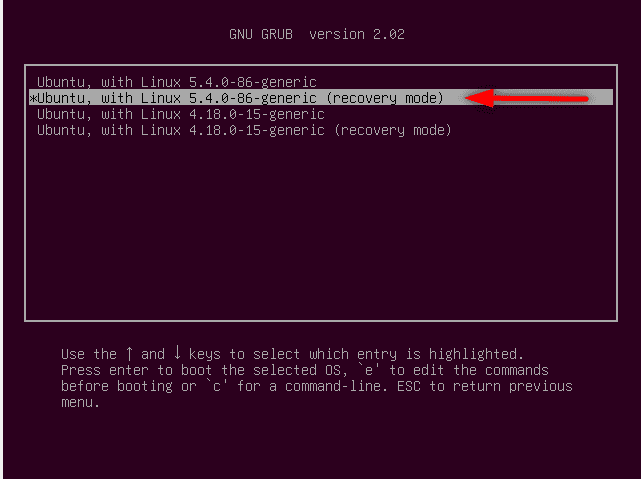
Step 2 – Select the option with the Kernel Recovery Mode and drop down to root, and then press Enter
Recovery-Mode-2
Select-Root-account-1

Step 3 – Edit the /etc/passwd file and re-assign a new or an existing UID to the user with the command below:

$sudo vim /etc/passwd
Edit-the-etc-passwd-file
After-changing-the-UID-to-1000-2
Edit /etc/passwd file

Step 4 – Run $su username to confirm that the user account is back and can switch user to root

Su-Imoh
Su Username

Creating a New User Account to Resolve the Issue

The second mathod of solving this issue is by creating a new user. Why do you need to create a new? The reason is so you have atleast a user account to be able to sign back into your system. With a new user account you will be able rectify the above issue using the normal GUI.

To create a new user and update its password, follow the steps below:

1: While still at the Root console, run the useradd $username command and press enter as shown below:

$useradd <username>
Created-a-New-User-and-Set-Passwd
Add a New User

To assign a password to the new user account, run the below command and repeat the password to complete the process. Refer to the above screensghot.

#passwd <username

Next, let’s go ahead and verify that the two user account exist. That is, the newly created user account and the old account that was disabled by running the commands shown in the screenshot below.

Changing-between-users
Switch Users
Note: When creating a new user account, don't use the same username for the disabled account becasue the old account is still in existence despite being reportedly disabled.  See the screenshot below:
User-already-exist
User Account already exists

Lastly, let’s go ahead and reboot our system so we can boot into the normal graphical mode to verify the user accounts by running:

$sudo reboot
We-have-the-two-users-back
Users

As you can see from the screenshot above, the old user account is back and we also have the newly created user with a username as admin added.

I hope you found this blog post helpful. Please let me know in the comment section if you have any questions.

Rate this post

Thank you for reading this post. Kindly share it with others.

  • Click to share on X (Opens in new window) X
  • Click to share on Reddit (Opens in new window) Reddit
  • Click to share on LinkedIn (Opens in new window) LinkedIn
  • Click to share on Facebook (Opens in new window) Facebook
  • Click to share on Pinterest (Opens in new window) Pinterest
  • Click to share on Tumblr (Opens in new window) Tumblr
  • Click to share on Telegram (Opens in new window) Telegram
  • Click to share on WhatsApp (Opens in new window) WhatsApp
  • Click to share on Pocket (Opens in new window) Pocket
  • Click to share on Mastodon (Opens in new window) Mastodon
  • Click to share on Bluesky (Opens in new window) Bluesky
  • Click to share on Threads (Opens in new window) Threads
  • Click to share on Nextdoor (Opens in new window) Nextdoor
Linux Tags:Ubuntu, User Account

Post navigation

Previous Post: Microsoft SQL Evaluation period has expired: How to upgrade SQL Server instance
Next Post: Error 1064: An exception occurred in the service when handling the control request

Related Posts

  • Manage Log Files via Logrotate
    How To Use Logrotate For Managing Log Files In Ubuntu Linux Linux
  • feature photo quit vim
    How to Exit Linux Vim or Vi Editor Linux
  • feature image sublime text 4
    How to install Sublime Text 4 on Ubuntu Linux
  • featureunions
    How to Install Unison on Linux System Linux
  • Docker Volumes
    Create and Mount Volume to Docker Container Containers
  • how to install software packages from source files
    How to install a software package from source file in Linux Linux

More Related Articles

Manage Log Files via Logrotate How To Use Logrotate For Managing Log Files In Ubuntu Linux Linux
feature photo quit vim How to Exit Linux Vim or Vi Editor Linux
feature image sublime text 4 How to install Sublime Text 4 on Ubuntu Linux
featureunions How to Install Unison on Linux System Linux
Docker Volumes Create and Mount Volume to Docker Container Containers
how to install software packages from source files How to install a software package from source file in Linux Linux

Leave a Reply Cancel reply

You must be logged in to post a comment.

Microsoft MVP

VEEAMLEGEND

vexpert-badge-stars-5

Virtual Background

GoogleNews

Categories

veeaam100

sysadmin top30a

  • why use bitlocker drive encryption.width 800
    This device cannot use a Trusted Platform Module, allow BitLocker without a compatible TPM when turning on Bitlocker Windows
  • Docker Guide
    Pull and Deploy Nginx Container Images from Docker Hub AWS/Azure/OpenShift
  • Windows11
    How to change Regional Settings for all users on Windows 11 Windows
  • Windows server 2016 606x400 1
    How to install Windows Server 2016 Operating System on VirtualBox Windows Server
  • Storage Explorer
    How to Install Azure Storage Explorer on Windows AWS/Azure/OpenShift
  • Slide2
    How to Clear Cache on Windows 10 Windows
  • WhatsApp
    How to retrieve deleted WhatsApp messages on iPhone JIRA|Confluence|Apps
  • how to Configure Autologin for a VM in VMware Workstation
    Configure Autologin for a VM in VMware Workstation Virtualization

Subscribe to Blog via Email

Enter your email address to subscribe to this blog and receive notifications of new posts by email.

Join 1,839 other subscribers
  • RSS - Posts
  • RSS - Comments
  • About
  • Authors
  • Write for us
  • Advertise with us
  • General Terms and Conditions
  • Privacy policy
  • Feedly
  • Telegram
  • Youtube
  • Facebook
  • Instagram
  • LinkedIn
  • Tumblr
  • Pinterest
  • Twitter
  • mastodon

Tags

AWS Azure Bitlocker Microsoft Windows PowerShell WDS Windows 10 Windows 11 Windows Deployment Services Windows Server 2016

Copyright © 2025 TechDirectArchive


Loading Comments...
 

You must be logged in to post a comment.