Skip to content

TechDirectArchive

Hands-on IT, Cloud, Security & DevOps Insights

  • Home
  • About
  • Advertise With US
  • Reviews
  • Contact
  • Toggle search form
Home » AWS/Azure/OpenShift » How to Setup HTTPS users using Git credentials and Pushing Code to AWS CodeCommit
  • print driver
    How to update Printer Drivers on your Windows device Windows
  • Featured image Windows Security
    How to clear Cache and Manually Update Microsoft Defender Anti-Virus Solution
  • sdfgh
    Get a list of installed applications on Windows Scripts
  • adfs training
    Post-Deployment of Active Directory Federation Service (ADFS) Windows Server
  • create a two way Active Directory Trust
    How to create a two-way Active Directory Trust Windows Server
  • windows powershell thumbnail
    Unable to uninstall AppX? How to uninstall builtin programs using PowerShell in Windows 10 Scripts
  • GoogleAppleCalendarSync
    Sync Google Calendar events to Apple Calendar JIRA|Confluence|Apps
  • Windows 10 1903 update 1
    view or change programs that run on startup on Windows Windows

Setup HTTPS users using Git credentials and Pushing Code to AWS CodeCommit

Posted on 19/03/202204/09/2023 Temitope Odemo By Temitope Odemo 2 Comments on Setup HTTPS users using Git credentials and Pushing Code to AWS CodeCommit
HTTPS

If you want to create a connection to AWS CodeCommit repositories is by configuring Git credentials for CodeCommit in the IAM console. In this article, you shall learn how to setup HTTPS users using Git credentials and Pushing Code to AWS CodeCommit. Kindly check these pages to read more on AWS: How to Deploy Dynamic Website to AWS EC2, Lear how to host Static Website and Versioning on AWS S3, How to deploy an Angular App to AWS S3, how to manage cost with AWS Budgets, and Setup a Continuous Deployment Pipeline with AWS CodePipeline.

This credential can be used for HTTPS connections and can create access for you to push your code to AWS CodeCommit. These same credentials can be used with a third-party tool or IDE that supports HTTPS authentication that uses a username and password.

Now follow the below steps to set up an AWS account, IAM user, and access to CodeCommit. You can sign up an AWS account by going to the link below. Please see AWS CodeCommit: A Guide to Efficient Usage.

http://aws.amazon.com

Create an IAM User

You can create an IAM user, or use an existing one, in your AWS account. You can read this guide Creating IAM Users, Adding MFA and Policies on AWS on how to create an IAM user.

Navigate to the URL below, sign in to the AWS Management Console and open the IAM console. 

https://console.aws.amazon.com/iam/

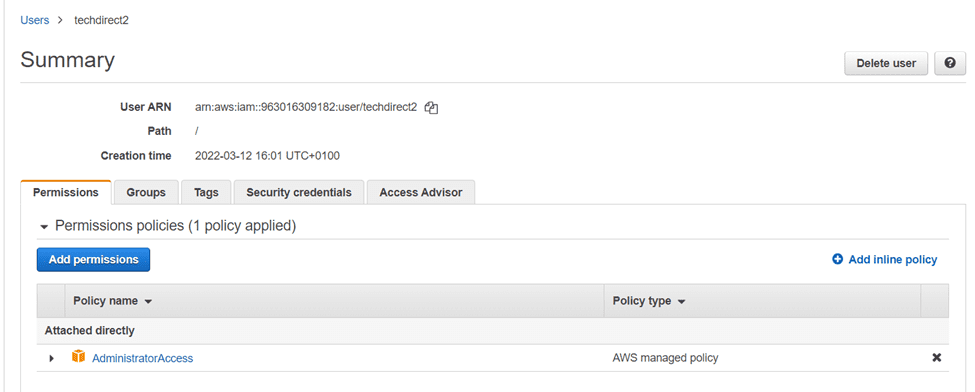
In the IAM console, navigate to the users you want to configure for CodeCommit access.

Git credentials
IAM Users

On the Permissions tab, click Add Permissions. Also, see AWS CodeCommit: A Guide to Efficient Usage.
Pushing Code
Adding Permissions

In the Grant permissions page, select Attach existing policies directly and filter out and select AWSCodeCommitPowerUser. Then choose Next: Review to complete the policy addition.

AWS CodeCommit
Granting Permission

Installing Git

If you will be working with files, commits, and other access to CodeCommit repositories, you must install Git on your local machine. Use this link to install Git.

Now let us Create Git credentials for HTTPS connections to CodeCommit. After installing Git, go ahead to create Git credentials for your IAM user in your IAM console.

  • Go back to the AWS Management Console and open the IAM console.
  • Make sure to sign in as the IAM user who will create and use the Git credentials to connect to CodeCommit.
  • In the IAM console select the IAM user from the list of users.
  • On the users summary page, click the Security Credentials tab
HTTPS
Setting Up Git Credentials

Scroll down. Then click HTTPS Git credentials for AWS CodeCommit, and choose Generate.

image-45
HTTPS Git Credentials
Git credentials
Generate Credentials

Make sure you copy the user name and password that was generated by copying or downloading the CSV file to a safe location on your computer.

Clone the repository

Now go to the CodeCommit console and clone the repository by following the below steps:

You can access the CodeCommit console at the URL below.

https://console.aws.amazon.com/codesuite/codecommit/home.

Select the repository you want to connect to from the list of repositories. Next Choose Clone URL, and select the protocol you want to use when cloning or connecting to the repository.

Note: You will copy the HTTPS URL if you will be using Git credentials with your IAM user

  • You will copy the HTTPS (GRC) URL if you will be using the git-remote-codecommit command on your local computer.
  • You will copy the SSH URL if you will be using an SSH public/private key pair with your IAM user.

Here are some related guides: Practical Git use with markdown, how to install Git on macOS, and how to clone a repository and install software from GitHub.

Utilizing HTTPS Clone URL for Repository Cloning

In this guide, we will be using HTTPS clone URL. Open a Git bash and run the git clone command with the HTTPS clone URL you copied to clone the repository.

For instance, if you want to clone a repository named techdirectarchive2 to a local repo named techdirectarchive_repo use this command below

git push https://git-codecommit.eu-west-3.amazonaws.com/v1/repos/techdirectarchive2 --all

You will need to supply the Git credentials you earlier saved in a location. The first time you connect, you are prompted for the username and password for the repository.

image-47
Git Credential Manager

To achieve successful integration, follow these steps to set up HTTPS users using Git while ensuring secure code transfer to the AWS CodeCommit repository. Execute the required Git commands and conclude with the designated final step for a smooth process.

 git push https://git-codecommit.eu-west-3.amazonaws.com/v1/repos/NameOfYourRepo --all
image-48
Git Credential Manager

Use the following git commands to move your code online

Screenshot-2022-03-20-at-20.48.38
Screenshot-2022-03-20-at-20.48.50
Screenshot-2022-03-20-at-20.49.07

All the code has been successfully moved to AWS CodeCommit Repository.

image-52
Code finally pushed to AWS

Discover the steps to effortlessly set up HTTPS users using Git credentials and Push Code to AWS CodeCommit in this concise guide. If you have any queries, drop them in the comments.

I hope you found this blog post helpful on how to Setup HTTPS users using Git credentials and Pushing Code to AWS CodeCommit. Please let me know in the comment section if you have any questions.

Rate this post

Thank you for reading this post. Kindly share it with others.

  • Share on X (Opens in new window) X
  • Share on Reddit (Opens in new window) Reddit
  • Share on LinkedIn (Opens in new window) LinkedIn
  • Share on Facebook (Opens in new window) Facebook
  • Share on Pinterest (Opens in new window) Pinterest
  • Share on Tumblr (Opens in new window) Tumblr
  • Share on Telegram (Opens in new window) Telegram
  • Share on WhatsApp (Opens in new window) WhatsApp
  • Share on Pocket (Opens in new window) Pocket
  • Share on Mastodon (Opens in new window) Mastodon
  • Share on Bluesky (Opens in new window) Bluesky
  • Share on Threads (Opens in new window) Threads
  • Share on Nextdoor (Opens in new window) Nextdoor
AWS/Azure/OpenShift, Version Control System Tags:AWS, AWS CLI, Git, HTTPS, Microsoft Windows, Windows 10, Windows Server 2016

Post navigation

Previous Post: How to monitor your website uptime and status using Uptime
Next Post: How to integrate AWS CodeBuild and AWS CodeCommit to SonarCloud

Related Posts

  • Commvault Docker Images
    Pull and Push Commvault Images to Azure Container Registry AWS/Azure/OpenShift
  • Screenshot 2024 02 09 at 7.34.18 PM
    How to create a Logic App for monitoring tweets AWS/Azure/OpenShift
  • Webp.net resizeimage 1
    Automate Infrastructure Deployments in the Cloud with Ansible and Azure Pipelines AWS/Azure/OpenShift
  • automatepythonsinwindows
    Python Automation in Windows with Visual Studio Code Version Control System
  • Git not Recognized Image banner
    Fix Git is not recognised as an internal or external command Version Control System
  • Secure Web Server
    How to secure a Web Server on a Windows VM in Azure using TLS/SSL Certificates Saved in Azure Key Vault AWS/Azure/OpenShift

More Related Articles

Commvault Docker Images Pull and Push Commvault Images to Azure Container Registry AWS/Azure/OpenShift
Screenshot 2024 02 09 at 7.34.18 PM How to create a Logic App for monitoring tweets AWS/Azure/OpenShift
Webp.net resizeimage 1 Automate Infrastructure Deployments in the Cloud with Ansible and Azure Pipelines AWS/Azure/OpenShift
automatepythonsinwindows Python Automation in Windows with Visual Studio Code Version Control System
Git not Recognized Image banner Fix Git is not recognised as an internal or external command Version Control System
Secure Web Server How to secure a Web Server on a Windows VM in Azure using TLS/SSL Certificates Saved in Azure Key Vault AWS/Azure/OpenShift

Comments (2) on “Setup HTTPS users using Git credentials and Pushing Code to AWS CodeCommit”

  1. Avatar photo Smiffy says:
    02/08/2023 at 10:39 AM

    Thanks for a great article. Is there something I can do so that I don’t have to enter my username and password every time I do a git push?

    Log in to Reply
    1. Temitope Temitope Odemo says:
      02/08/2023 at 12:10 PM

      Thanks Smiffy for reading the article. To answer your question can you read this article https://techdirectarchive.com/2023/08/02/how-to-fix-git-always-asking-for-my-username-and-password/

      Log in to Reply

Leave a Reply Cancel reply

You must be logged in to post a comment.

Microsoft MVP

VEEAMLEGEND

vexpert-badge-stars-5

Virtual Background

GoogleNews

Categories

veeaam100

sysadmin top30a

  • print driver
    How to update Printer Drivers on your Windows device Windows
  • Featured image Windows Security
    How to clear Cache and Manually Update Microsoft Defender Anti-Virus Solution
  • sdfgh
    Get a list of installed applications on Windows Scripts
  • adfs training
    Post-Deployment of Active Directory Federation Service (ADFS) Windows Server
  • create a two way Active Directory Trust
    How to create a two-way Active Directory Trust Windows Server
  • windows powershell thumbnail
    Unable to uninstall AppX? How to uninstall builtin programs using PowerShell in Windows 10 Scripts
  • GoogleAppleCalendarSync
    Sync Google Calendar events to Apple Calendar JIRA|Confluence|Apps
  • Windows 10 1903 update 1
    view or change programs that run on startup on Windows Windows

Subscribe to Blog via Email

Enter your email address to subscribe to this blog and receive notifications of new posts by email.

Join 1,836 other subscribers
  • RSS - Posts
  • RSS - Comments
  • About
  • Authors
  • Write for us
  • Advertise with us
  • General Terms and Conditions
  • Privacy policy
  • Feedly
  • Telegram
  • Youtube
  • Facebook
  • Instagram
  • LinkedIn
  • Tumblr
  • Pinterest
  • Twitter
  • mastodon

Tags

Active Directory AWS Azure Bitlocker Microsoft Windows PowerShell WDS Windows 10 Windows 11 Windows Server 2016

Copyright © 2025 TechDirectArchive


Loading Comments...
 

You must be logged in to post a comment.