Google Calendar is a time-management and scheduling calendar service developed by Google. Google Calendar allows users to create and edit events. You can alternatively use the Google official app for your iPhone or iPad to save time and make the most of every day instead of integrating it with Apple Calendar. In this guide, you will learn how to Sync Google Calendar events to Apple Calendar on Mac, iPhone, or iPad. Here are some related guides: How to restore accidentally deleted calendars, bookmarks, files, or contacts from iCloud, How to install Googler on a Linux System, and How to Share Microsoft Outlook Calendar on Desktop and on the Web.
With this option, you will occasionally flip between the Apple Calendar and Google Calendar to avoid conflicts. This is what this guide is out to prevent, thereby showing you how to integrate Google Calendar with Apple Calendar.
If you still wish to use the Google App for time management and scheduling, you will need to download it from the App Store. Here is how to set up and Configure Office Online Server, and how to complete Microsoft Office 365 Family Subscription.
Why should I use a single Time Management Tool?
This ensures you see all of your events in one calendar so you can get a clear picture of what your schedule is like. So if you have both a personal and work calendar etc., you can sync the two to view it all one once.
In addition to having a number of native apps and web apps, both calendars have a backend that syncs everything. I have found most people use the Apple Calendar app to manage Google Calendars, and I will be showing you how this is done in this guide. You may want to learn why it makes sense to protect your Microsoft 365 Data with Veeam?
Note: Make sure you have the latest version of Apple Calendar and the latest Apple operating system on your PC. You can sync Google Calendar with the Calendar app that comes on your Mac, Phone or iPad.
Sync Google Calendar with Apple Calendar
To do this, open the Apple Calendar as shown below. In the top left corner of your screen, click Calendar and then Preferences.

Click on the Accounts tab, and on the left side of the Accounts tab, click Add button (+) sign.

Select Google and then Continue. Please see AD Connect Sync Service not running: Cannot proceed because the sync service is not running, start the ADSync service and restart the AD Connect Wizard to continue, and how to Enable or Disable Location Services: How to allow apps and services to determine your location on Mac.


A blank screen will be displayed and an additional screen to add your information. Add your Google account information.


Click on the allow button in order to grant the macOS access to your Google Account.

Note: On the Accounts tab, you can use the”Refresh Calendars” to choose how often you want Apple Calendar and Google Calendar to sync.

For me, I am absolutely okay with the Calendar App. Upon selection, click on Done as shown below.

You could also configure some more advanced settings as you wish below. I will not be discussing these steps further as they are self-explanatory.


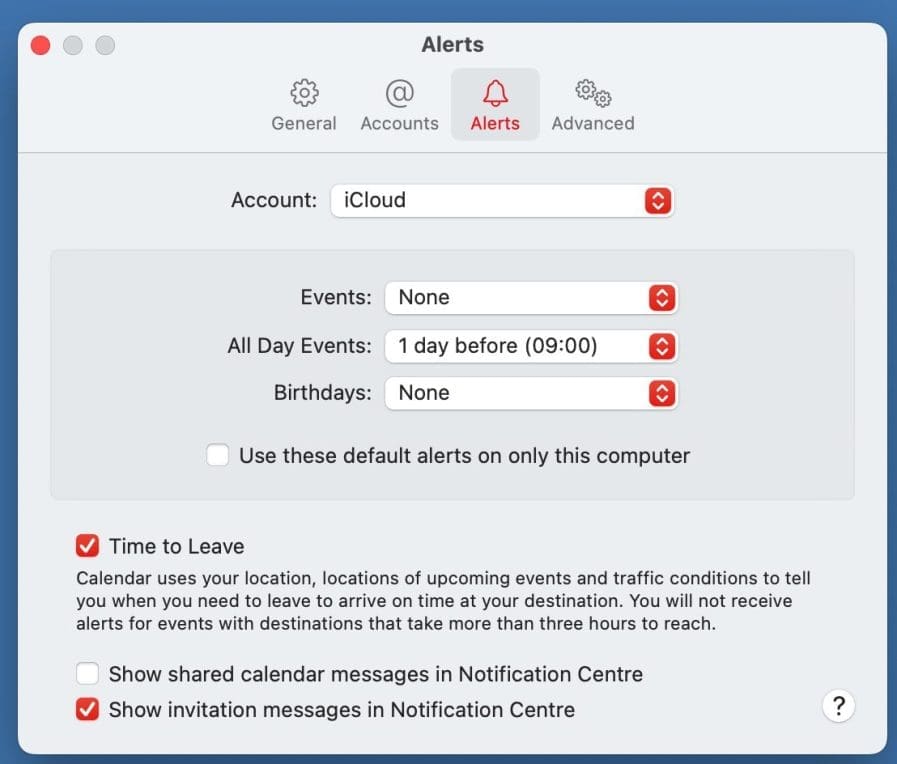
Note the following: Google Calendar features that don’t work on Apple Calendar. If you find the below featurees handy, you can install the Google Calender App on your iPhone or iPad.
- Email notifications for events
- Create new Google calendars
- Room Scheduler
Note, You can add as many accounts (Google Accounts as you wish). In fact, I added three different accounts.
Add Google Calendar to your Apple calendar on iPhone, or iPad
On your iPhone or iPad, open your device settings, and click on Calendar as shown below.

Scroll and tap Calendar. Tap on Accounts and then Add account and then Google.

Click on Add Account as shown below

Selct the account to add. In our case, we will click on Google. Note, you can add other account types from the follow page.

Enter your email address and then Next. You will be prompted to enter your password.

I am fine with access to the Calendar events only. Therefore, I will switch others off and click on the “Save” button.

Note: Emails, contacts, and calendar events will now sync directly with your Google Account. To sync only your calendar, turn off the other services. Now you can continue adding more accounts. Else, you have successfully synchronized your Google Calendar with your Apple Calendar.
As discussed in the first paragraph, you may want to use the Google Calendar App itself. Here are some features of it. Google Calendar can turn even the most unorganized person into the most efficient one. From scheduling appointments to connecting people from around the world, this calendar does more than just remind you what day it is today.
You can schedule remote meetings with video links, coordinate multiple calendars to find the best time, and embed them into your website so your clients can book some time with you. Below are some more features of Google Calendar.
I hope you found this blog post helpful. Now, you have learned how to sync Google Calendar events to Apple Calendar. If you have any questions, please let me know in the comment session.