How to install Java Runtime Environment on Mac OS


Java Runtime Environment is often referred to as the Java Runtime, Runtime Environment, Runtime, JRE, Java Virtual Machine, Virtual Machine, Java VM, JVM, VM, Java plug-in, Java plugin, Java add-on, or Java download. JRE allows some applications written in the Java programming language to launch via some browsers. It is vital to the intranet applications and other e-business solutions that are the foundation of corporate computing. This means, that if you must run a Java program you need JRE. Kindly refer to these related guides: How to install Apache Tomcat on Ubuntu, How to Install Jenkins Automation Server on Ubuntu 20.04 LTS, and How to Setup SonarLint in VS Code for your App Project.
From Mac OS 10.7 (Lion) onwards, the operating system installation no longer automatically installs the Java runtime. Mac OS X 10.6 and below: Apple’s Java comes pre-installed with your Mac OS. You will find a lot of information in this link.
There are times you may find yourself installing Java (JRE) regardless of the version on your device because it is a prerequisite to have another application (IBM SPSS)installed. In my case, I needed to download and have SPSS installed. At the time of writing this piece, Java 6, version 8 is the latest release.
If you don’t install Java Runtime, what consequences might arise?
Without installing Java Runtime, the previously mentioned issues may arise, as detailed in the initial section.
- Launch failure.
- Prompts to install the Java runtime if you wish to use the applications.
- Applications are blocked or terminated as the case may be!
This software can be downloaded from the following link. Check the Java License Update to ascertain if you can run it freely. When you click the download link, you’ll see the following page. Click on Agree and start free download as shown below.
Note: Before the file can be downloaded, you must accept the license agreement.

This will download the JRE .dmg file as shown below. To launch it, double-click on the file.

App Source Verification and Trust: Overcoming Unidentified Developer Warning
The window below shows the app is from an unidentified developer. Apple didn’t register this app, but that doesn’t imply any issues with the app itself. Because I trust it, I will click on open.
If you wish to override your security settings and open the app anyway follow these steps.
- In the Finder on your Mac, locate the app you want to open
- Control-click the app icon, then choose Open from the shortcut menu
- Click Open
Hence, the app will be saved as an exception to your security settings, and you can open it in the future by double-clicking it just as you can any registered app

In the following window below, click on Install to have Java JRE installed on your device. As you can see from the license terms, only personal usage is permitted.

Your permission is required to have Java installed. Enter your password and click on OK as shown below.

As you can see, Java JRE is currently being installed.

We have successfully installed Java on our device. You can click on close to terminate the window.
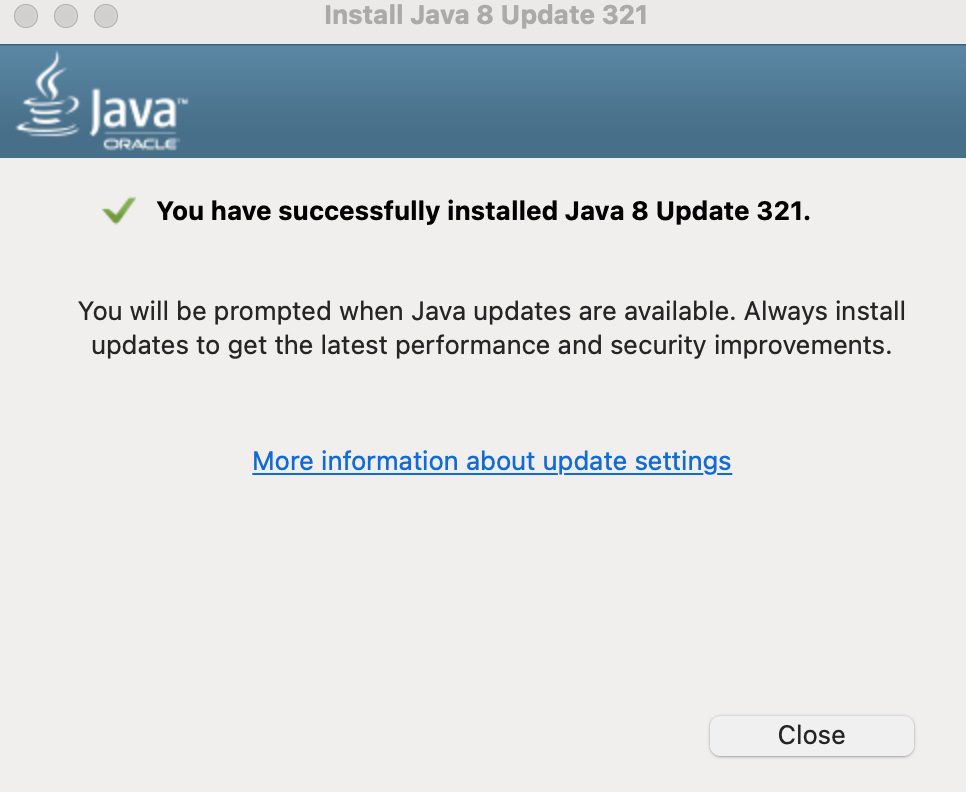
After the Java installation is complete, you may need to reload (Command+R) or exit (Command+Q) your browser to enable Java in your browser.
Now the software is installed, you can delete the .dmg file if you want to save disk space
Determining the JRE Version Installed on macOS
You can determine the installed JRE version using two methods. First, I’ll demonstrate how to do it through the Terminal.
% /Library/Internet\ Plug-Ins/JavaAppletPlugin.plugin/Contents/Home/bin/java -version
You can determine which version of the JRE by entering java -version in a Terminal window

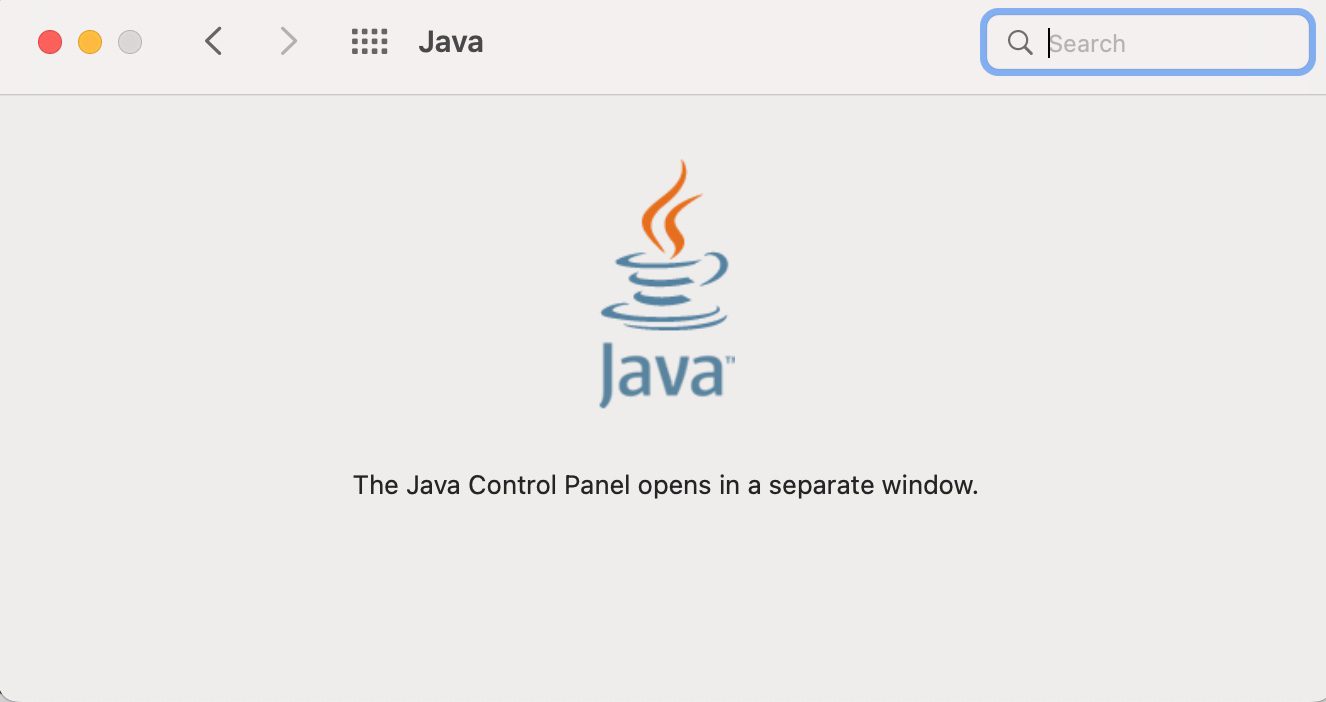
From System Preferences, and then the Other section, click the Java icon as shown below.

This will start the Java Control Panel. You then click About to display the version information. You are being told that the control panel will open in a separate window.
The Control Panel allows you to find information about Java version and configure various settings to help you efficiently run Java on your Mac.
Configuration Options for Java Runtime Environment
As you can see, on the General tab, you can see other settings.
– Network Settings: By default, Java will use the network settings in your web browser. You can set preferences including proxy servers in this setting.
– Temporary Internet Files: Java applications store files in a dedicated cache folder, enabling rapid execution at a later time. You can view and configure cache files, and settings, including file location, as well as delete cache from this setting.


Ensure your systems automatically check for Java updates by confirming the checkbox below. On the Java tab, you could view and manage Java Runtime versions and settings for Java applications and applets.


Keep your software up to date. If you need Java, download the latest version of Java for OS X directly from Oracle.
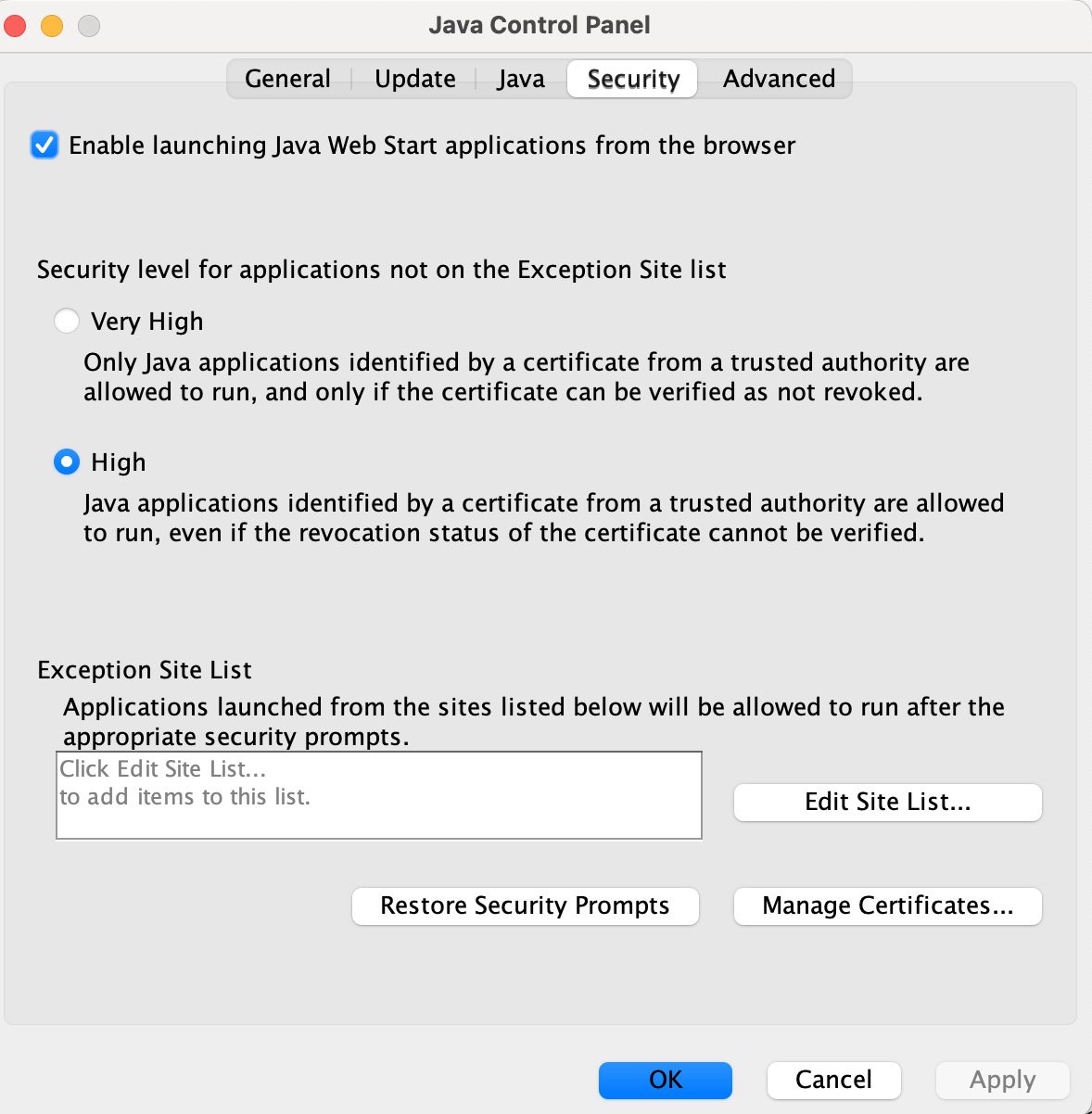
To successfully install Java Runtime Environment on Mac OS, you can configure security preferences in the Java Control Panel’s Security tab. This setting allows you to receive notifications before executing untrusted Java applications or to block them automatically.
To successfully install Java Runtime Environment on Mac OS, explore the advanced tab where a range of settings is available. Review and customize these options according to your preferences.
- Debugging: Allows you to enable tracing, logging and show applet lifecyle exceptions.
- Java console: Allows you to show hide or disable the Java console
Shortcut Creation: Allows you to allow apps or the user to create or disable shortcut creation.
- JNLP File/MIME Associations: Allows, disables or prompts user for file associations.
- Application Installation: You can enable or disable app installations in this setting.
- Security: Allows you to configure various settings related to security such as grant permissions to content, alert users about site certificates, enable trusted publishers and blacklist revocation checks, use specific SSL and TLS versions, as well as configure mixed code security verification settings.
- Miscellaneous: You can configure whether to place a Java icon in the system tray under this setting

Uninstall JRE on macOS
To uninstall the JRE on macOS, you must have Administrator’s privileges. Since I do not wish to uninstall Java JRE at this time, I will just be showing you the steps.
- Click on the Finder icon located in your dock
- Click on the Utilities folder
- Double-click on the Terminal icon
- In the Terminal window Copy and Paste the commands below:
sudo rm -fr /Library/Internet\ Plug-Ins/JavaAppletPlugin.plugin
sudo rm -fr /Library/PreferencePanes/JavaControlPanel.prefPane
sudo rm -fr ~/Library/Application\ Support/Oracle/Java
To successfully install Java Runtime Environment on Mac OS, refrain from uninstalling Java through /usr/bin. Apple will reset any changes to this directory in the next OS update since it’s crucial for system software.
Remove Oracle Java cache on Mac
- Click on the Finder icon located in your dock
- Click on Go in the Finder menu
- Click on Utilities
- Double-click on the Terminal icon
- In the Terminal window Copy and Paste the commands below:
rm -r ~/"Library/Application Support/Oracle/Java"If you’re looking to install Java Runtime Environment on Mac OS, I hope you found this blog post useful. Should you have any questions, feel free to ask in the comment section.


This instructional text it’s a well organized and has excellent attention to key details. Thanks.
You are welcome!